

Pronto AI - User Guide
Watch Video
Here is the complete Login and Registration User Guide translated into English, maintaining your specific MDX structure and side-by-side image column layout.
Login
Watch Login
Authentication
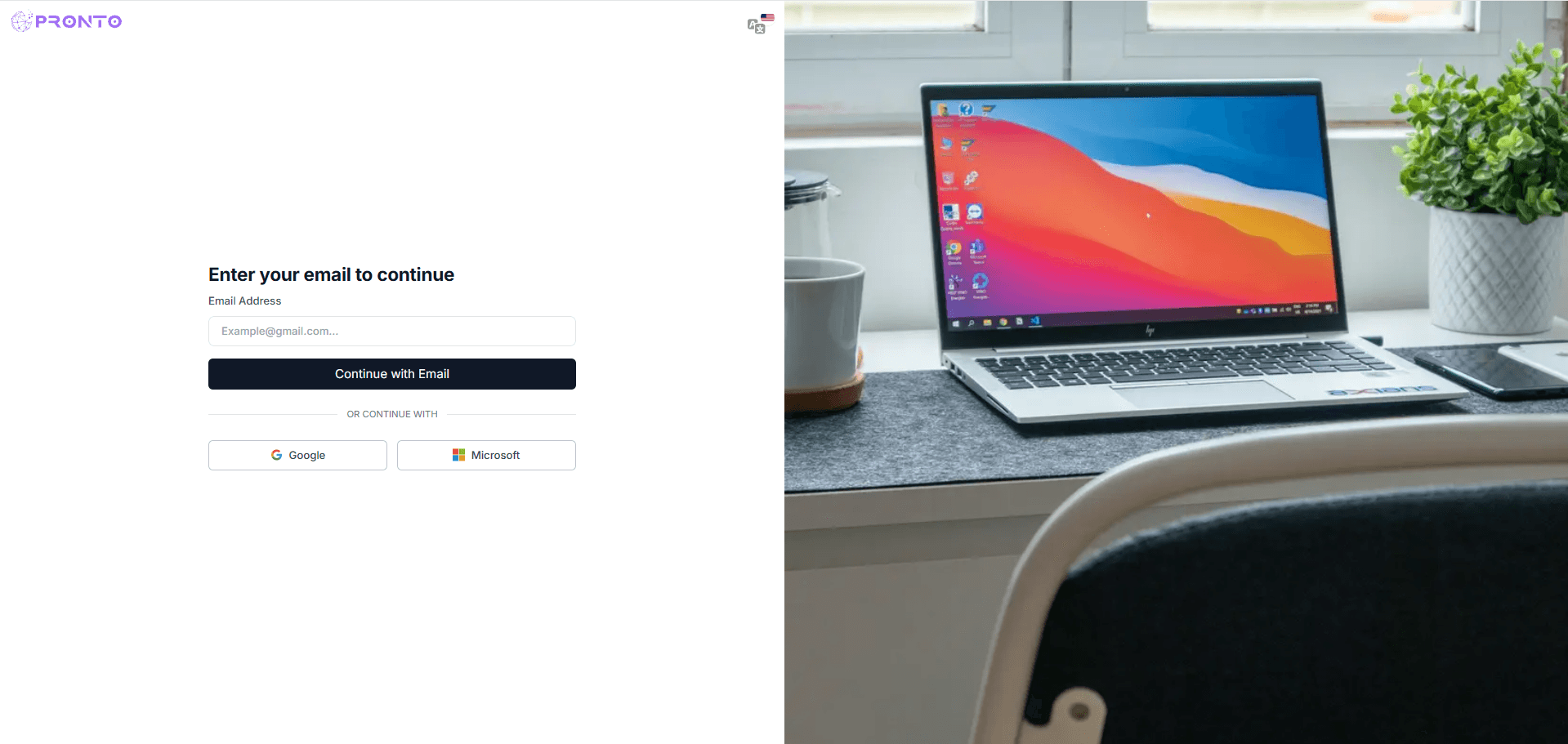
Email Verification:
- Go to the Login Page.
- Enter your registered Email Address.
- Click the "Continue with Email" button.
- You can also use alternate login options such as Google or Microsoft.
Tip: Always use the email address that was registered by your organization.
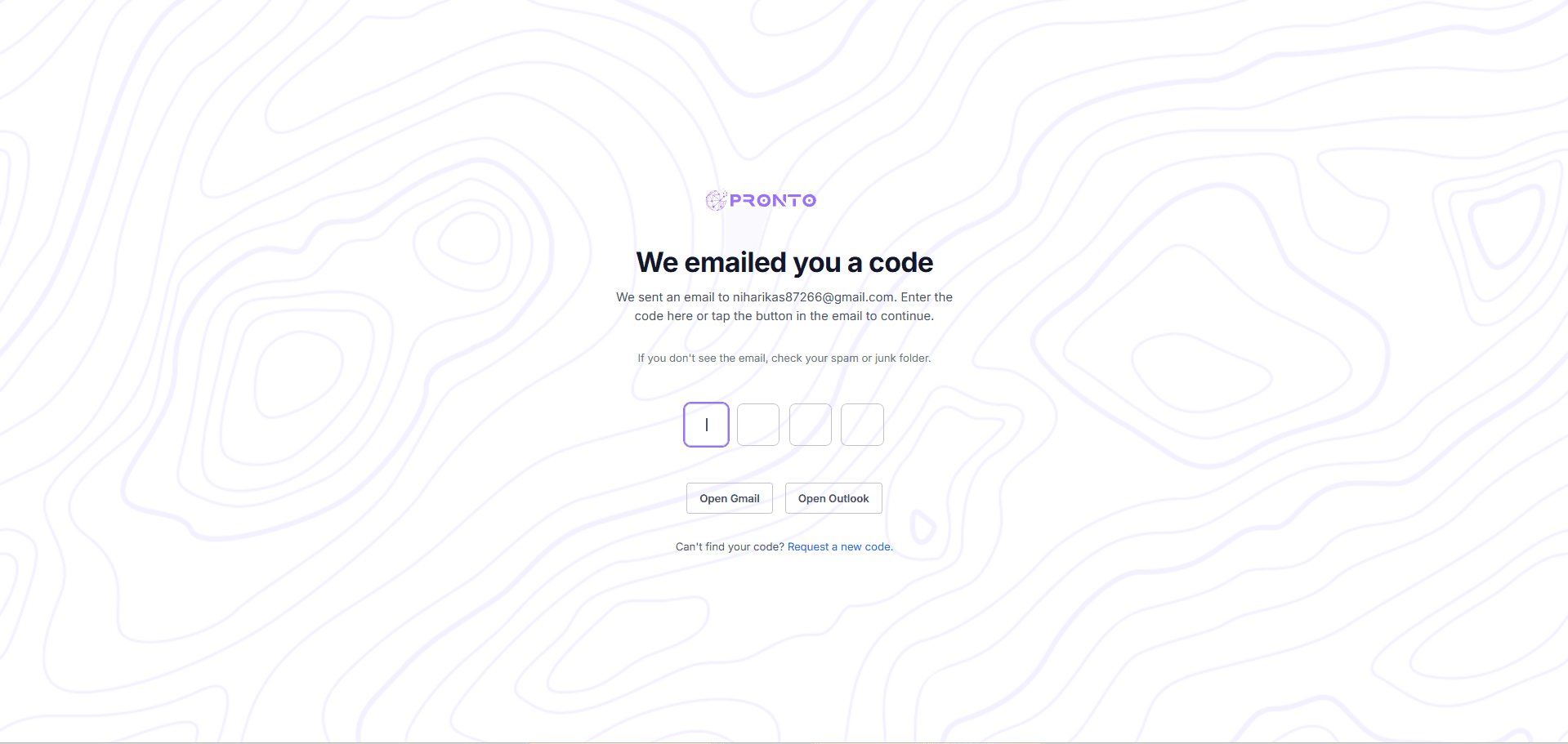
OTP Verification
- A 4-digit verification code will be sent to your email.
- Check your inbox (or spam folder) for the code.
- Enter the OTP in the boxes provided on the screen.
- If you do not receive the code, click on "Request a new code".
You can also use the "Open Gmail" or "Open Outlook" buttons to access your code directly.
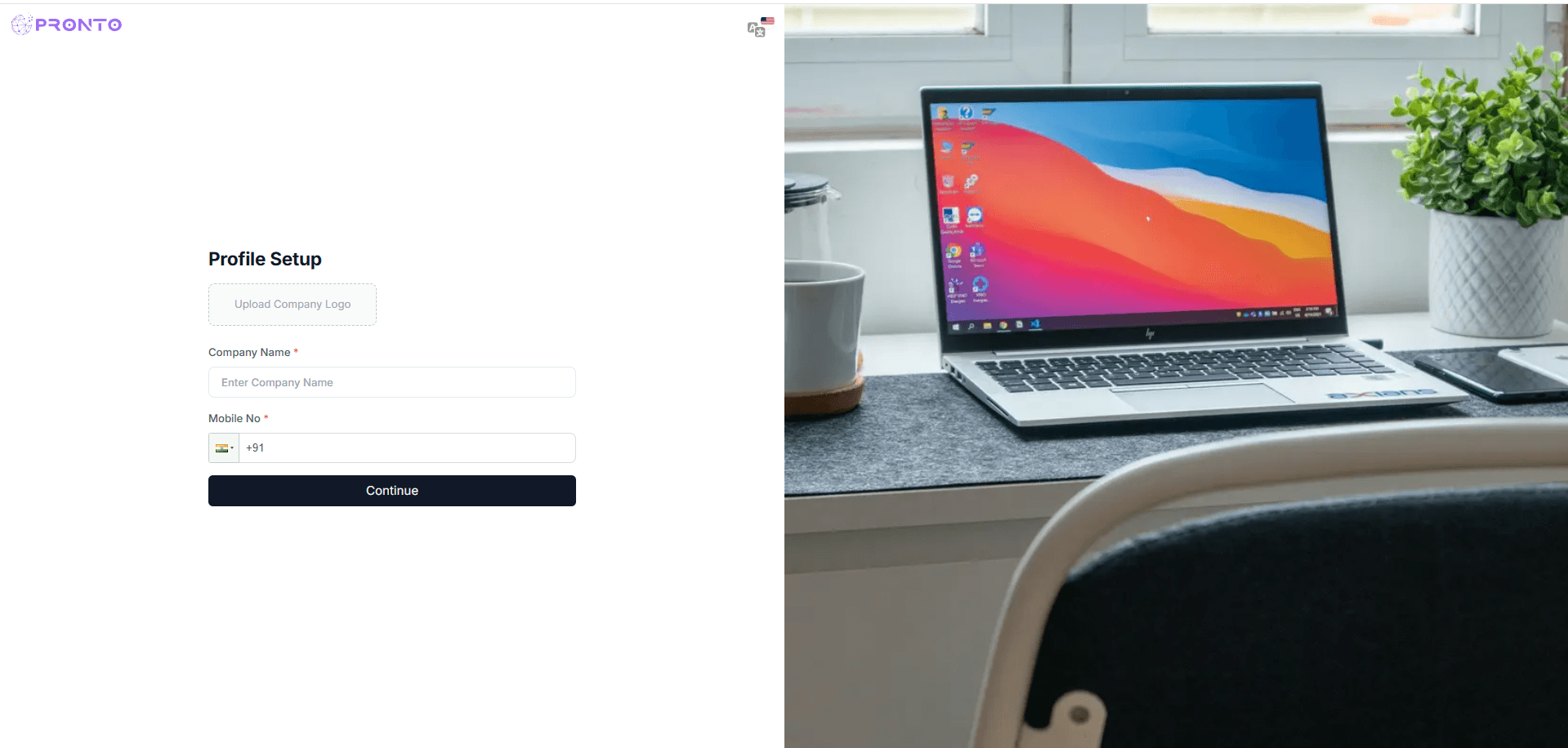
Profile setup
- A 4-digit verification code will be sent to your email.
- Check your inbox (or spam folder) for the code.
- Enter the OTP in the boxes provided on the screen.
- If you do not receive the code, click on "Request a new code".
You can also use the "Open Gmail" or "Open Outlook" buttons to access your code directly.
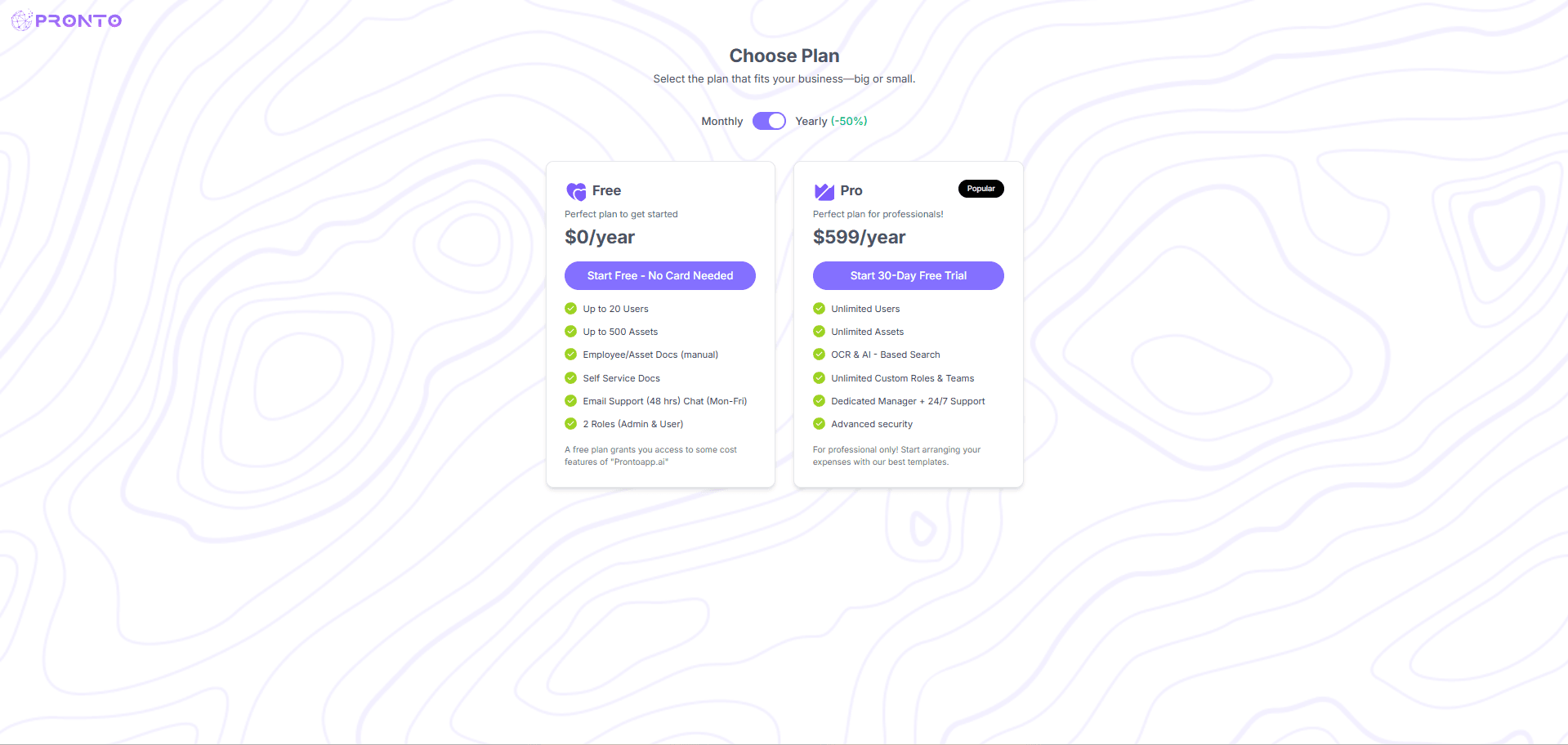
Plan Selection
- Monthly/Yearly Toggle: Use the toggle switch to select your billing cycle (Save up to 50% on Yearly plans).
- Choose Plan: Select either the Free or Pro plan based on your requirements.
- Start Free: Click the button to gain access to the dashboard.
Asset
Watch Video
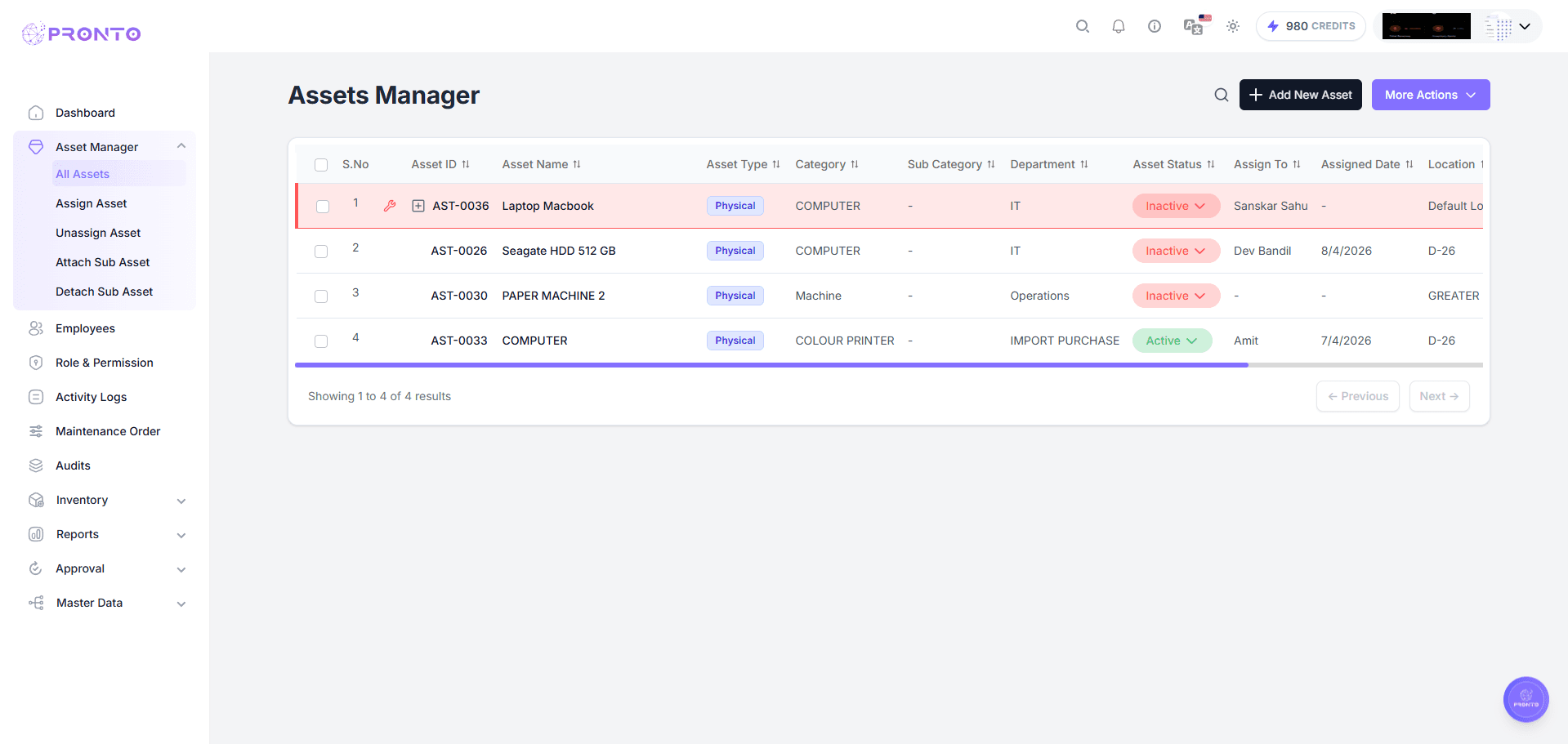
Assets Manager
The Assets Manager module allows users to view, manage, and track all organizational assets in one place. It provides details such as asset ID, type, category, status, and assignment information.
Asset List View
When you open an asset, the detail page is organized into multiple tabs:
- Asset ID – Unique identifier for each asset.
- Asset Name – Name or label of the asset.
- Asset Type – View depreciation values and financial lifecycle data.
- Category & Subcategory – View and download documents linked to the asset.
- Department – View a complete history of all past assignments for the asset.
- **Asset Status ** – View a complete history of all past assignments for the asset.
- Assign To – View a complete history of all past assignments for the asset.
- Assigned Date – View a complete history of all past assignments for the asset.
Each asset also features a unique QR Code that can be scanned for instant identification and quick access to its records.
To open an asset, click on its name from the All Assets list.
Assign Asset
The Assign Asset feature allows users to allocate assets to employees or team members. This helps in tracking asset usage, ownership, and accountability within the organization.
How to Assign an Asset
Follow these steps to assign an asset:
- Go to the Asset module from the left sidebar.
- Click on "Assign Asset" from the available actions.
- Fill in the required fields in the Assignment Details section:
1. Select Asset
- Choose the asset you want to assign from the dropdown list.
- Only available (unassigned or eligible) assets will be shown.
- This is a mandatory field.
2. Assign To
- Select the employee or team member to whom the asset will be assigned.
- The list includes all available users in the system.
- This is a mandatory field.
3. Assignment Date
- Displays the date when the asset is being assigned.
- By default, the current date is selected.
- You can change the date using the calendar picker if needed.
4. Notes (Optional)
- Add any additional details such as asset condition, special instructions, or temporary assignment details.
- Click "Assign Asset" to complete the process.
The asset will be linked to the selected employee and the assignment details will be updated in the system.
Click "Cancel" at any time to discard the process without saving any changes.
.png&w=3840&q=75)
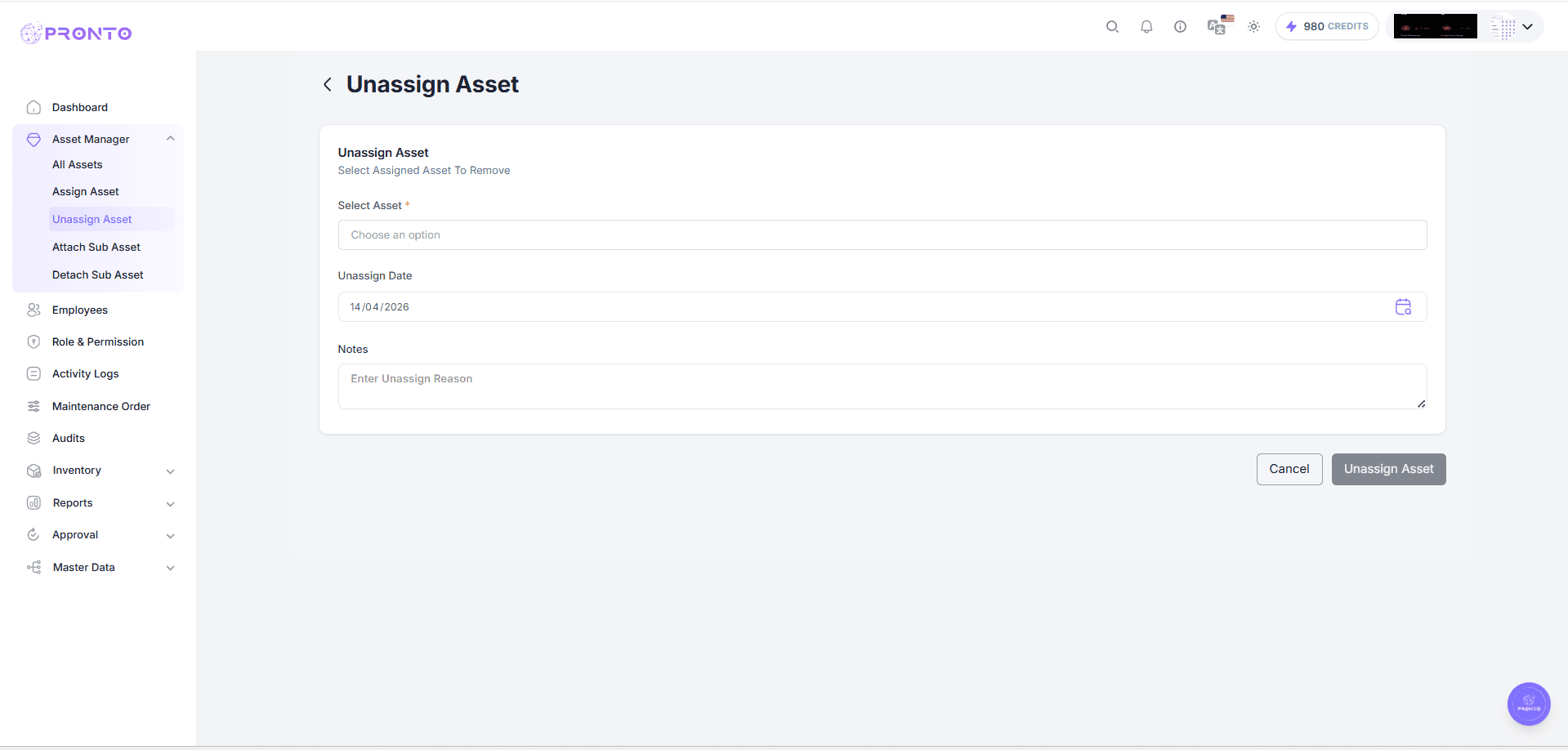
Unassign Asset
The Unassign Asset feature allows users to remove an assigned asset from an employee or team member. This is useful when an asset is returned, transferred, or no longer in use by the assigned person.
How to Unassign an Asset
Follow these steps to unassign an asset:
- Go to the Asset module from the left sidebar.
- Click on "Unassign Asset" from the available actions.
- Fill in the required fields in the Unassignment Details section:
1. Select Asset
- Choose the asset you want to unassign from the dropdown list.
- Only currently assigned assets will be displayed.
- This is a mandatory field.
2. Unassign Date
- Displays the date when the asset is being unassigned.
- By default, the current date is selected.
- You can modify the date using the calendar picker if required.
3. Notes (Optional but recommended)
- Enter the reason or additional details for unassigning, such as:
- Employee resignation
- Asset returned
- Asset transfer to another department
- Click "Unassign Asset" to remove the asset from the selected employee.
The asset will become available for reassignment and all assignment details will be updated in the system.
Click "Cancel" at any time to discard the process without saving any changes.
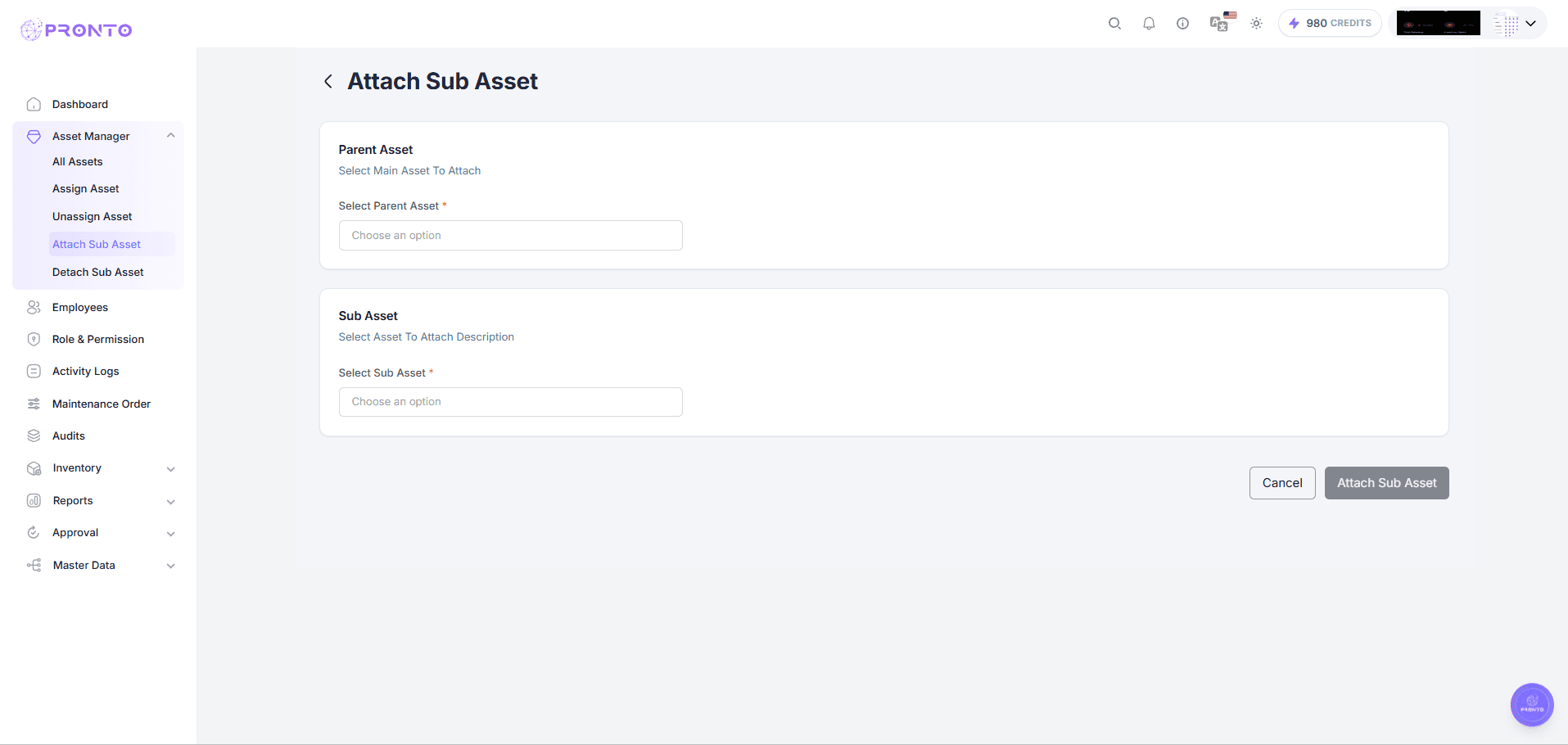
Attach Sub-Asset
The Attach Sub-Asset feature allows users to link a sub-asset to a main (parent) asset. This is useful for managing related components, accessories, or dependent items under a single primary asset.
How to Attach a Sub-Asset
Follow these steps to attach a sub-asset:
- Go to the Asset module from the left sidebar.
- Click on "Attach Sub-Asset" from the available actions.
- Fill in the required fields:
1. Select Parent Asset
- Choose the main asset to which you want to attach a sub-asset.
- This represents the primary asset (e.g., Laptop, Machine, Device).
- Only eligible assets will be displayed in the dropdown.
- This is a mandatory field.
2. Select Sub-Asset
- Choose the asset that will be attached as a sub-asset.
- This represents a dependent or associated item (e.g., charger, mouse, accessory).
- Only unlinked or available assets will be shown.
- This is a mandatory field.
- Click "Attach Sub-Asset" to link the selected sub-asset to the parent asset.
Note:
Once attached, the sub-asset becomes part of the parent asset and may no longer appear as an independent asset in certain views. The relationship will be reflected in the asset details.
Click "Cancel" at any time to discard the process without saving any changes.
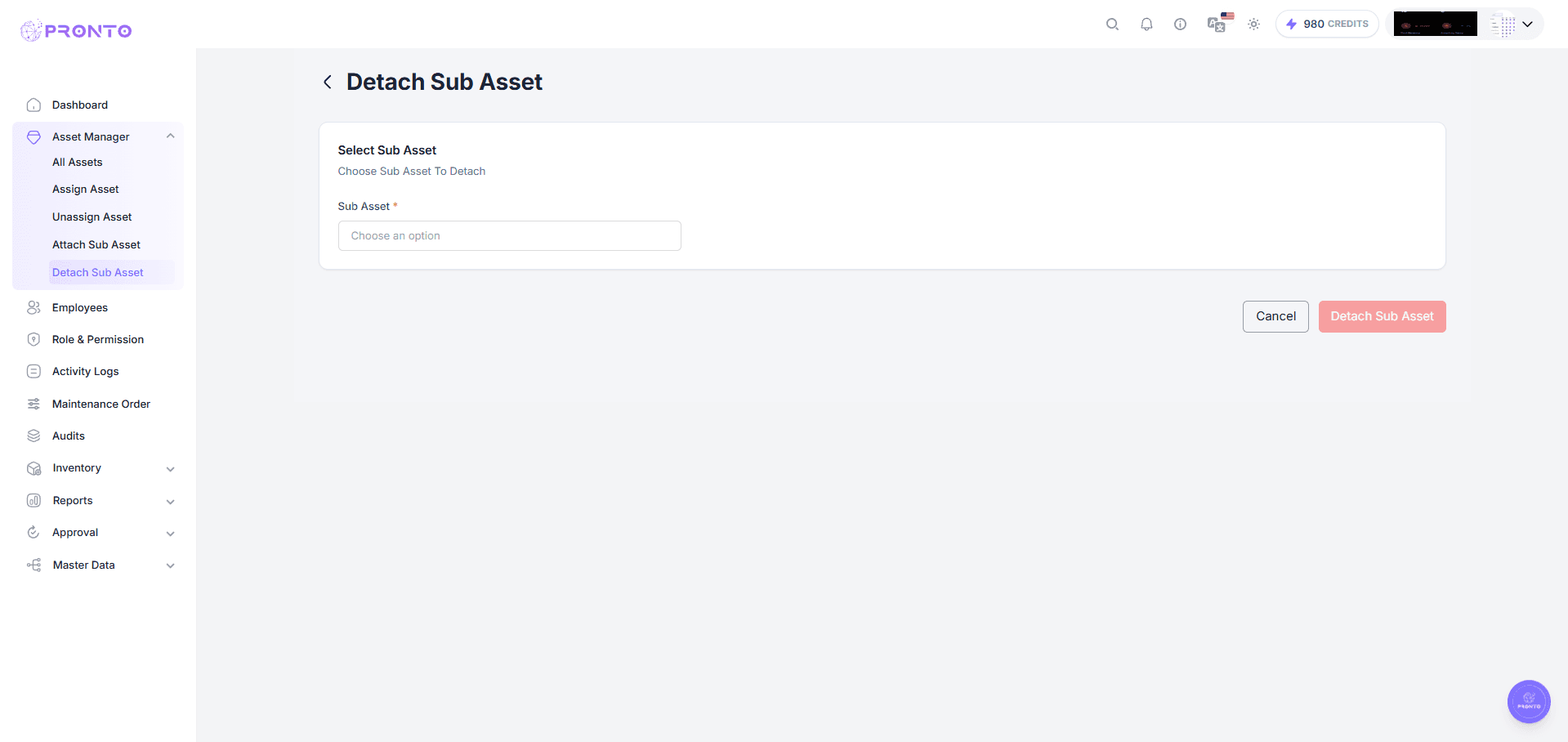
Detach Sub-Asset
The Detach Sub-Asset feature allows users to remove a sub-asset from its parent asset. This is useful when a component is no longer associated with the main asset or needs to be reassigned or managed independently.
How to Detach a Sub-Asset
Follow these steps to detach a sub-asset:
- Go to the Asset module from the left sidebar.
- Click on "Detach Sub-Asset" from the available actions.
- Fill in the required field:
1. Select Sub-Asset
- Choose the sub-asset you want to detach from the dropdown list.
- Only currently attached sub-assets will be displayed.
- This is a mandatory field.
- Click "Detach Sub-Asset" to remove the selected sub-asset from its parent asset.
Note:
Once detached, the sub-asset becomes an independent asset again and can be reassigned or attached to another parent asset. The relationship with the previous parent asset will be permanently removed.
Click "Cancel" at any time to discard the process without saving any changes.
View Asset
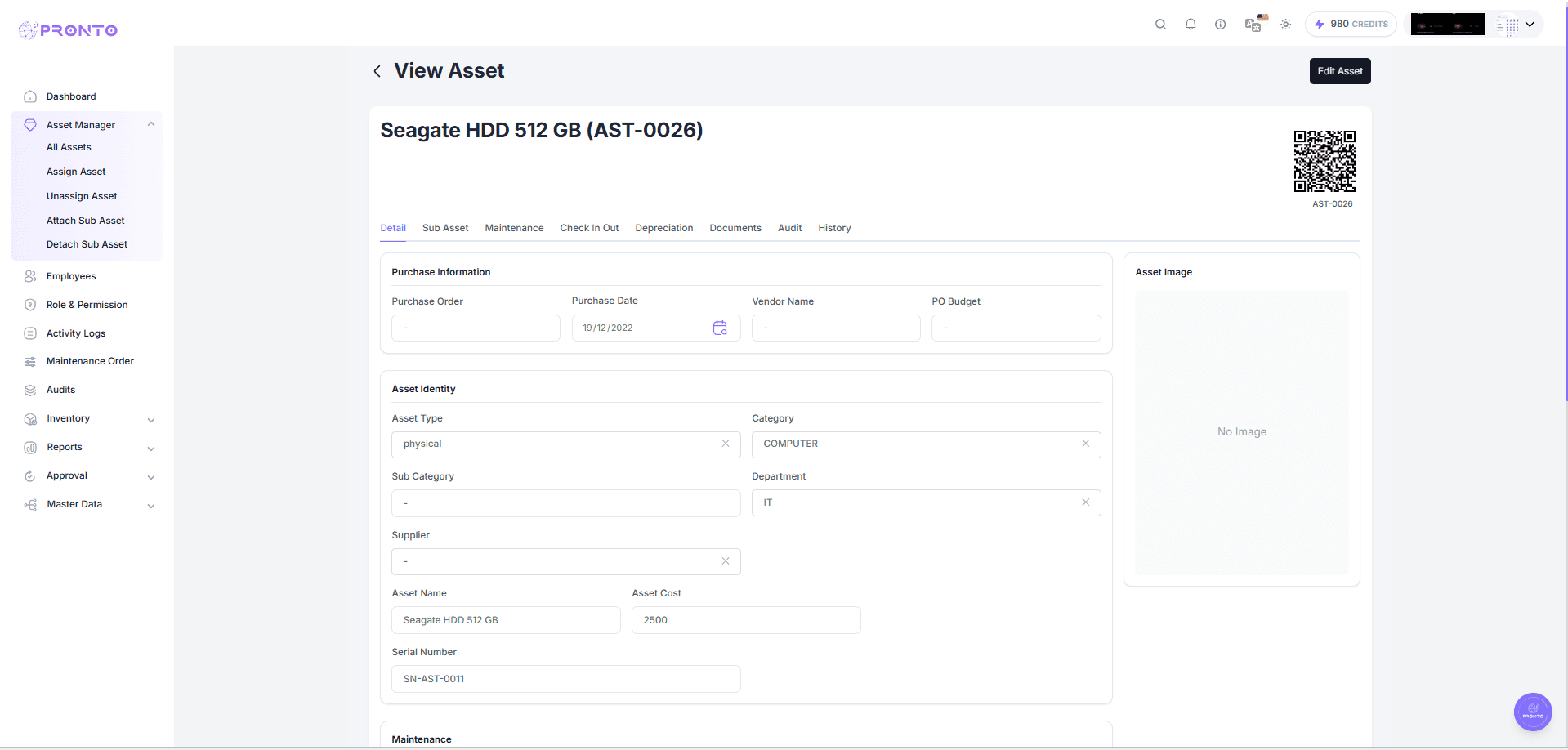
The View Asset feature allows you to review all information related to a specific asset in one place.
What You Can View
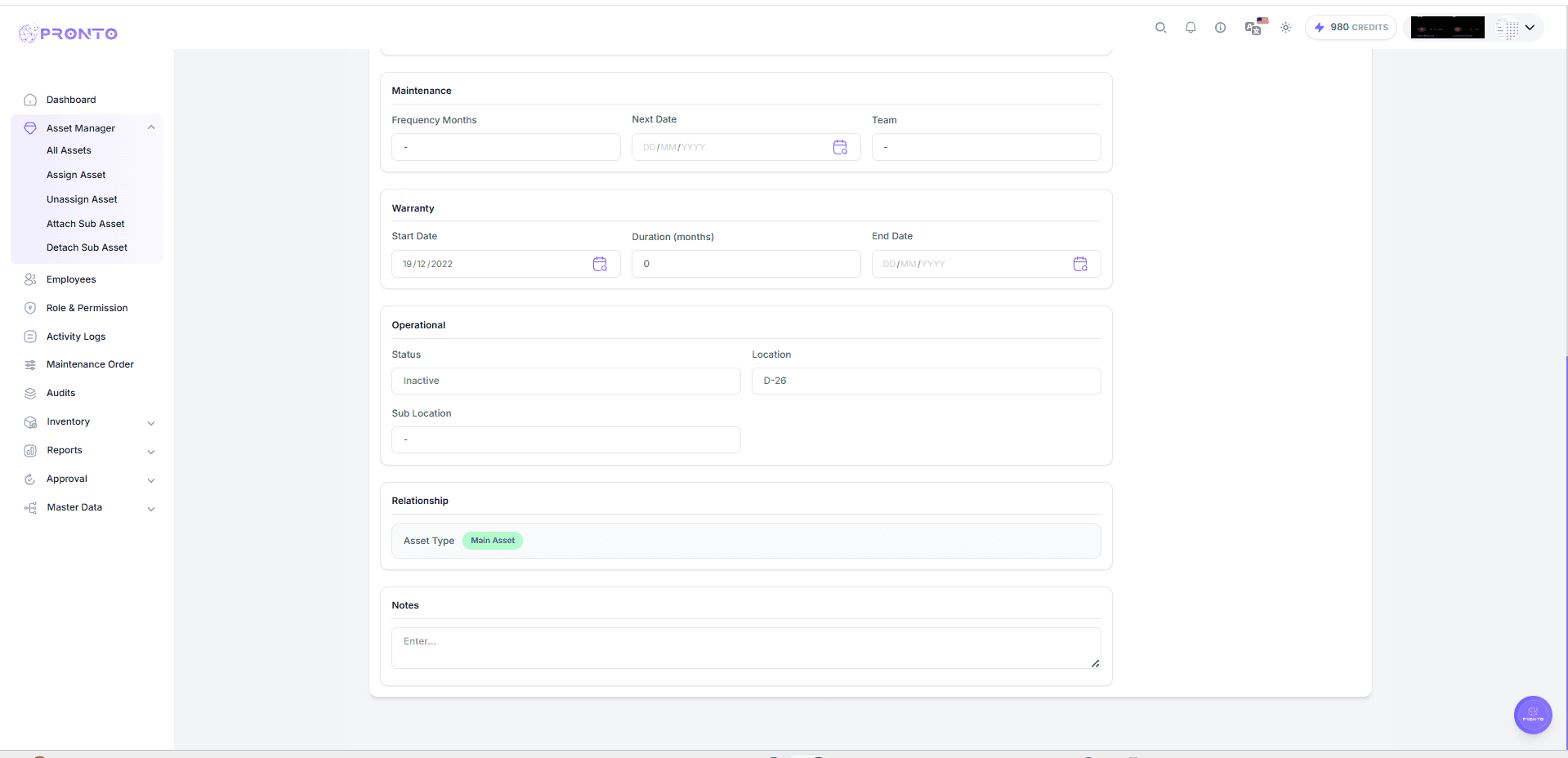
When you open an asset, the detail page is organized into multiple tabs:
- Detail – View the asset's name, unique ID, current status (e.g., Active, Under Maintenance), purchase details, and linked documents.
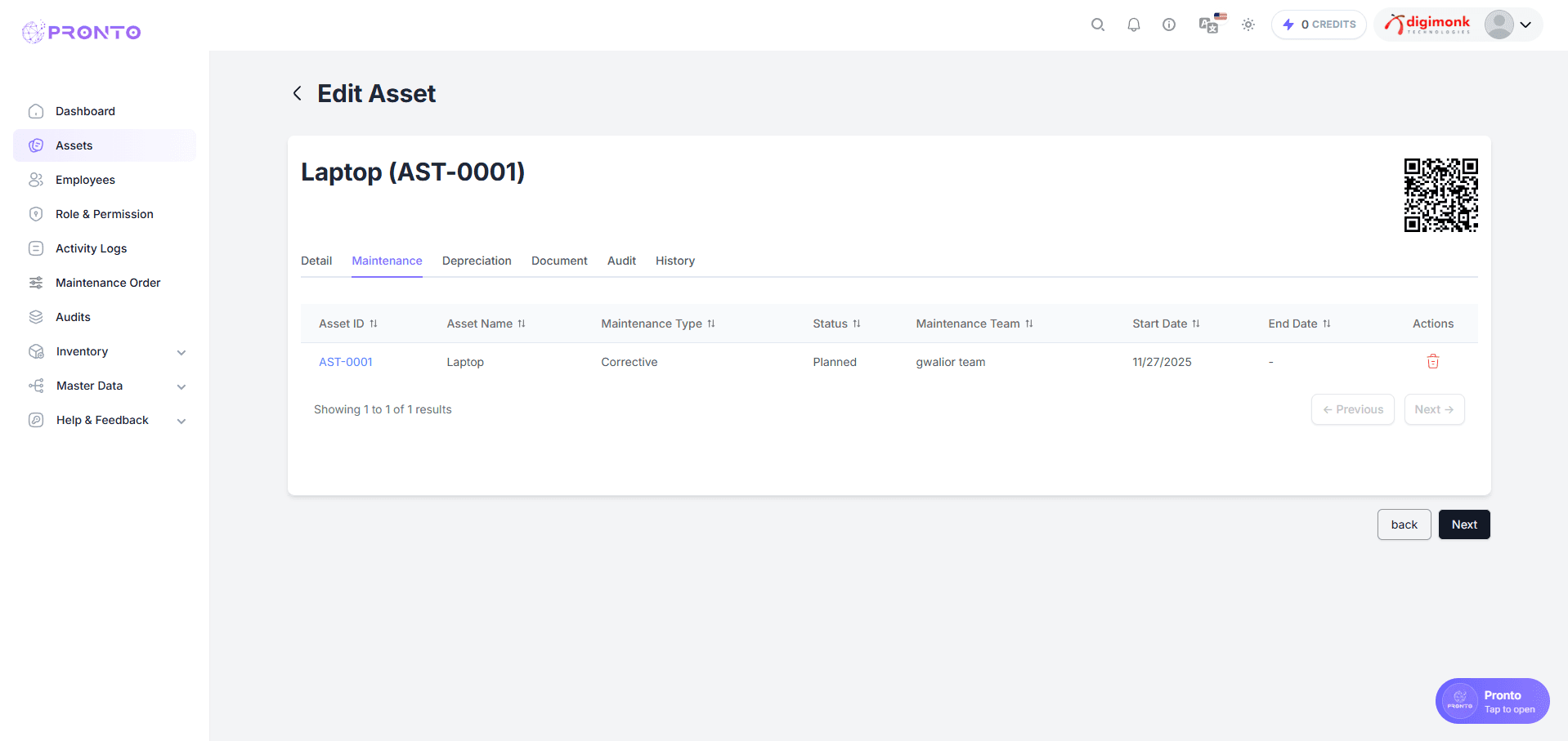
- Maintenance – View maintenance records and schedules for the asset.
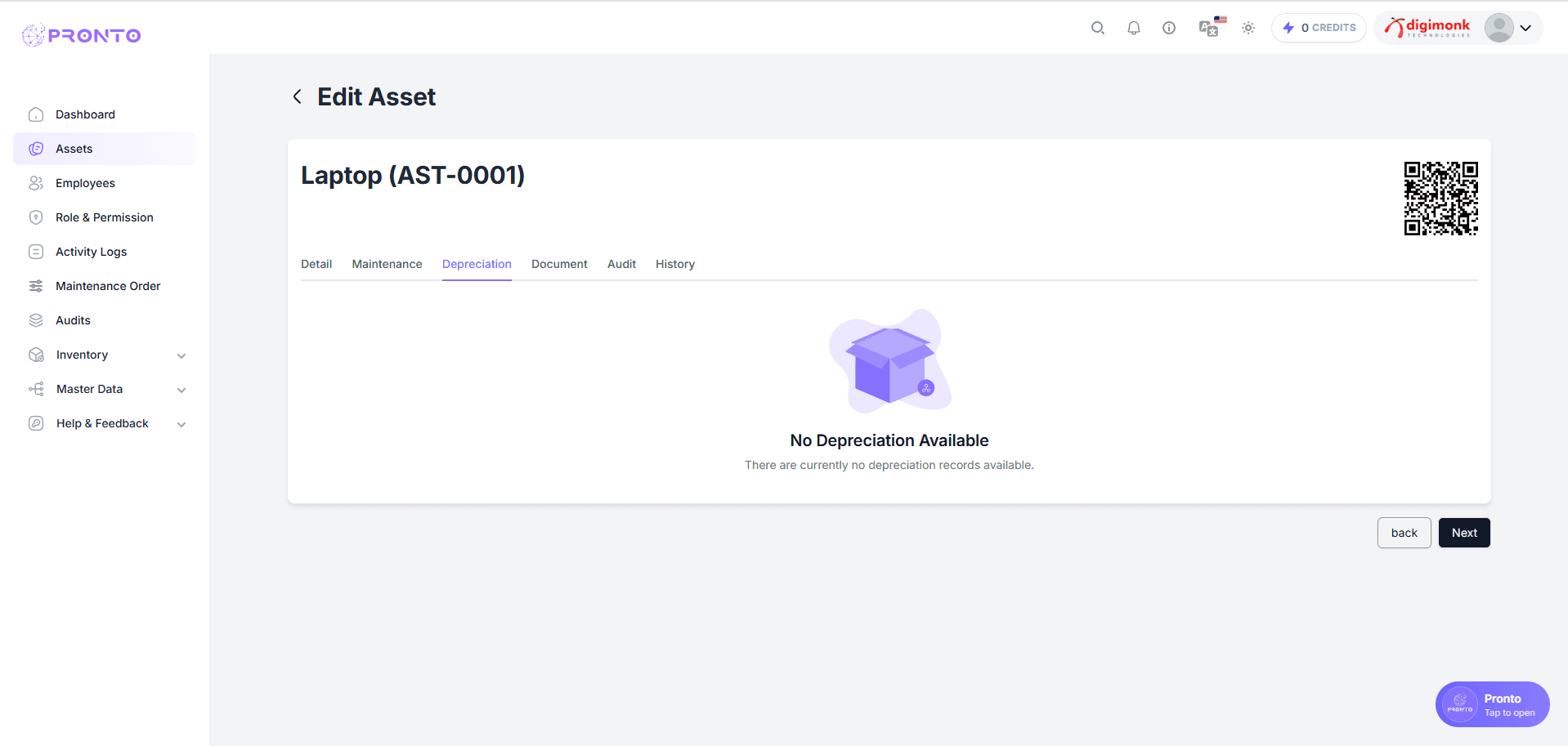
- Depreciation – View depreciation values and financial lifecycle data.
- Document – View and download documents linked to the asset.
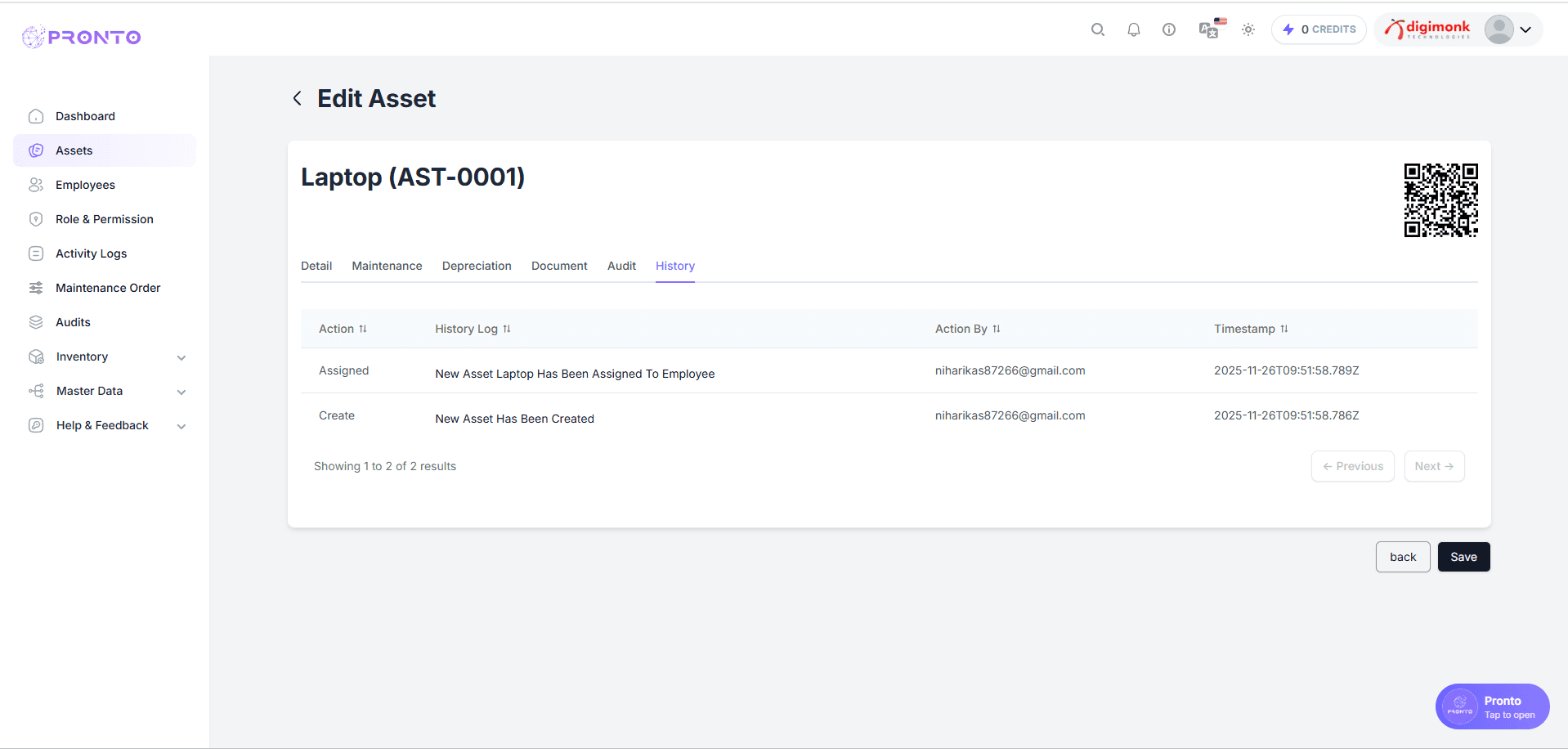
- History – View a complete history of all past assignments for the asset.
Each asset also features a unique QR Code that can be scanned for instant identification and quick access to its records.
To open an asset, click on its name from the All Assets list.
Maintenance Tab
Used to track all maintenance-related activities:
- Add service schedules and remarks.
- Monitor past or upcoming repairs.
Depreciation Tab
Manages the asset's financial depreciation:
- View depreciation rate/method.
- Track accumulated depreciation.
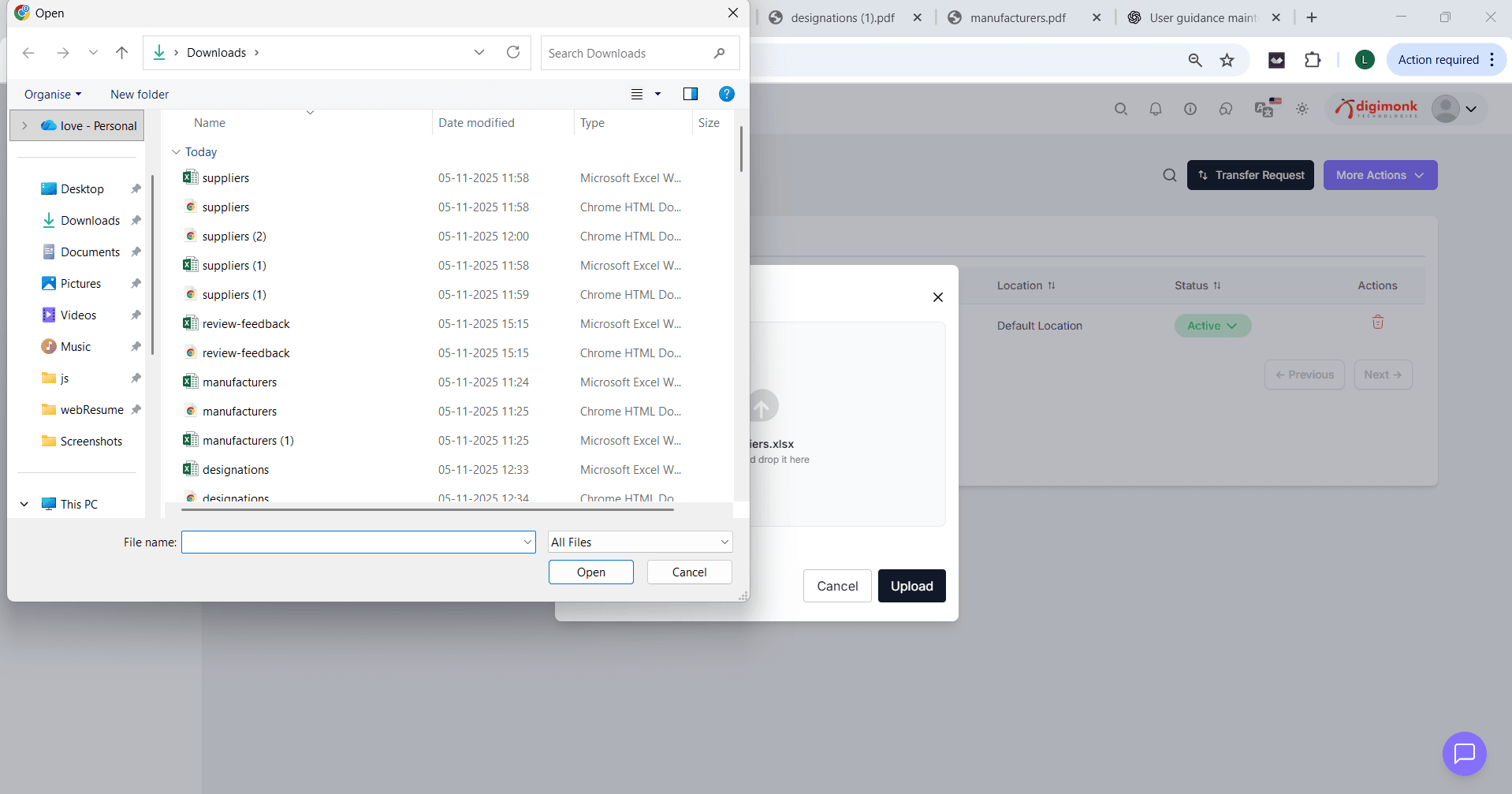
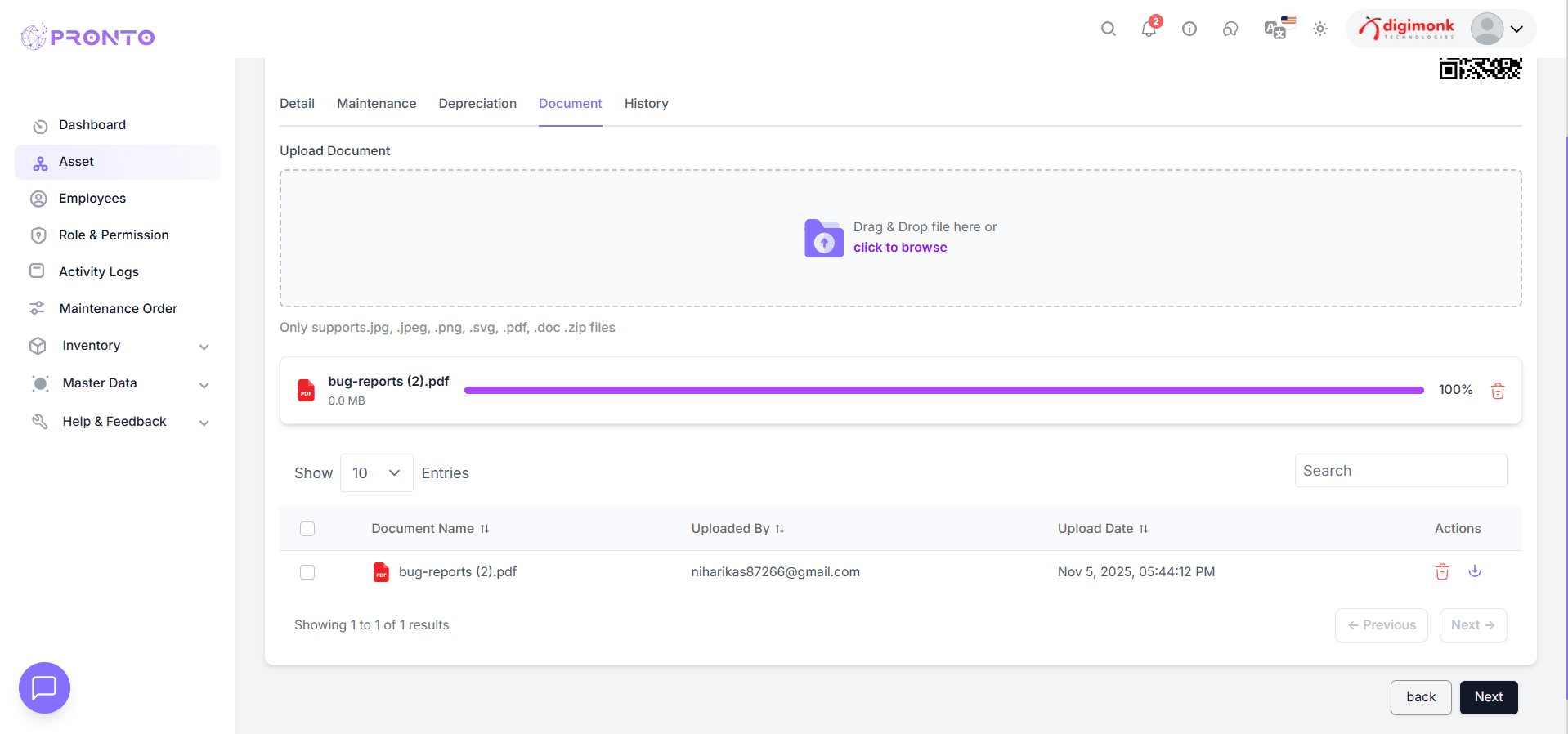
Document Tab
Stores invoices, warranty cards, or service reports.
History Tab
Tracks changes like:
- Who updated
- What changed
- When it was changed
Assets With Me
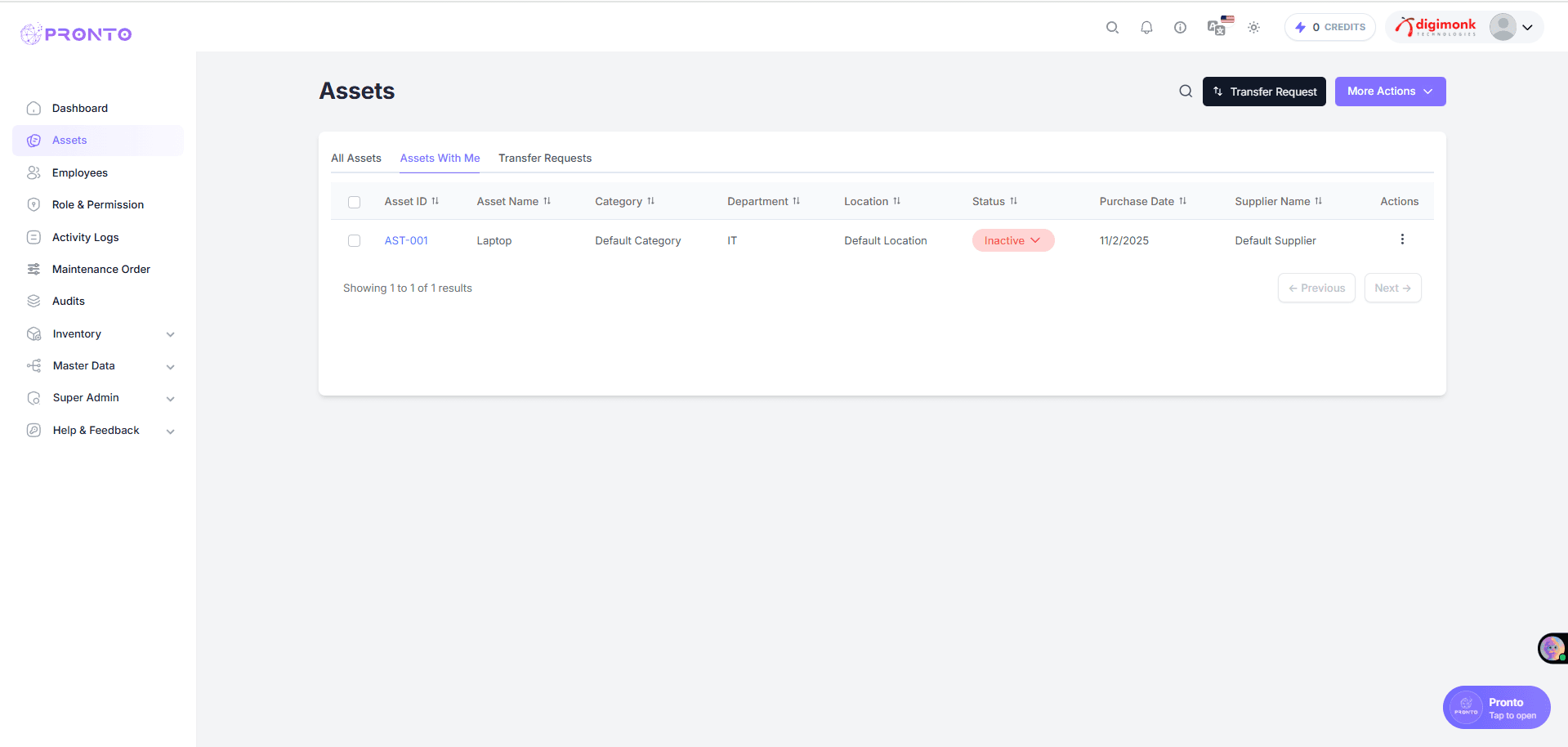
Navigation Path: Dashboard → Asset → Assets With Me
This page shows all assets currently assigned to the logged-in user.
Fields Description
- Asset ID - Unique asset code (clickable).
- Asset Name - Name of the asset.
- Category - Category (e.g., IT Equipment).
- Department - Linked department.
- Location - Physical location.
- Status - Active, Inactive, or Under Maintenance.
- Purchase Date - Date of purchase.
- Supplier - Vendor name.
- Actions - Edit, Delete, etc.
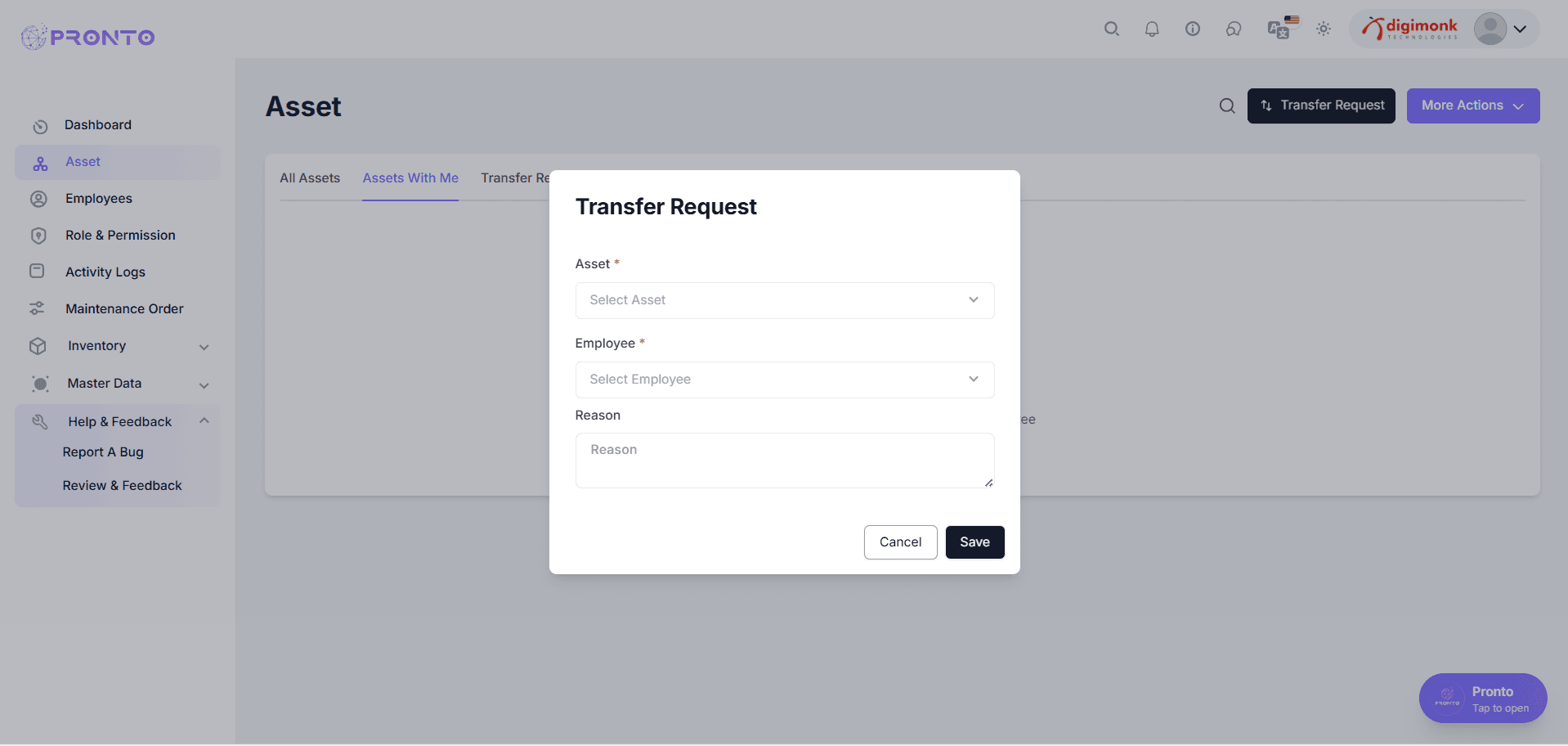
Asset Transfer Request
Allows employees to request transfer of assets to another employee or department.
Accessing the Request
- Go to Asset → Assets With Me.
- Click Transfer Request.
Fill the Form
Fields:
- Asset
- Employee
- Reason
Click Save or Cancel.
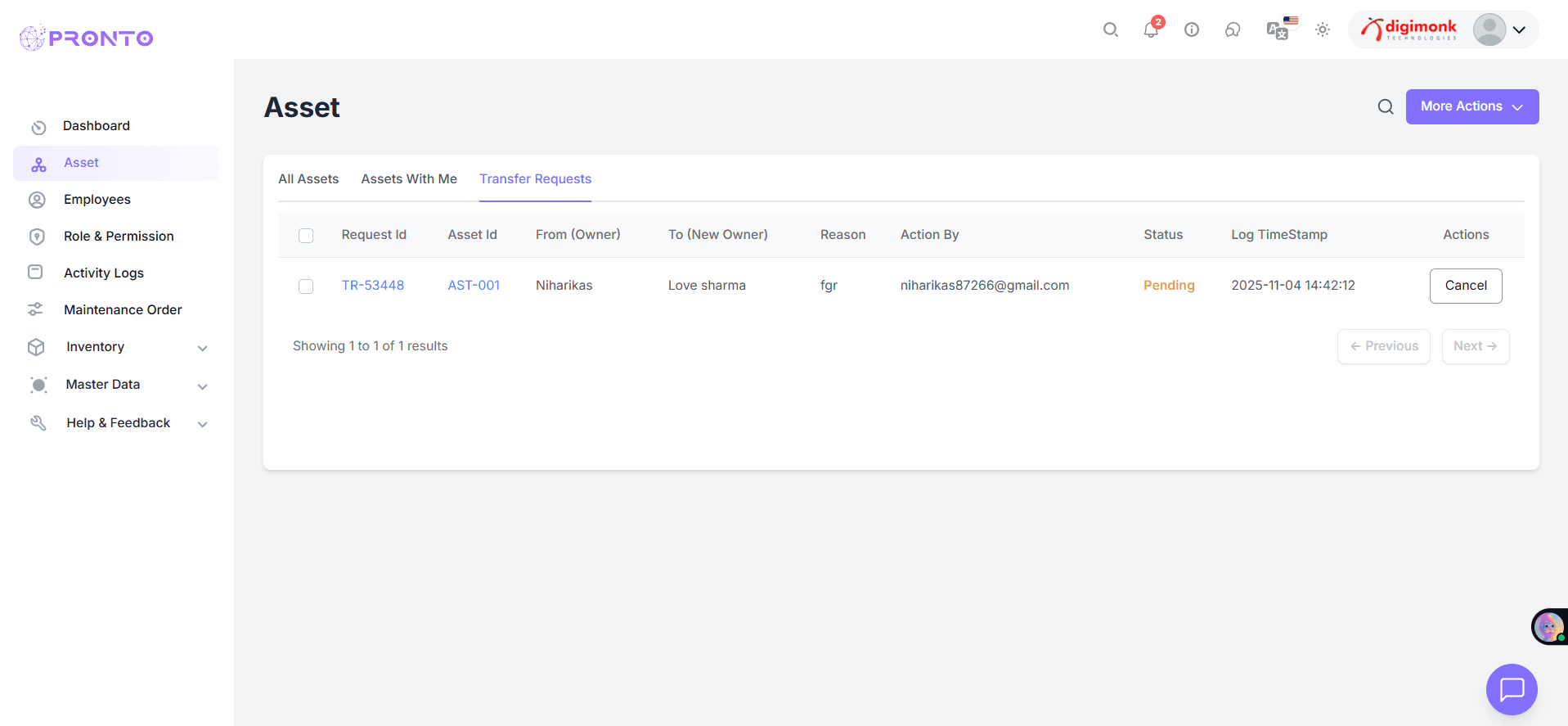
Status Flow
- Pending → Waiting approval
- Approved → Transfer done
- Rejected → Request denied
More Actions Menu
- The More Actions menu provides access to additional options, including editing, deleting, and managing various administrative functions.
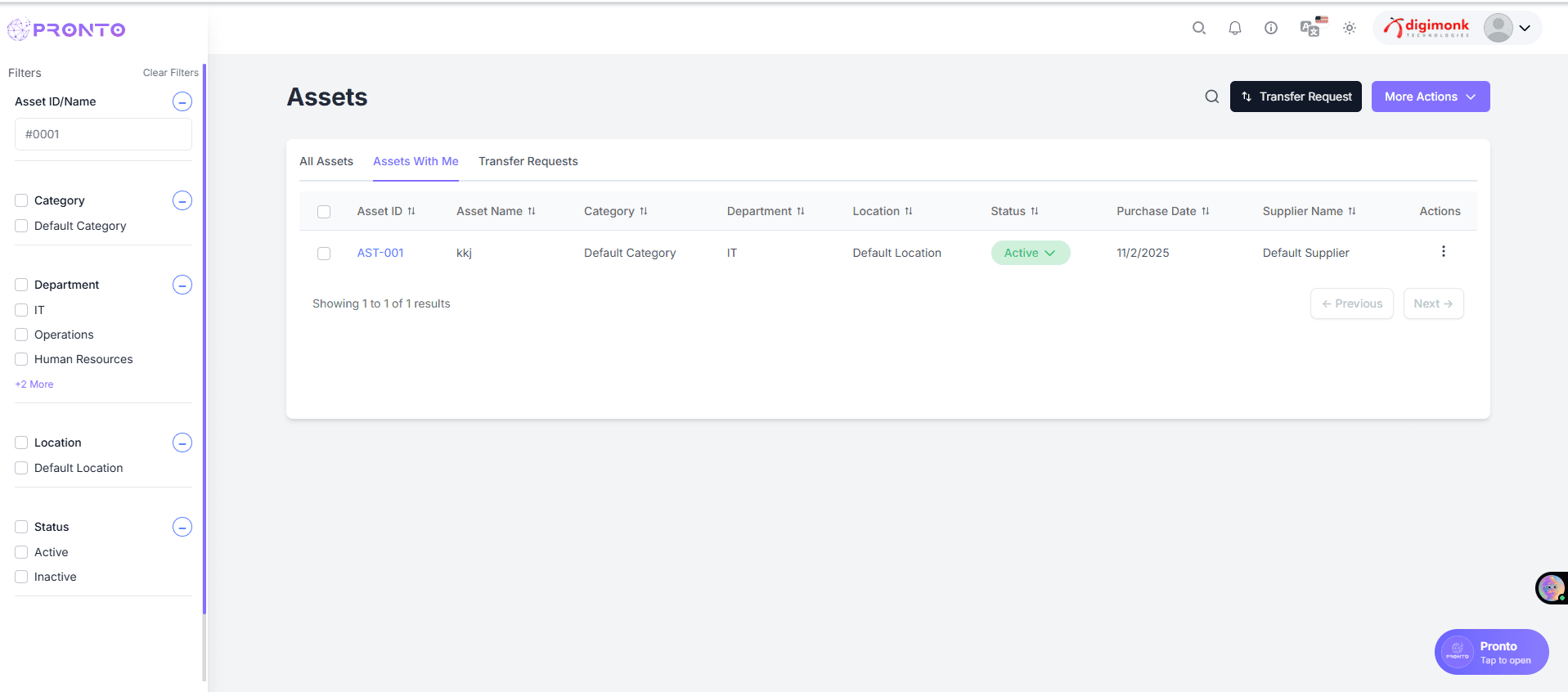
Filters
Filter assets by category, department, location, or status.
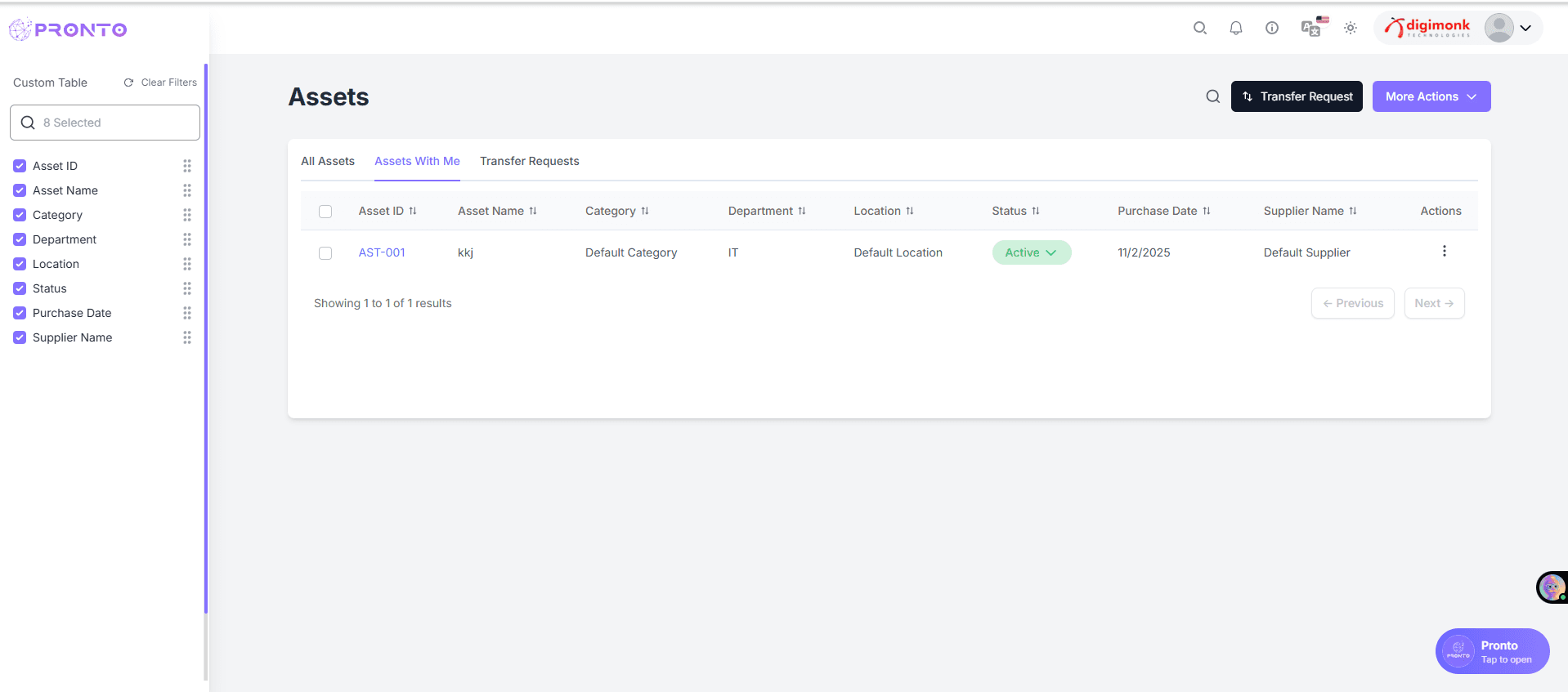
Custom Table
Show/hide or rearrange columns as needed.
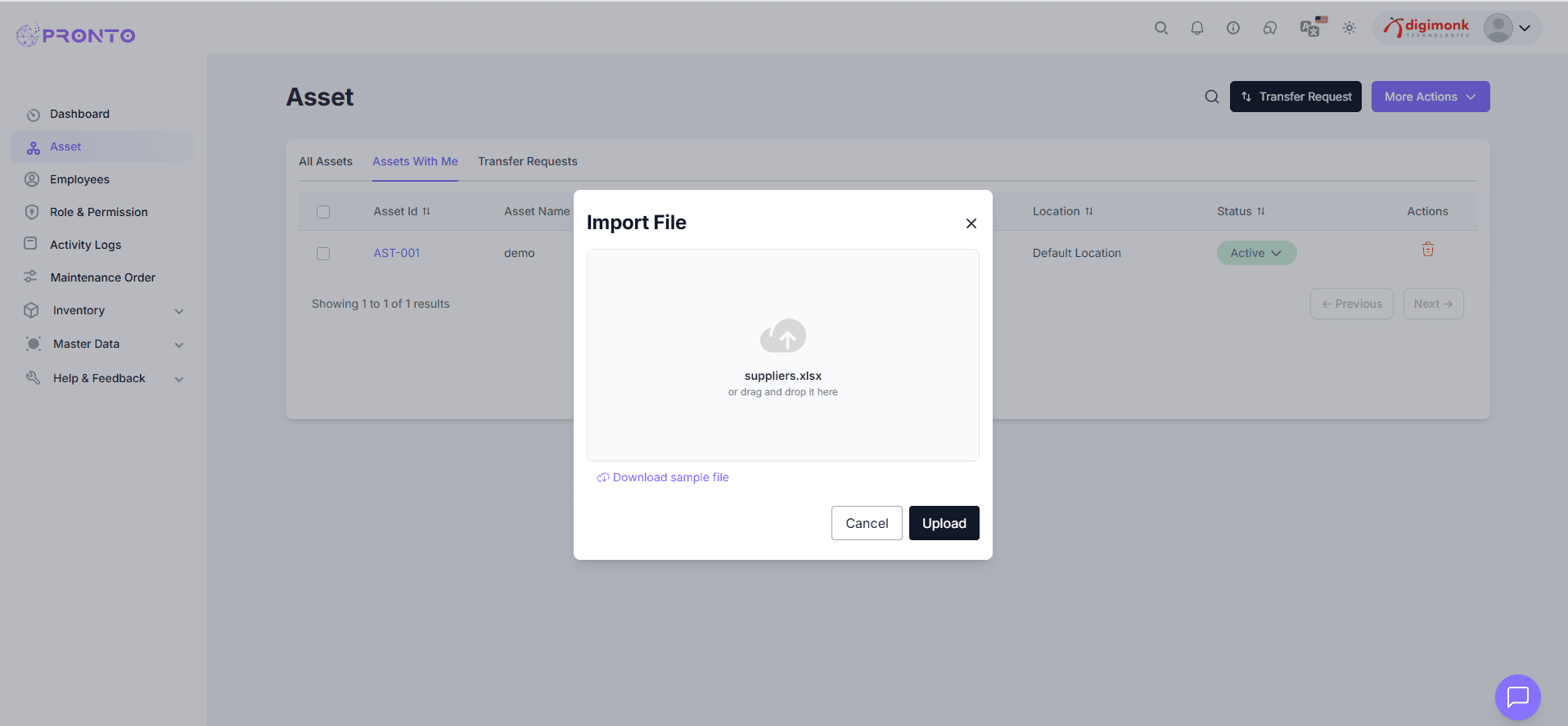
Import
Upload asset data from Excel or CSV.
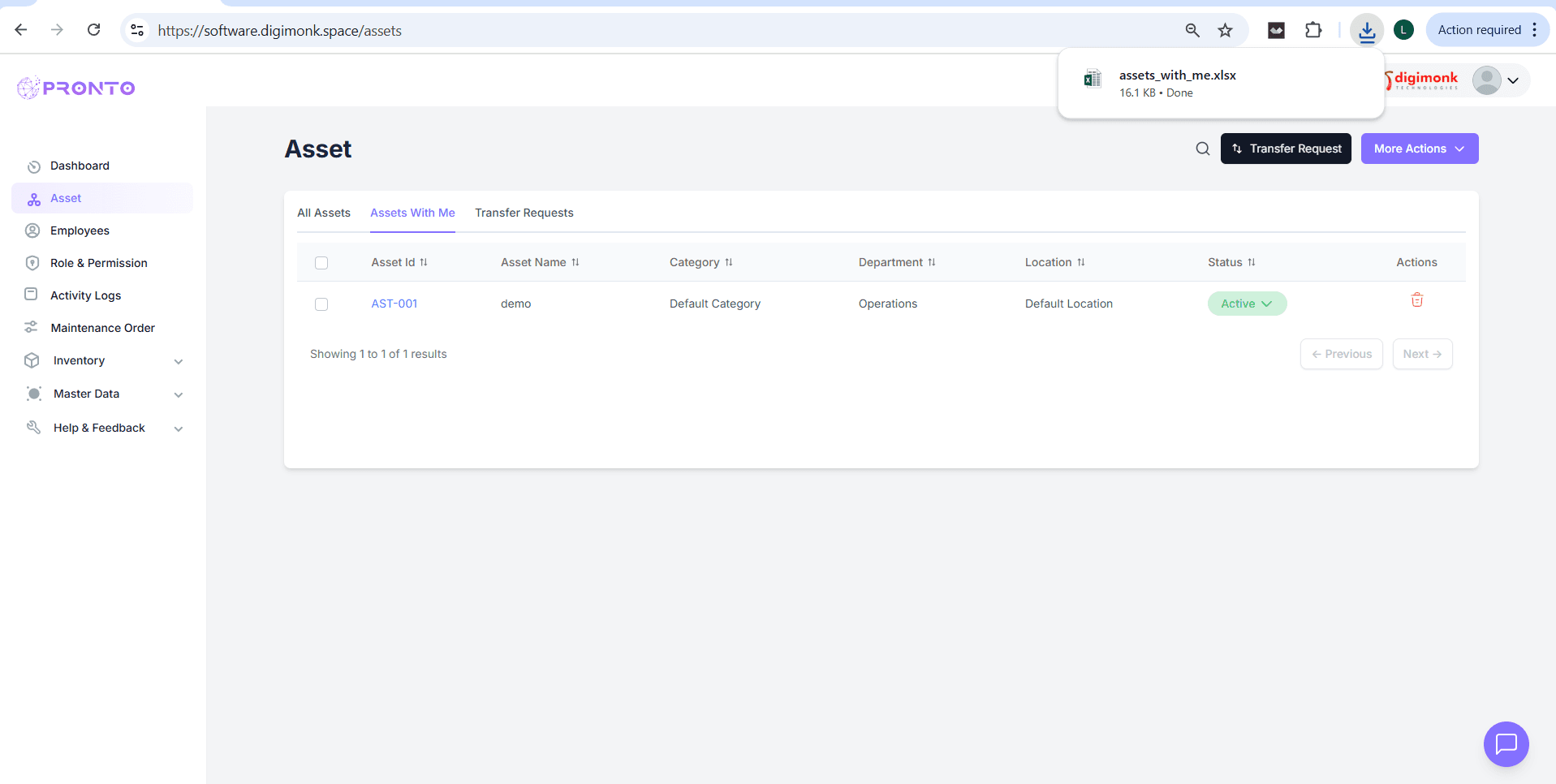
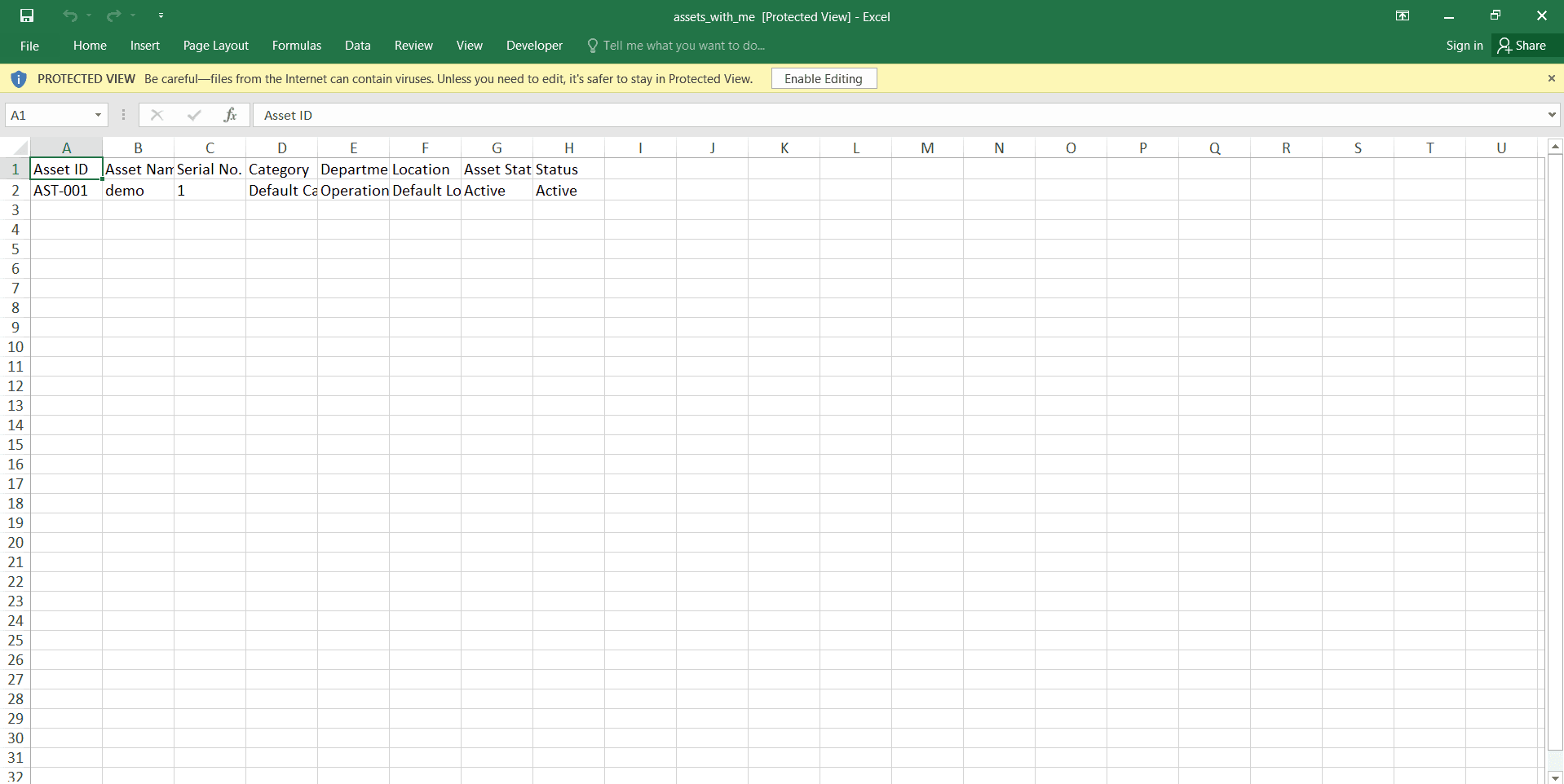
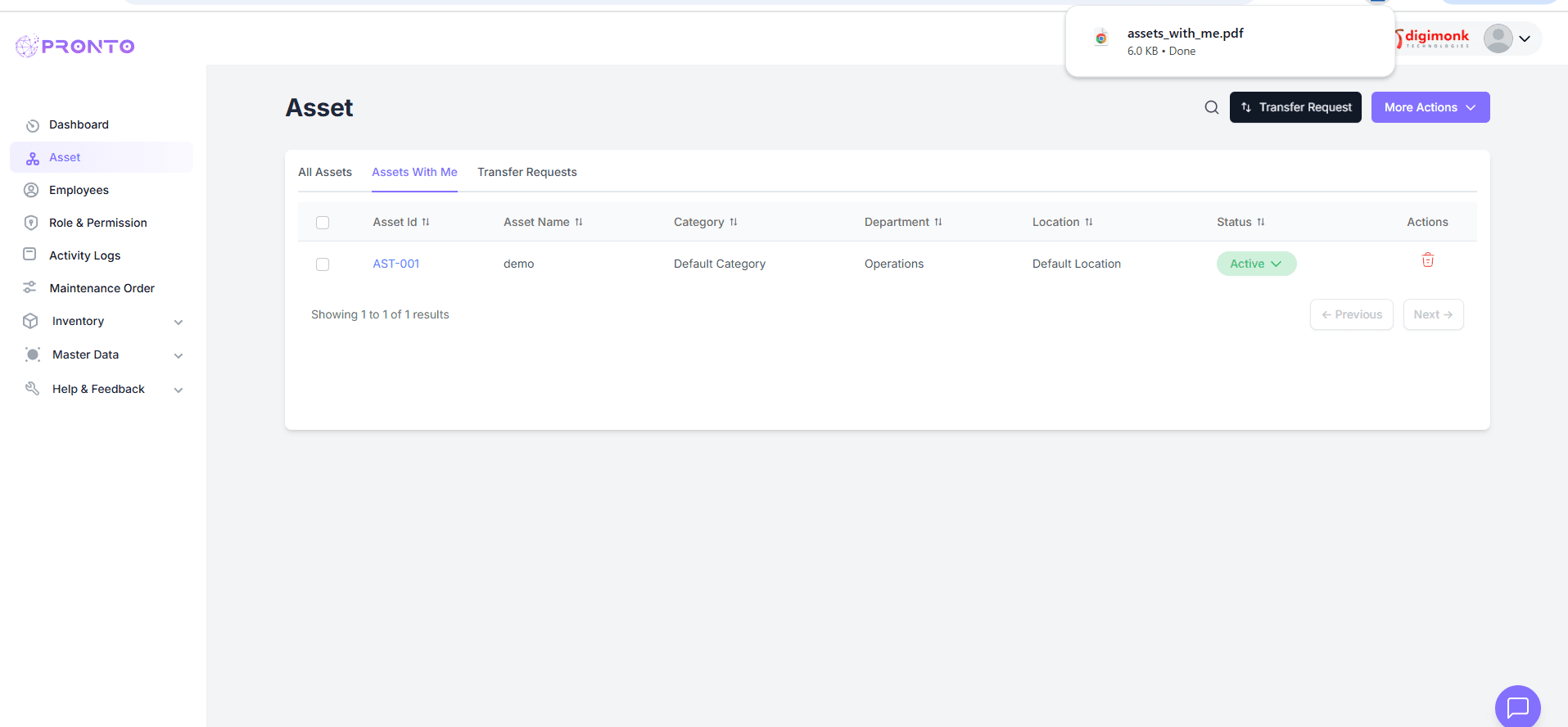
Export
- Excel: for offline record-keeping
- PDF: for printable reports
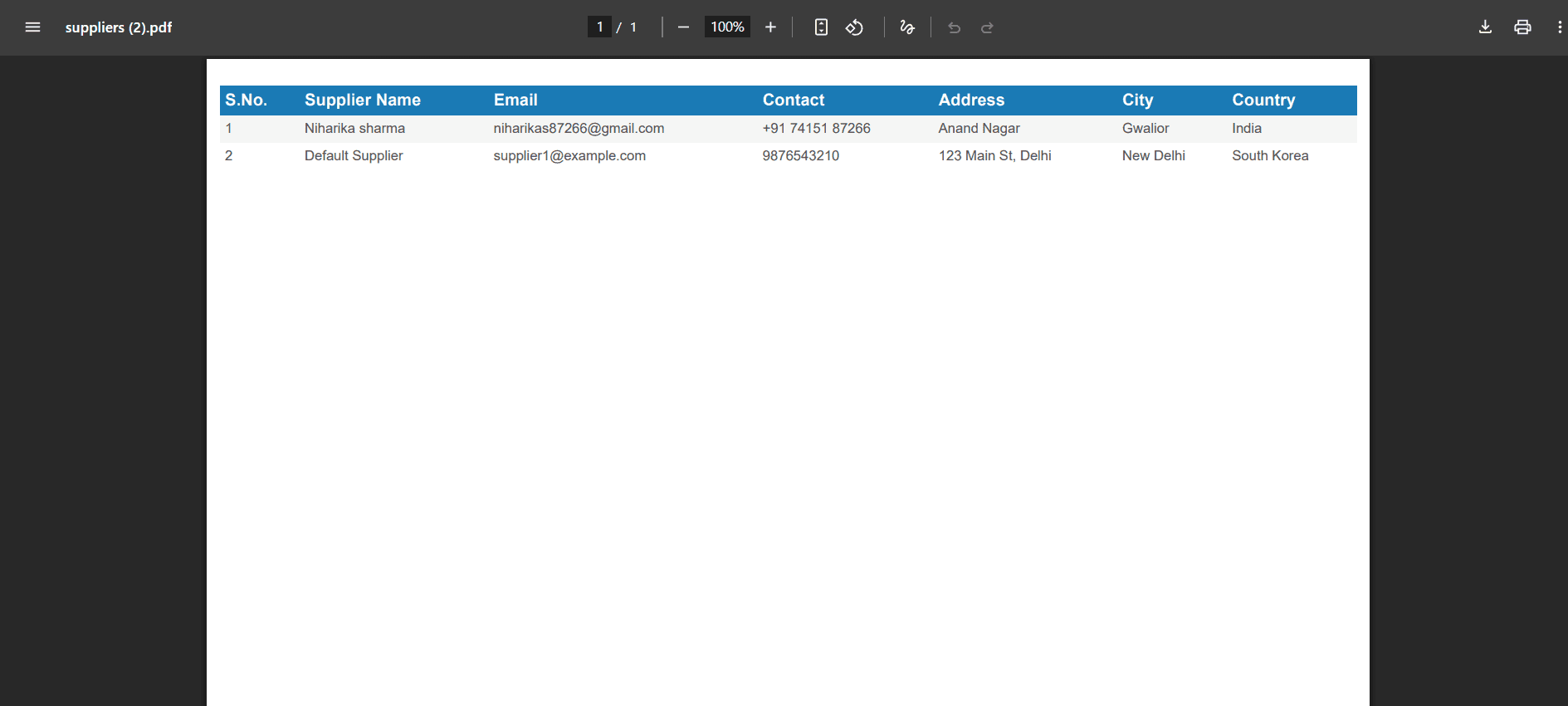
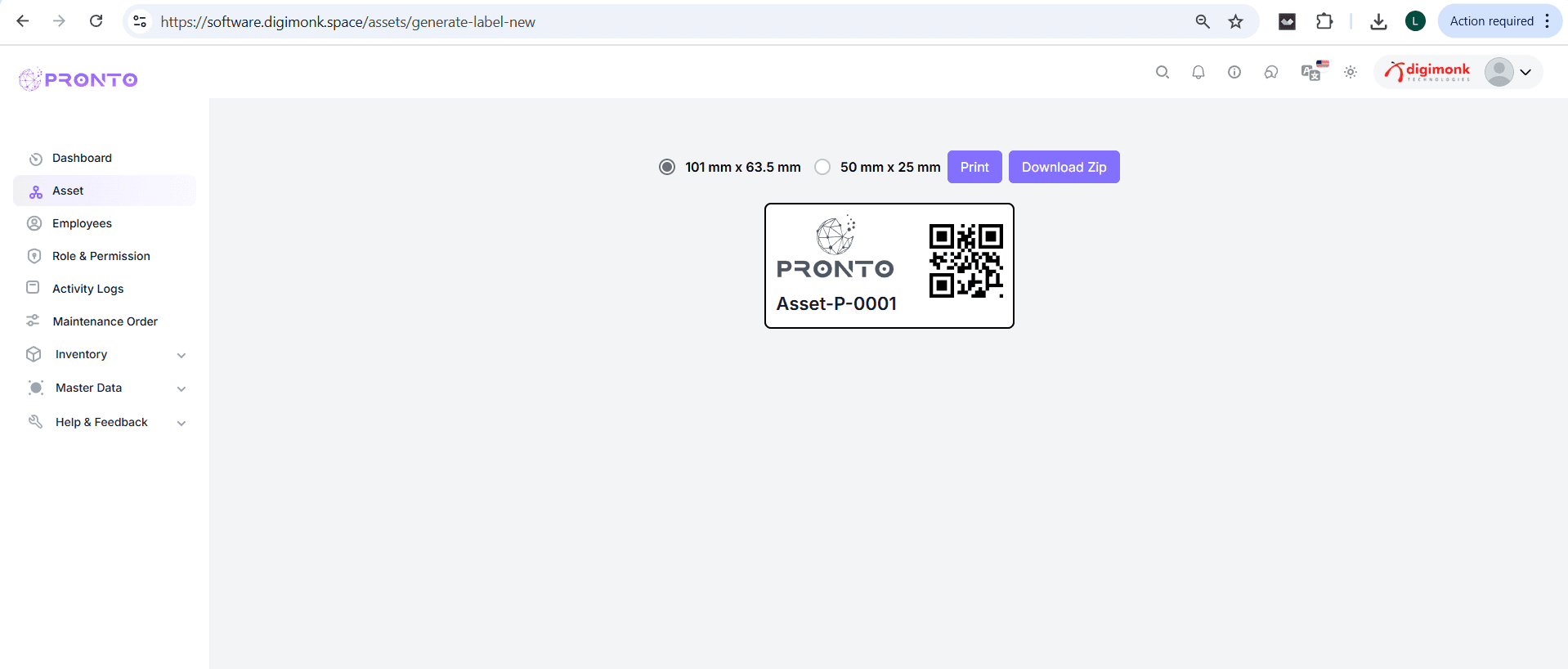
Generate Label
Create QR/barcode labels for physical tagging.
Delete / Inactive / Active
Manage asset status or remove records.
⚠️ Once deleted, records can't be recovered.
Employee
The Employees module allows HR/Admin users to manage employee information, work details, permissions, and assigned assets in one centralized place.
Watch Video
Accessing the Employee Section
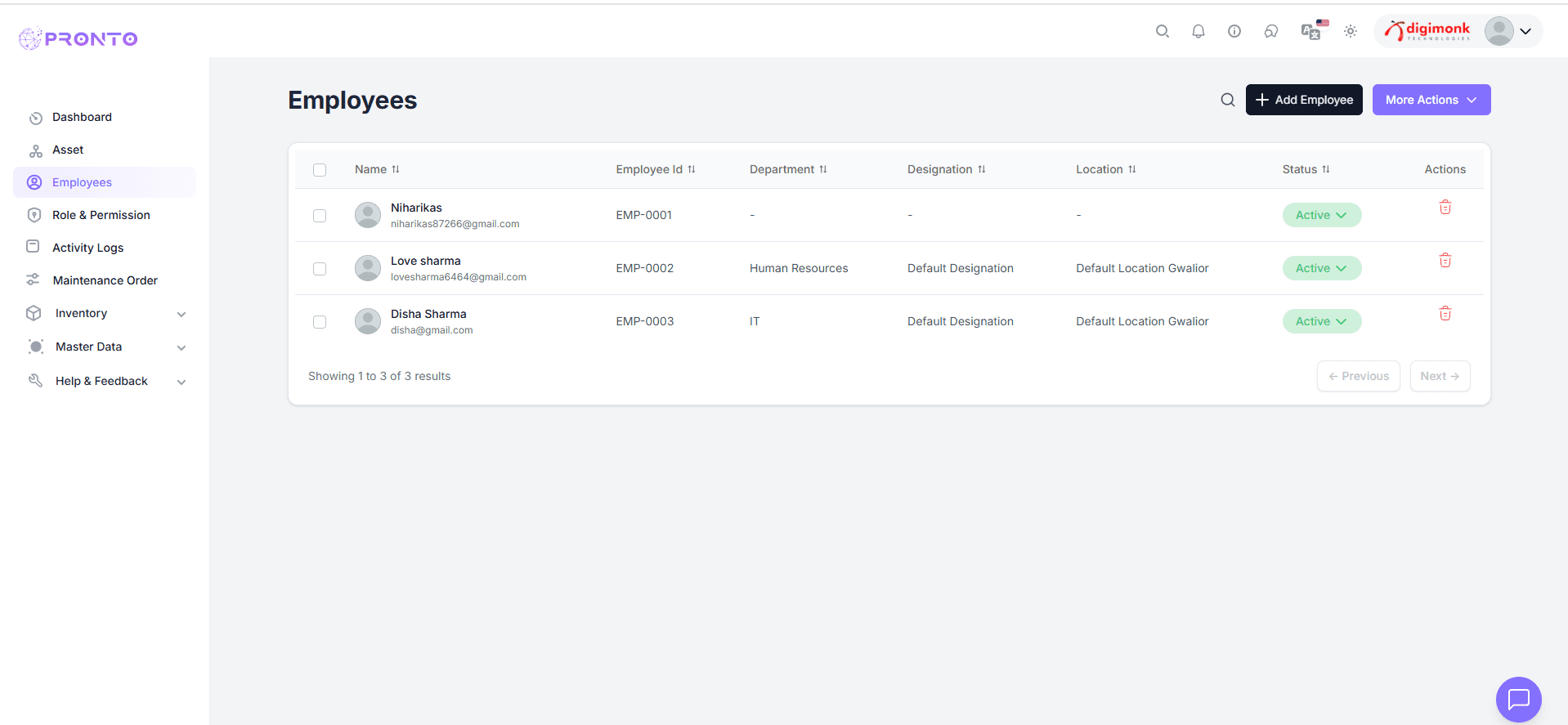
- Log in to the PRONTO dashboard.
- From the left sidebar, click on Employees.
- You'll see the list of all employees registered in the system.
Adding a New Employee
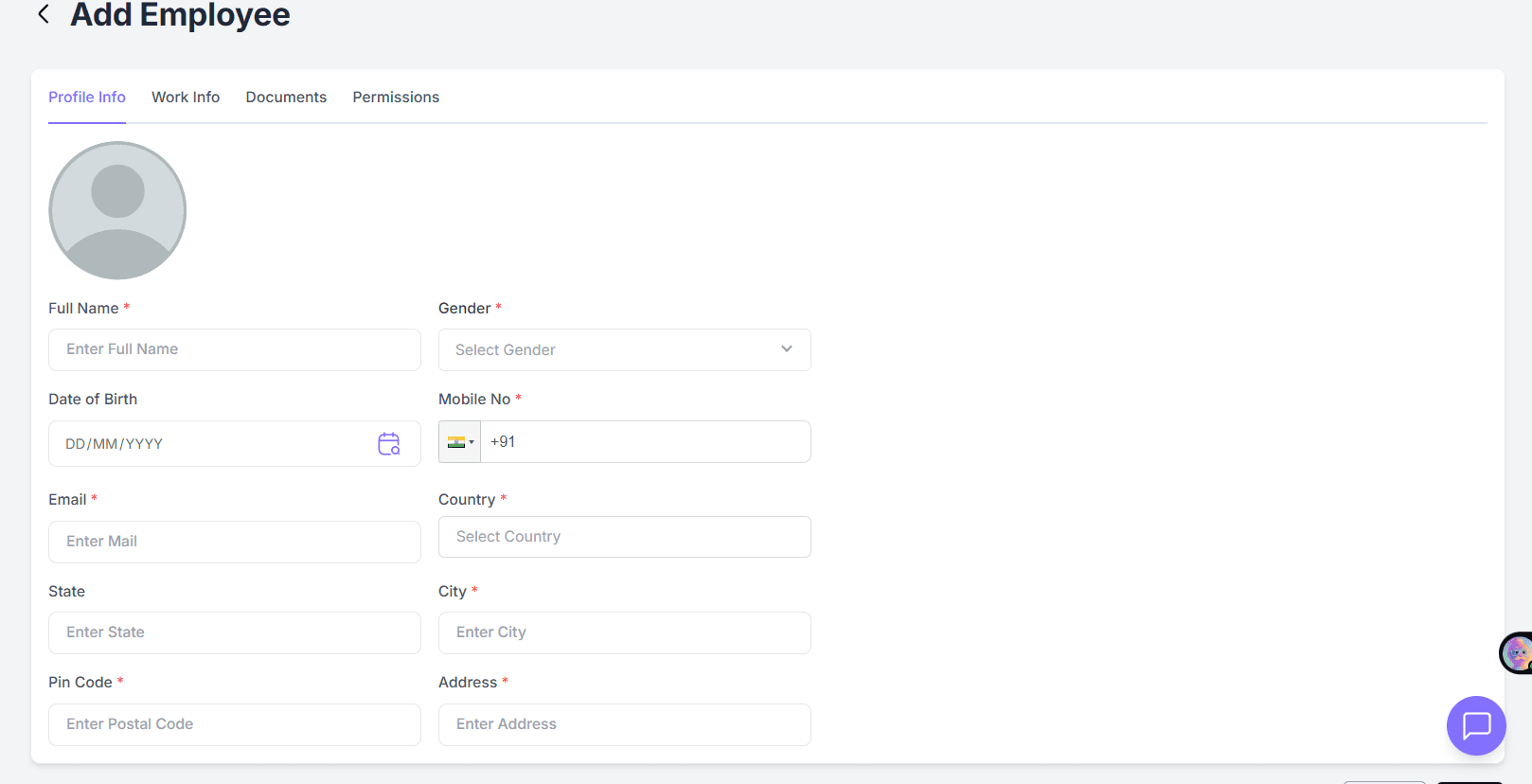
- Click on the Add Employee button (usually on the top-right).
- Fill in all required fields in the Profile Info tab:
- Full Name
- Gender
- Date of Birth
- Mobile Number
- Email Address
- Country, State, City
- Address and Pin Code
- Click Save to create the employee record.
Updating Employee Details
- Click on an employee's name from the list.
- You'll be taken to the Employee Detail page with multiple tabs:
Tabs
- Profile Info - Personal details (Name, DOB, Contact Info).
- Work Info - Job title, Department, Joining Date, Reporting Manager, etc.
- Documents - Upload ID proofs, resumes, or contracts.
- Permissions - Assign system roles or access levels.
- Assigned Asset - View or assign company assets (e.g., laptop, ID card).
- ORG Chart - Check the employee's position in the organization structure.
- History - View past updates or activity logs.
After making any edits, click Update / Save Changes.
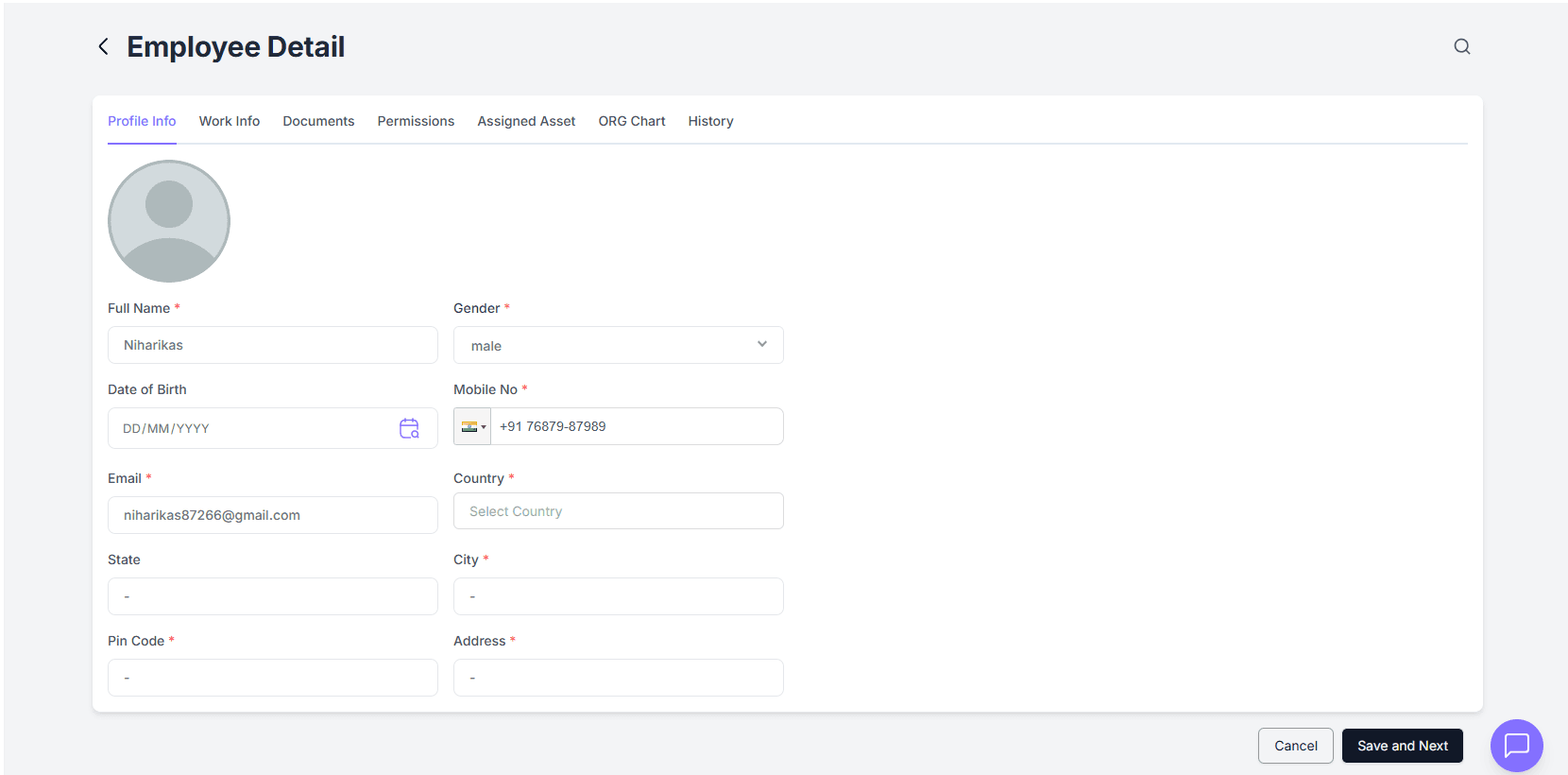
Profile Info
The Profile Info tab allows you to view and manage personal details of an employee.
All fields marked with an asterisk (*) are mandatory.
Fields Description
Enter the employee's complete name.
Select the employee gender from the dropdown.
Choose the birth date using the calendar icon.
Enter a valid 10-digit mobile number with country code.
Enter the official or personal email address.
Select the country of residence or work location.
Enter or select the state.
Provide the city name.
Enter the area's Postal (ZIP) code.
Enter the full address (house number, street, area, etc.).
(Optional) Upload a photo by clicking the image icon.
Action Buttons
Save and Next → Saves data and moves to next tab (Work Info).
Cancel → Cancels unsaved changes and returns to previous page.
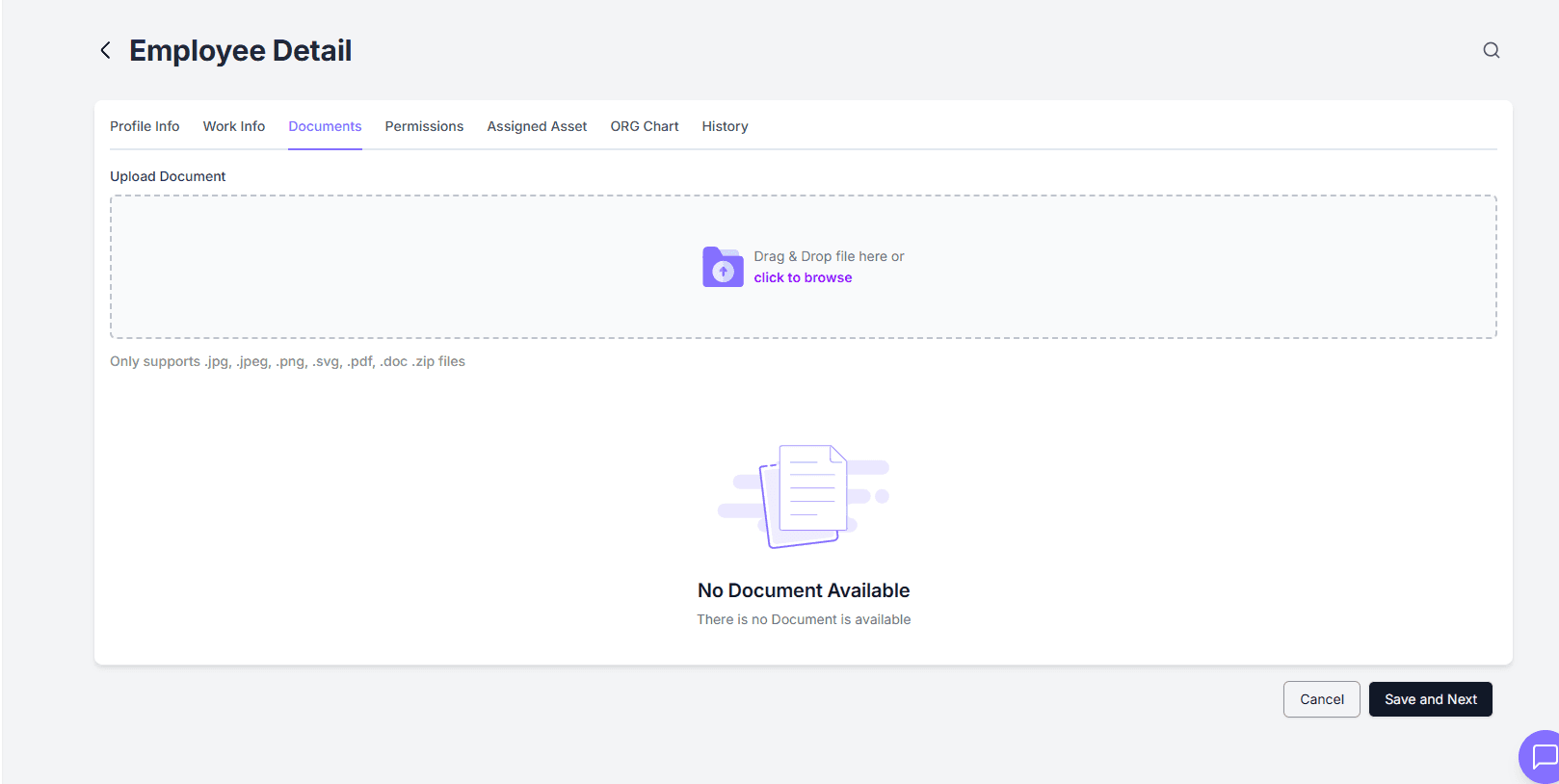
Uploading Employee Documents
- Go to the Documents tab.
- Click Upload Document.
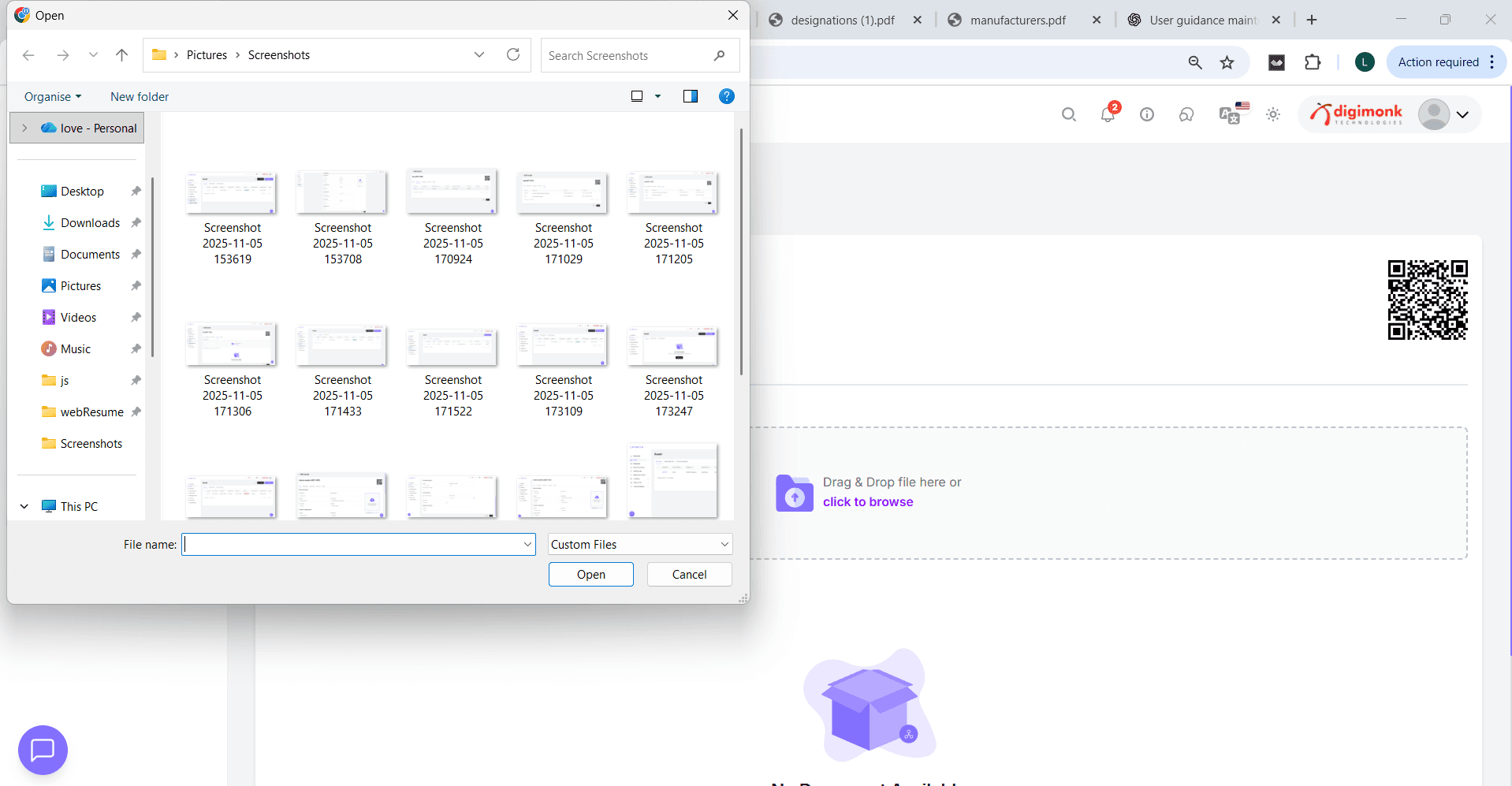
- Select the file (PDF, JPG, PNG, etc.) and upload it.
- Add a brief Document Name or Description (e.g., "Aadhar Card", "Offer Letter").
Managing Permissions
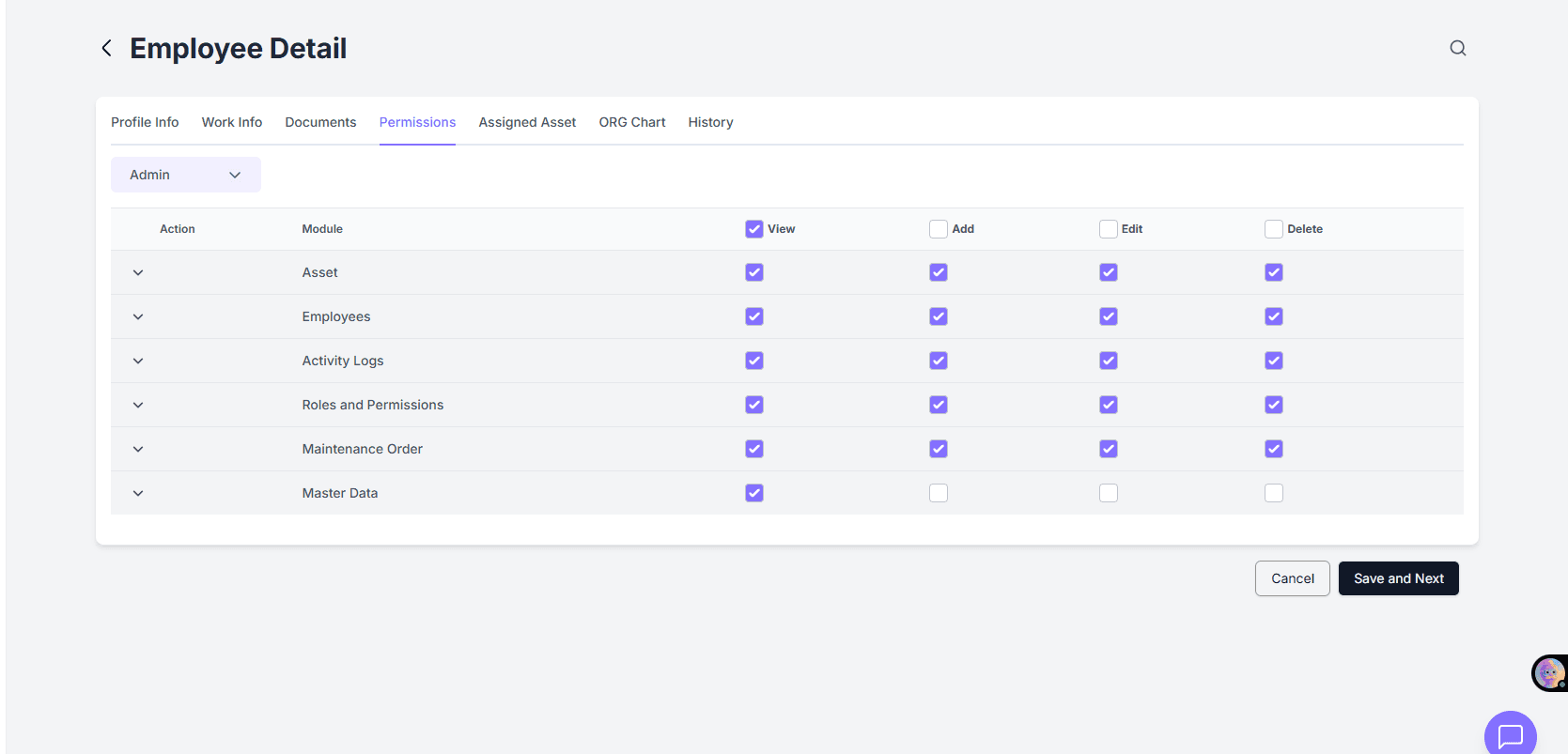
- Navigate to the Permissions tab.
- Assign a Role (e.g., Admin, HR, Manager, Employee).
- Define Access Rights such as:
- View Only
- Add/Edit
- Delete
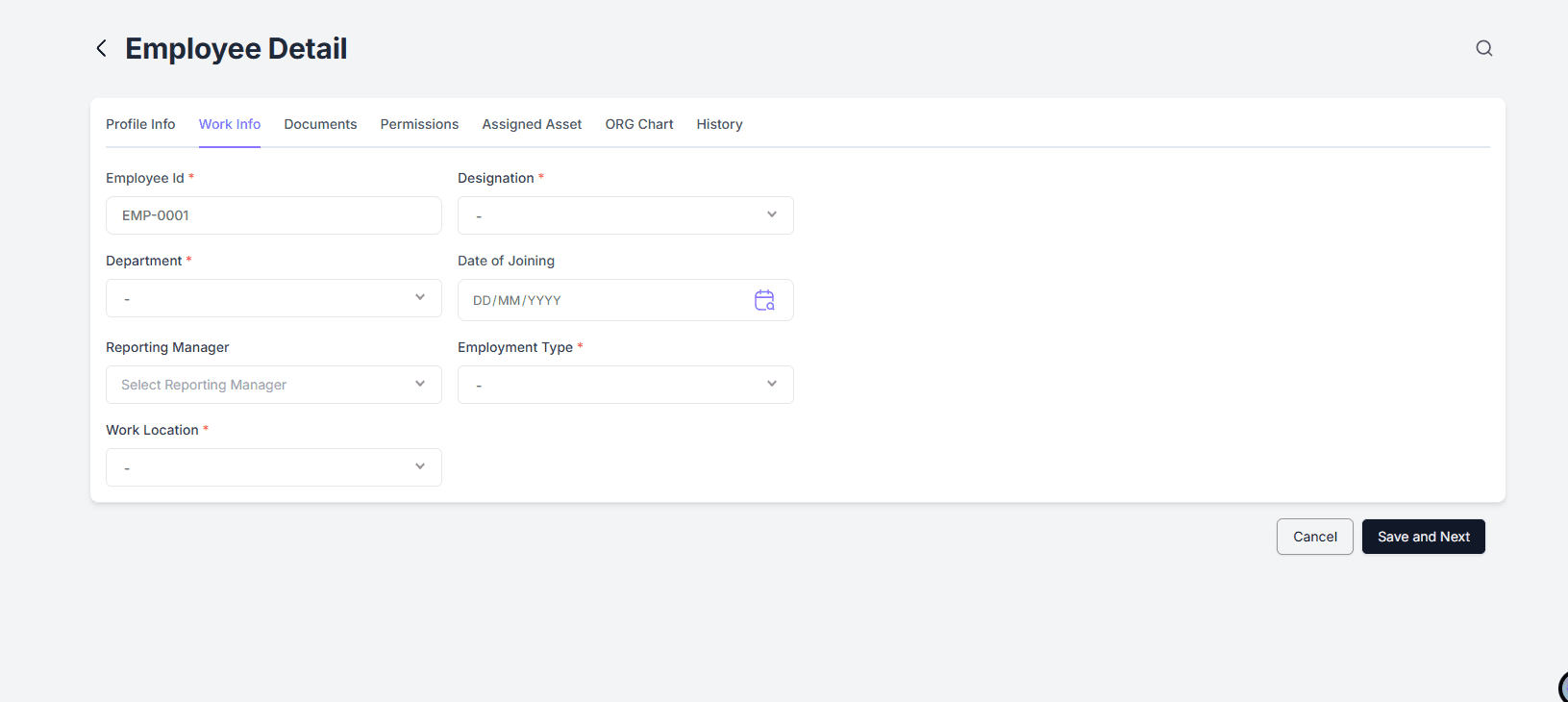
Viewing Work Information
- Click on the Work Info tab.
- Fill or view:
- Designation
- Department
- Date of Joining
- Reporting Manager
- Employment Type (Full-Time, Intern, etc.)
- Click Save when done.
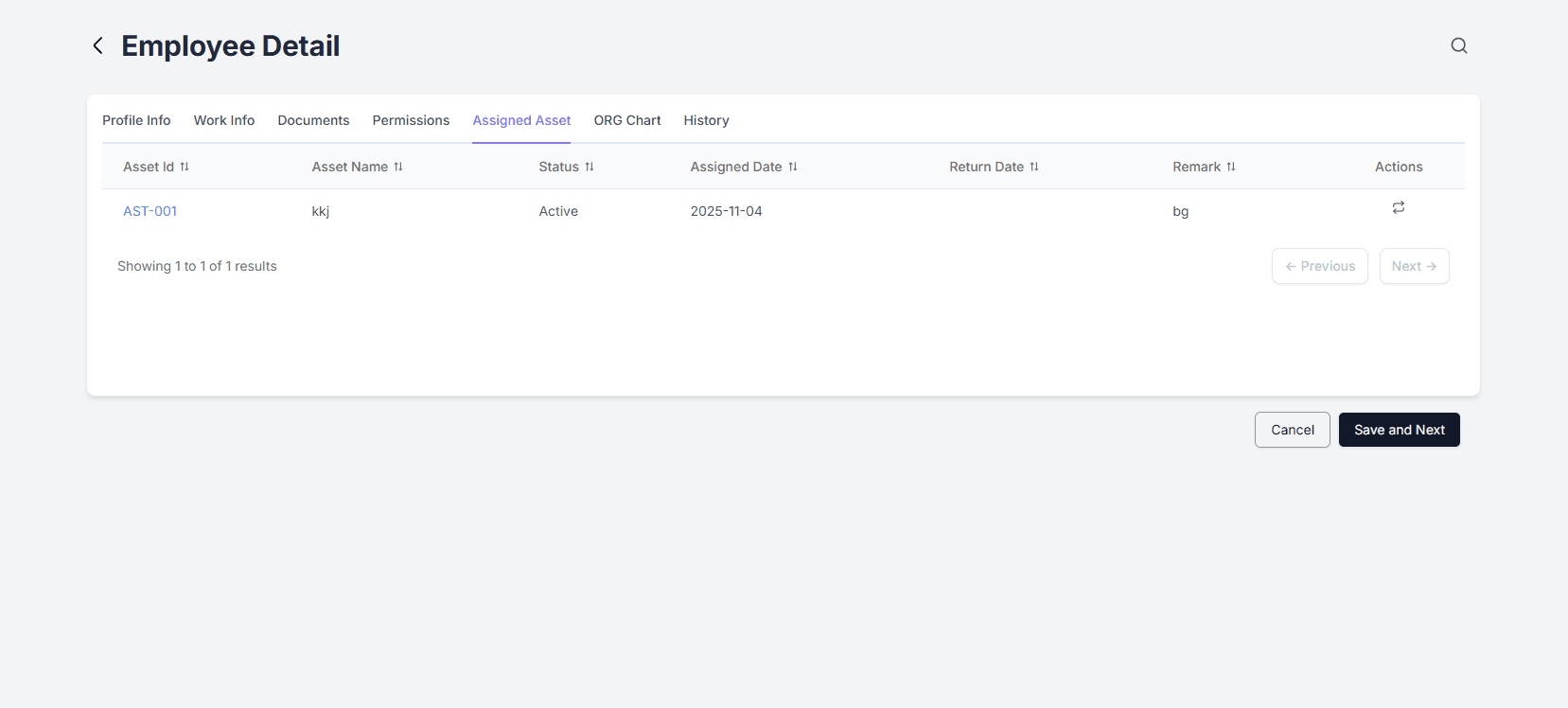
Checking Assigned Assets
- Open the Assigned Asset tab.
- View all items given to the employee.
- Click Assign New Asset to allocate new equipment.
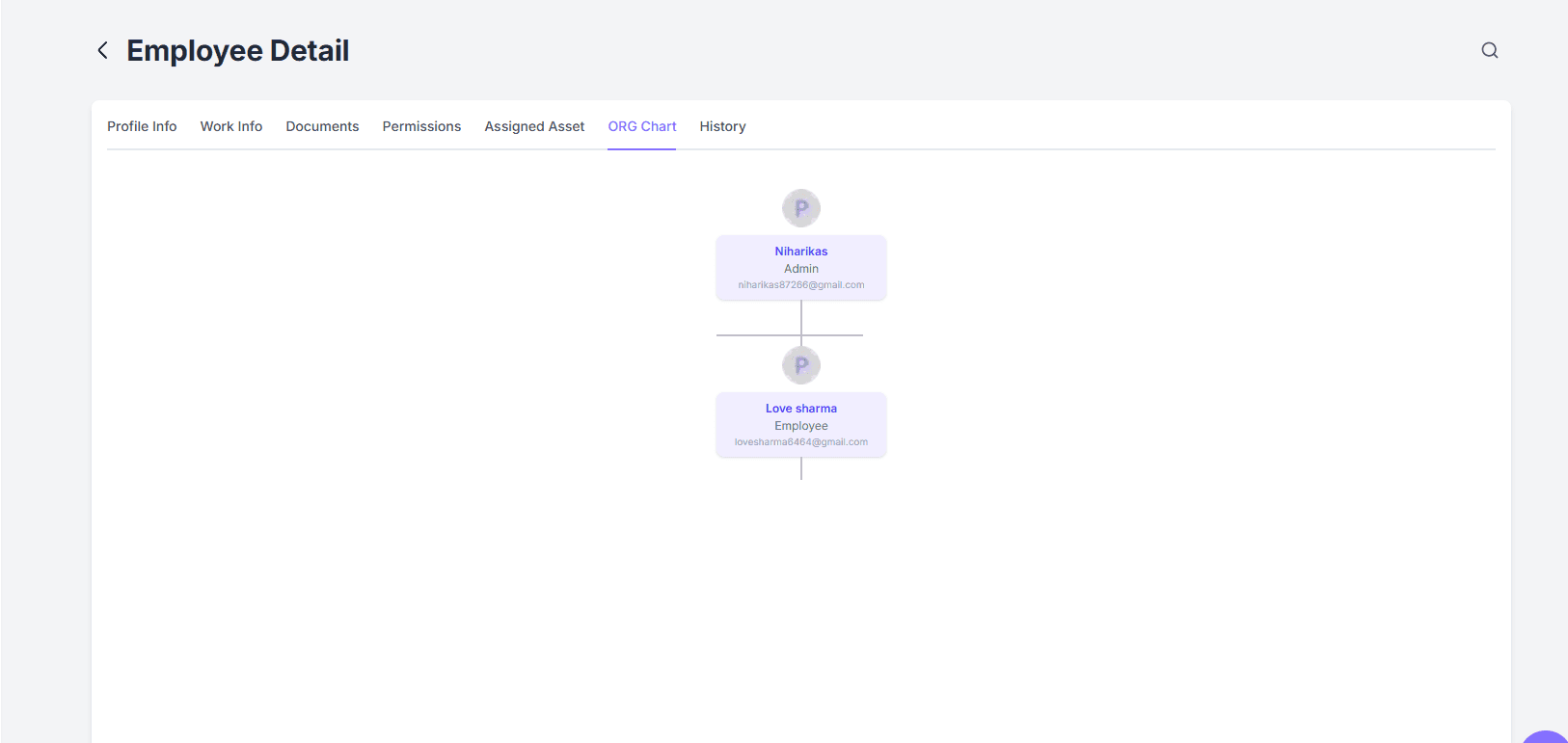
Understanding the ORG Chart (Organization Set)
- Go to the ORG Chart tab to view the employee’s position in the company hierarchy. Displays
- The employee’s position in the company structure
- Their reporting manager
- Team members reporting to them
How to Set Up the ORG Chart
- Open the Work Info tab of an employee.
- In the Reporting Manager field, select the correct manager or supervisor.
- After saving, the hierarchy will automatically reflect in the ORG Chart tab.
Chart Structure:
- Top Node → Senior roles (e.g., CEO, HR Head)
- Sub Nodes → Employees reporting to those roles
The ORG Chart helps visualize the company’s hierarchy clearly.
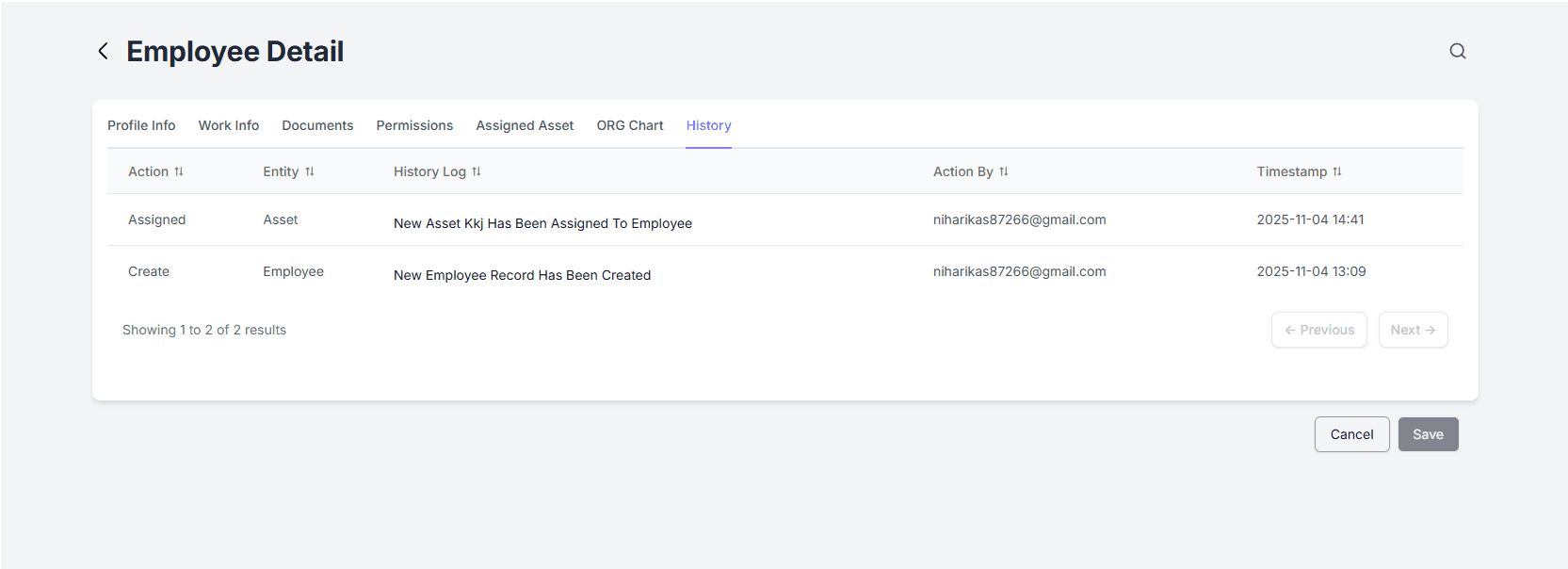
Viewing Employee History
- Open the History tab.
- Review all updates and changes made to the employee record.
- Helps maintain transparency and audit tracking.
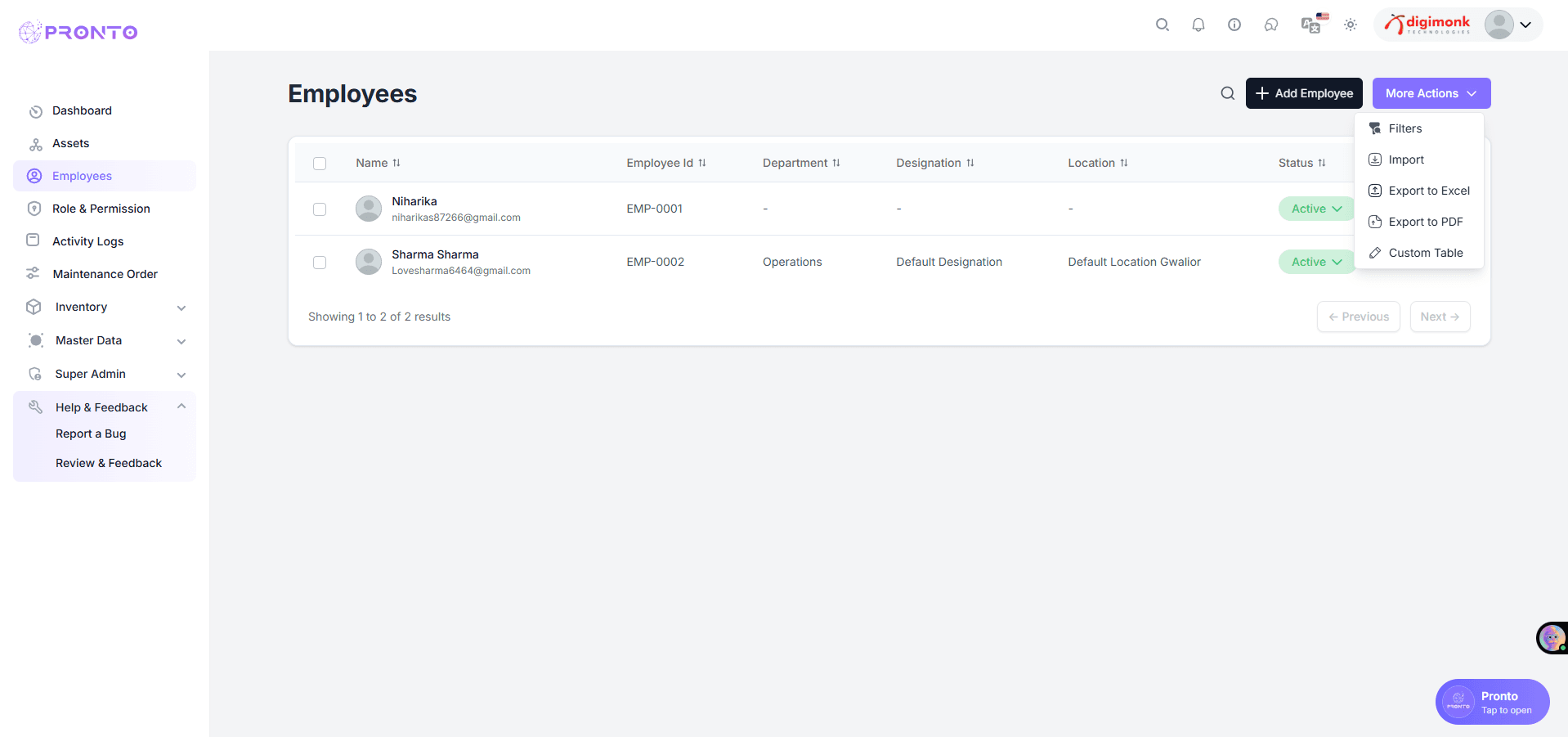
More Actions Menu
- The More Actions menu provides additional administrative operations.
- The More Actions menu provides access to additional options, including editing, deleting, and managing various administrative functions.
Filters
Purpose: Quickly search and narrow down employee records.
Usage:
- Click Filters.
- Filter employees by department, designation, status (Active/Inactive), or location.
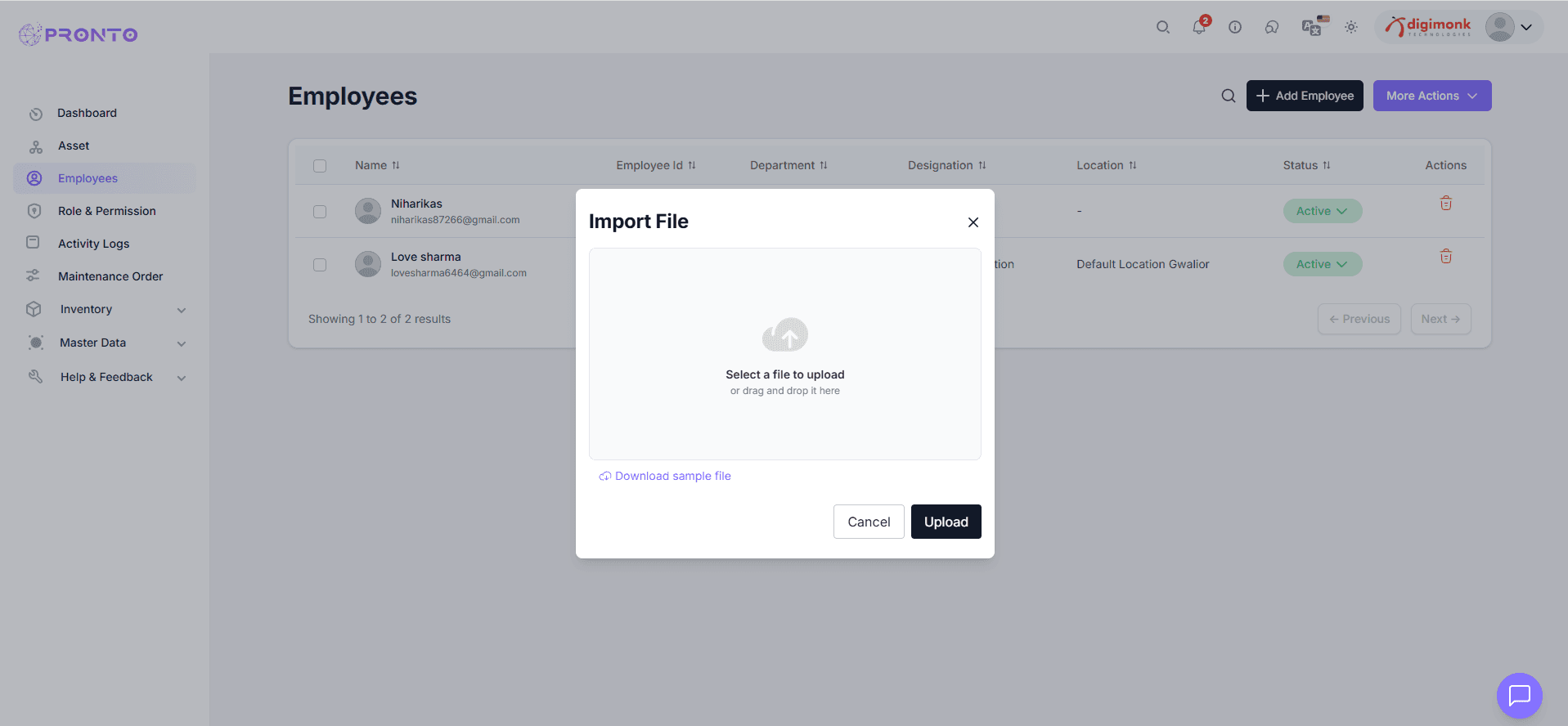
Import
Purpose: Bulk upload employee data from an external file (e.g., Excel or CSV).
Usage:
- Use for adding multiple employees at once.
- Ensure your file has correct column format (Name, Email, Department, etc.).
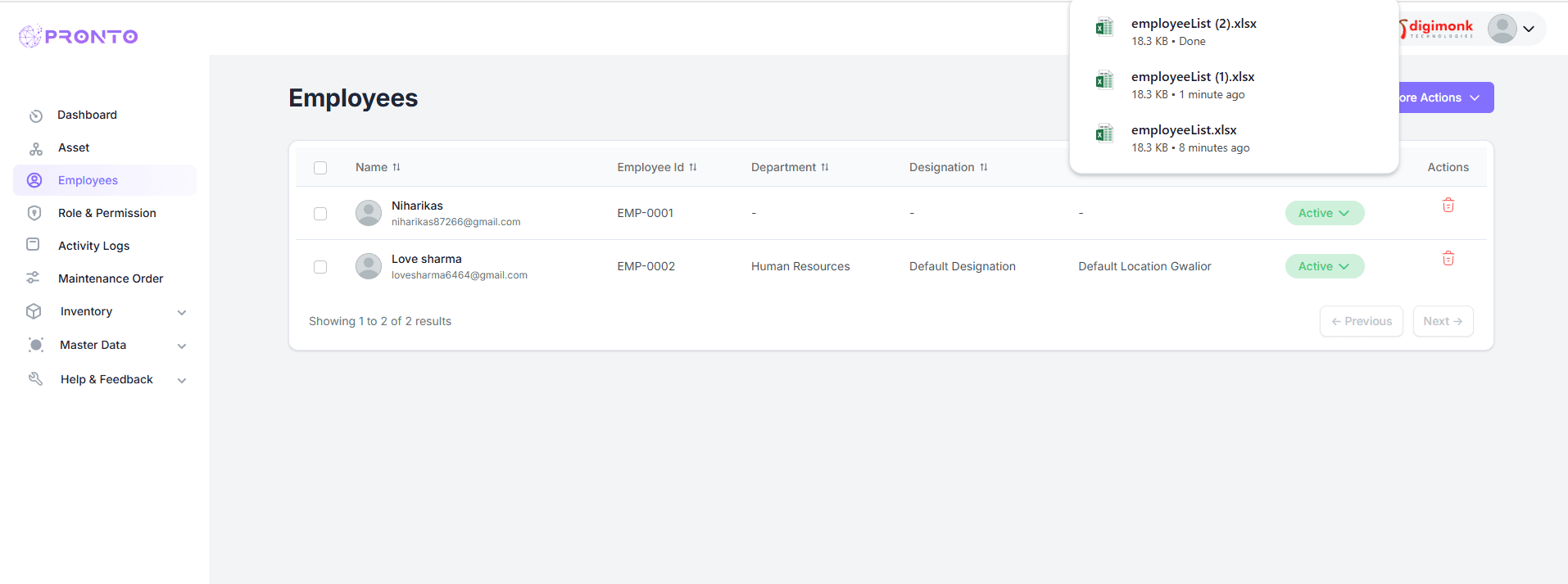
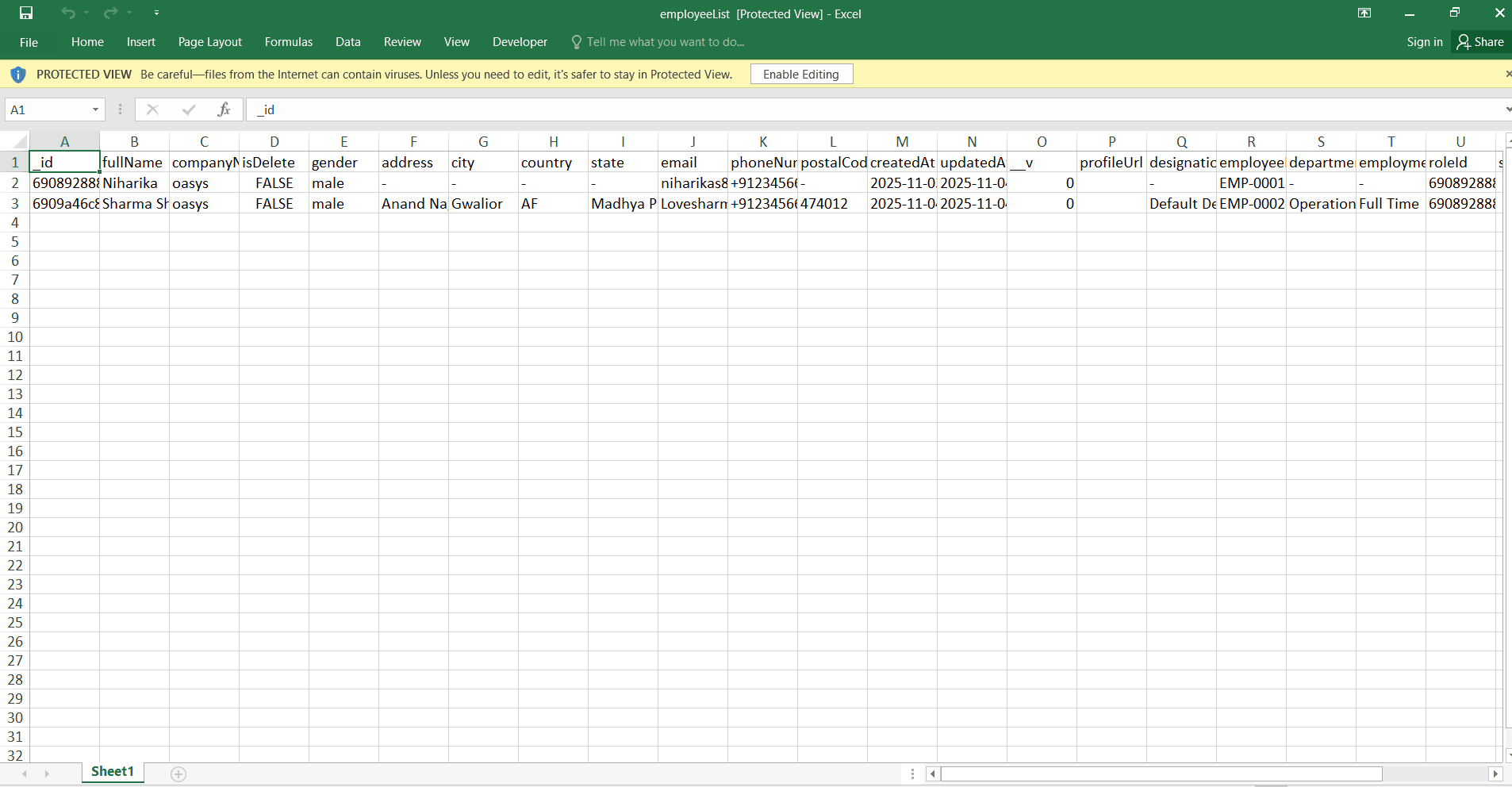
Export to Excel
Purpose: Download employee list in Excel format (.xlsx).
Usage:
- Click this to generate a detailed Excel sheet for HR reports, audits, or data backups.
Role & Permission
Watch Video
Purpose:
- Define and manage user roles and permissions.
Usage: - Create, edit, or delete user roles.
- Assign specific access permissions such as view, edit, delete, and module access.
- Helps maintain proper access control and data security.
- Only Admin users can modify or create roles and permissions.
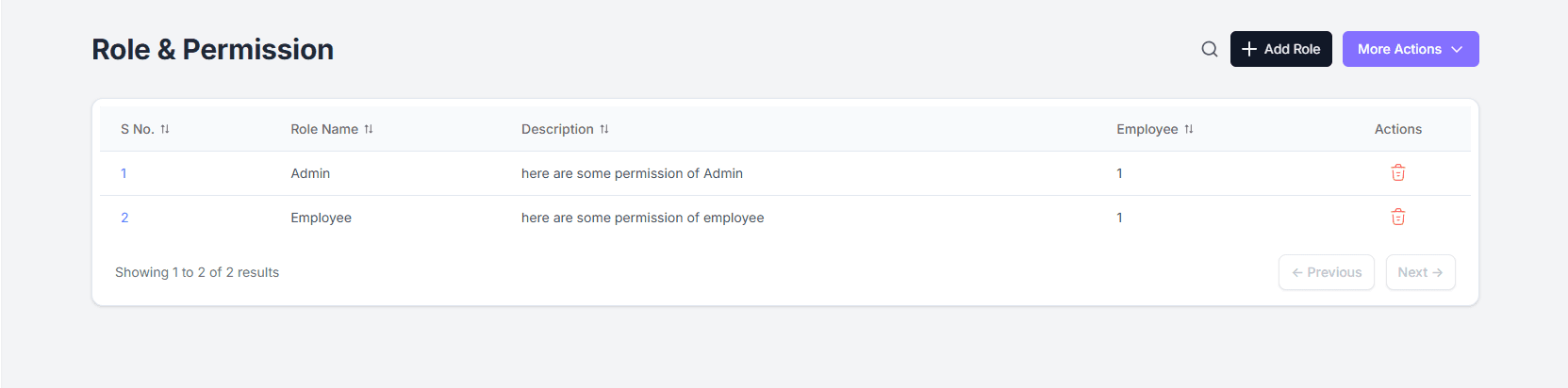
Role & Permission
- Role Name: Displays the name of each role (e.g., Admin, Employee).
- Description: Summary of permissions assigned to the role.
- Employee: Number of employees assigned to that role.
- Actions: Allows editing or deleting a role.
Main Functions
Activity Logs
Watch Video
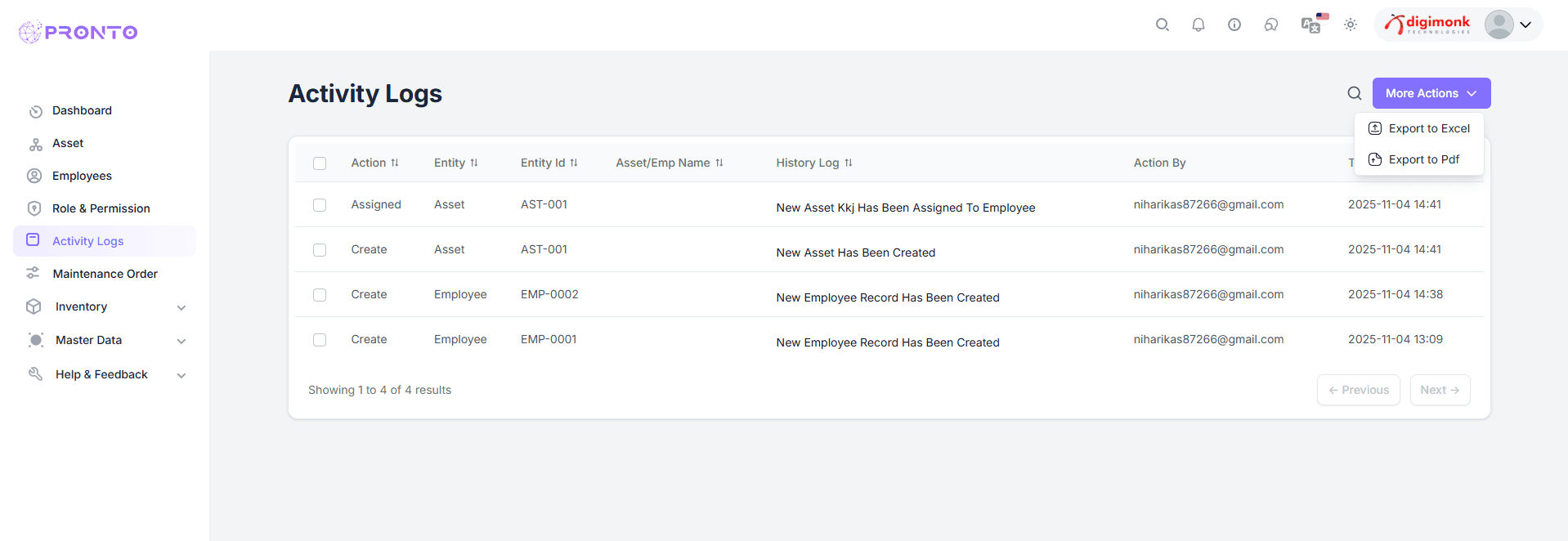
Activity Logs
- Action: Type of activity (Create, Update, Assign).
- Entity: Module where the activity occurred (e.g., Employee, Asset).
- Entity ID: Unique identifier of the record (e.g., EMP-0001, AST-001).
- Asset/Emp Name: Related employee or asset name.
- History Log: Describes the action (e.g., “Asset Assigned to Employee”).
- Action By: Shows which user performed the action.
- Date & Time: Displays when the action took place.
Key Features
-
Audit Tracking:
- View all recent changes such as record creation, updates, or transfers.
-
Detailed Change Log:
- For updated records, view field name, old value, and new value.
-
Export Logs:
- Use More Actions → Export (Excel/PDF) to download the complete activity record.
Maintenance Order
Watch Video
Purpose:
The Maintenance Order helps record preventive and corrective maintenance activities for assets.
It ensures proper tracking, reduces equipment downtime, and keeps maintenance operations organized.
Add Maintenance Order
Purpose:
- Create a new maintenance request or schedule preventive maintenance for assets.
- Helps in tracking and managing maintenance activities efficiently.
Basic Info
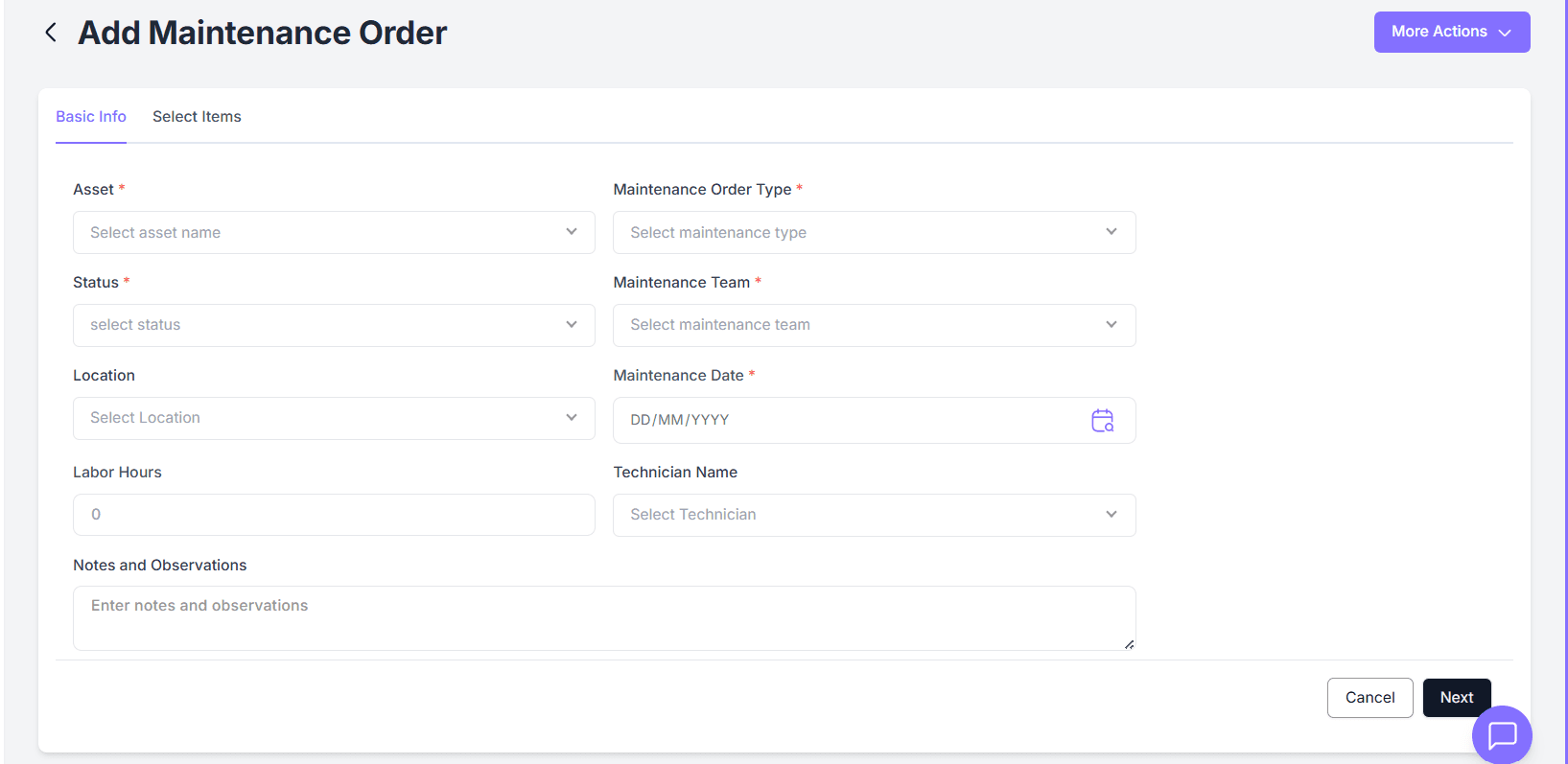
Fill in all required details marked with (*):
- Asset* – Select the asset needing maintenance (e.g., Generator, Laptop, AC Unit).
- Maintenance Order Type* – Choose Preventive, Corrective, or Emergency.
- Status* – Select current status (Pending, In Progress, Completed).
- Maintenance Team* – Select responsible team or department.
- Location – Choose maintenance site.
- Maintenance Date* – Pick maintenance date.
- Parts Replaced – Mention any replaced parts.
- Labor Hours – Enter time spent on maintenance.
- Technician Name – Choose assigned technician.
- Notes & Observations – Add remarks or findings.
Click Next to continue to the Select Items tab.
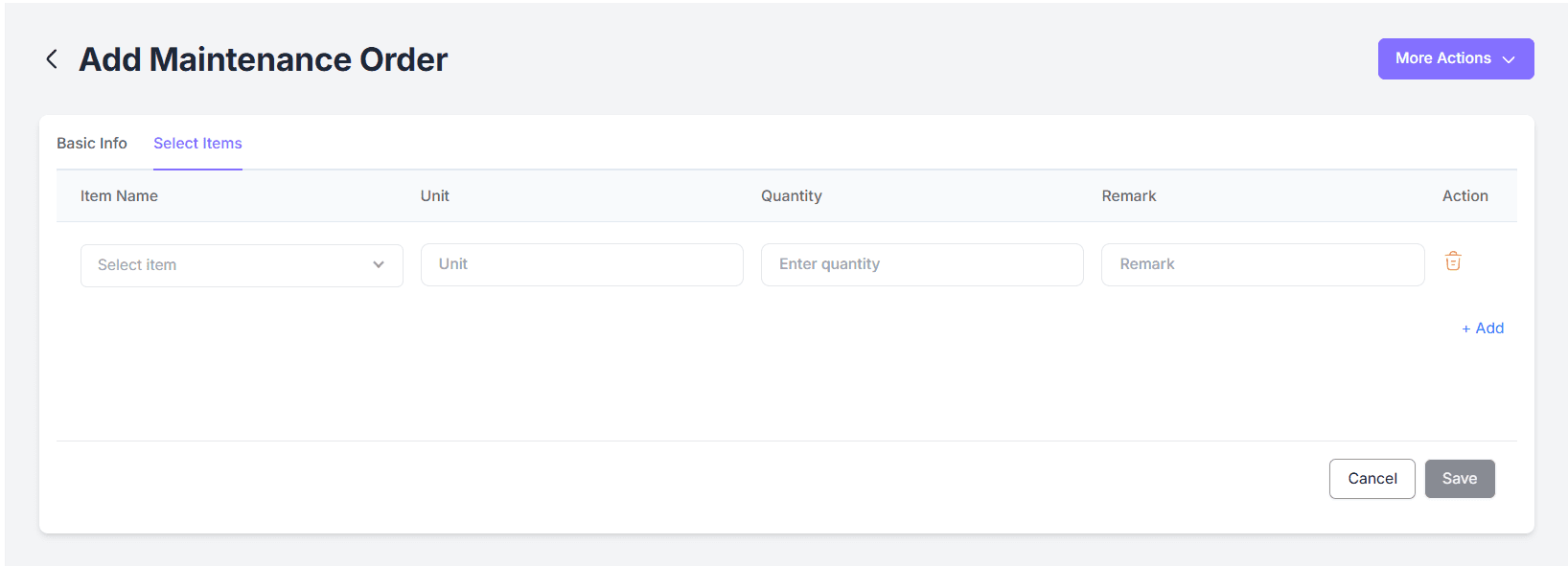
Select Items Tab
- Add spare parts, consumables, or materials used during maintenance.
- Verify all information before submission.
Final Submission
- Click Submit / Save to record the maintenance order.
- Track order status later in the Maintenance List section.
- Review updates and activity logs as needed.
Purpose: Ensures proper tracking, scheduling, and documentation of all maintenance operations.
Inventory
Watch Video
Inventory
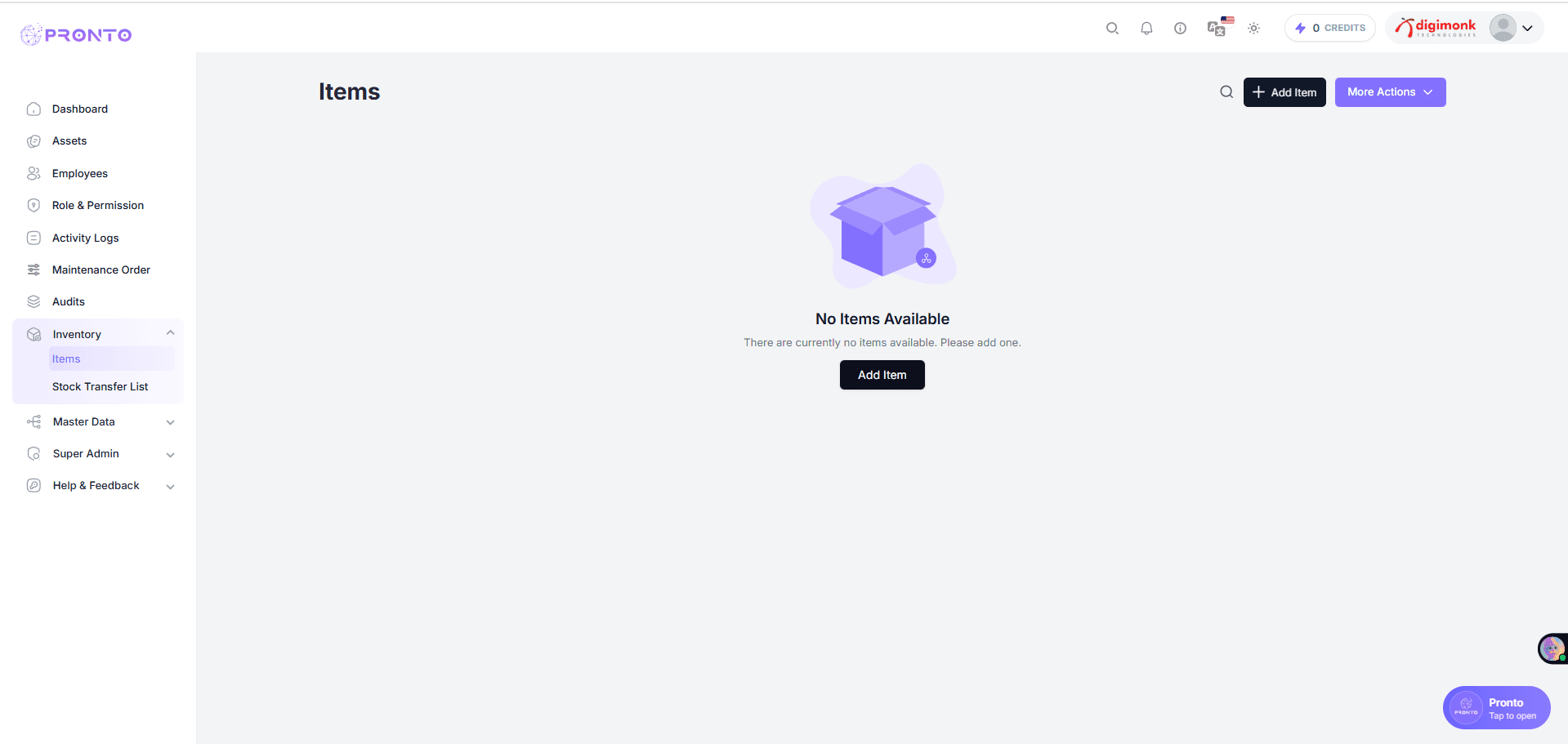
- The Inventory Management module tracks all items, materials, and spare parts used in maintenance and operations.
- Keeps inventory updated for smooth maintenance processes.
Accessing the Module
- Navigate to Inventory → Items from the sidebar.
- View, add, or manage existing inventory items.
Adding a New Item
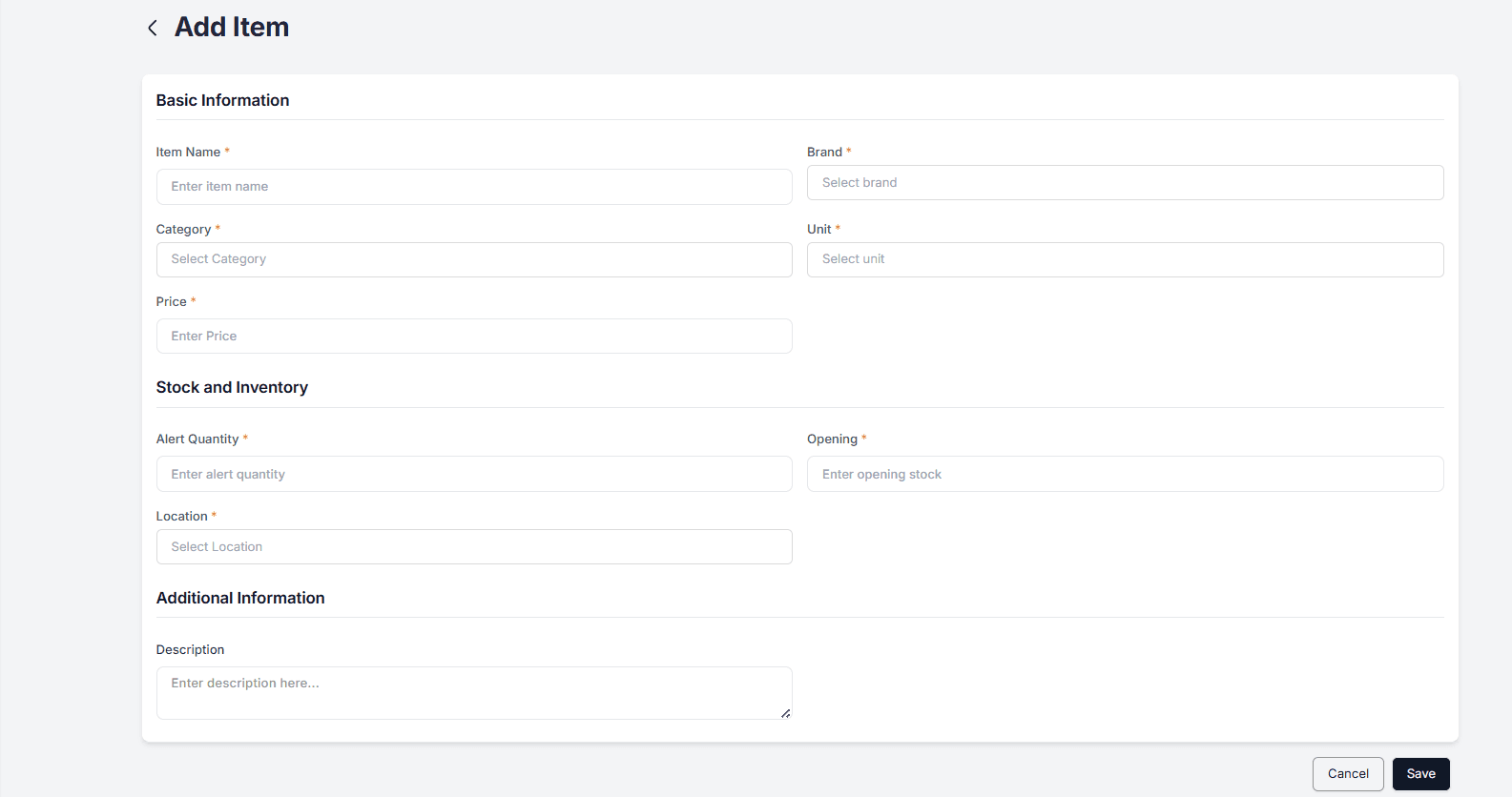
Click Add Item, then fill out all required fields.
Basic Information:
- Item Name* – e.g., Motor Oil, Gear, Screw
- Brand* – Enter or select brand name
- Category* – e.g., Electrical, Mechanical
- Unit* – e.g., Piece, Liter, Kg
- Price* – Per-unit cost
Stock & Inventory:
- Alert Quantity* – Minimum stock level for restock alert
- Opening* – Initial stock quantity
- Location* – Storage place (e.g., Warehouse A)
Additional Info:
- Description – Include extra details or supplier information.
Actions
- Save: Add item to inventory.
- Cancel: Discard changes and return to list.
Tips for Users
- Keep all fields updated for accurate tracking.
- Use clear item names and correct measurement units.
- Set realistic Alert Quantities to prevent stockouts.
Purpose: Maintain a structured and accurate inventory system for effective operations.
Transfer Stock
Purpose
- Move inventory items between departments or locations.
- Ensure accurate records of stock transfers and balances.
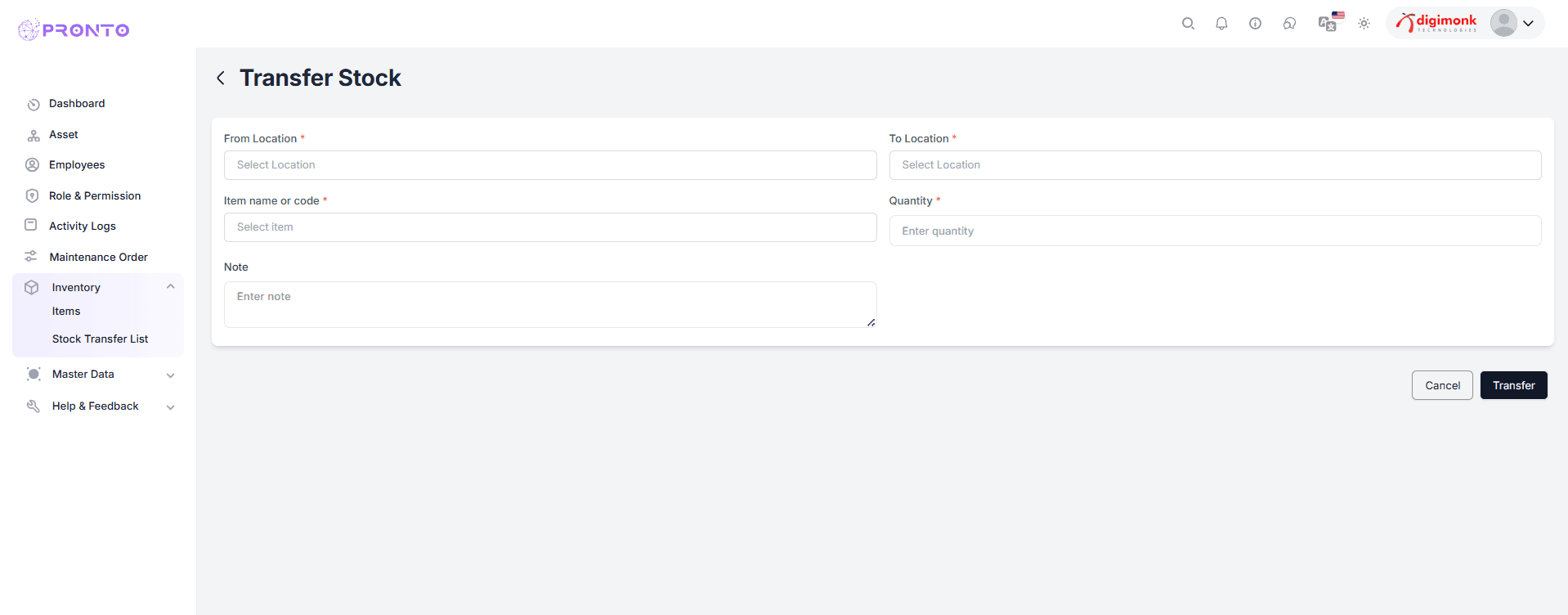
Steps to Transfer Stock
1. Navigate
- Go to Inventory → Stock Transfer List.
2. Initiate Transfer
- Click Add Stock Transfer or + New.
3. Fill Transfer Details
- Transfer From: Source location
- Transfer To: Destination location
- Item Name: Select the item to transfer
- Quantity: Enter quantity
- Remarks: Notes or transfer reason
4. Save & Confirm
- Click Save or Submit to complete transfer.
5. More Actions
- Approve/Reject: Supervisors review requests.
- Delete: Remove incorrect transfers.
- View History: Check past transfer logs.
Purpose: Enables accurate and controlled stock distribution between warehouses or departments.
Master Data
The Master Data section is the foundation of the system, where administrators can configure all essential data required for other modules to function smoothly. Below is a description of each option under Master Data.
Watch Video
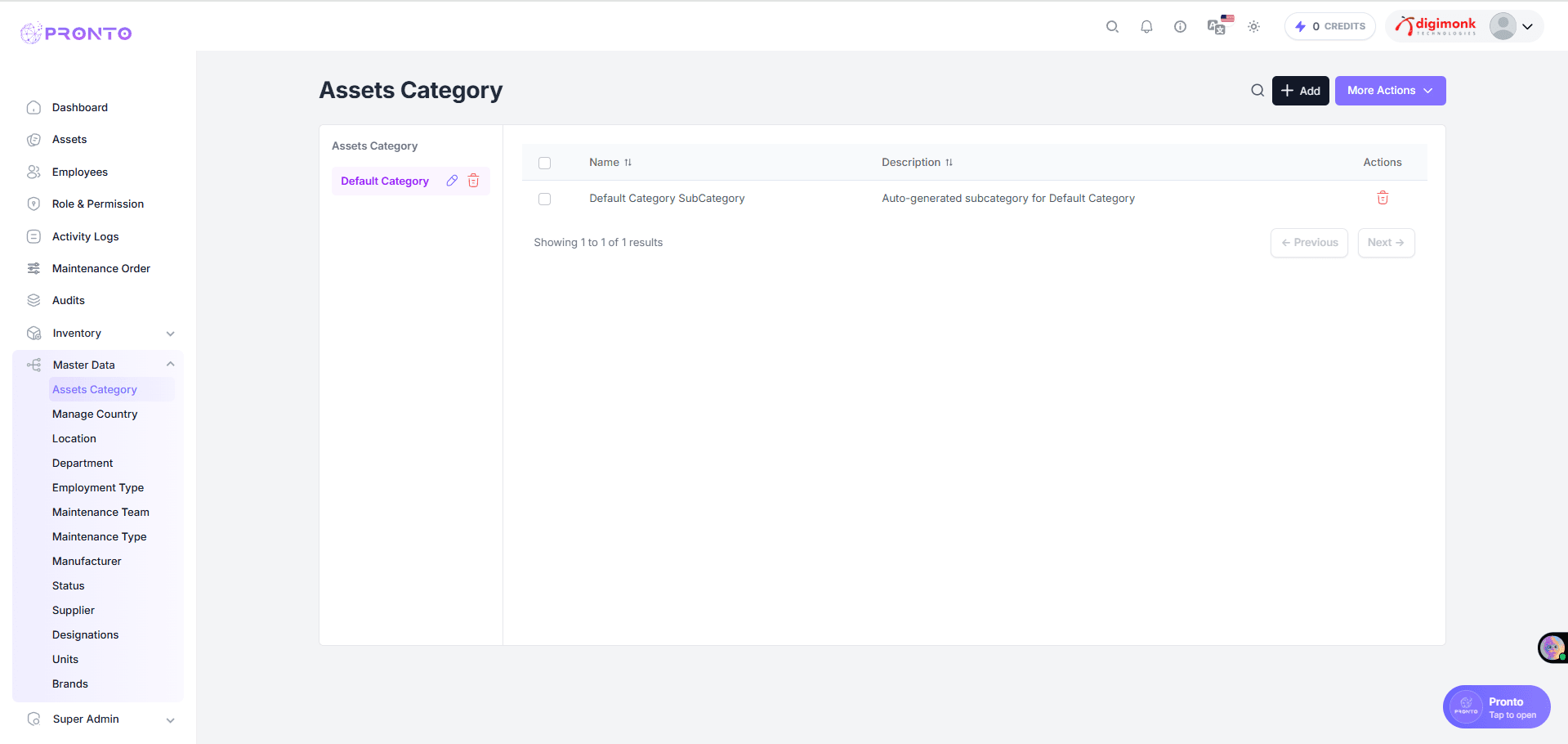
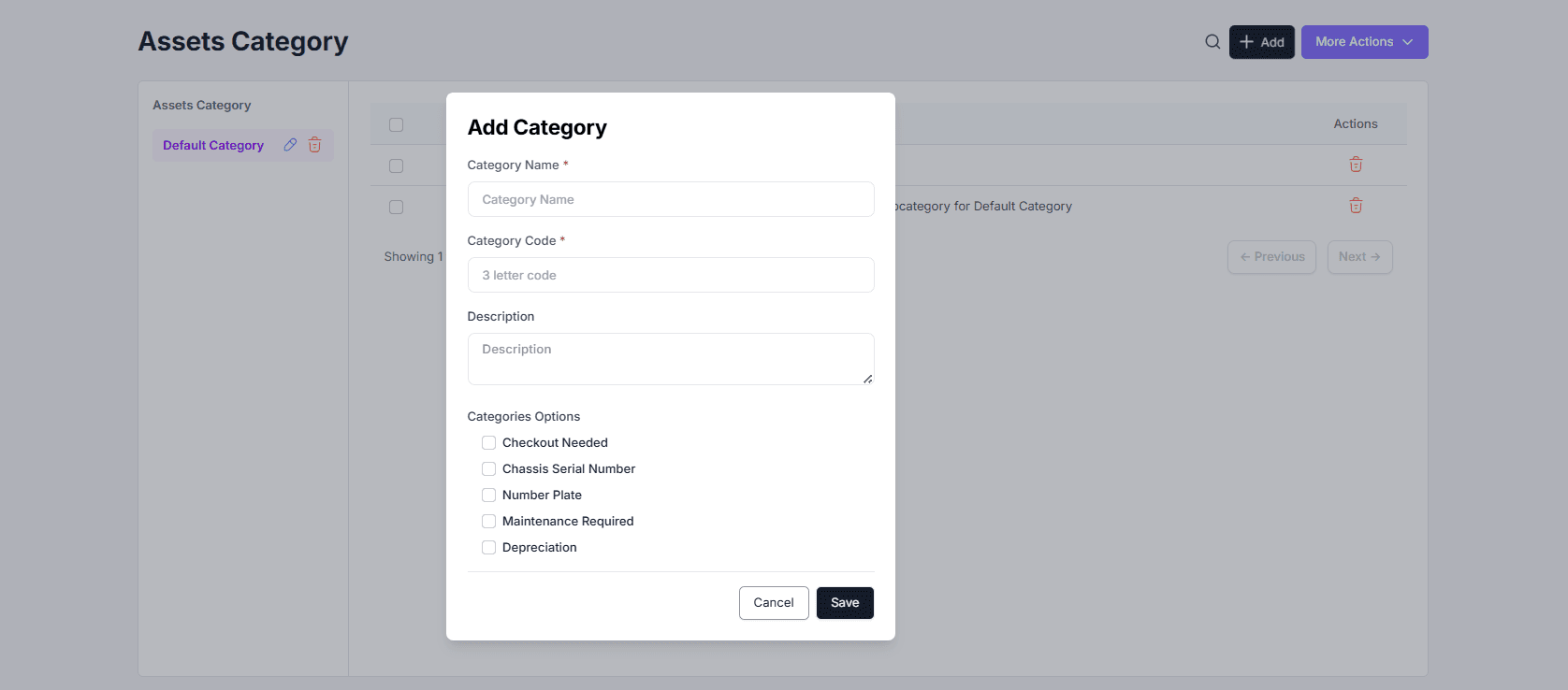
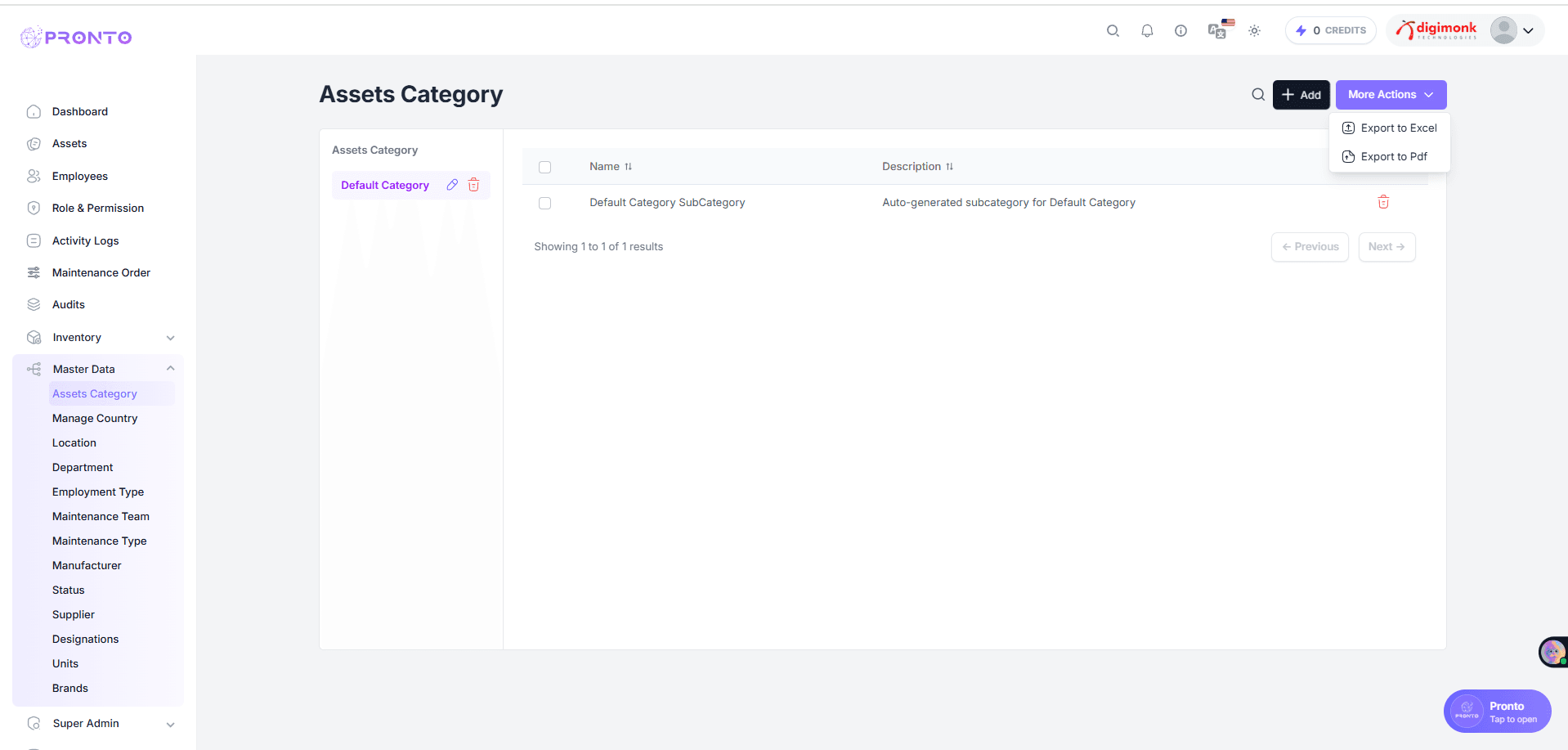
Assets Category
- Left Panel: Displays list of asset categories created (e.g., Default Category).
- Right Panel: Shows subcategories, their descriptions, and available actions.
Add Category
- Click + Add Category
- Fill details: Category Name, Description
- Click Save to create
Edit Category
- Click ** (Edit)** beside a category
- Update name or description
- Click Save
Delete Category
- Click ** Delete** icon beside a category
- Confirm deletion
More Actions
- Use More Actions to Activate, Deactivate, or Delete multiple records
Manage Country
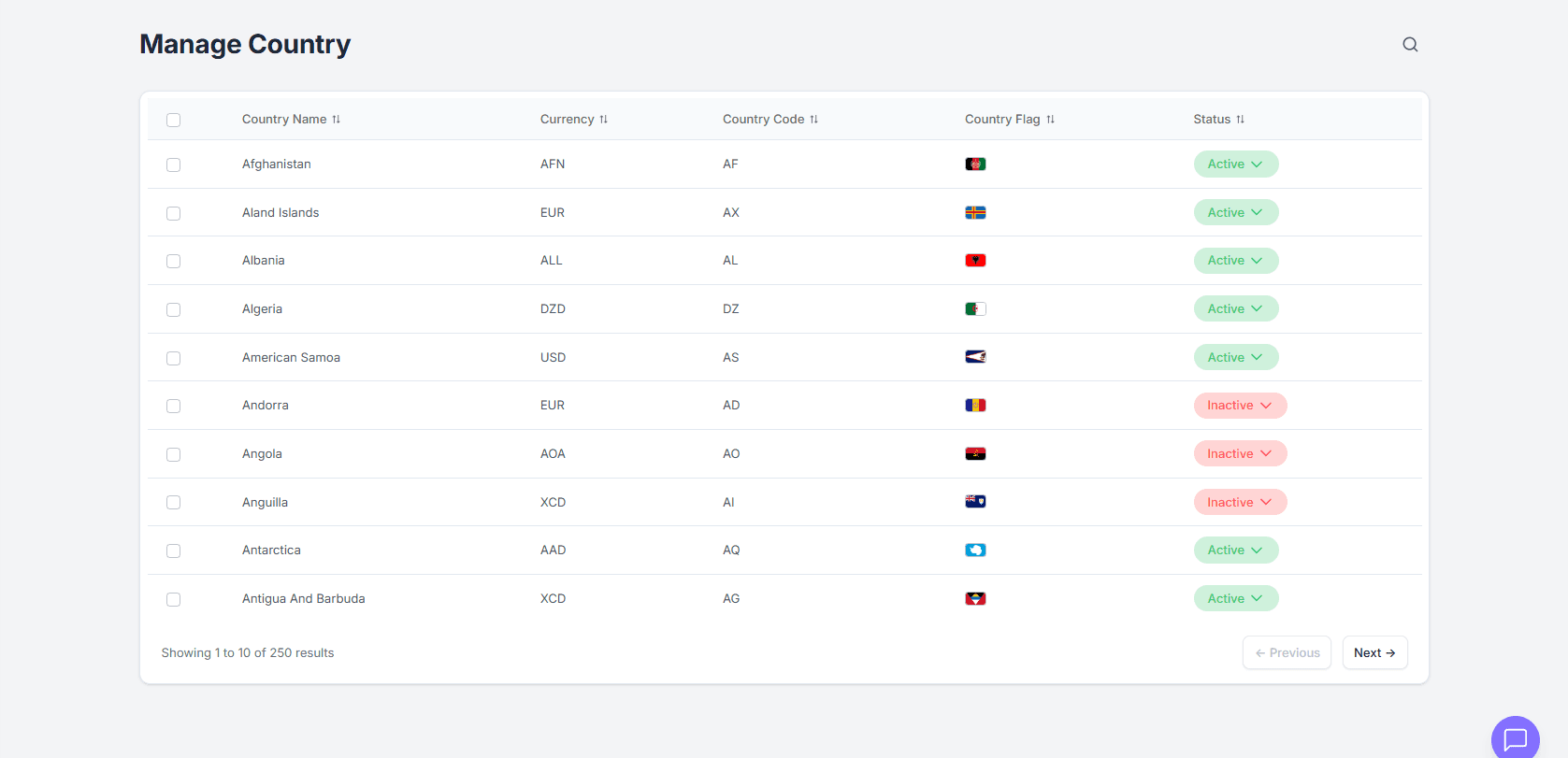
The Manage Country section lets you manage country data such as name, code, currency, and status.
Country List View
- Displays Country Name, Currency, Code, Flag, and Status
- Columns can be sorted and searched
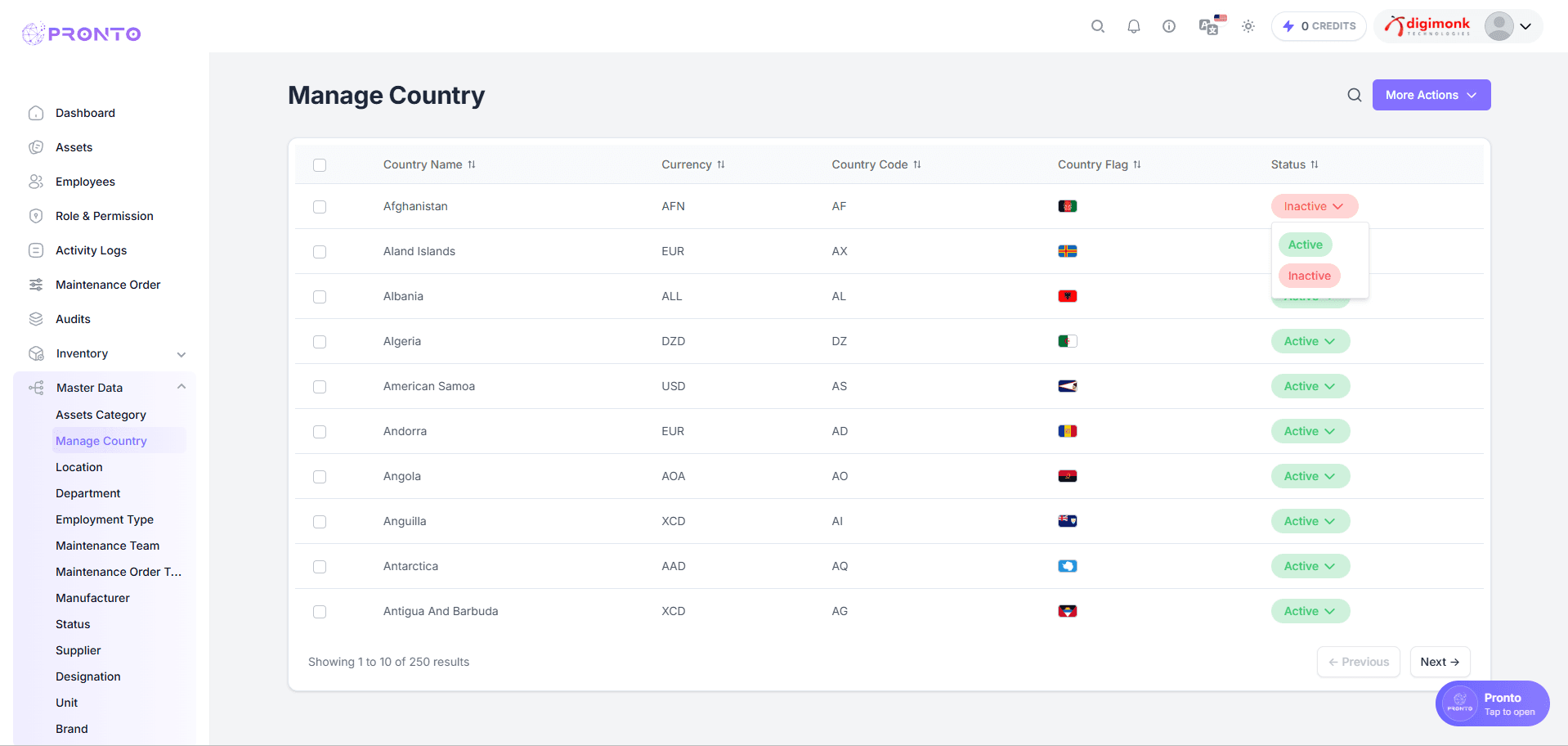
Change Status
- Toggle between Active / Inactive
- Active = visible across system
- Inactive = hidden in dropdowns/forms
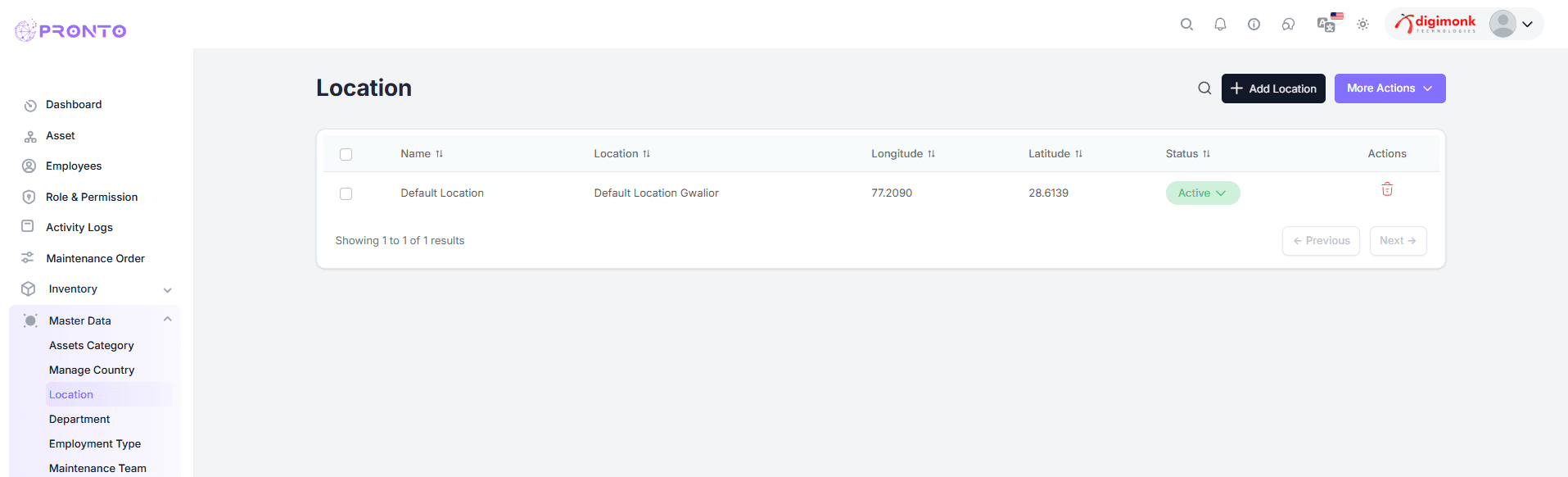
Location
Accessing the Location Module
Open the left sidebar
Go to Master Data → Location
This opens the main Location List, where you can view and manage all locations.
Add New Location
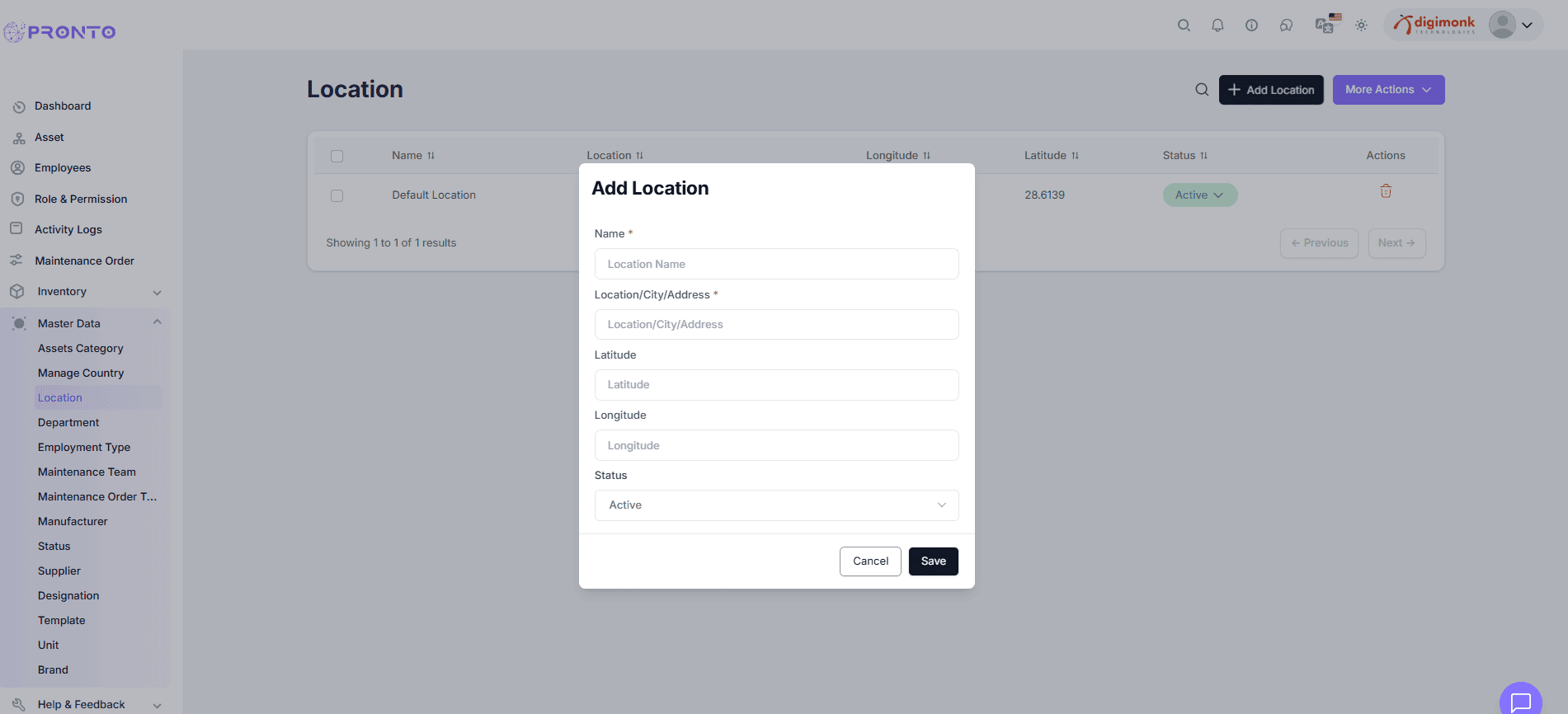
- Click + Add Location
- Fill: Name, Address, Latitude, Longitude, Status
- Click Save
Edit / Delete Location
- Click ** Edit** to update
- Click ** Delete** to remove
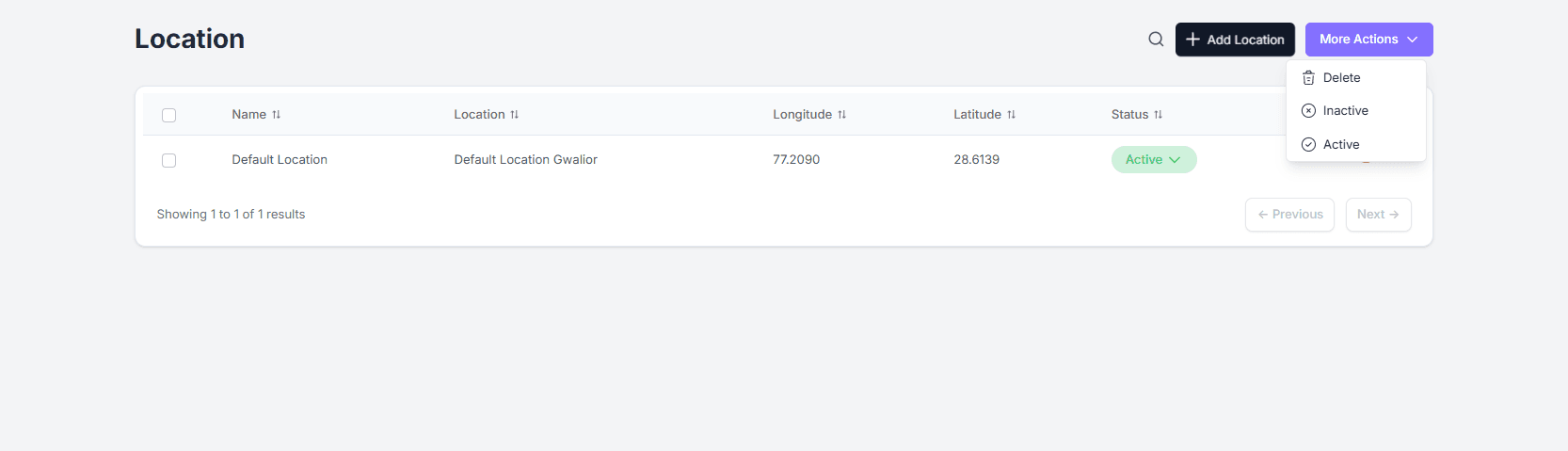
More Actions
- Select multiple records → open More Actions dropdown
- Choose Active, Inactive, or Delete
- The More Actions menu provides access to additional options, including editing, deleting, and managing various administrative functions.
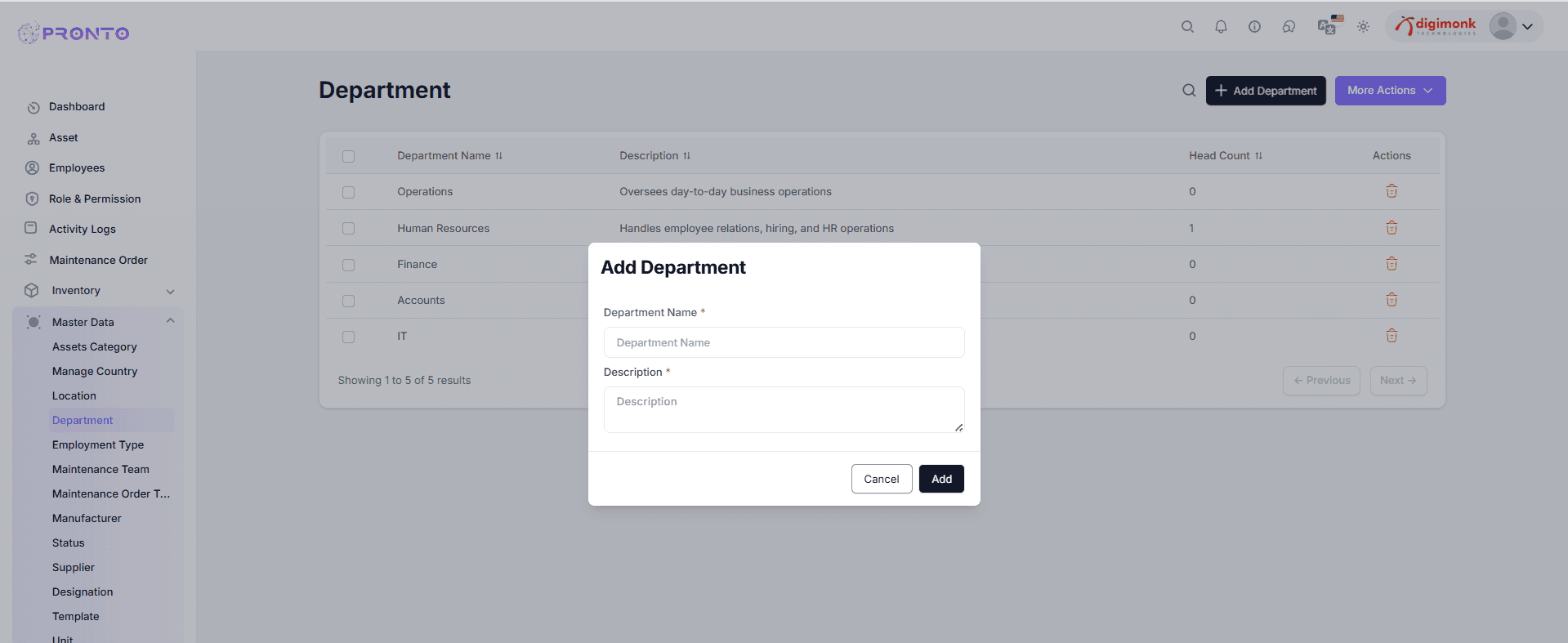
Department
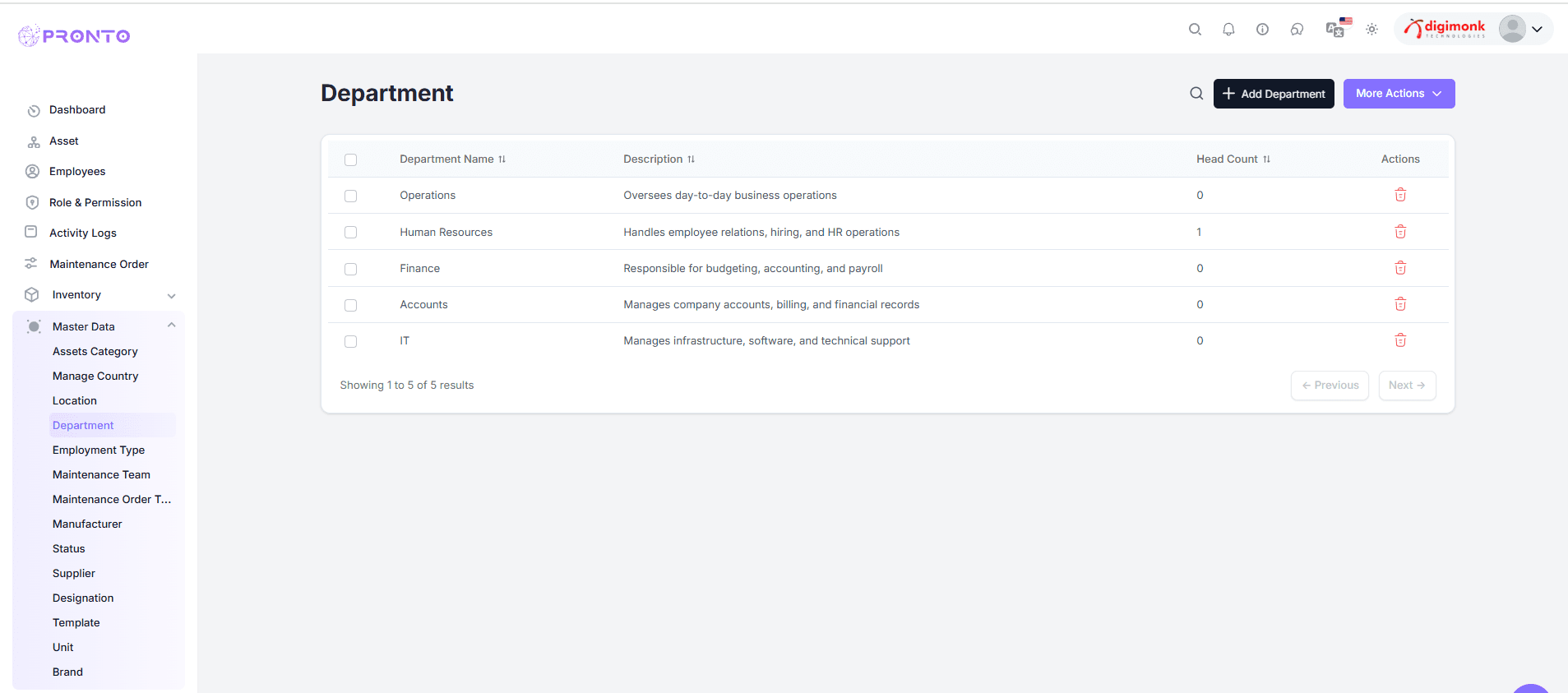
The Department module manages departments like HR, IT, or Finance.
Navigation
-From the left sidebar, go to Master Data → Department.
-The Department page will display a list of all departments with their details.
View Department List
- Shows Department Name, Description, Head Count, Actions
- Department Name: The official name of the department (e.g., HR, IT, Finance).
- Description: Short info about what the department handles.
- Head Count: Total number of employees under that department.
- Actions: Options to delete a department.
Add Department
- Click + Add Department
- Fill Name & Description
- Click Add
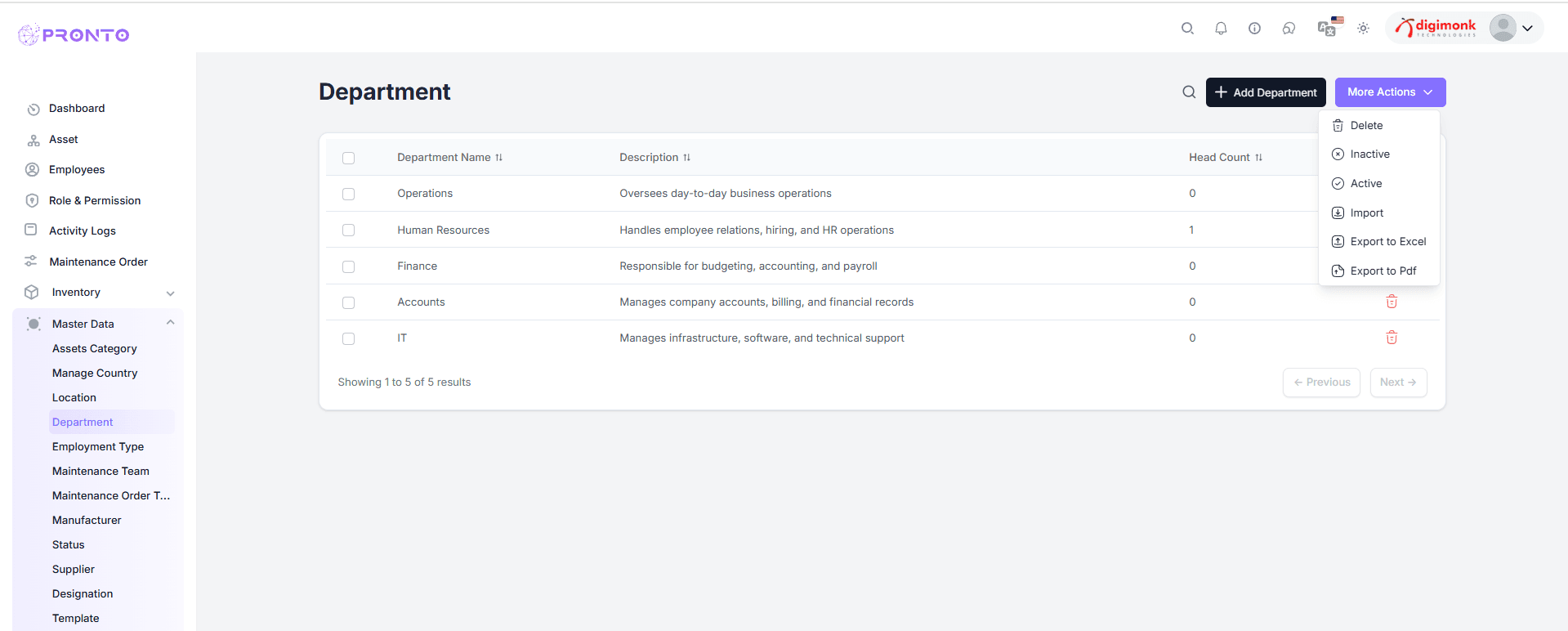
More Actions
- The More Actions menu provides access to additional options, including editing, deleting, and managing various administrative functions.
Employment Type
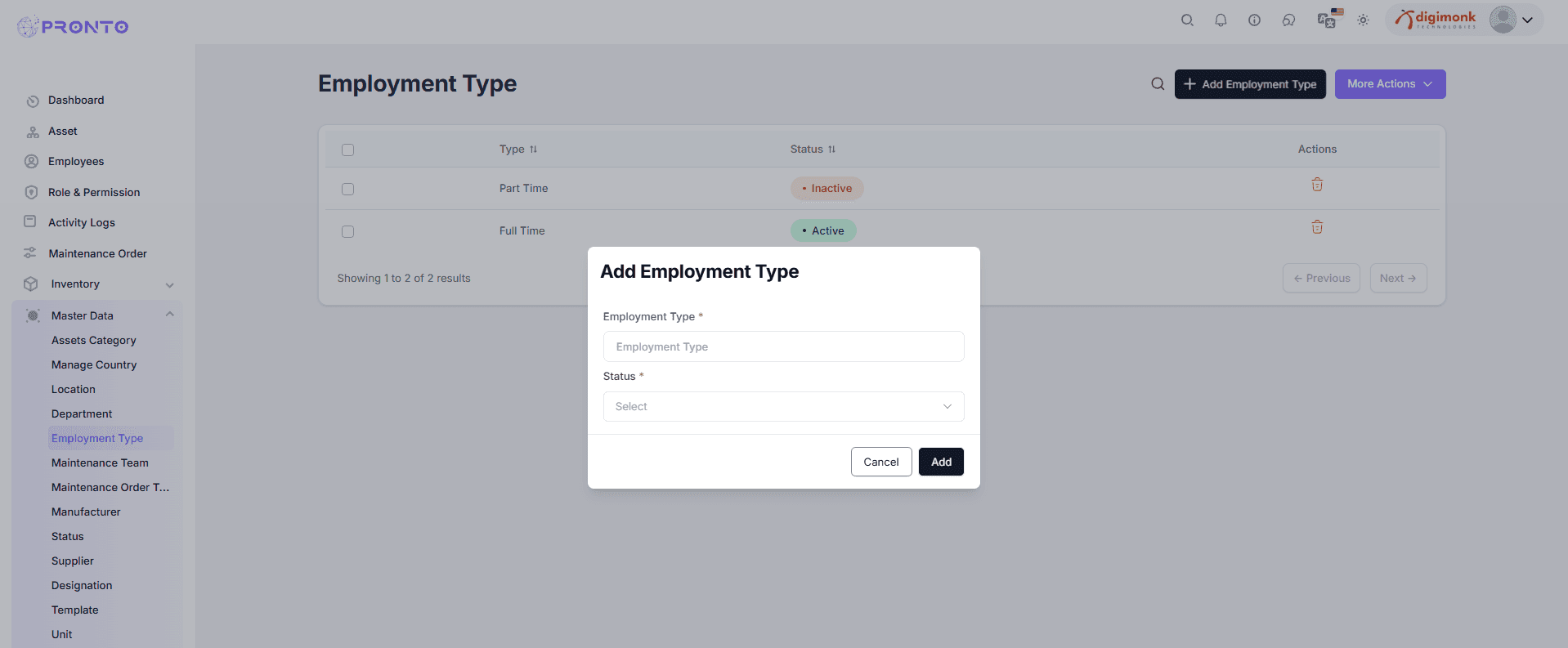
This module manages types of employment like Full-Time, Part-Time, or Contract.
View Employment Types
You can view a list of existing employment types such as Full Time and Part Time.
- Type – Shows the name of the employment type.
- Status – Indicates whether the type is Active or Inactive.
- Actions – Allows you to delete a specific employment type.
.png&w=3840&q=75)
Employment Type List
- Columns: Type, Status, Actions

Add Employment Type
- Click Add Employment Type
- Fill Type and Status
- Click Add
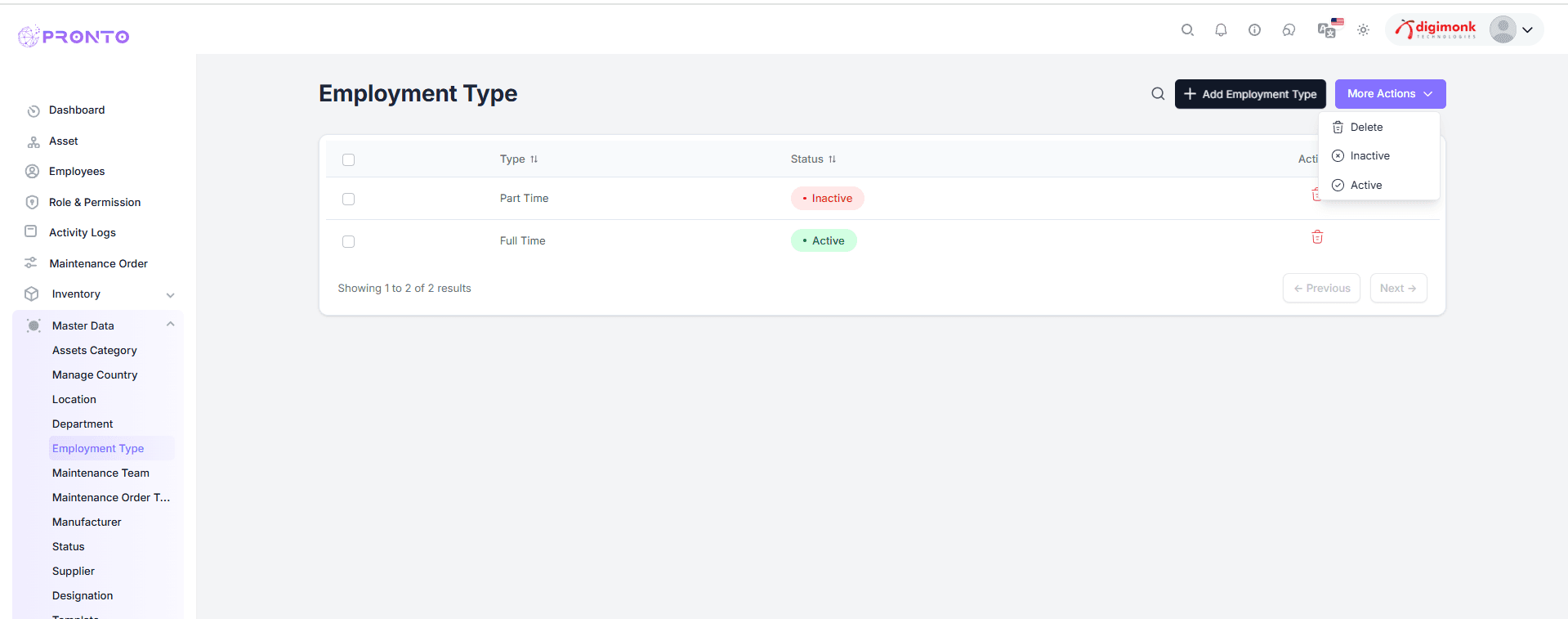
More Actions
- The More Actions menu provides access to additional options, including editing, deleting, and managing various administrative functions.
Maintenance Team
The Maintenance Team section helps users manage all maintenance teams responsible for handling repair and maintenance activities in the organization.
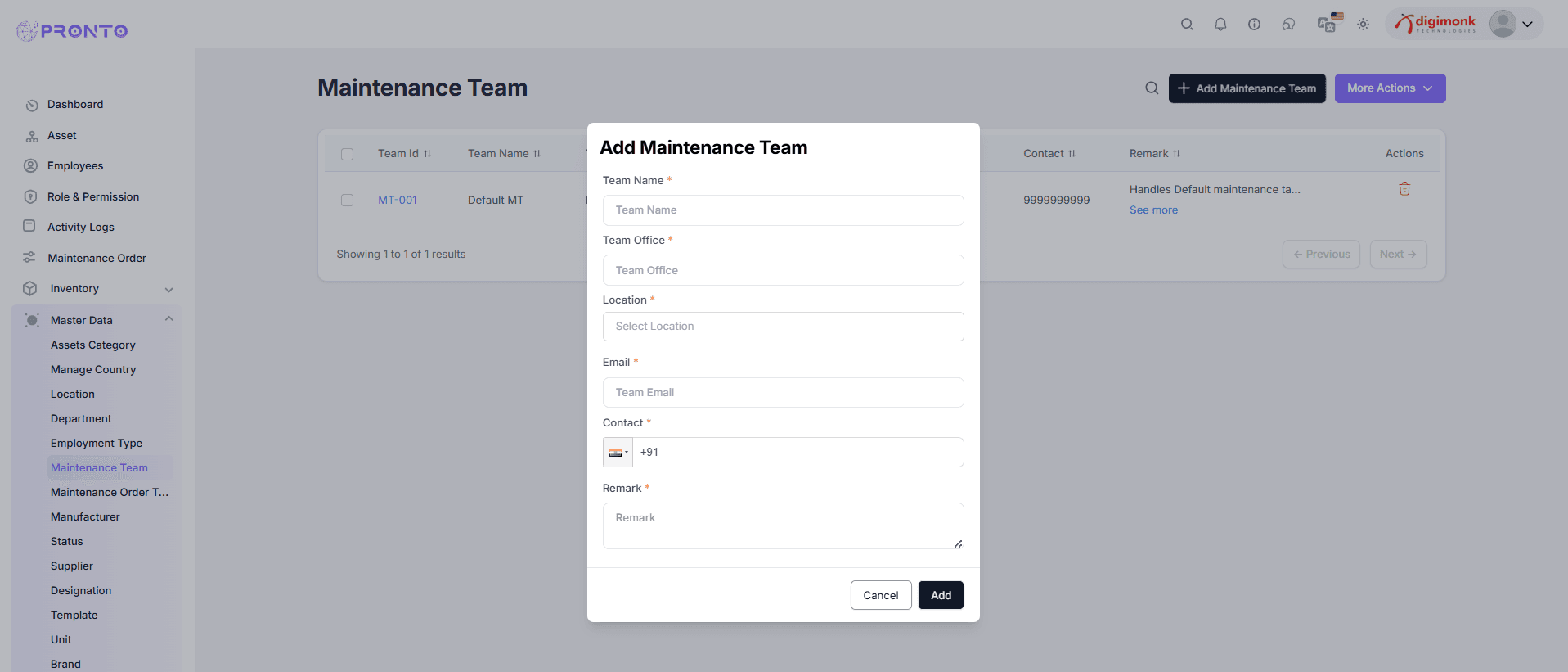
Add Maintenance Team
-
Click Add Maintenance Team
-
Fill in details:
- Team Name → Enter the team’s name
- Team Office → Specify the office/branch
- Location → Enter the team's location
- Email → Provide the official email
- Contact → Enter the contact number
- Remark → Add any notes or description
-
Click Add to save or Cancel to discard
View and Manage Teams
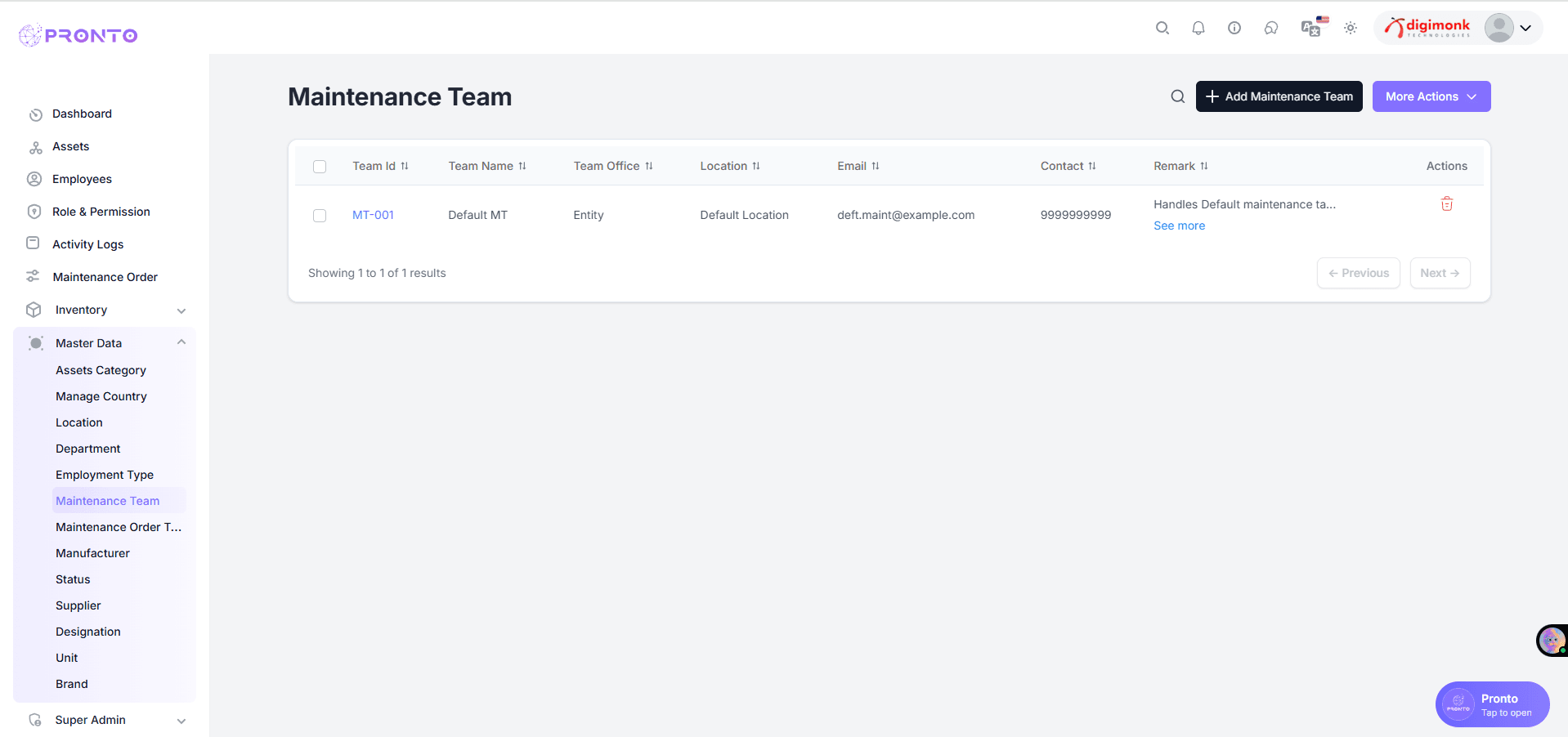
- View all teams in a list with details (Team ID, Name, Office, etc.)
- Sort data using arrows beside column names
More Actions
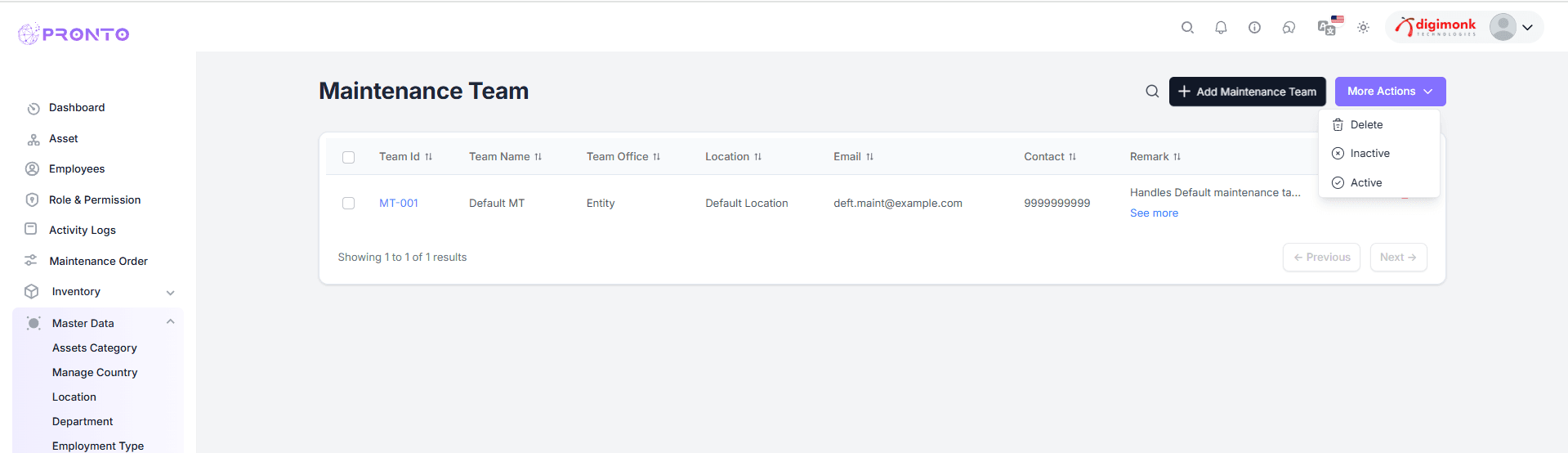
- Active / Inactive / Delete — bulk manage via dropdown
- Select records using checkboxes before applying
Maintenance Order Type
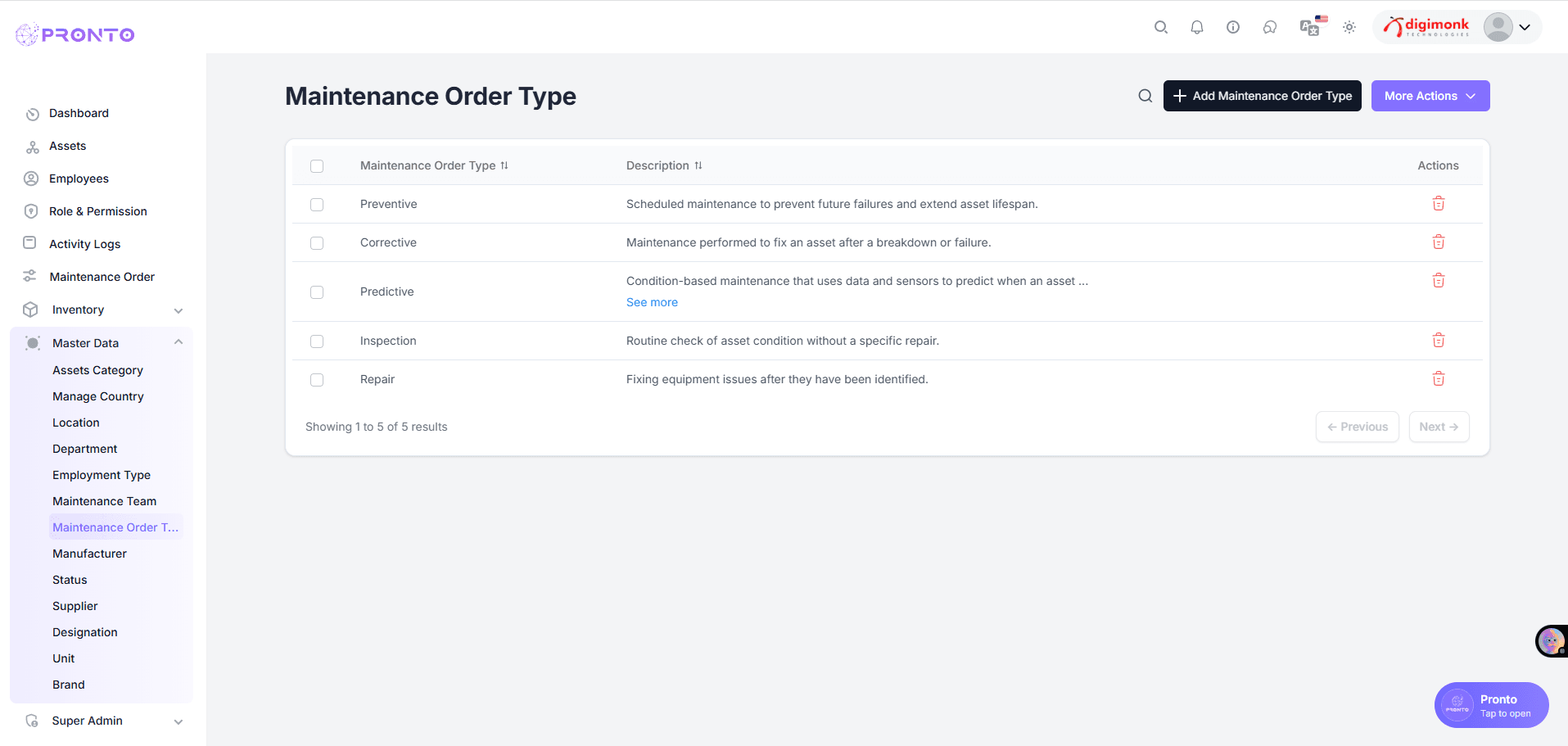
Manage maintenance order types like Corrective, Preventive, or Predictive.
View Maintenance Order Types
- This section displays all the maintenance order types available in the system.
- Each row includes:
- Maintenance Order Type Name
- Description
- Delete Action (trash icon) to remove the type
Examples of maintenance order types:
- Corrective
- Predictive
- Inspection
- Repair
- Preventive
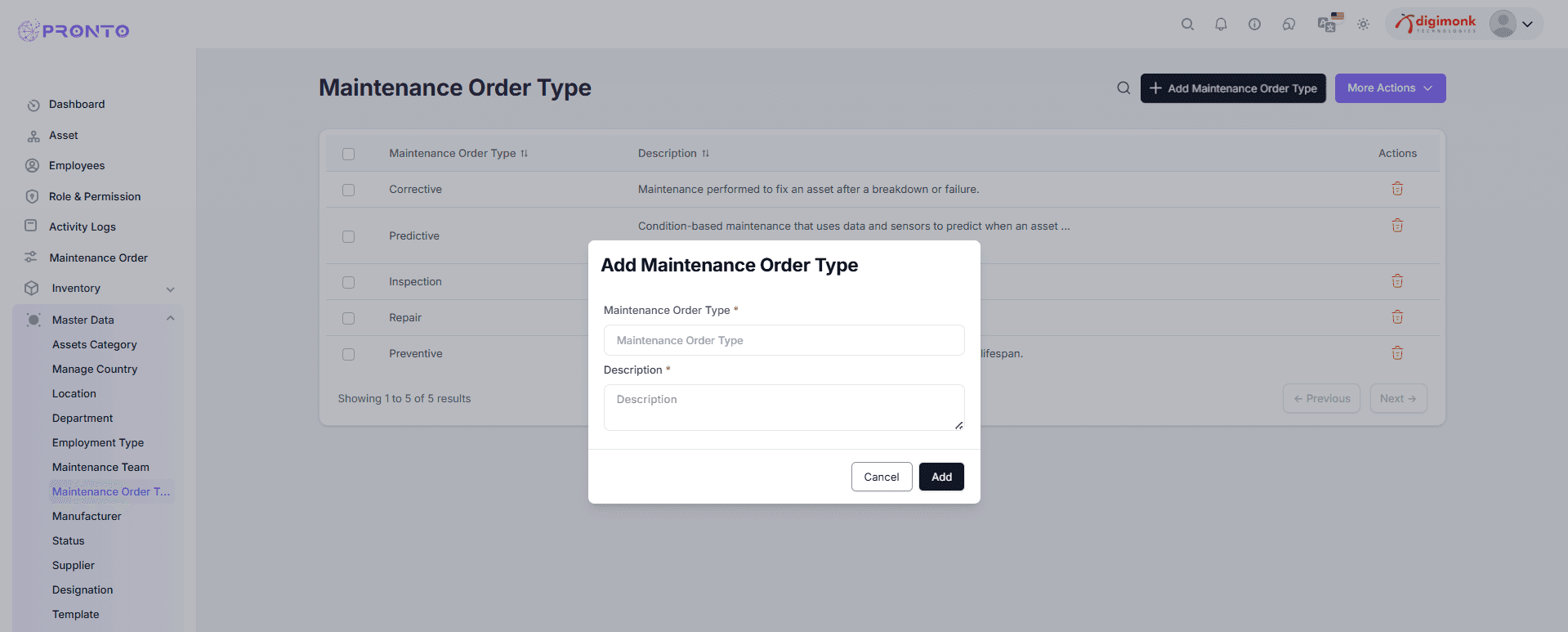
Add Maintenance Order Type
- Click Add Maintenance Order Type
- Fill:
- Type Name (e.g., Calibration)
- Description
- Click Add to save
Import/Export
- Access More Actions:
- Delete
- Export (Excel / PDF)
- Import from Excel
Manufacturer
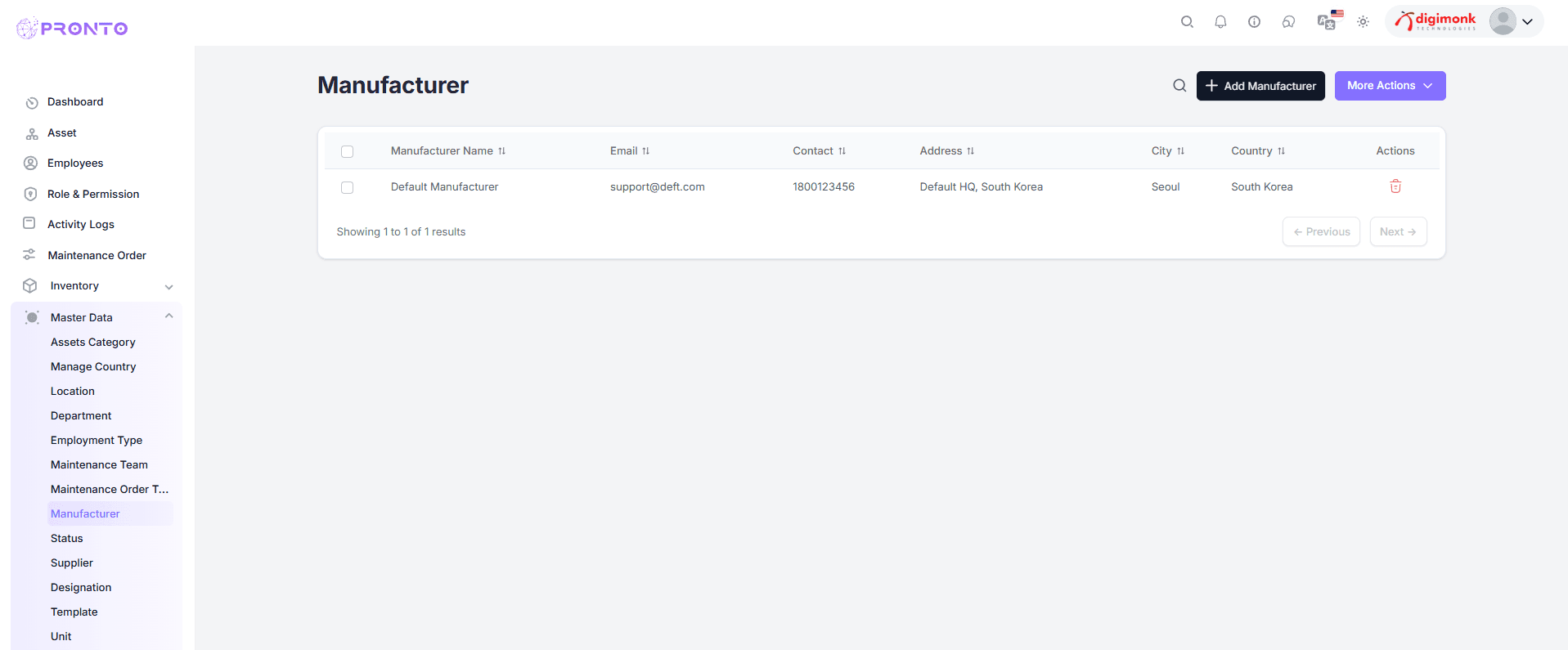
- Manages manufacturer details like name, contact, city, and country.
View Manufacturer List
- Columns:
- Name
- Contact
- Address
- City
- Country
Add Manufacturer
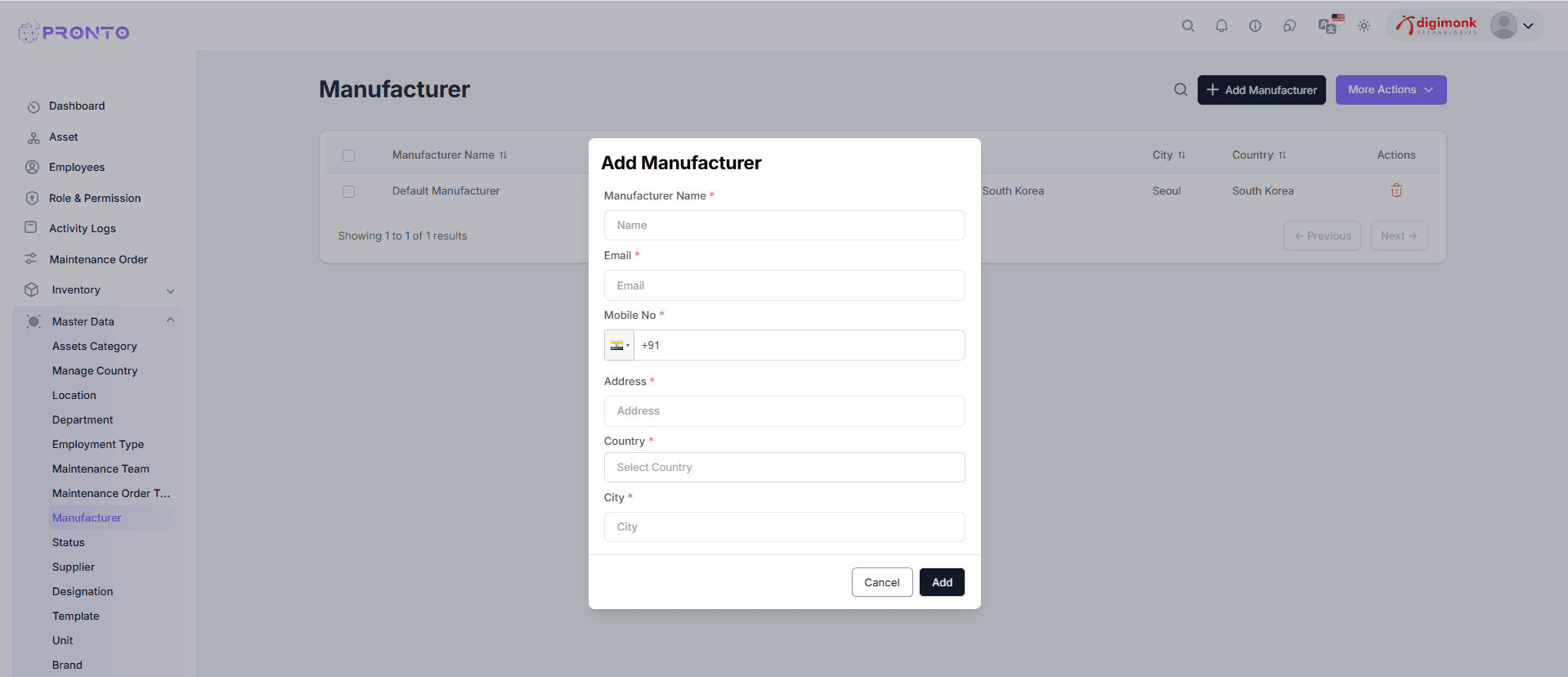
- Click Add Manufacturer
- Fill the following details:
- Name – Enter the manufacturer/company name
- Email – Provide a valid email address
- Mobile No – Enter the contact number
- Address – Add the full address of the manufacturer
- Country – Select the country
- Click Add to save
More Actions
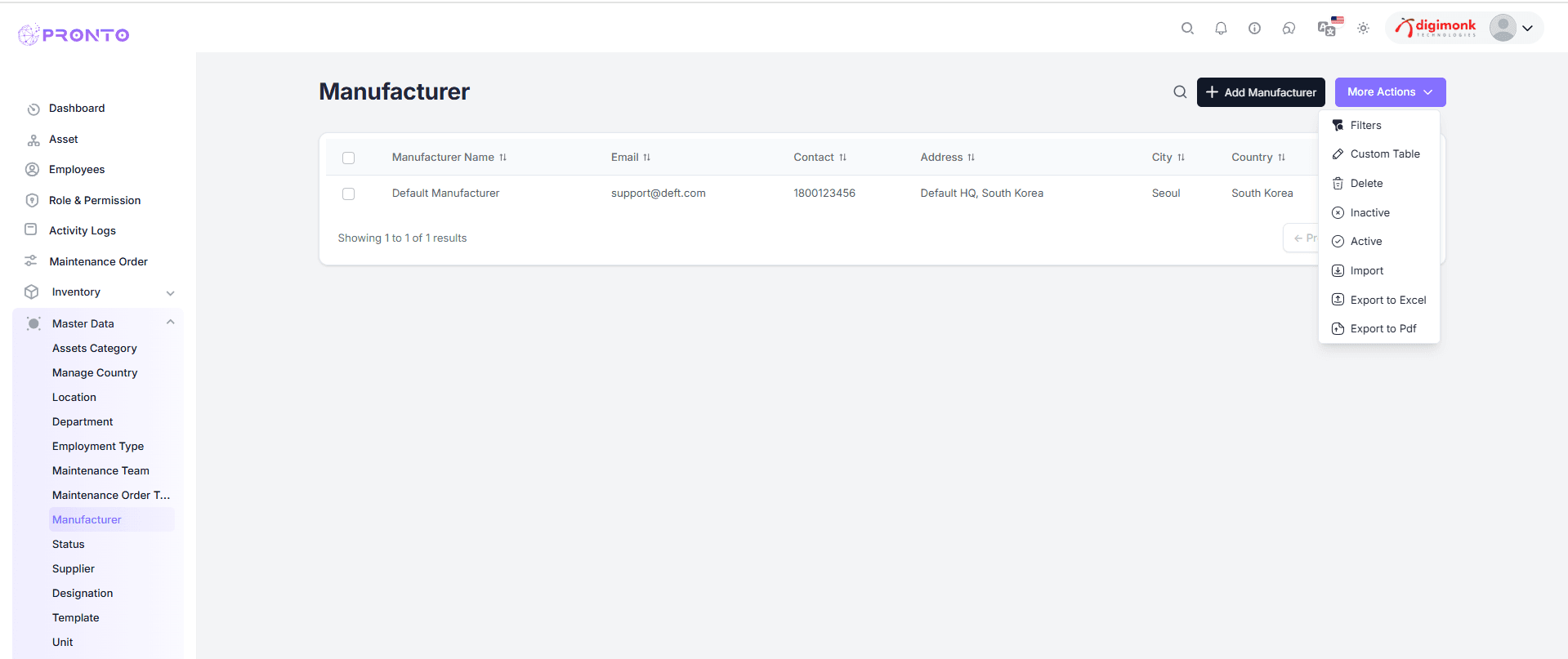
- Filter
- Custom Table
- Delete / Inactive / Active
- Import / Export (Excel, PDF)
Pagination
- View total records
- Use Previous / Next buttons to navigate
Status
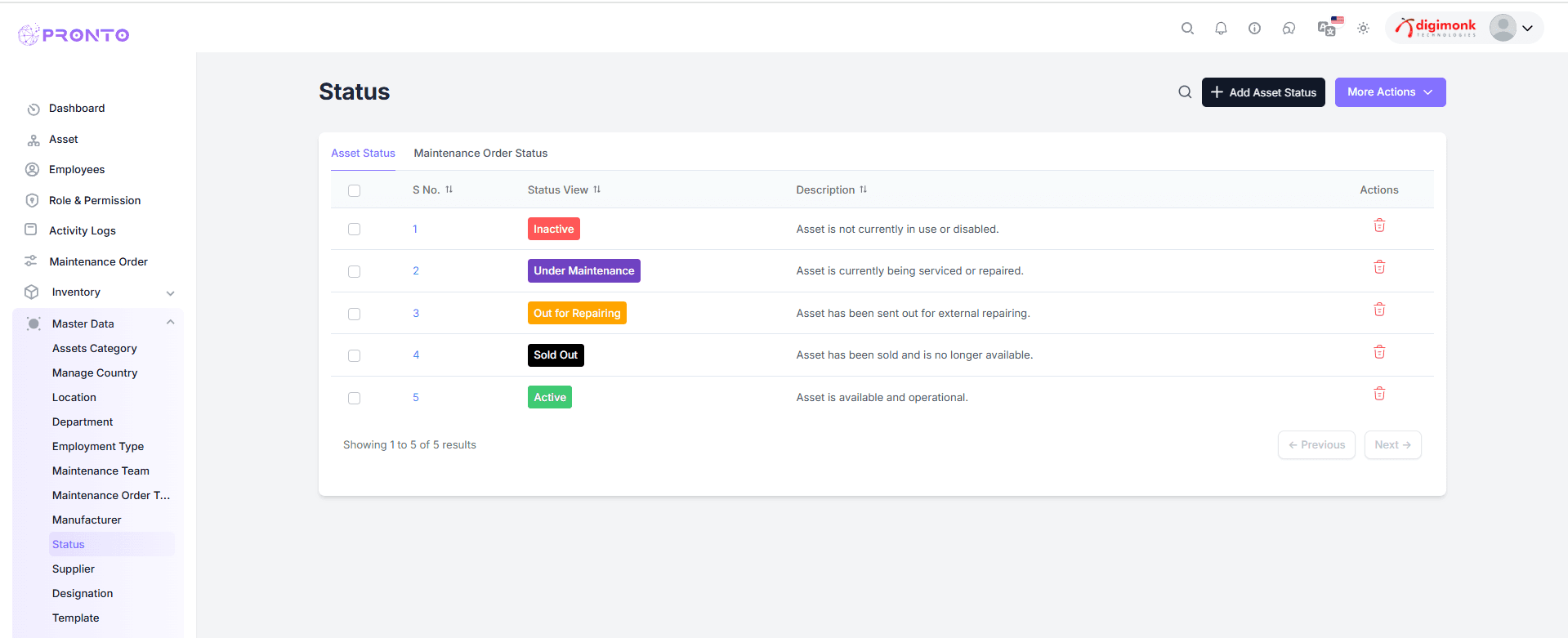
Manages asset and maintenance order statuses (Active, Inactive, Under Maintenance, etc.).
View Status List
The status list contains different asset conditions. Each row shows:
- S.No – Serial number of the entry.
- Status View – The current status of the asset.
- Description – Brief explanation of the status.
- Actions – Options to edit or delete the status.
Examples of status types:
- Inactive – Not in use
- Under Maintenance – Being serviced
- Out for Repairing – Sent for repair
- Sold Out – No longer available
- Active – Operational
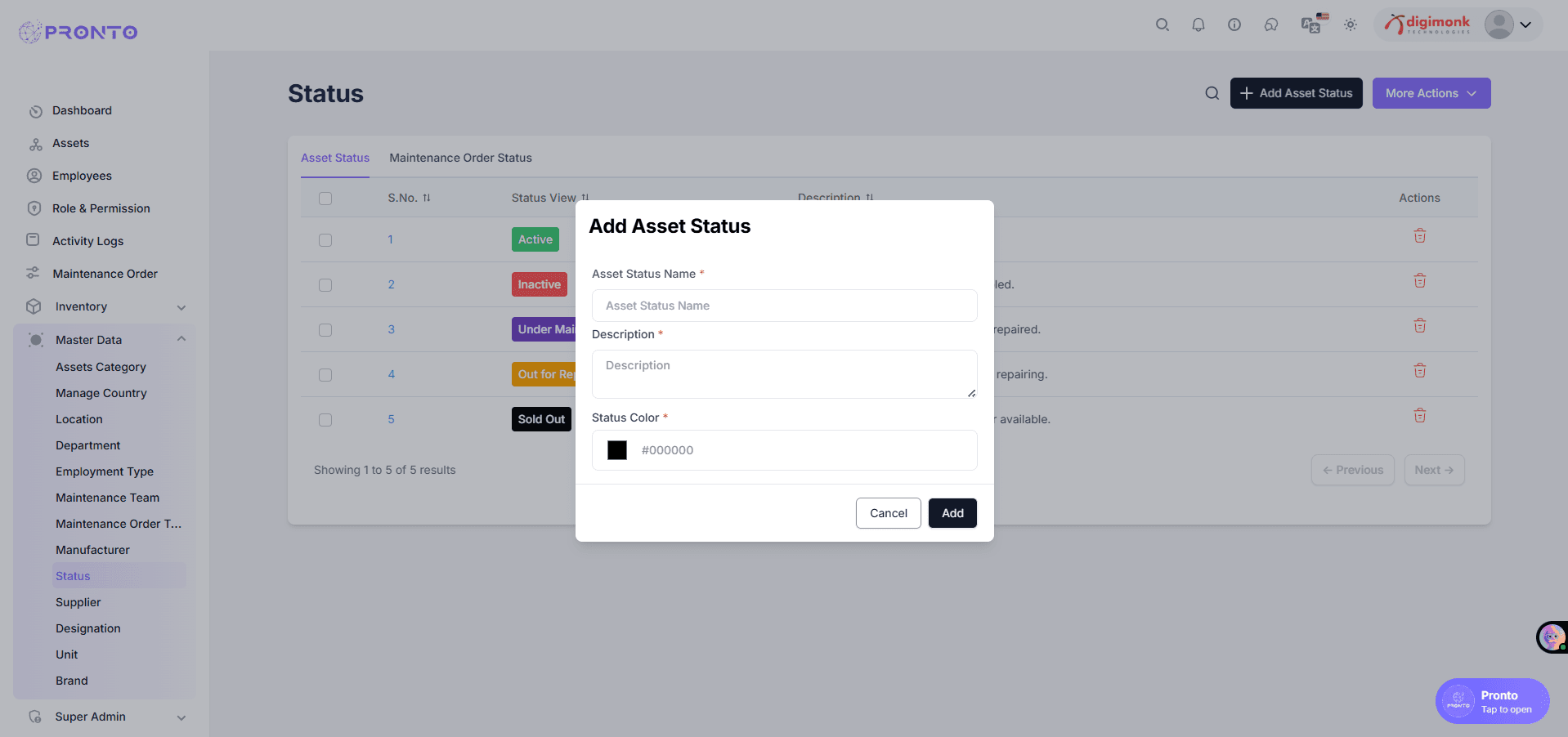
Add Status
- Click Add Asset Status
- Fill:
- Name
- Description
- Color
- Click Add to save
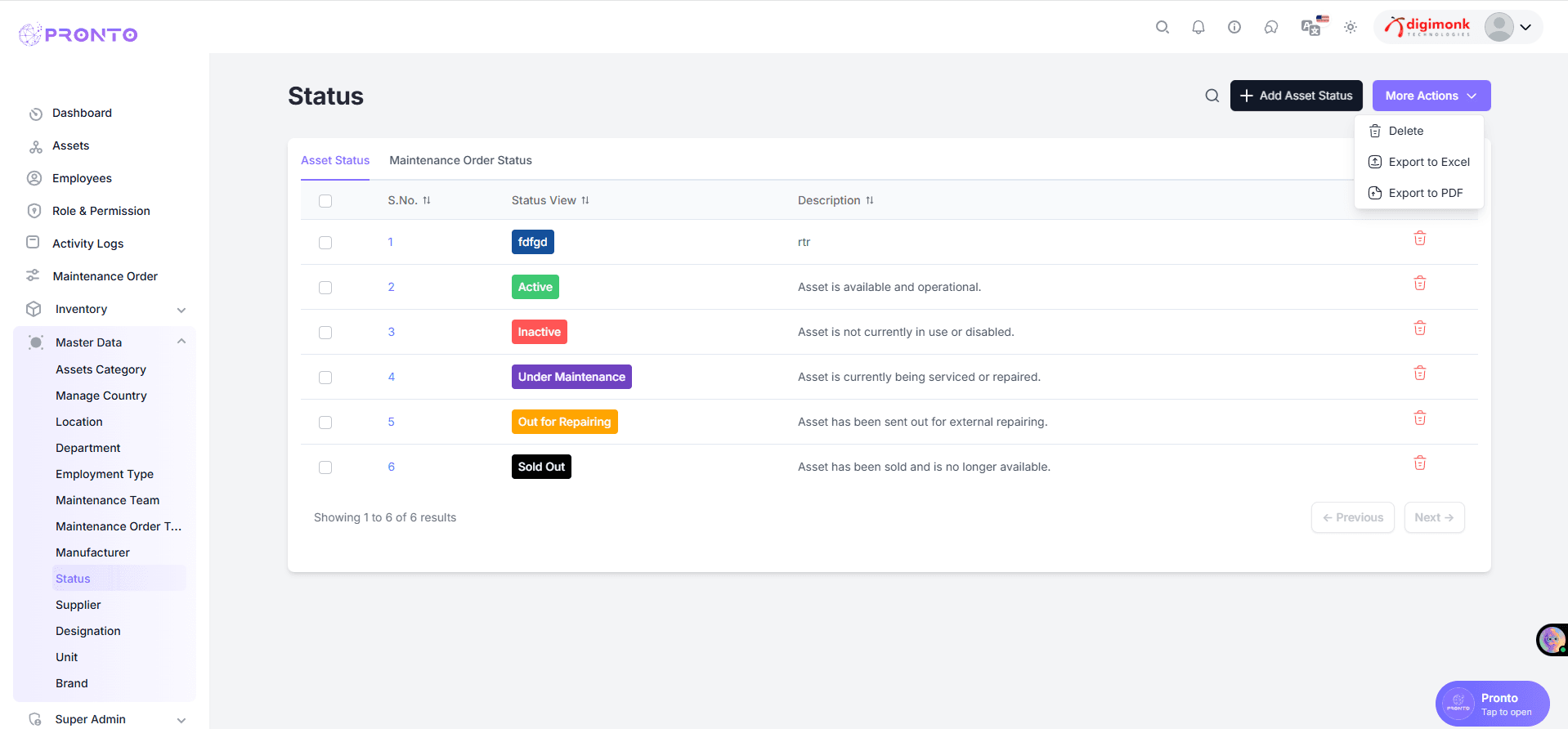
More Actions & Pagination
- Options include:
- Delete
- Inactive / Active
- Import / Export (Excel / PDF)
- Navigate using Previous / Next buttons
Supplier
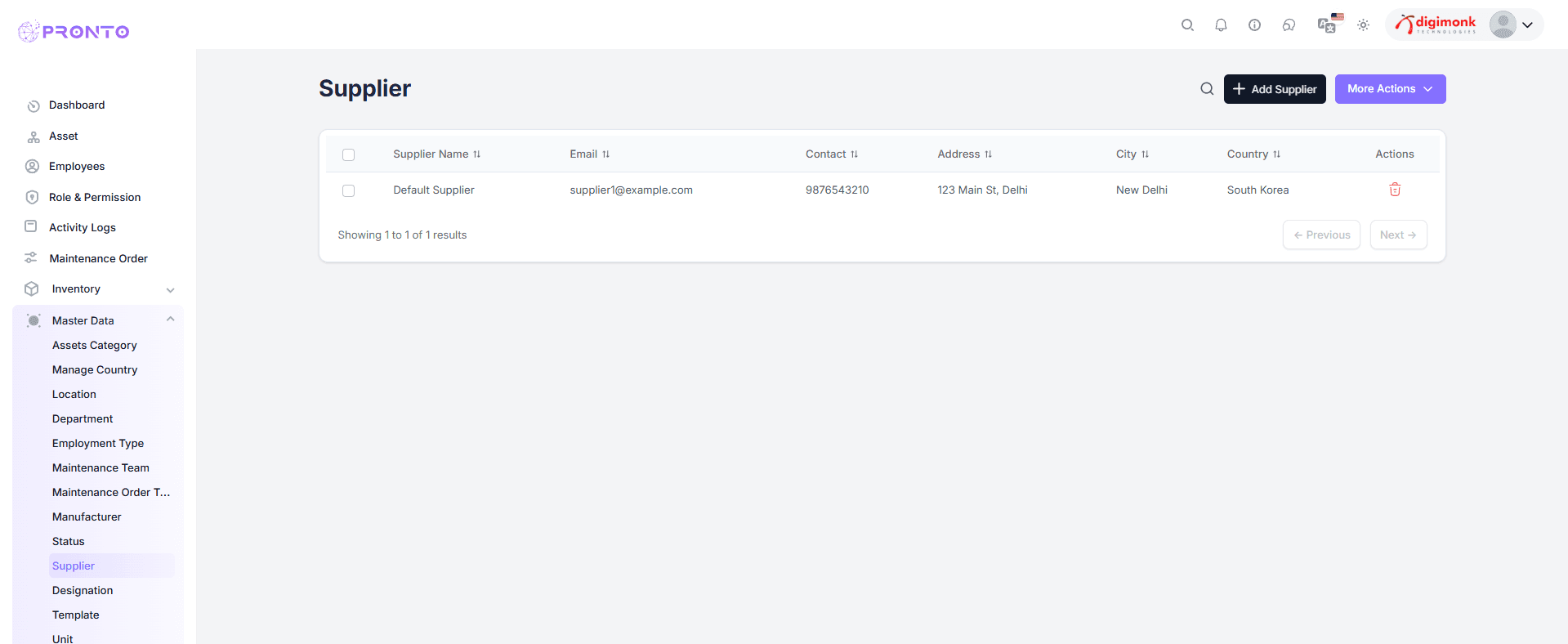
- The Supplier module manages vendor and supplier details used throughout the system.
Upon opening the Supplier module, a table appears displaying the existing supplier records.
Table Columns:
- Supplier Name – Name of the supplier or vendor
- Email – Contact email address of the supplier
- Contact – Supplier's mobile or phone number
- Address – Physical address of the supplier
- City – City where the supplier is located
- Country – Country of the supplier
- Actions – Delete icon to remove a supplier record
At the bottom, pagination controls are available — Previous and Next — to navigate between pages if multiple records exist.
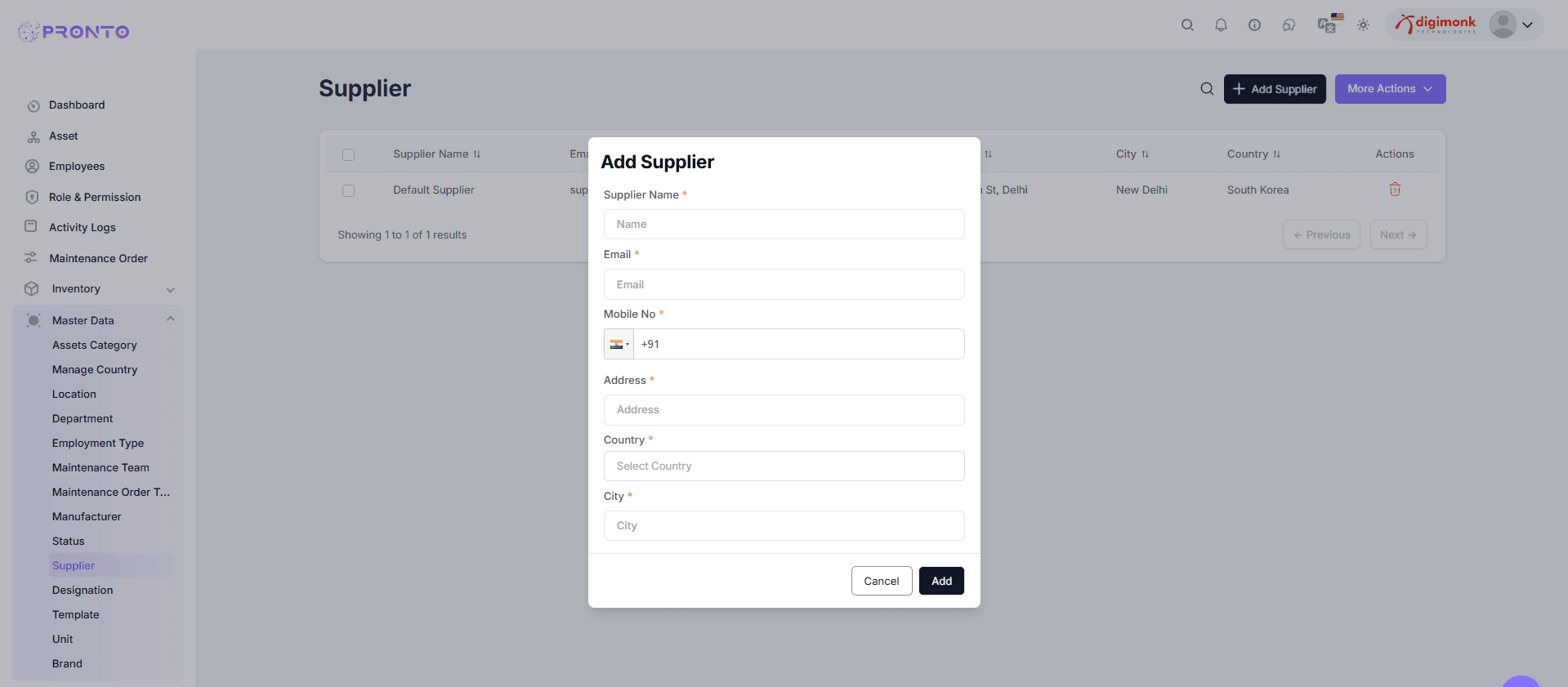
Add Supplier
Click Add Supplier and fill in the required details such as:
- Name
- Mobile No
- Address
- Country
- City
After filling in all fields, click Add to save the supplier details.
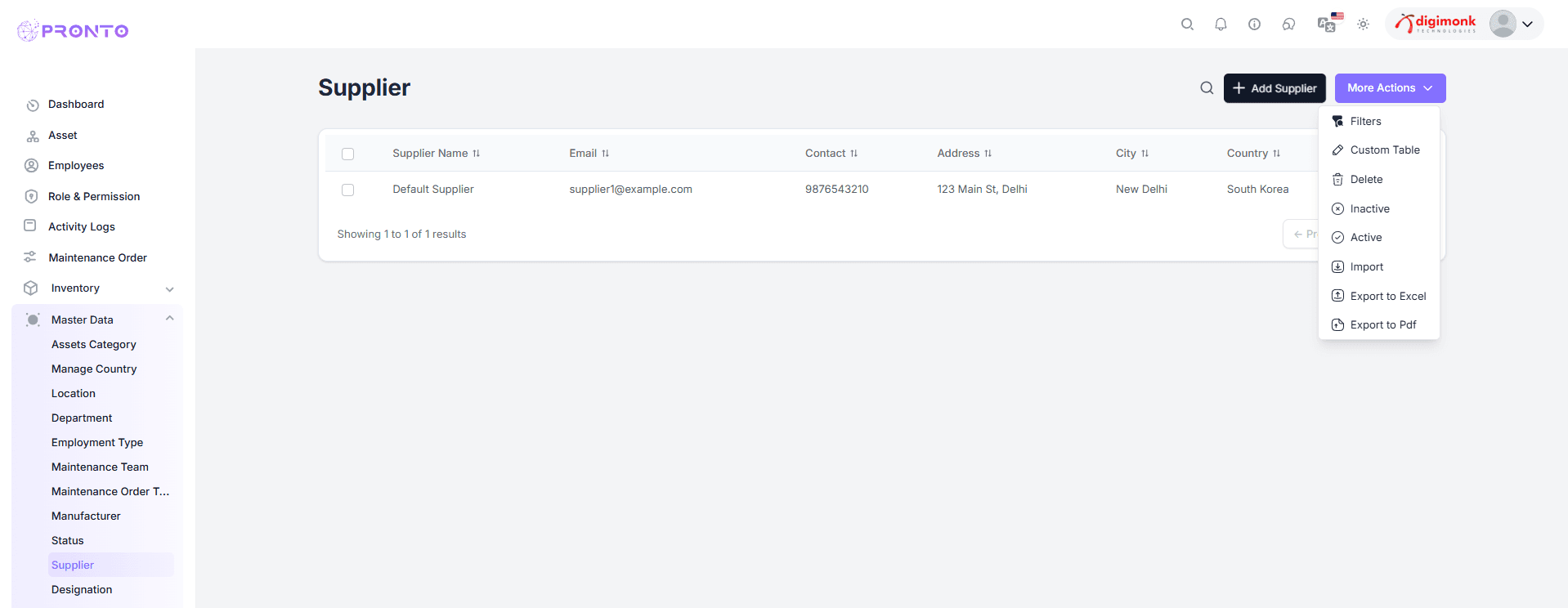
More Actions
Access bulk options: Filters, Custom Table, Delete, Inactive, Active, Import, Export (Excel/PDF).
Designation
Defines roles or job titles like Manager, Technician, or Supervisor.
Location
Dashboard → Master Data → Designation
Navigate to the Designation module from the Master Data section in the left sidebar.
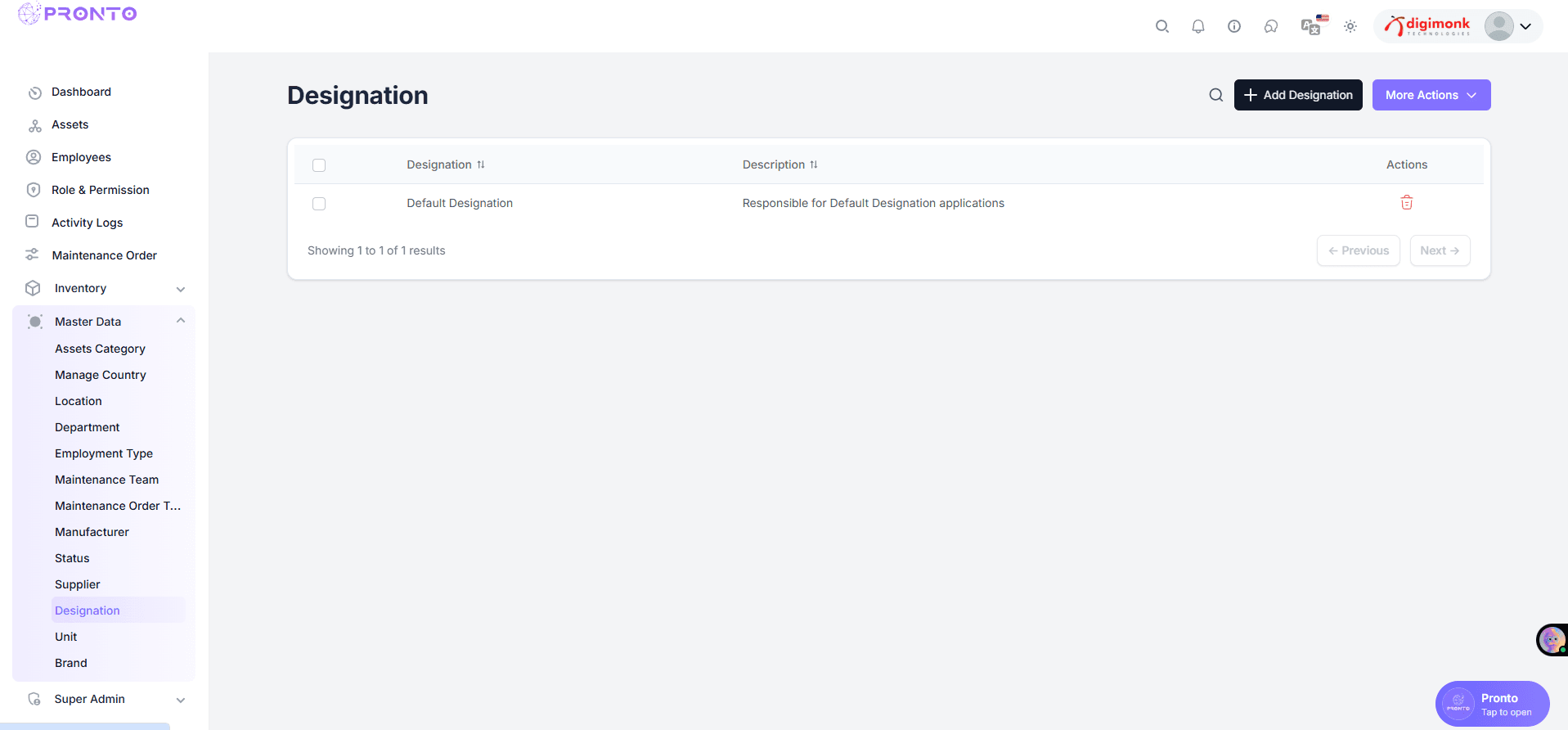
View Designations
View all designations with columns for Designation Name, Description, and Actions (🗑️ Delete).
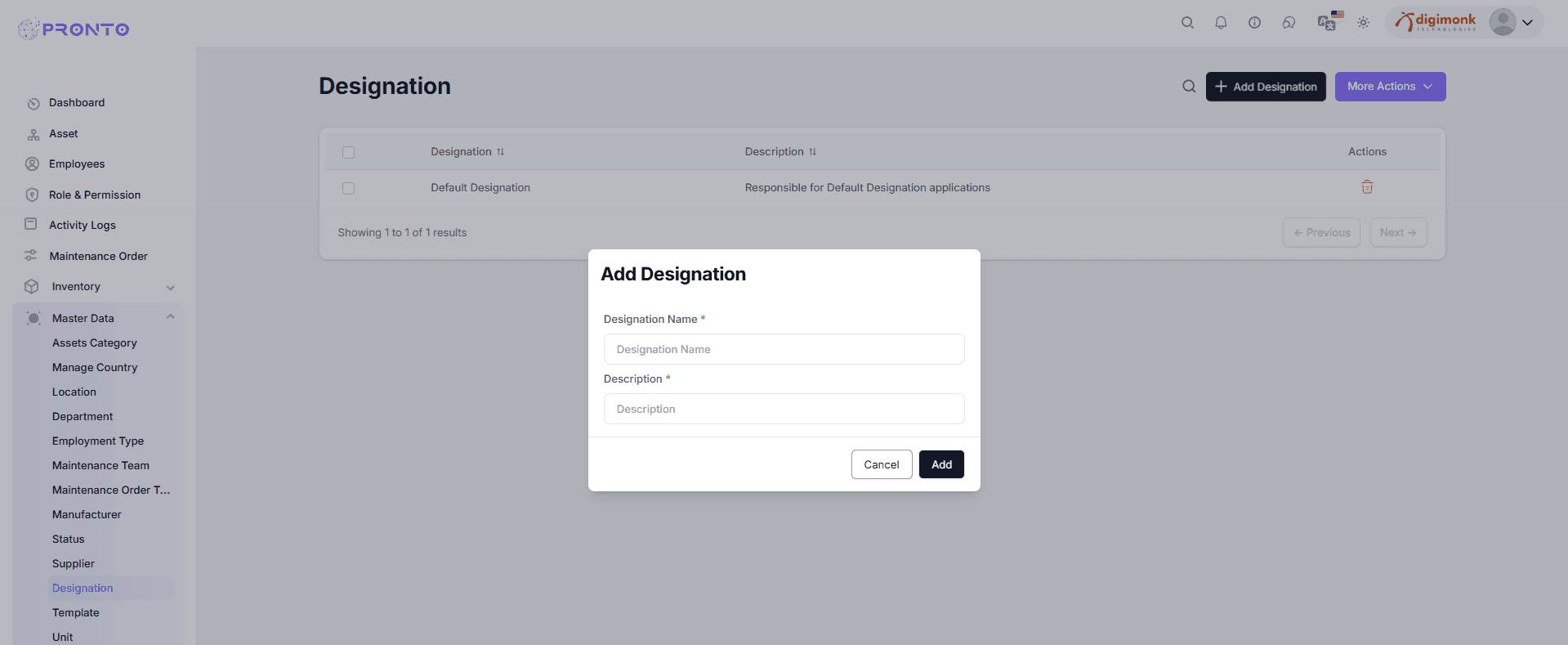
Add Designation
Click Add Designation → Fill Name and Description → Add to save.
Edit or Delete
Click to remove a designation or edit details as needed.
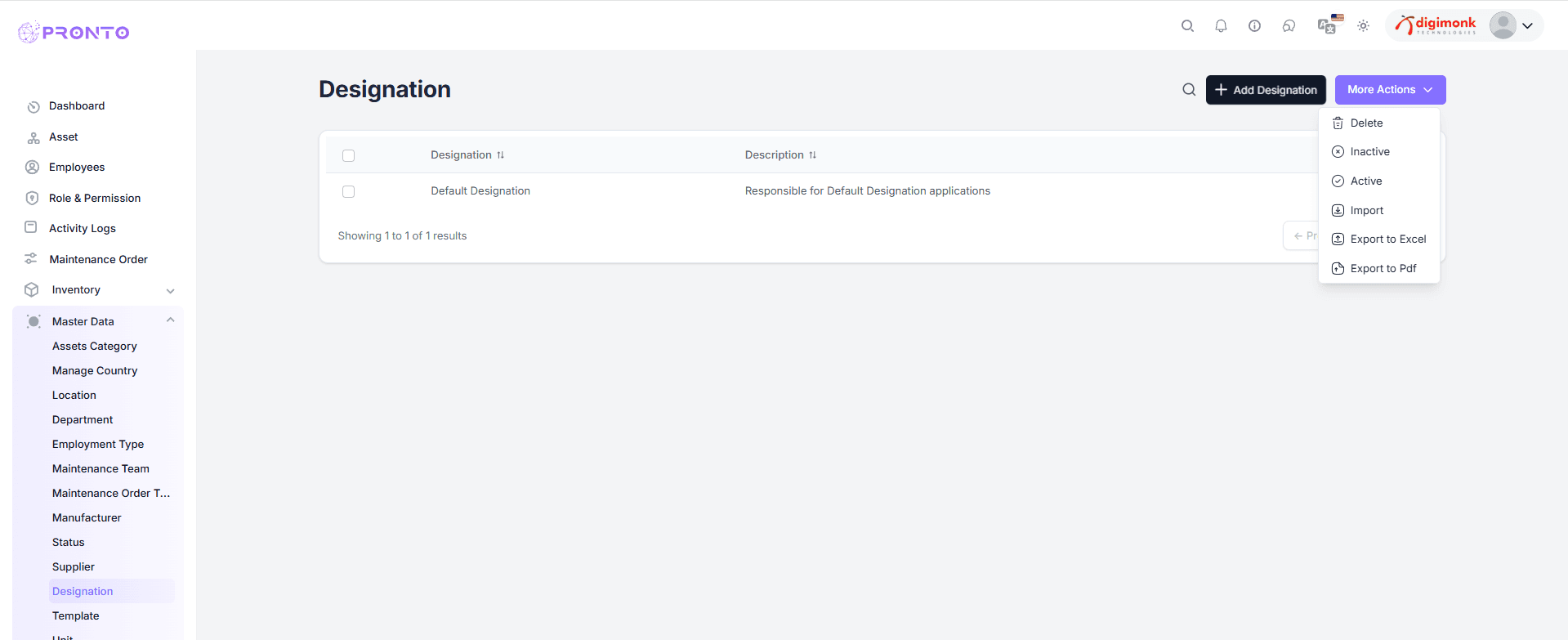
More Actions
- Use options for Delete, Inactive, Active, Import, Export (Excel/PDF).
- The More Actions menu provides access to additional options, including editing, deleting, and managing various administrative functions.
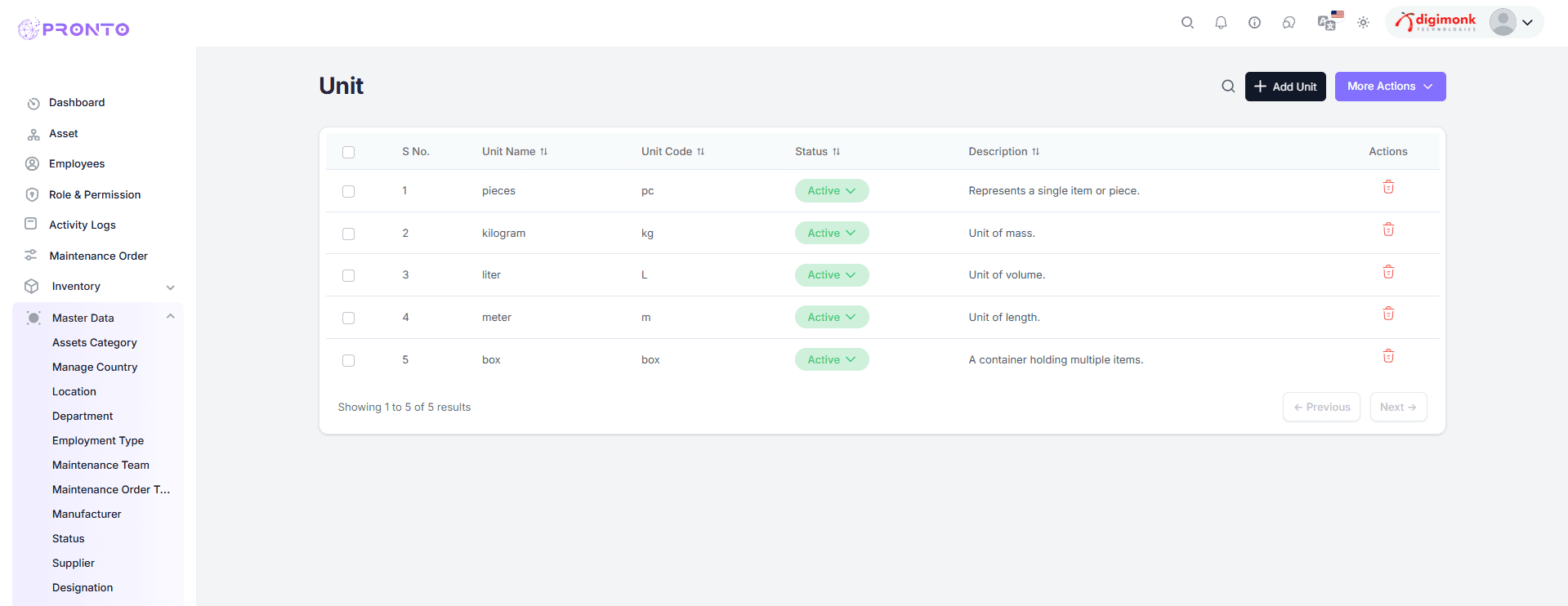
Unit
- Manages measurement units like Kilogram, Meter, or Liter.
View all units with columns: S.No, Unit Name, Unit Code, Status, Description, and Actions.
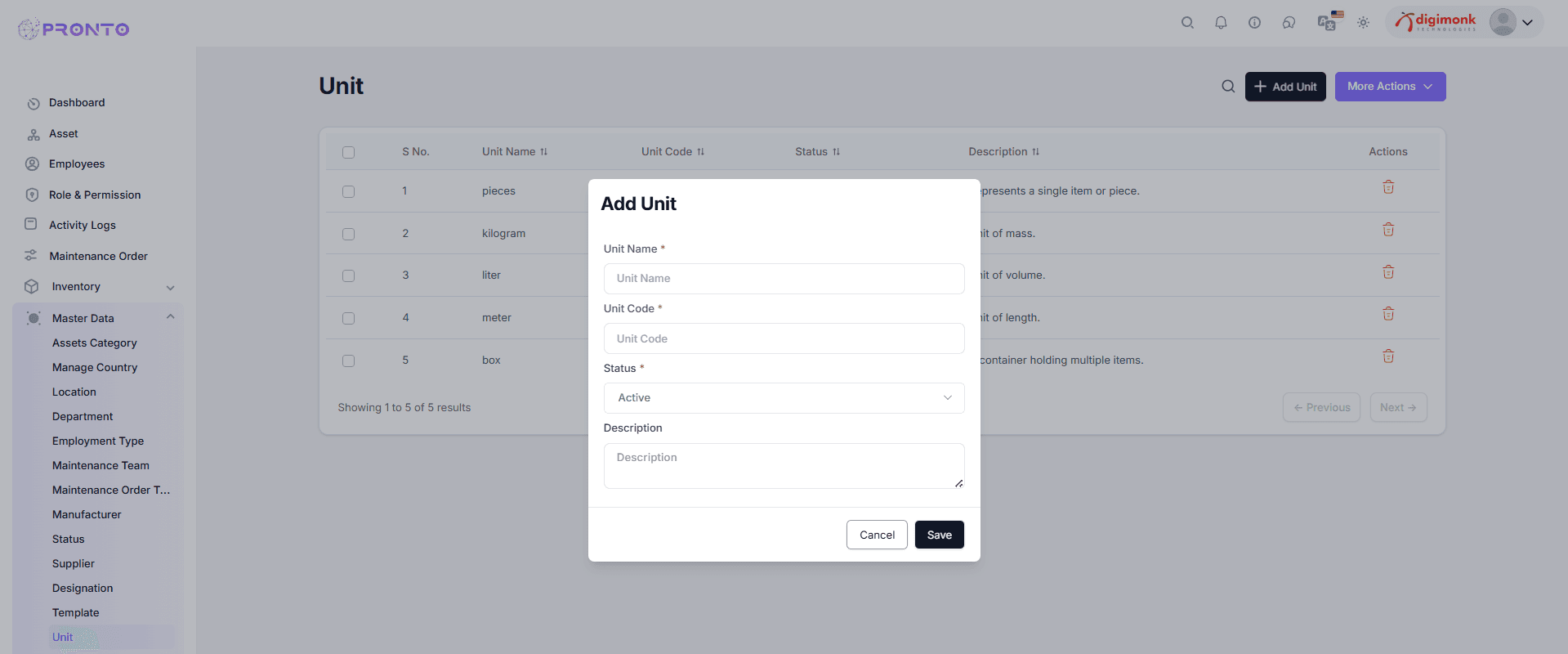
Add Unit
Click + Add Unit → Enter Unit Name, Code, Status, and Description → Save.
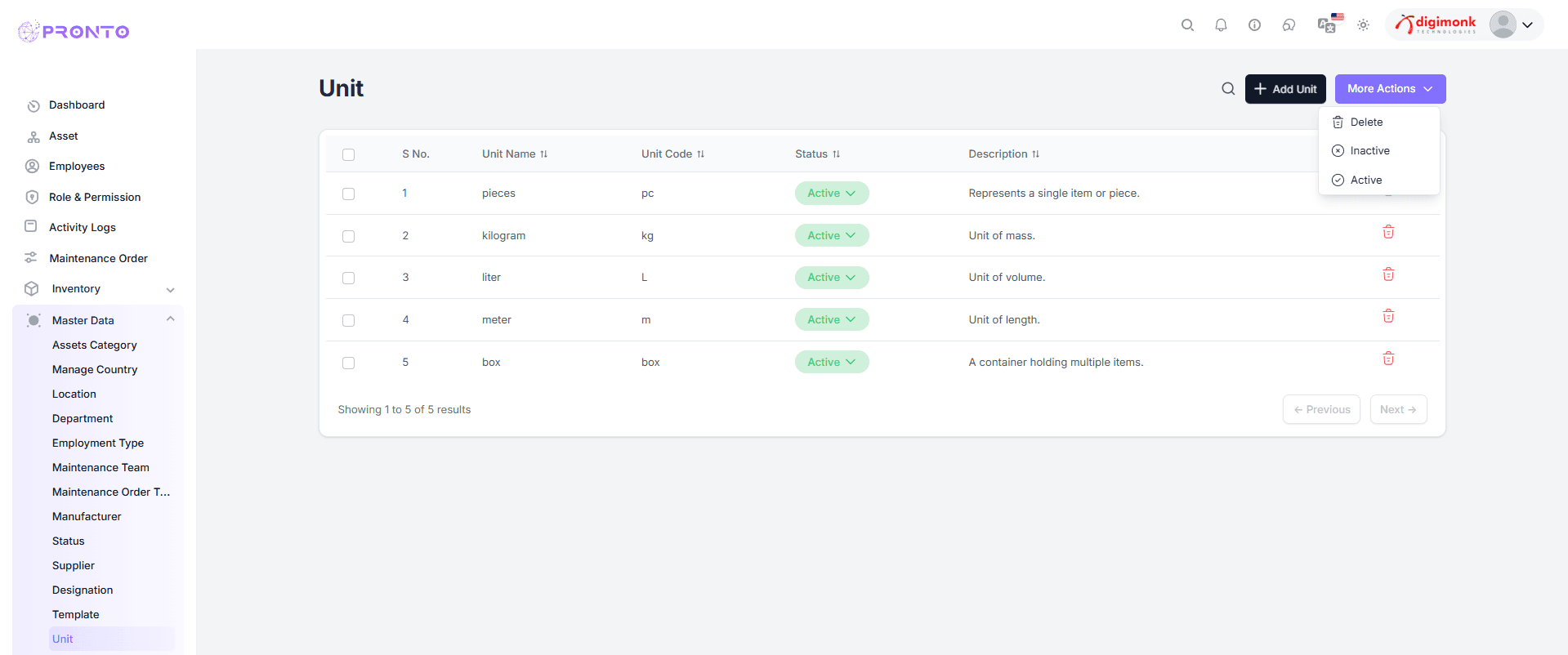
More Actions
Bulk manage using Delete, Inactive, or Active options.
Brand
Manages brand information.
Accessing Brand Page
Go to Master Data → Brand. Columns: S.No, Brand Name, Category, Status, Description, and Actions.
.png&w=3840&q=75)
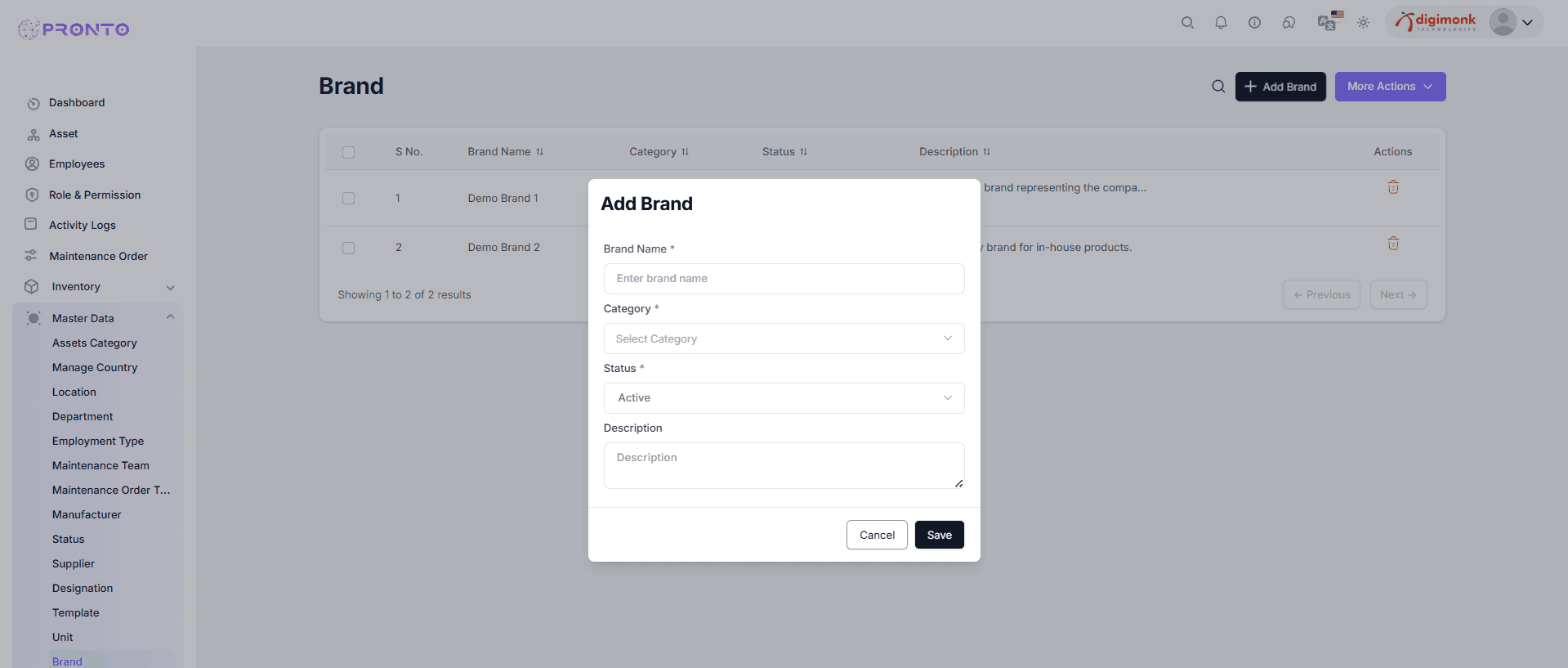
Add Brand
Click Add Brand → Fill details → Save.
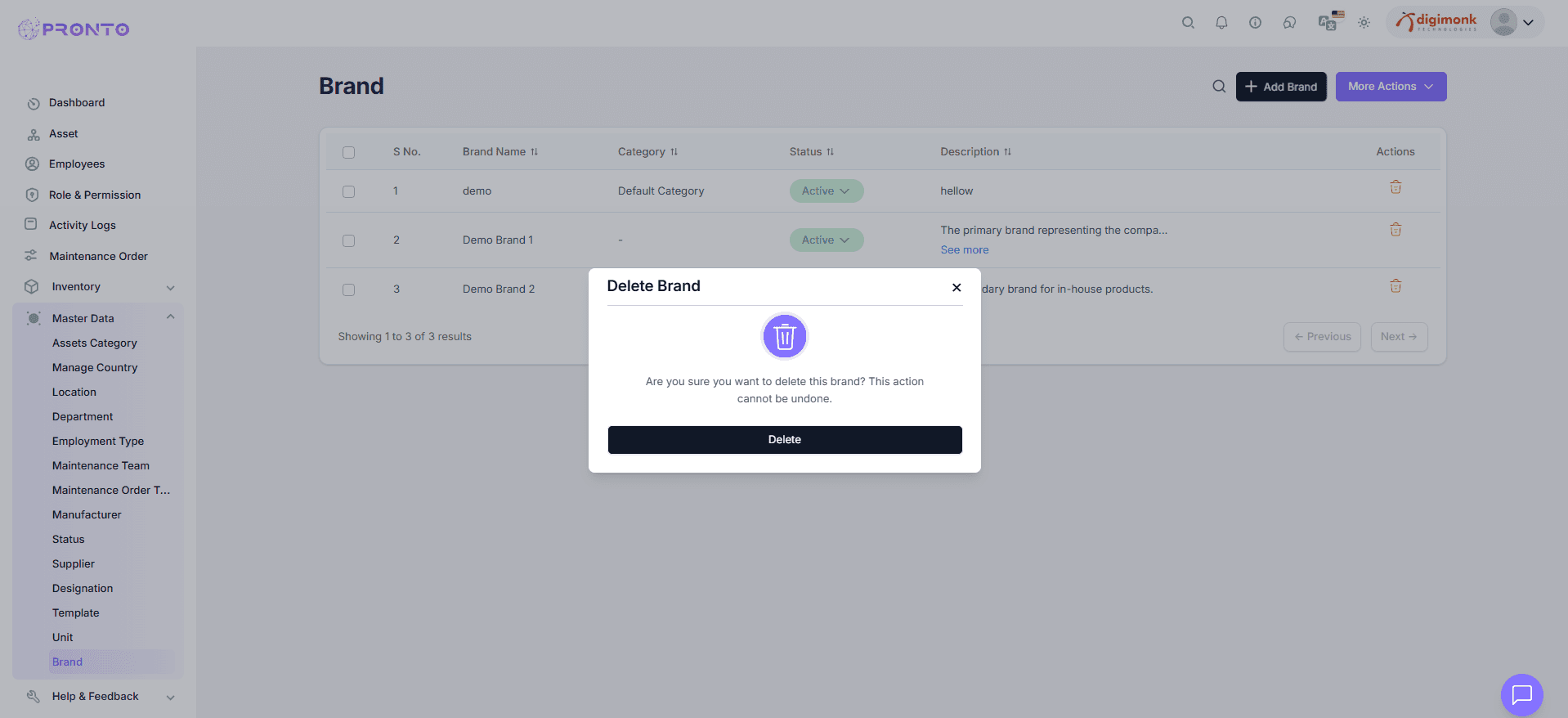
Manage Status or Delete
Use More Actions dropdown to Delete, Inactivate, or Activate Multiple brands.
Purpose
The Purpose of Master Data is to maintain uniformity, consistency, and centralized configuration of base information across all modules.
This ensures smooth data management and reduces redundancy throughout the application.
Super Admin
The Super Admin Module is designed for platform-level administrators who manage global settings, app content, system configurations, and user-level permissions across the entire Pronto AI system. Super Admin has full access to all advanced controls such as user subscriptions, coupons, translations, blog manager, languages, activities, and platform plans. This module is not visible to regular users — only to system-level administrators.
Super Admin
Below is the list of all pages under the Super Admin section in the left sidebar:
Reviews – Manage all customer reviews.
User Subscription – View and control subscription plans of all users.
Coupon – Create & manage discount coupons.
Translation – Add or update language translations for the system.
Contact – View contact form submissions.
Language – Add or modify system languages.
Blog Manager – Manage blog posts and announcements.
Incomplete Activity – Track incomplete user actions inside the system.
Plan Management – Create and manage platform pricing plans.
Reviews & Bugs
The Reviews & Bugs module allows the Super Admin to manage all platform reviews submitted by users and track reported bugs for quick resolution.
Navigation
Go to:
Sidebar → Super Admin → Reviews
This module contains two main tabs:
- Reviews & Feedback – view user reviews, ratings, and feedback
- Bug Reports – track bugs submitted by companies or employees
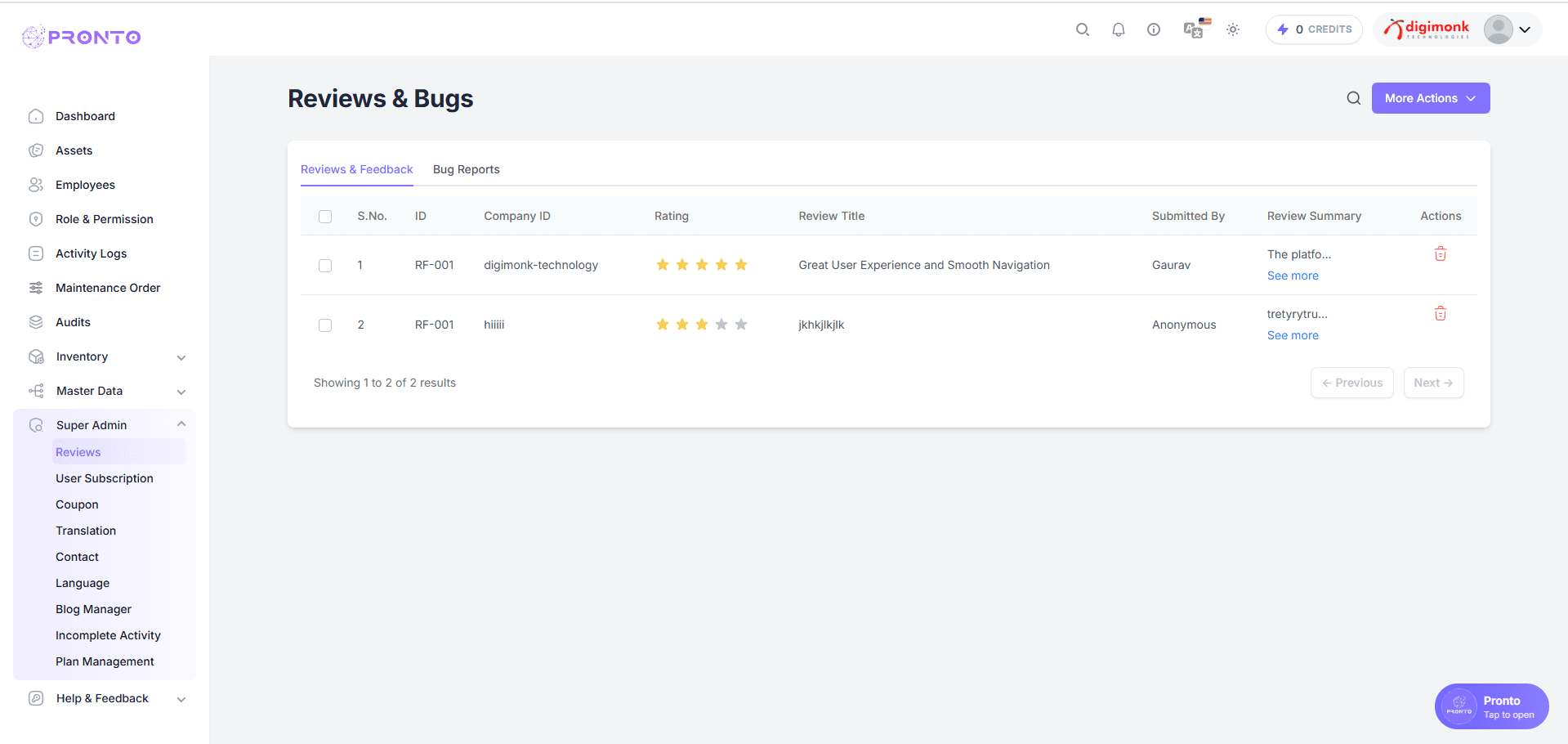
Reviews & Feedback
This section displays all user reviews submitted for the system. It includes details like:
- Review ID
- Company ID
- Rating (stars)
- Review Title
- Submitted By
- Review Summary
- Action buttons (Delete)
Use this page to monitor user experience and maintain service quality.
Bug Reports
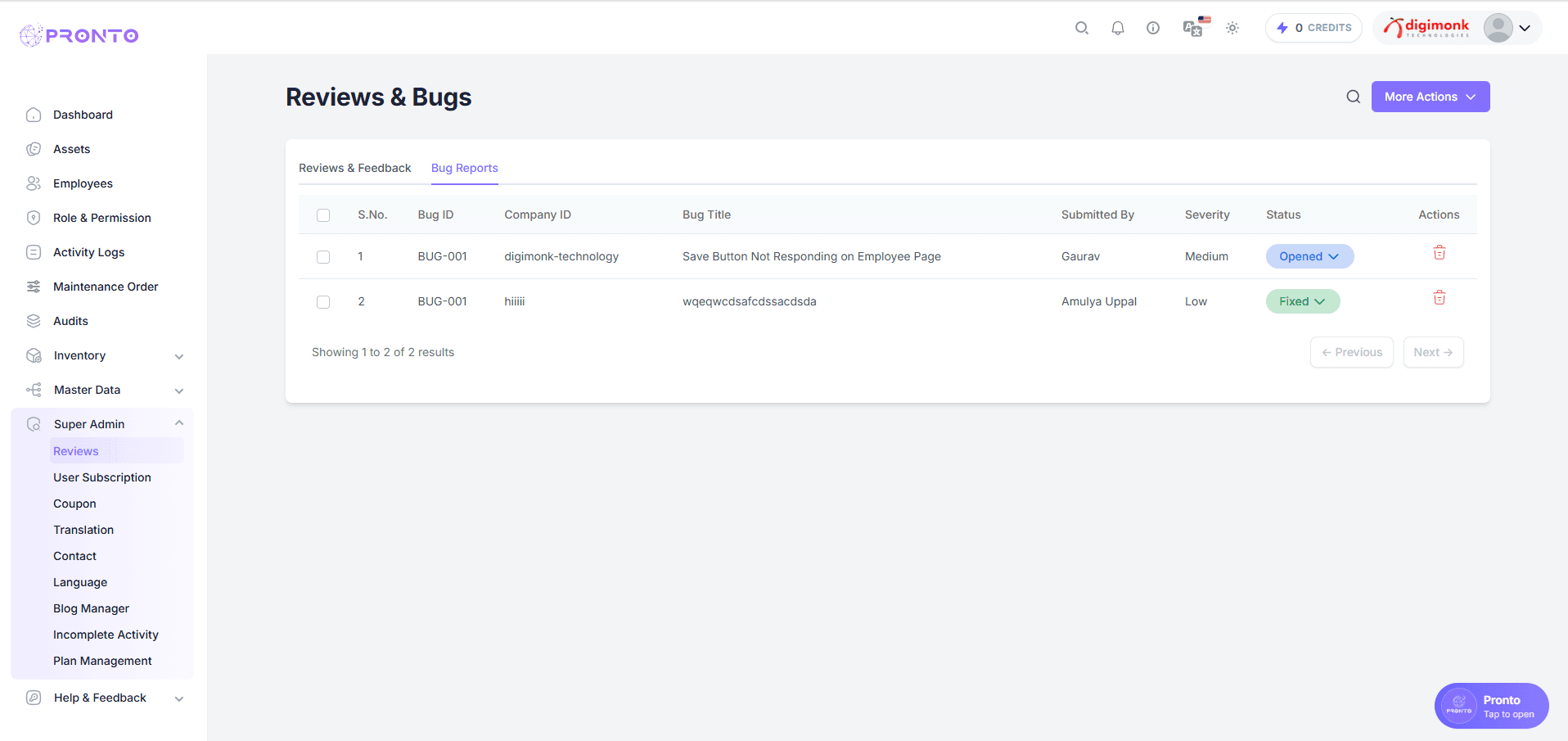
This section allows the Super Admin to manage all bug reports submitted by users.
Each bug report contains:
- Bug ID
- Company ID
- Bug Title
- Submitted By
- Severity (Low / Medium / High)
- Status (Opened / Fixed / Closed)
- Actions (Delete)
You can also update the bug status using the status dropdown.
Report Bug — More Actions
- The More Actions menu allows the admin to download the full bug report list in multiple formats.
- This helps in maintaining records, sharing data, and analyzing bug logs offline.
Available export options:
- Download as Excel
- Download as PDF
- Download as ZIP (if enabled)
These formats ensure smooth data portability for audits and management reporting.
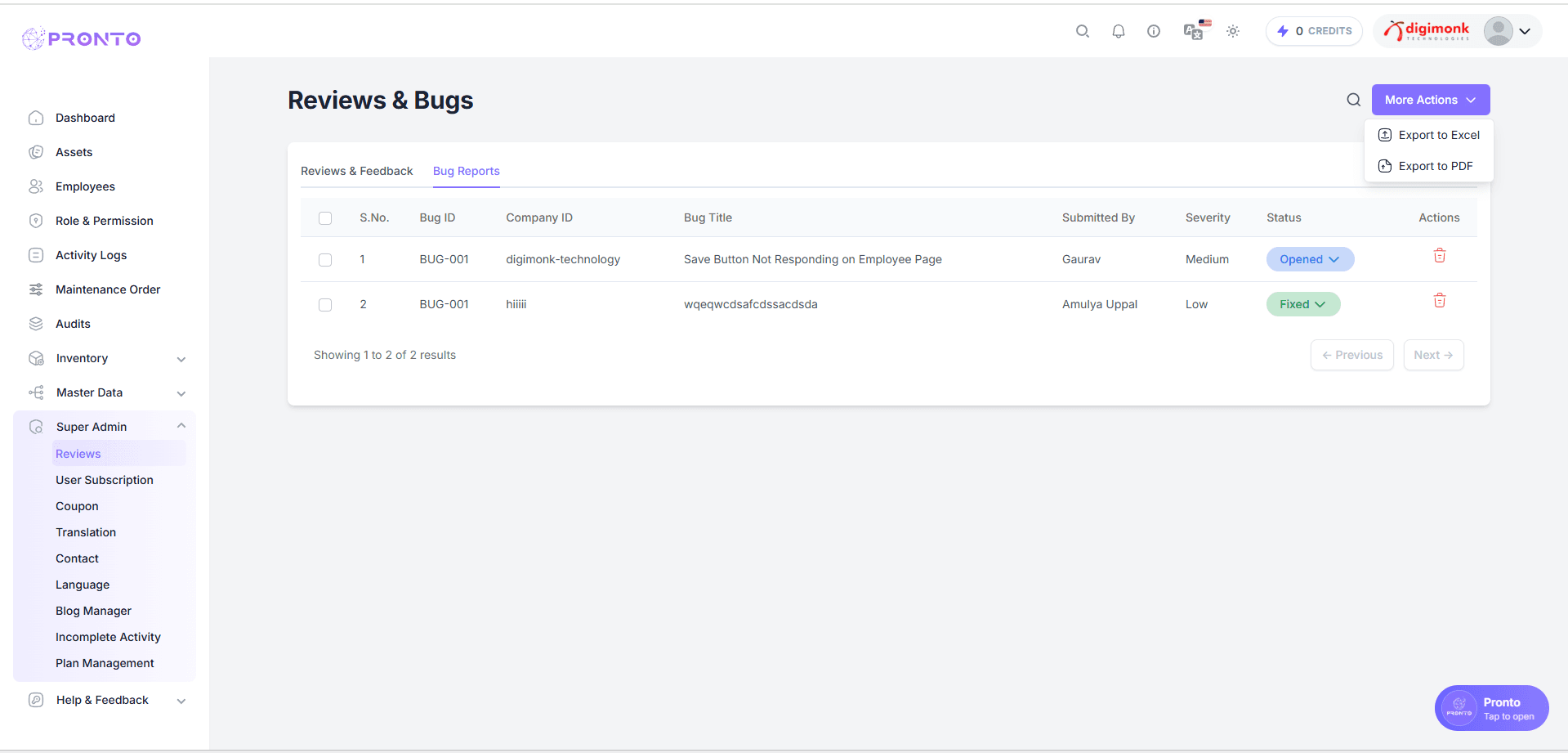
How to Use More Actions
- Go to Super Admin → Report Bug.
- Click the More Actions button (three-dots icon) in the top-right corner of the table.
- A dropdown will appear with export options:
- Excel
- (Optional) ZIP
- Select the format you want.
- The file will begin downloading automatically.
This is helpful for teams who require offline access or need to share reports with QA or management.
User Subscription
The User Subscription module allows the Super Admin to manage all registered companies, their subscription plans, trial period details, and user activity.
Navigation
Go to:
Sidebar → Super Admin → User Subscription
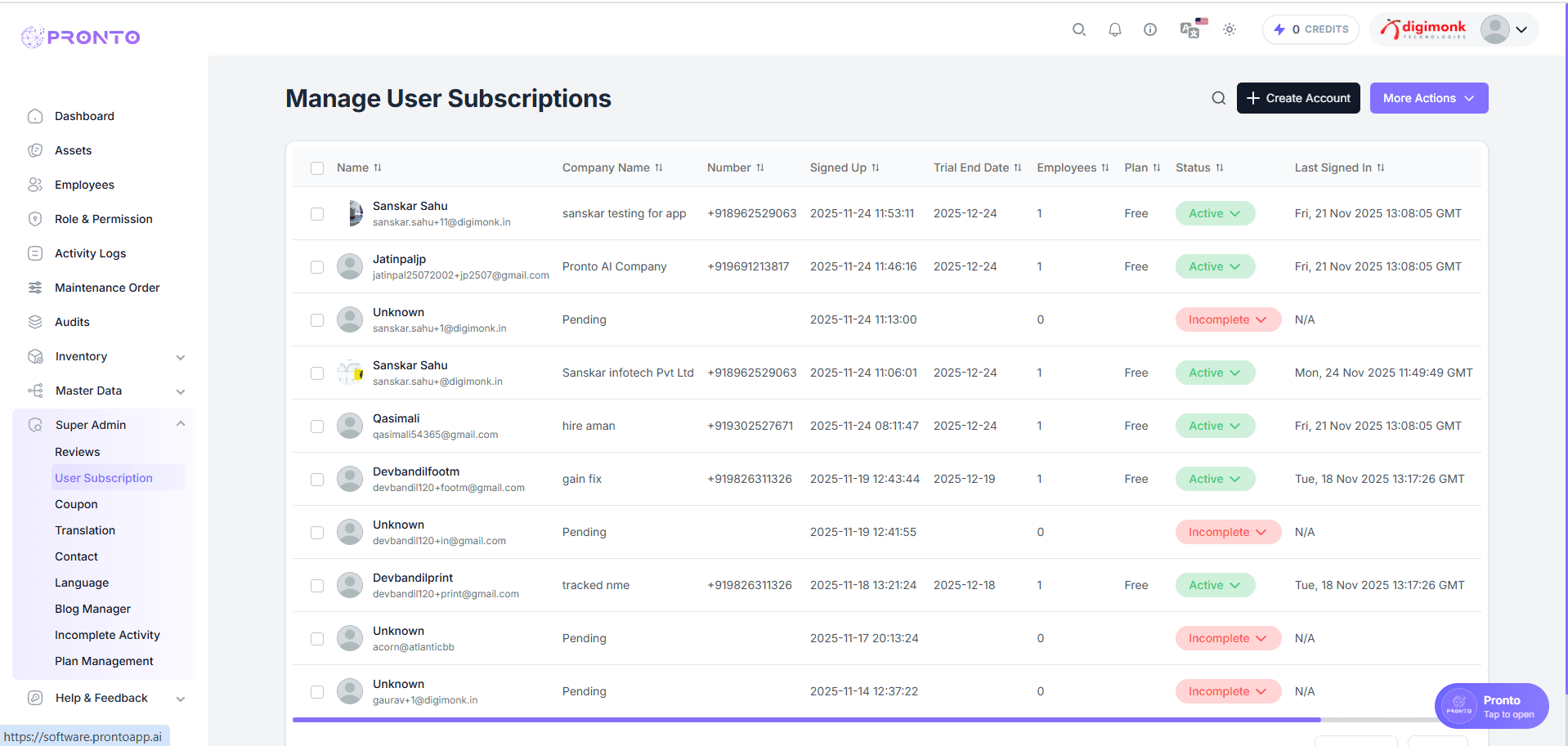
User Subscription
This page displays a complete list of companies signed up on the platform.
Details shown in the table:
- Name
- Company Name
- Mobile Number
- Signed Up Date
- Trial End Date
- Employee Count
- Plan (Free / Pro)
- Status (Active / Incomplete)
- Last Signed In
This helps admins monitor subscription usage and company activity.
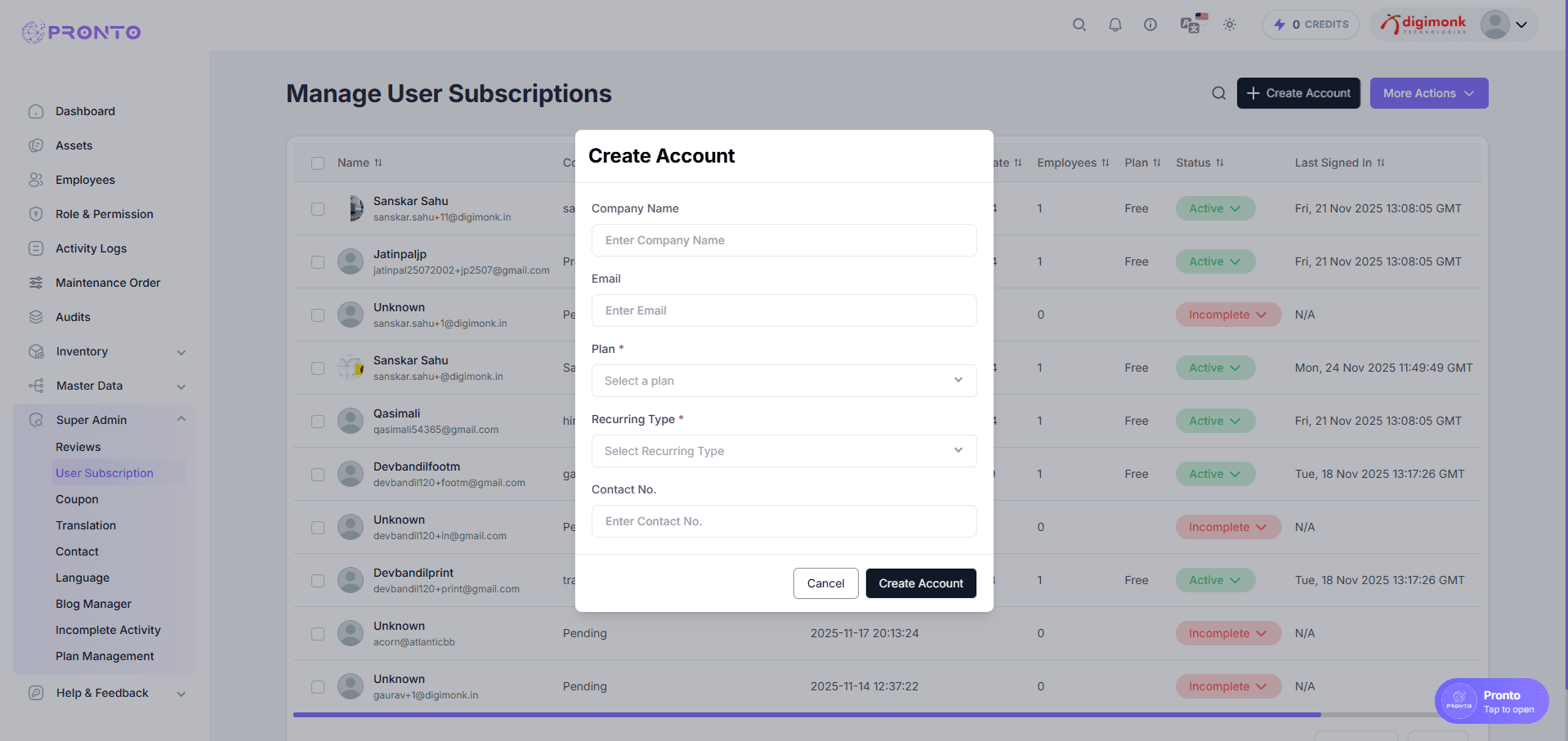
Create Account
The admin can manually create a new company subscription.
Fields included:
- Company Name
- Plan (Free / Paid)
- Recurring Type
- Contact Number
Click Create Account to add the company to the system.
Useful for manual onboarding or pre-account setup.
More Actions
The More Actions menu helps admins customize the table or export subscription data.
Options include:
- Filters — Filter companies by plan, status, or date
- Export — Download subscription records
- Custom Table — Show or hide table columns
These tools help in reporting, auditing, and viewing data in a customized way.
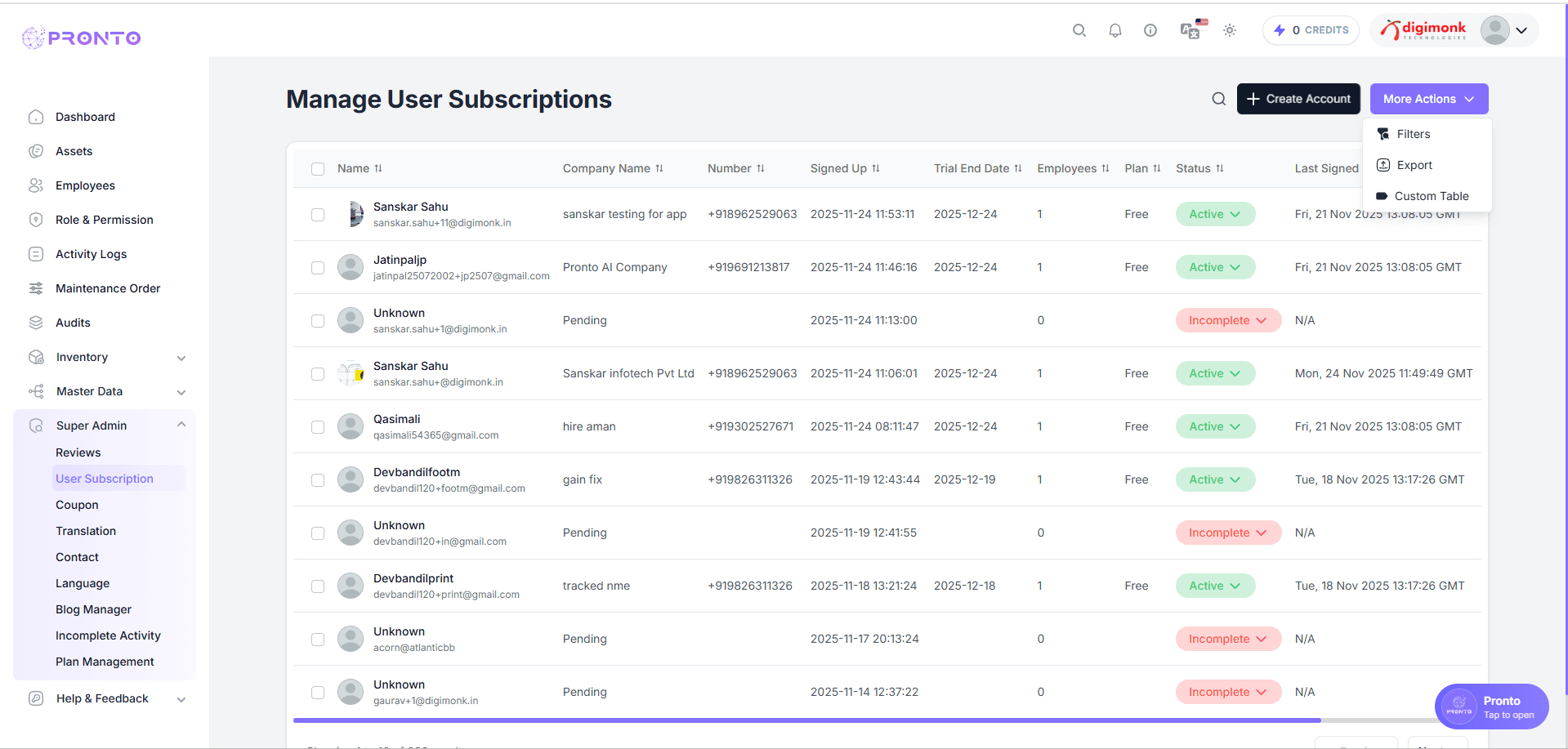
How to Use More Actions
- Go to Super Admin → User Subscription
- Click the More Actions (three dots) button
- Choose from:
- Filters
- Export
- Custom Table
- Apply filters or download the file as needed
This helps teams manage subscription data easily and access offline reports.
Coupon
The Coupon Management section allows admins to create, update, and monitor discount coupons within the system. You can define coupon codes, set discount types (percentage or fixed amount), specify validity dates, usage limits, and assign coupons to specific products or user groups. This module helps ensure smooth promotional campaigns by tracking coupon performance, preventing misuse, and maintaining full control over active and expired offers.
Navigate to Coupon Section
Go to Super Admin → Coupon
This will open the Manage Coupons page.
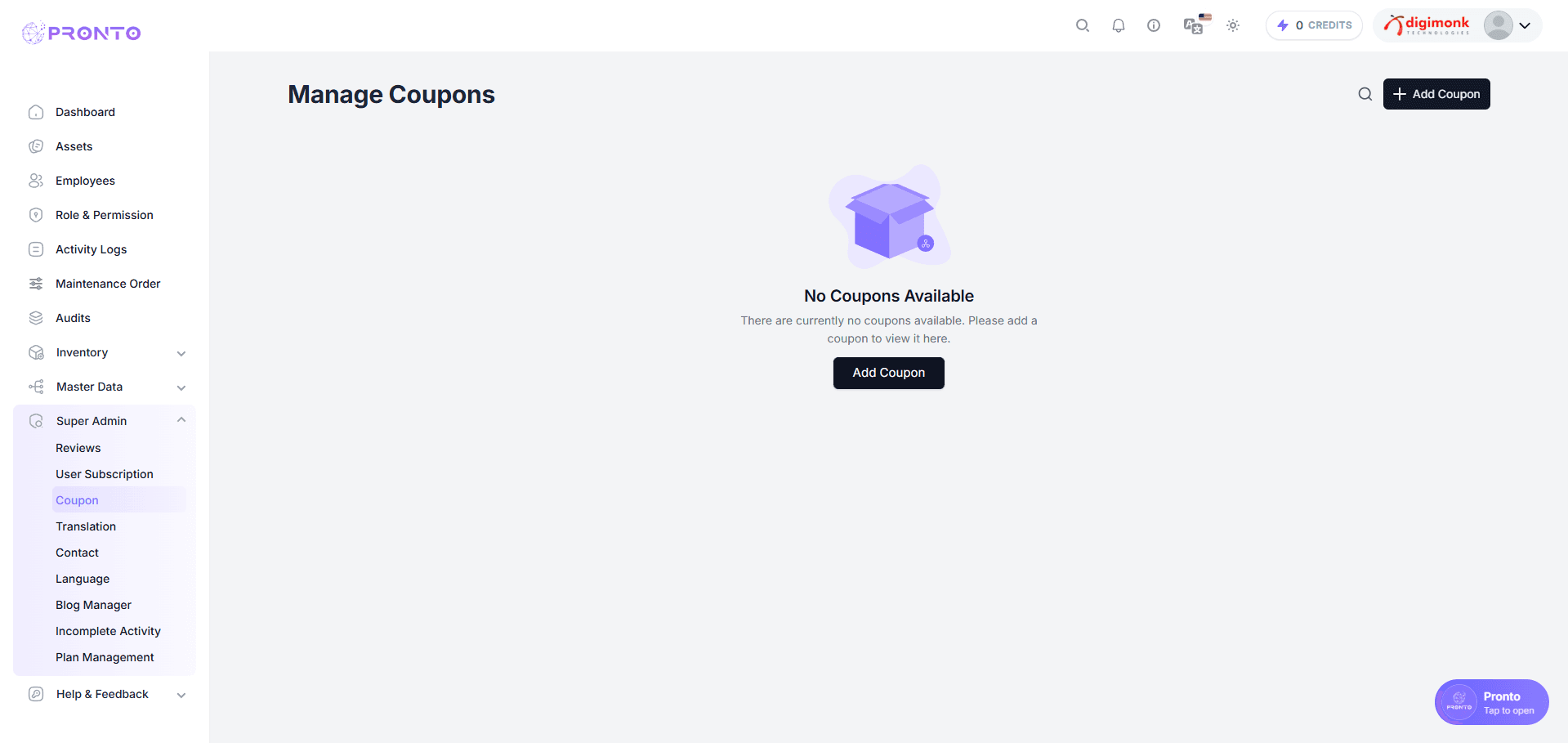
Add a New Coupon
Click on the Add Coupon button located at the top-right corner. A popup form will appear. Enter the required fields as described below:
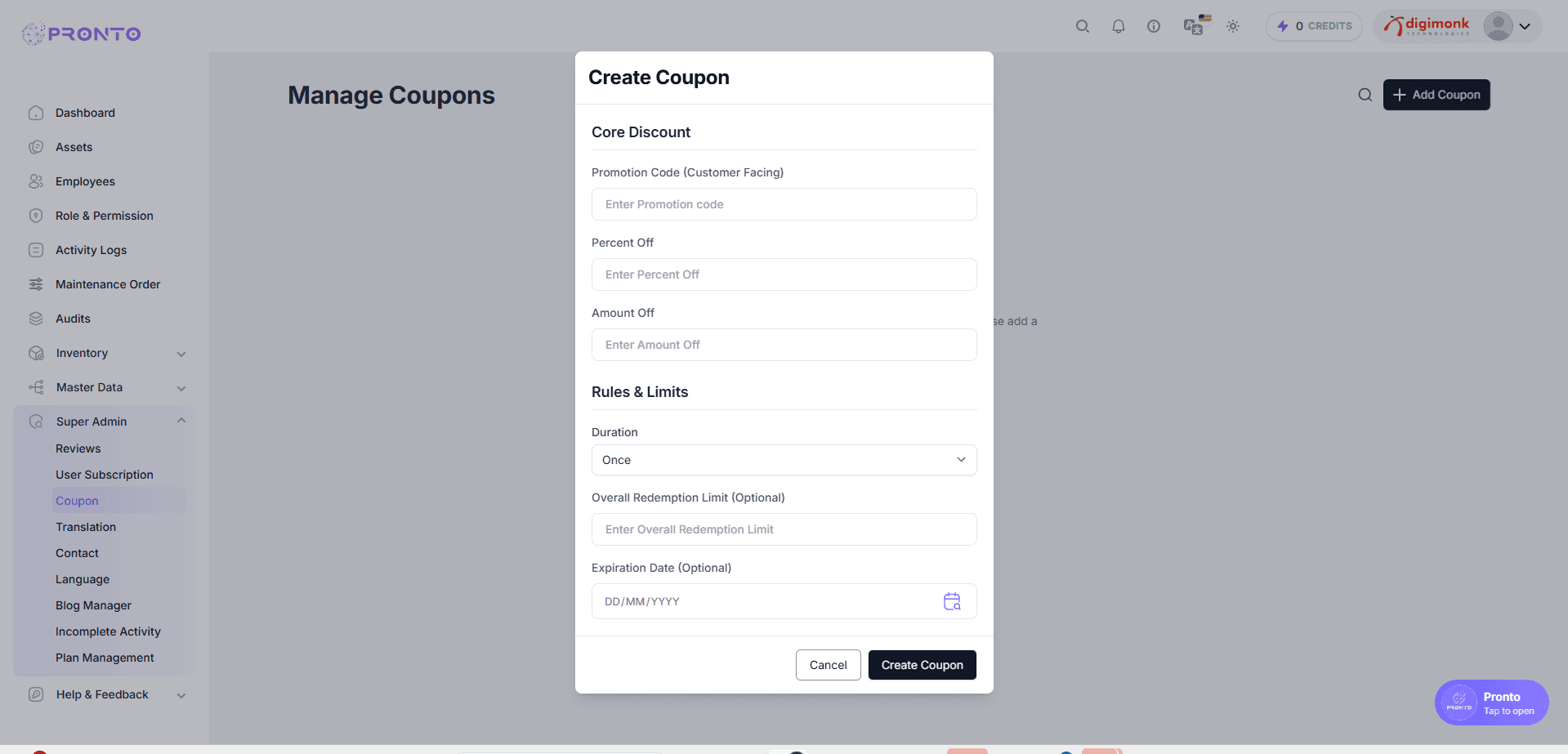
Core Discount
Promotion Code → A unique code for customers
Percent Off → Enter percentage discount (optional)
Amount Off → Enter fixed amount discount (optional)
Rules & Limits
Duration → Choose how many times coupon can be used
Overall Redemption Limit → Optional limit on total redemptions
Expiration Date → Select validity date (optional)
Once done, click Create Coupon.
Coupon List View
After creating a coupon, it will appear in the Manage Coupons list.You can View all coupons Search coupons Add more coupons.
Translation
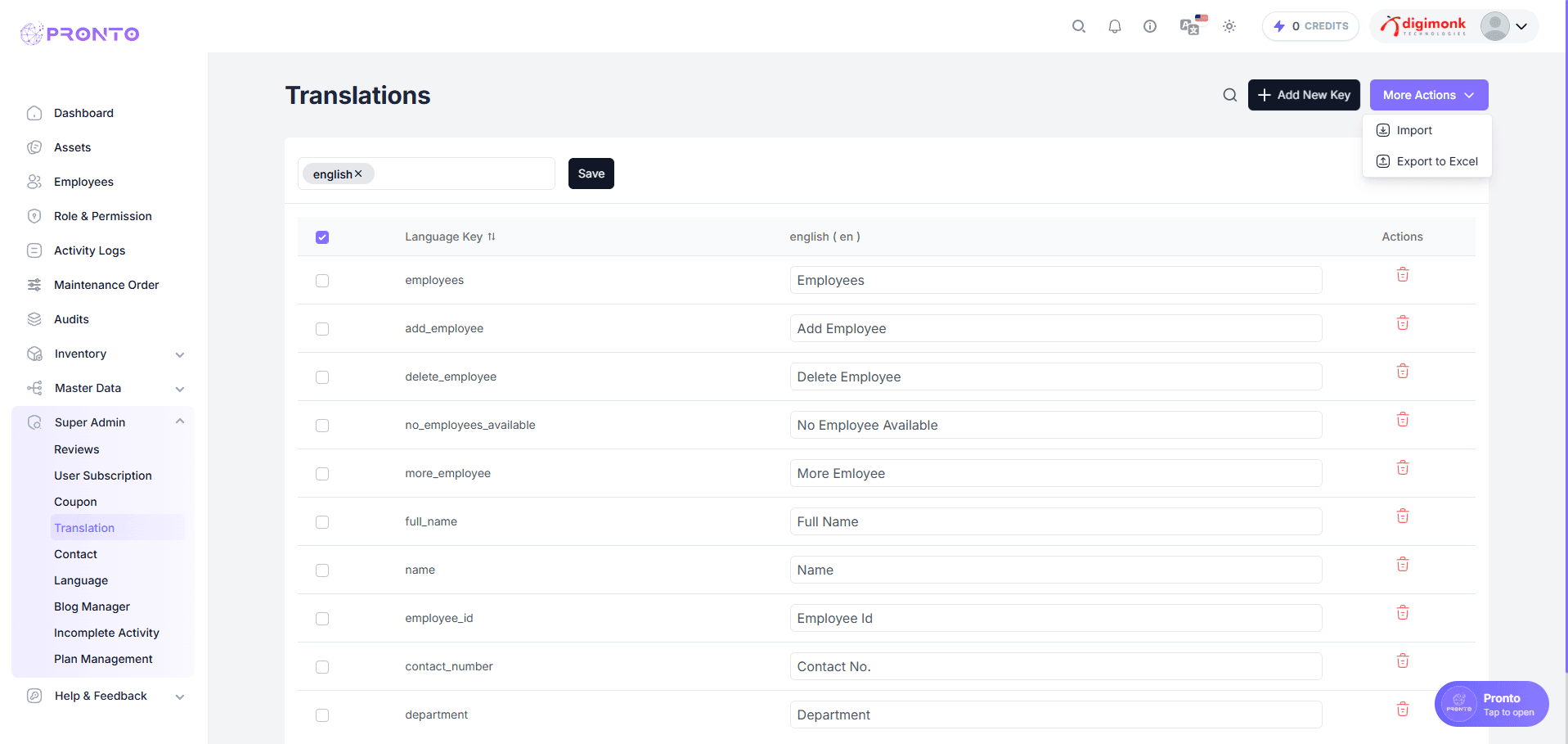
The Translation Management module allows Super Admins to manage multilingual content across the entire application. You can add new translation keys, update existing values, and import or export translations for bulk operations.
View Translation Keys
The Translation page displays all existing language keys along with their translated values.
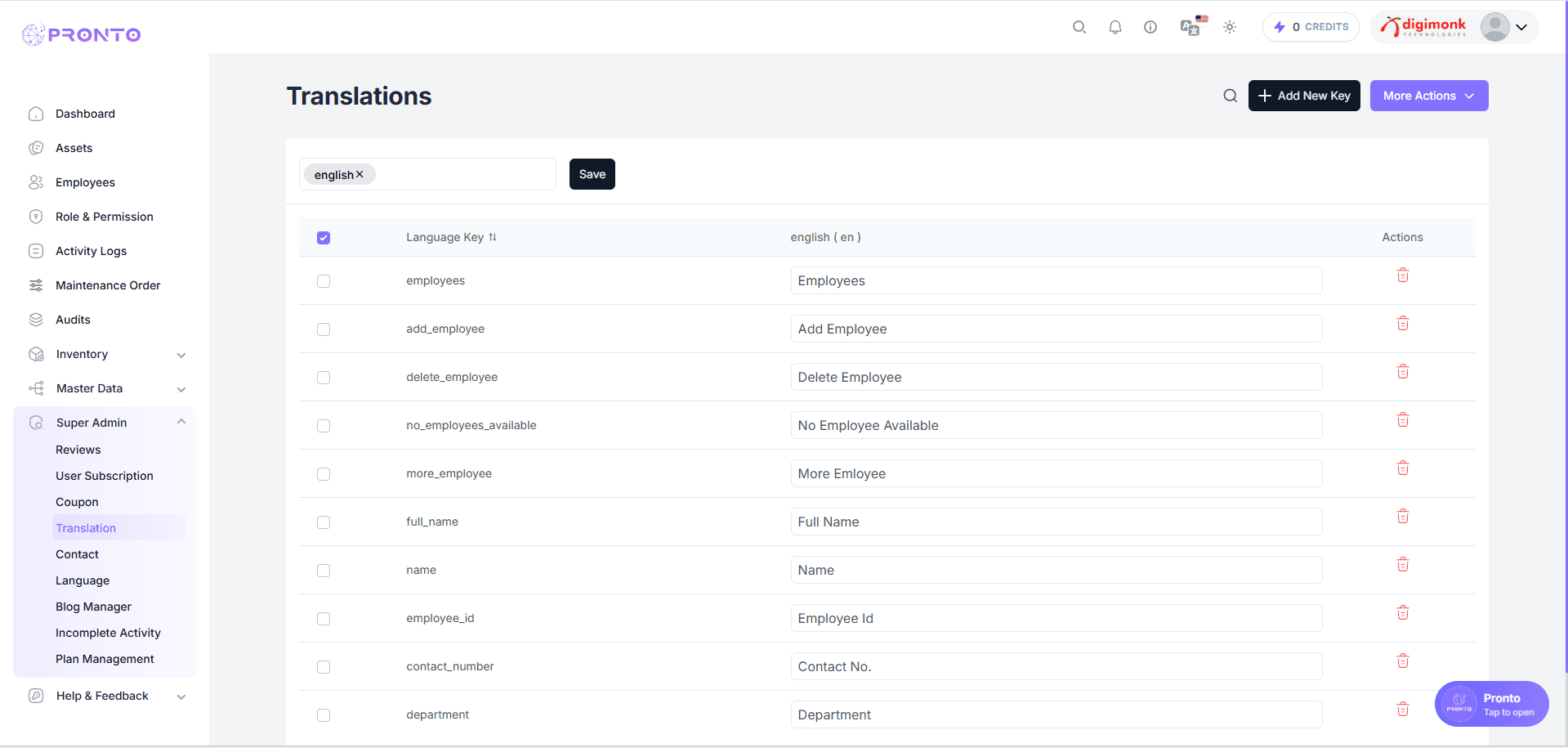
Add a New Translation Key
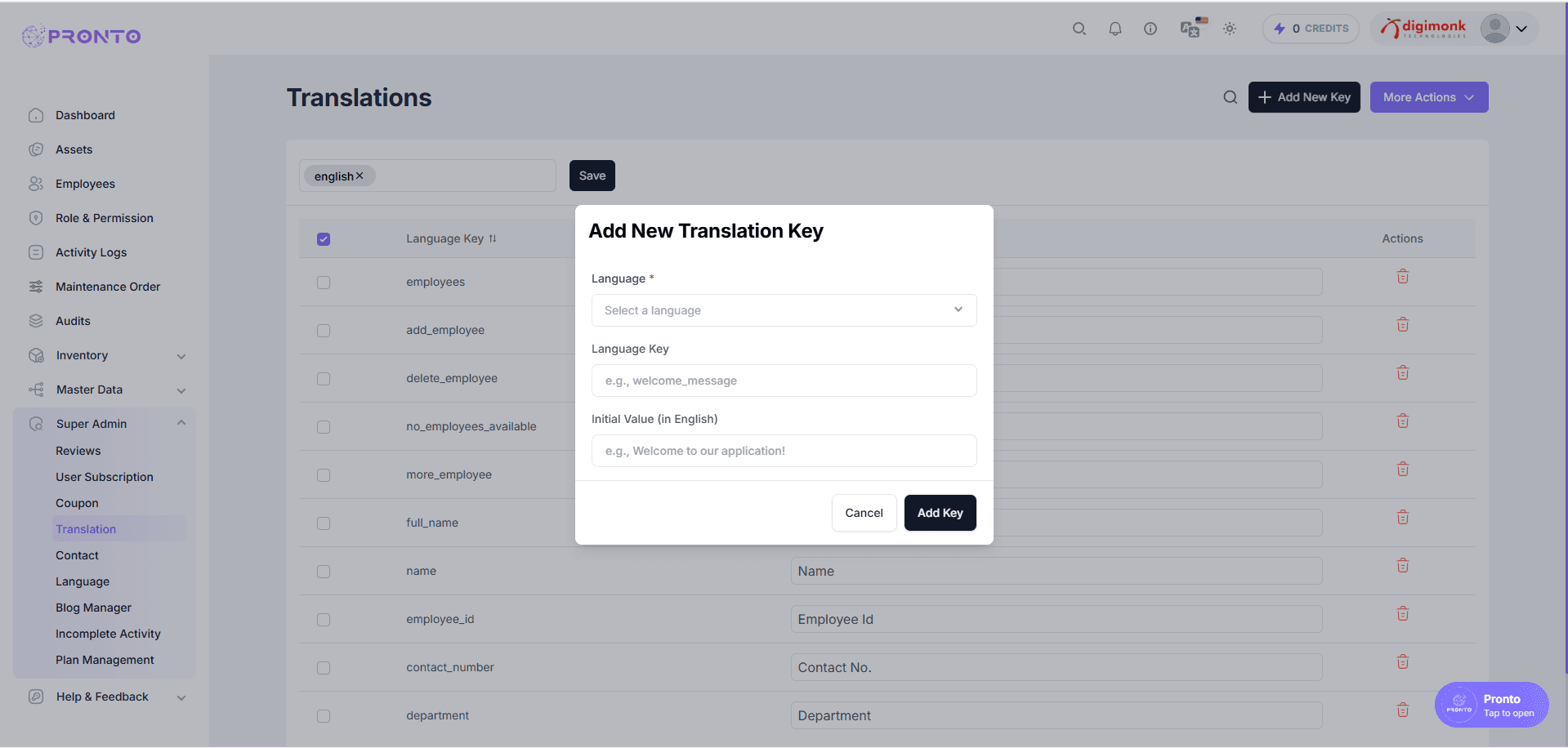
To add a new translation key:
- Click on Add New Key.
- A modal will open.
- Select a language.
- Enter a language key (e.g.
welcome_message). - Enter its initial English value.
More Actions
In the More Actions dropdown, admins can:
- Import translation files
- Export all translation keys to Excel
Editing Translation Values
Admins can update translations directly inside the input fields for each key and click Save to apply the changes.
Contact
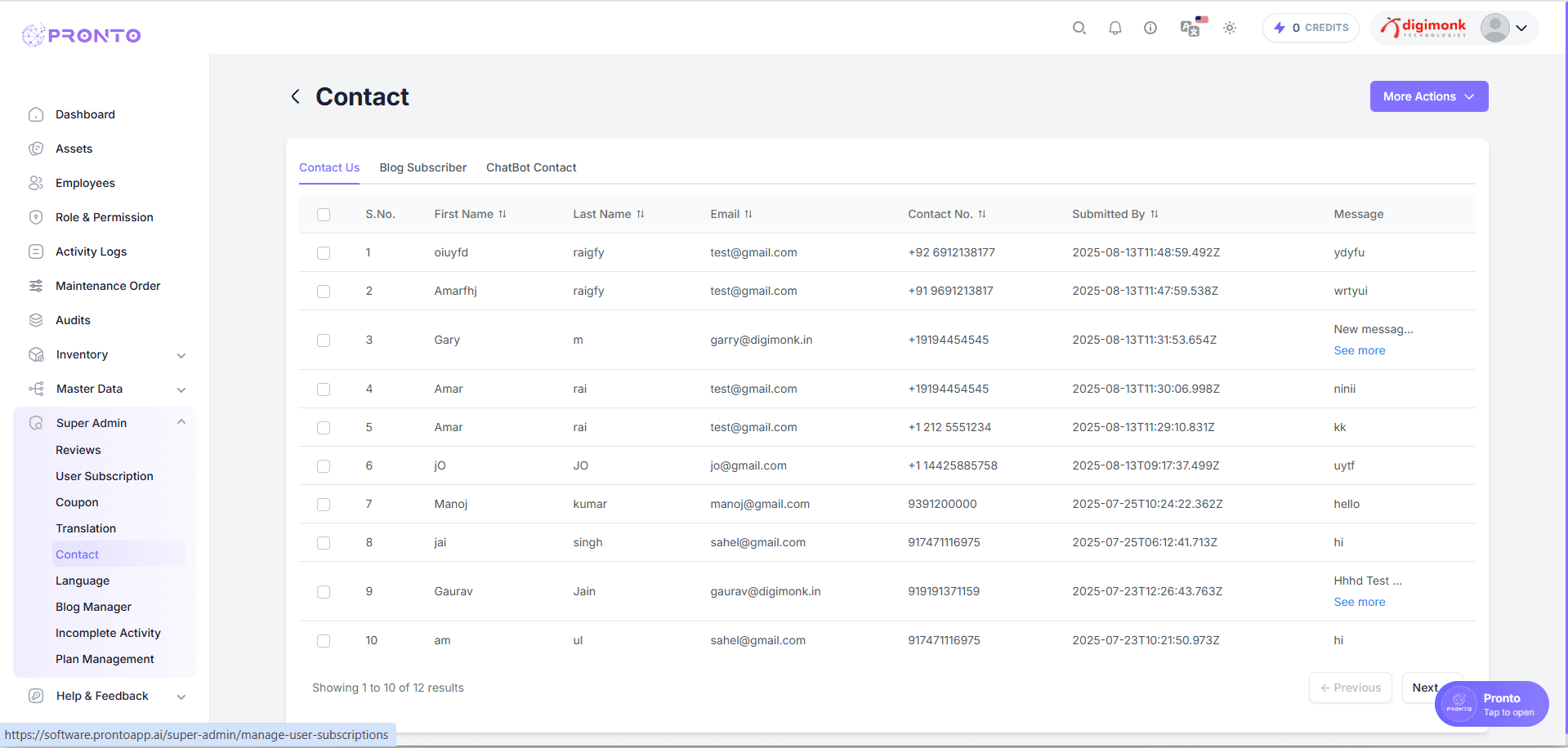
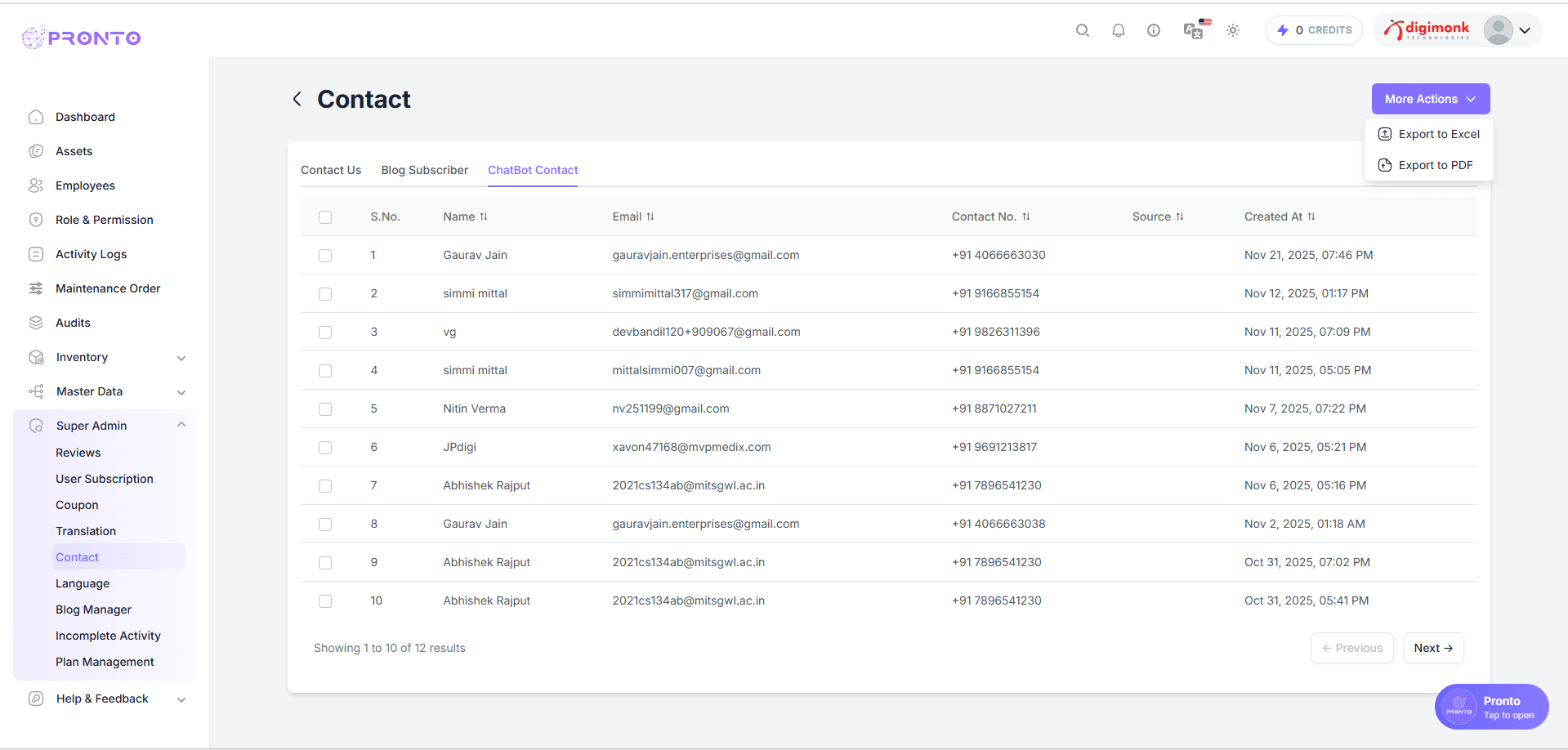
The Contact Management module allows Super Admins to view and manage all user inquiries, blog subscribers, and chatbot contacts.
Contact Us
This tab shows all messages submitted via the website Contact form. Admins can view:
Long messages include a See more option.
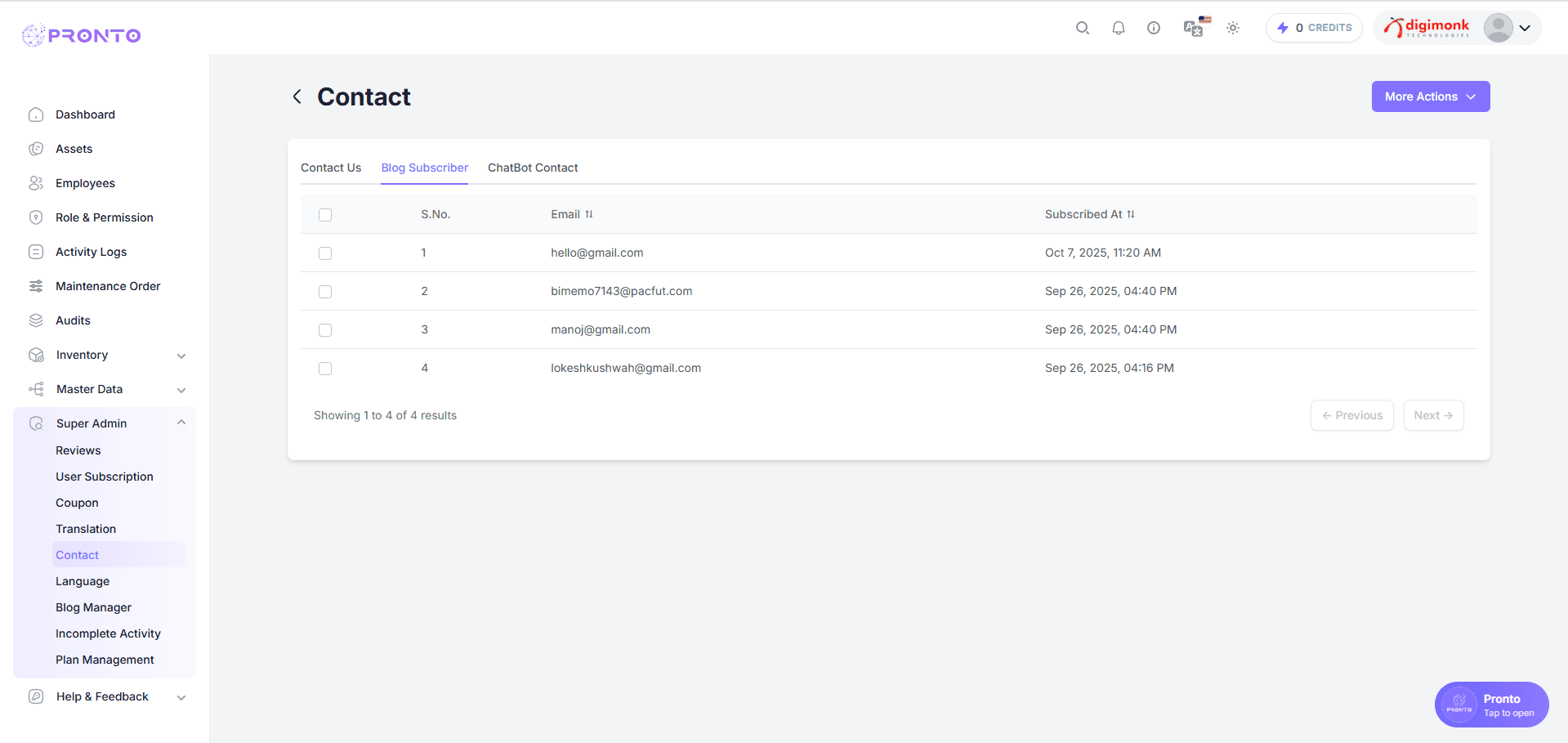
Blog Subscriber
This tab displays all users who subscribed to receive blog updates.
Each entry includes:
This helps admins track engagement and interest.
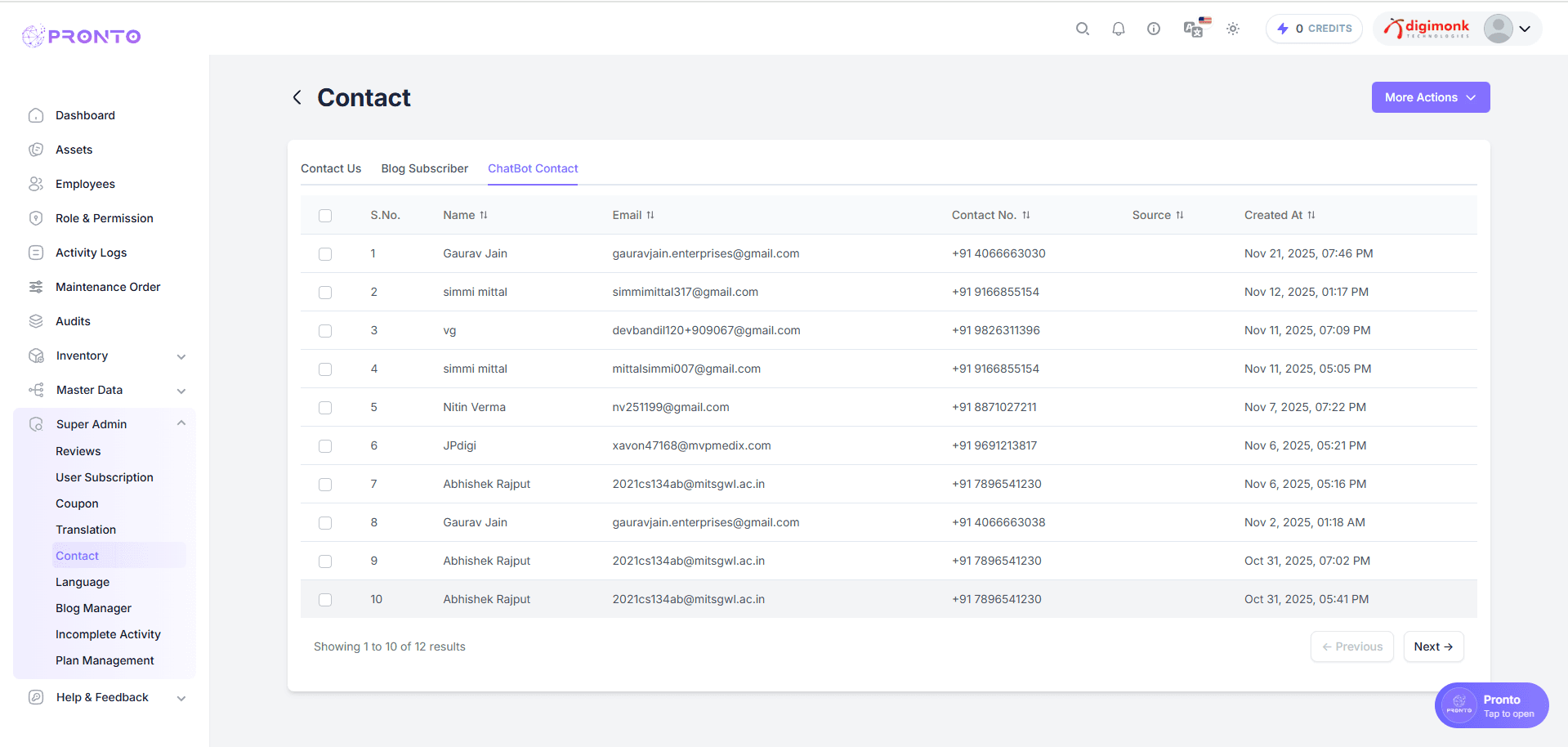
ChatBot Contact
The ChatBot Contact tab lists all inquiries generated through the chatbot system.
Admins can view:
This helps track leads coming specifically from chatbot interactions.
More Actions
- The More Actions menu provides access to additional options, including editing, deleting, and managing various administrative functions.
• Export all contacts to Excel• Export all contacts to PDF
Language Management
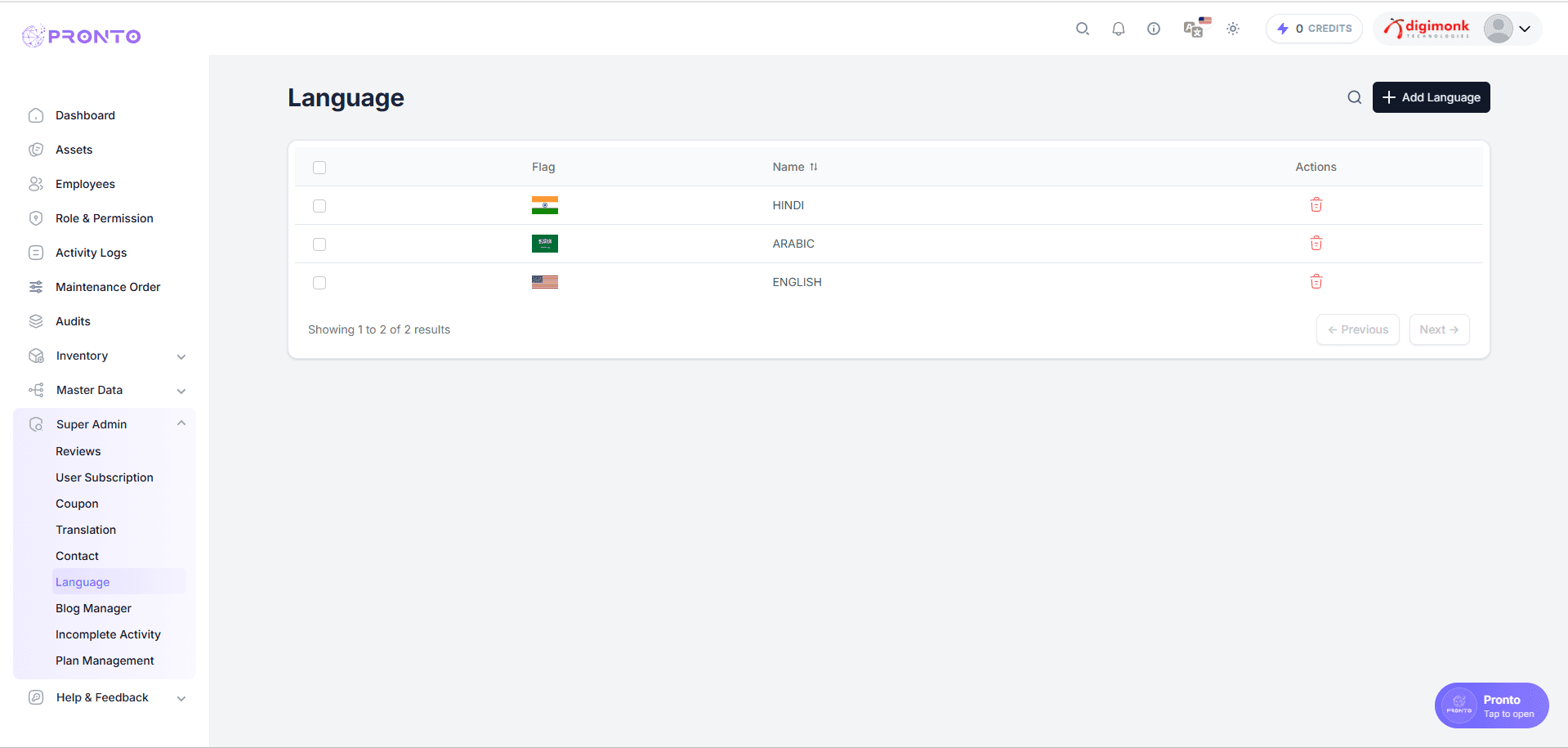
The Language Management section allows Super Admins to add, view, and delete languages supported by the system. Each language includes a name and a flag icon for easy identification.
View Languages
This page displays a list of all active languages in the system. For each language, you can see:
Flag
Language Name
Delete Action
You can also navigate between pages using the pagination buttons.
Add a New Language
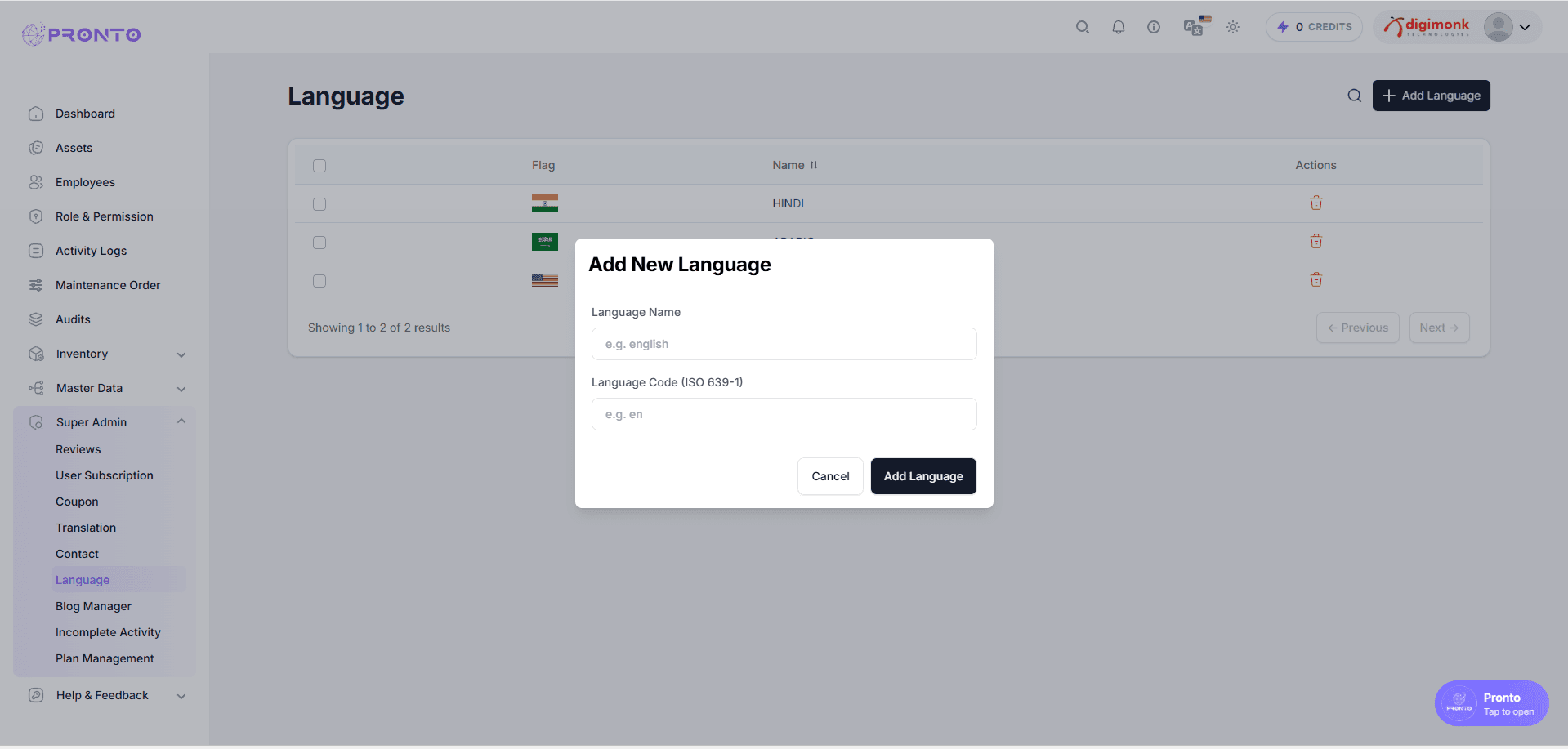
To add a new language:
Click on the Add Language button.
A modal will open.
Enter the Language Name (e.g., English).
Enter the Language Code (ISO 639-1) (e.g., en).
Click the Add Language button to submit.
Blog Manager
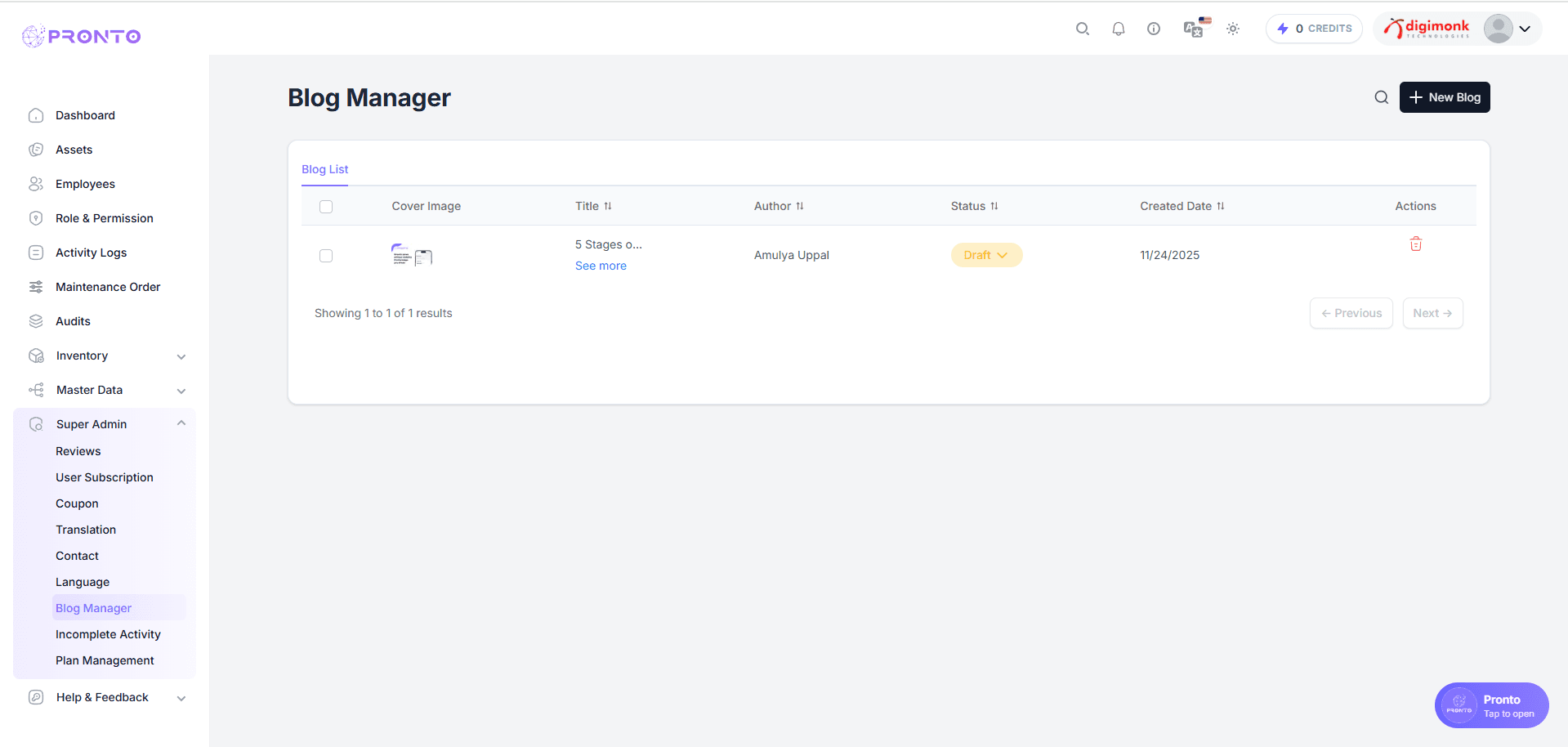
The Blog Manager lists all blogs created by admins. It displays:
Blog Image
Title
Status (Draft / Published)
Created Date
Admins can:
Edit blog
Delete blog
View blog
Create new blog
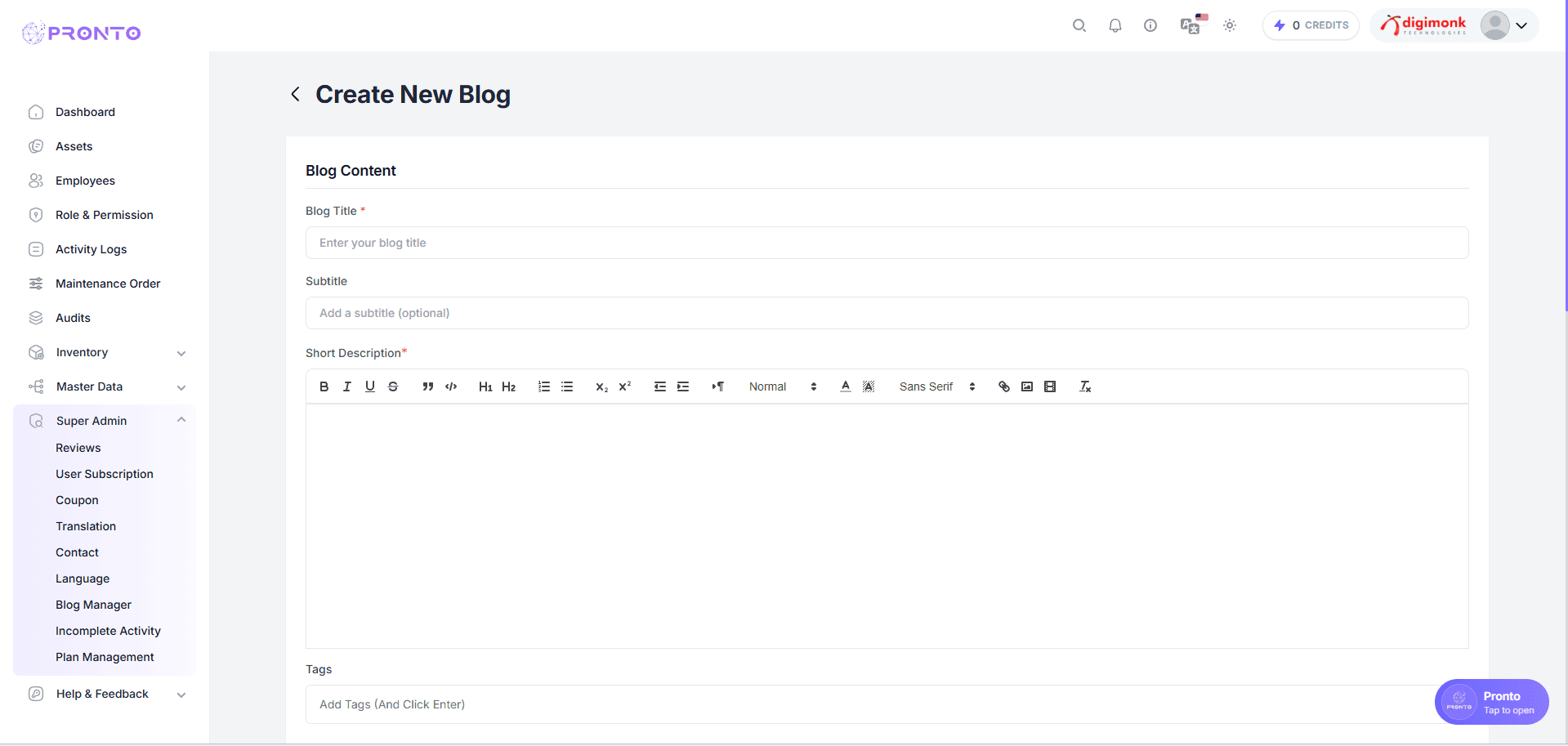
Create New Blog
The Create New Blog page allows admins to add and publish new blogs. You can enter:
Blog Title
Subtitle
Short Description
Tags
Blog Content
This section is used to create and prepare a blog before publishing.
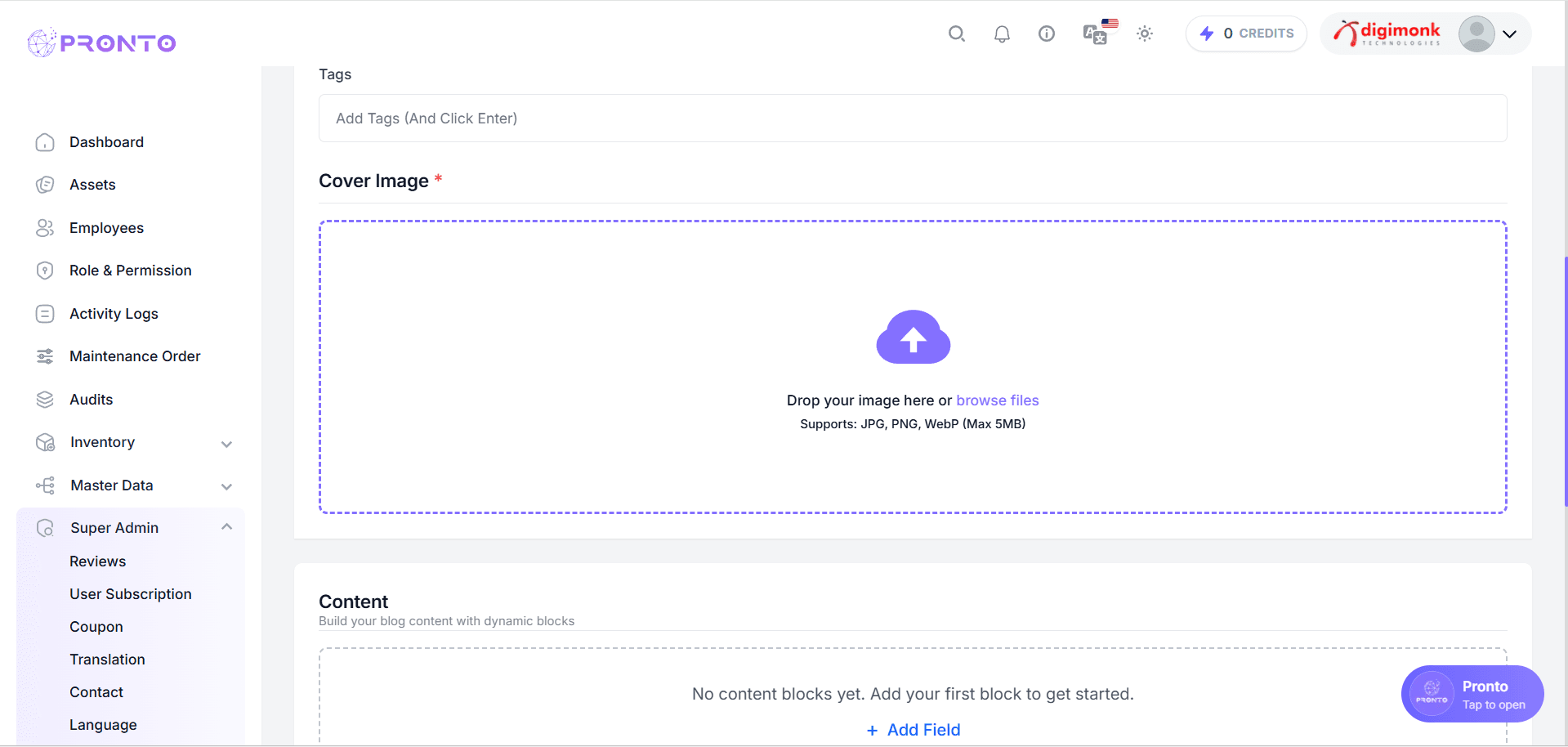
Upload Blog Cover Image
Here, admins can upload the featured blog image. Supported formats include JPG, PNG, WebP. This image appears on both the Blog List and Blog Detail pages.
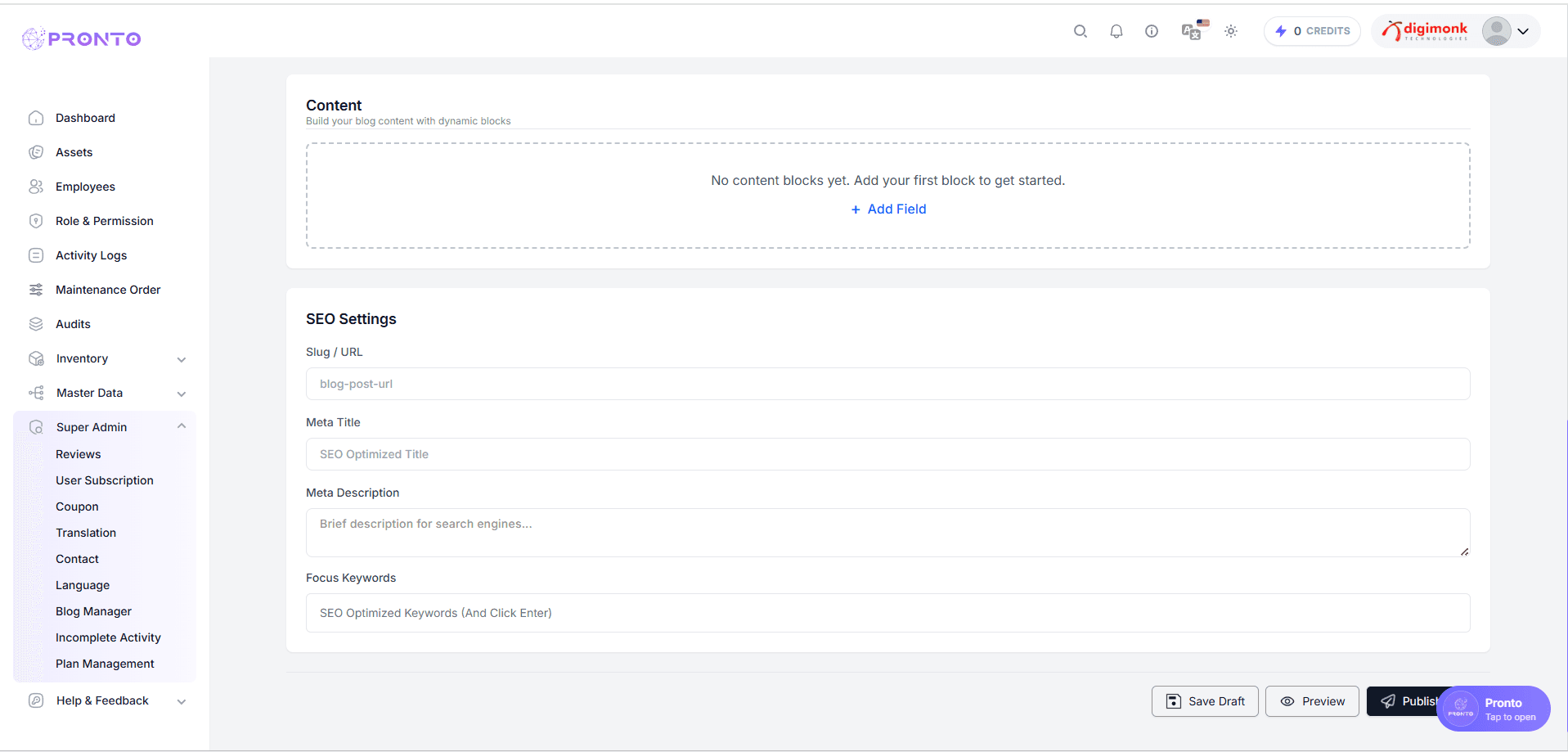
Add Blog Content Blocks
Admins can add different blog blocks such as:
Headings
Text paragraphs
Images
Custom content sections
This helps create a well-structured and detailed blog post.
SEO & Content Blocks
Admins can add:
Headings
Paragraphs
Images
Custom content blocks
SEO settings include:
Slug
Meta Title
Meta Description
Keywords
Admins can Save, Preview, or Publish blogs.
Plan Management
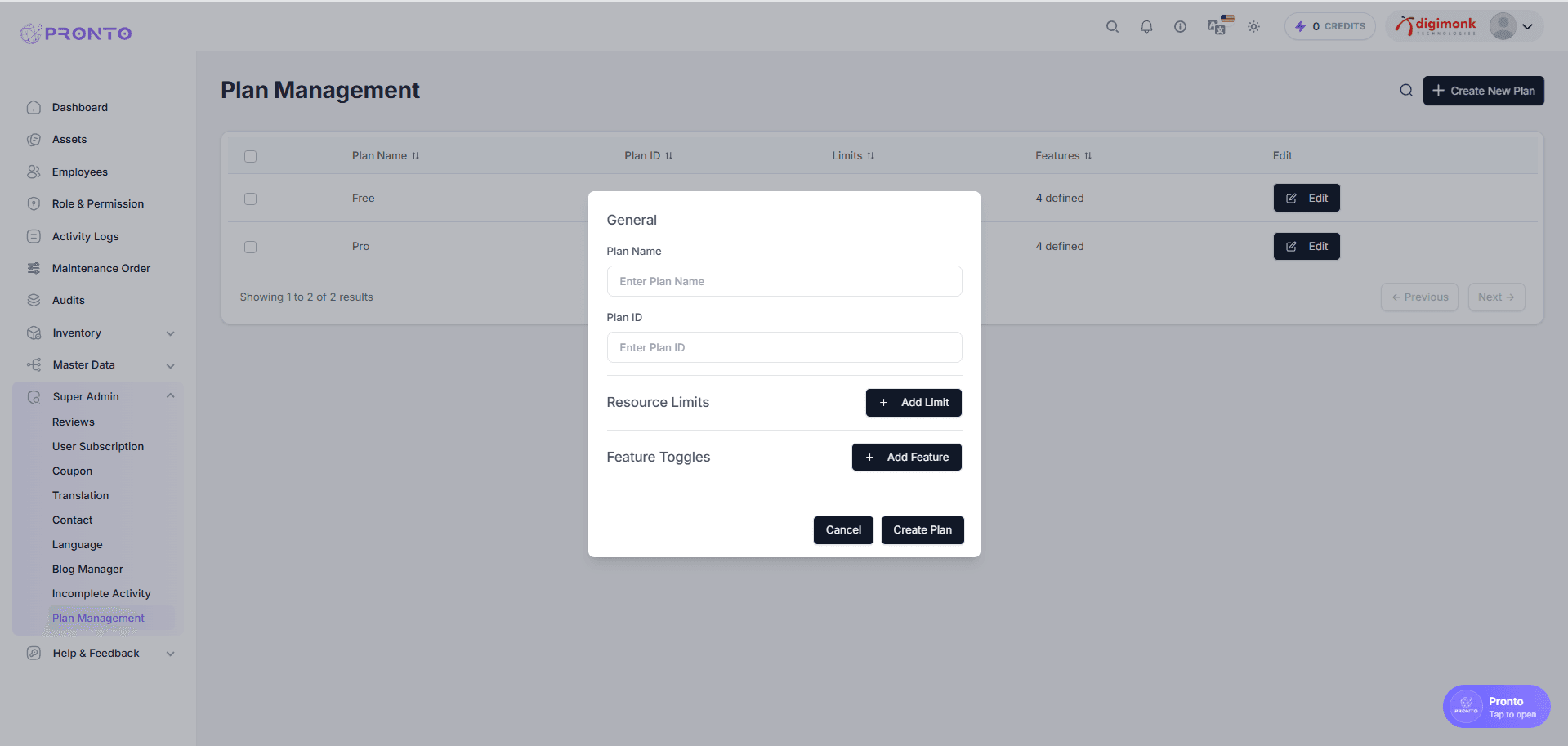
The Plan Management module allows Super Admins to create, update, and manage subscription plans for the application. Each plan contains:
A Plan Name
A Plan ID
Resource Limits (e.g., number of employees, storage, etc.)
Feature Toggles (enabling/disabling features)
Edit option to modify an existing plan
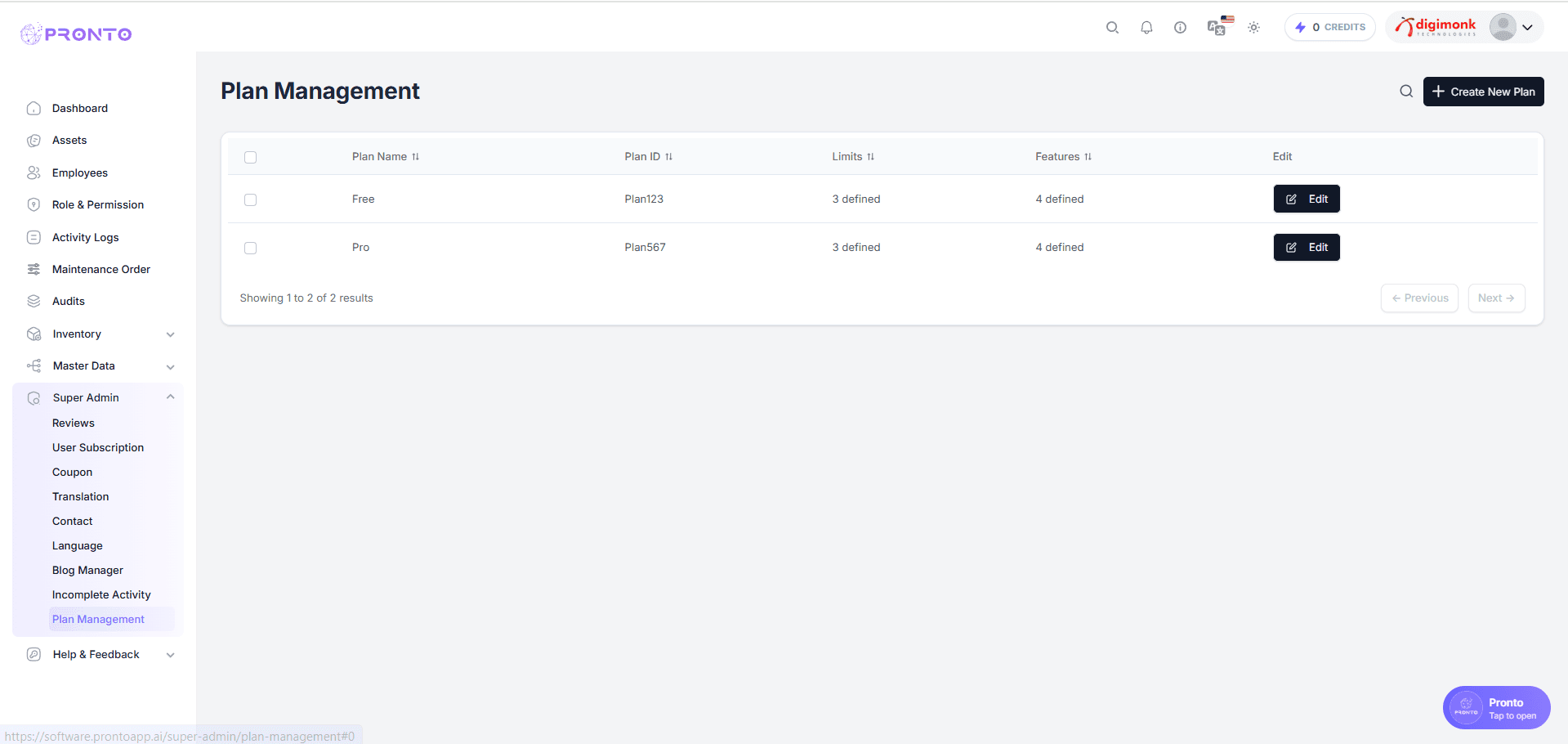
View All Plans
The Plan List displays all active plans along with:
Plan Name
Plan ID
Number of Resource Limits defined
Number of Features enabled
Admins can click the Edit button to modify a plan anytime.
Create a New Plan
To create a new subscription plan:
Click the Create New Plan button.
A pop-up form will appear where you can enter the plan details:
Plan Name
Plan ID
Add Resource Limits (optional)
Add Feature Toggles (optional)
Click Create Plan to save.
This feature helps admins define custom plans tailored to different pricing or access tiers.
Edit Existing Plans
Admins can update:
Plan Name
Plan ID
Add or remove Resource Limits
Add or remove Feature Toggles
Editing helps keep plan structures updated as new features or rules are introduced.
Incomplete Activity
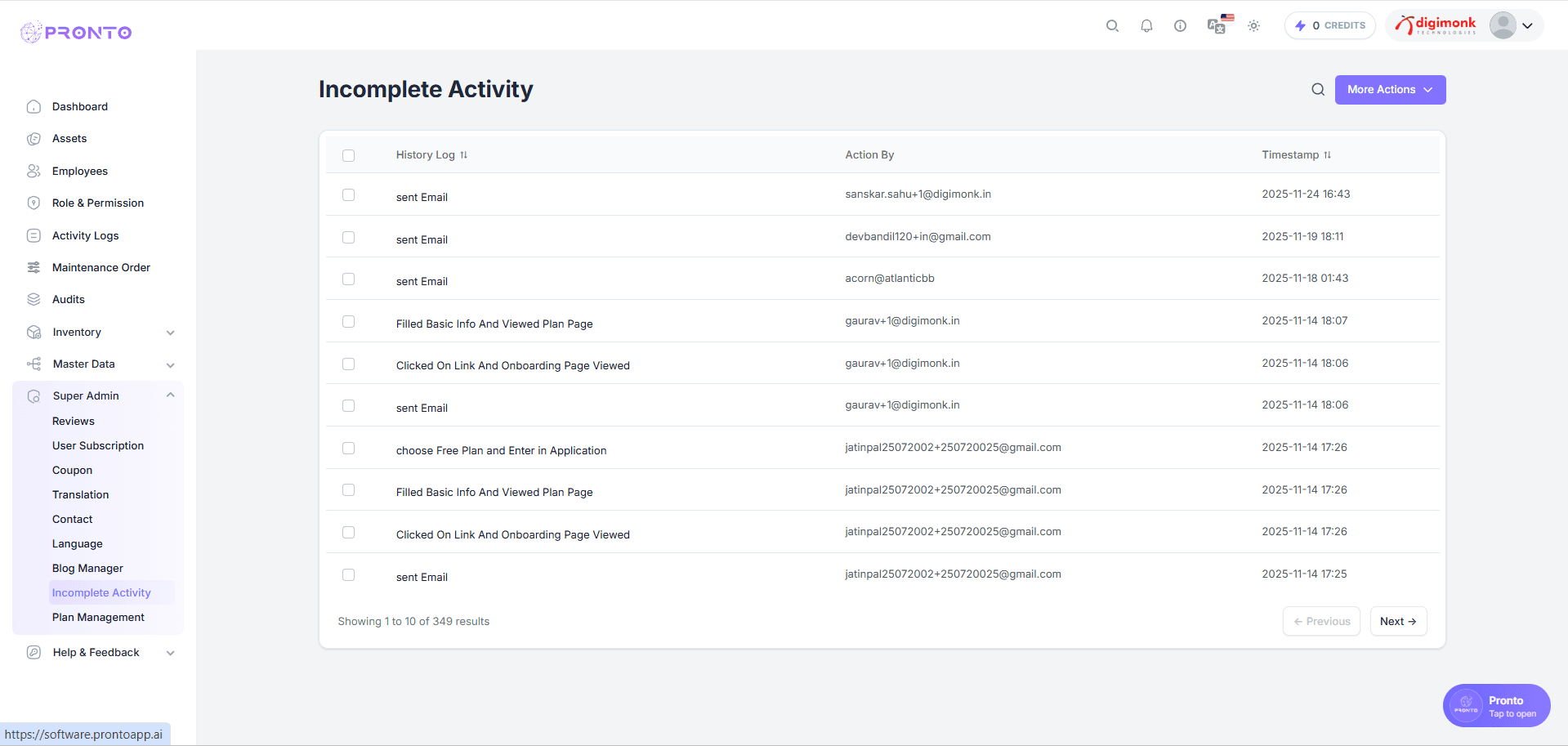
The Incomplete Activity module displays all user actions that were started but not fully completed in the application. Super Admins can view a detailed history log showing what action was triggered, who performed it, and when it occurred.
Activity List
This section shows a complete list of incomplete or partial user activities. Each row displays:
Activity Type (e.g., Sent Email, Filled Basic Info, Viewed Plan Page)
Action By (User email or identifier)
Timestamp (Date and time when activity occurred)
Admins can scroll through the table or use pagination controls to move between pages.
This helps track user behavior and identify where the onboarding or interaction flow may be breaking.
More Actions Menu Incomplete Activity.
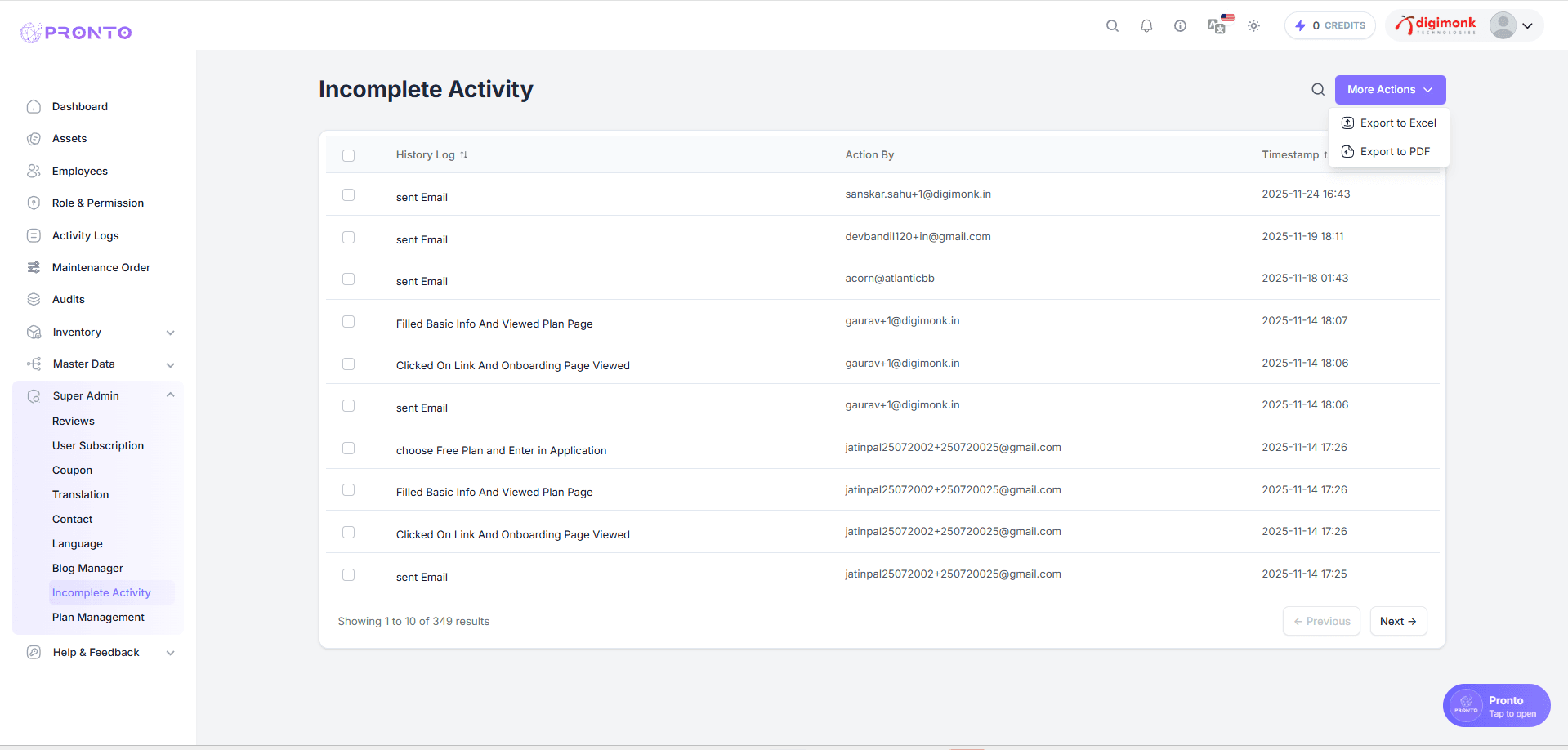
The More Actions dropdown provides export options for downloading activity logs.
Admins can:
Export activity data to Excel
Export activity data to PDF
These exports help in offline analysis, auditing, and internal reporting.
Help & Feedback
Watch Video
Report a Bug
The Report a Bug section helps users identify, document, and submit any technical or functional issues encountered in the application.
Navigating to the Page
Go to the left sidebar and click:
Help & Feedback → Report a BugThis will open the bug reporting dashboard.
Report a Bug
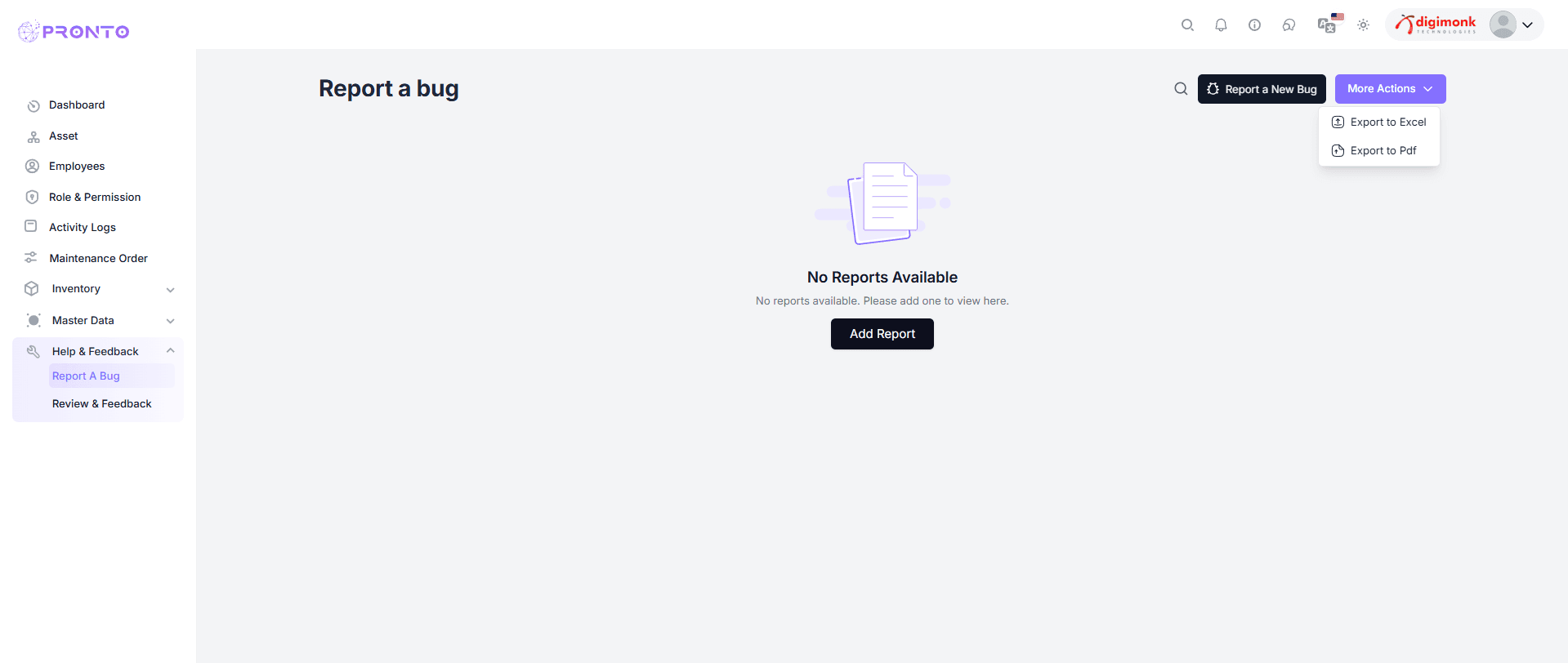
The main page displays all previously submitted bug reports.
If no reports are available, a message will appear:
"No Reports Available."
Click Add Report or Report a New Bug (top-right) to create a new entry.
Adding a New Bug Report
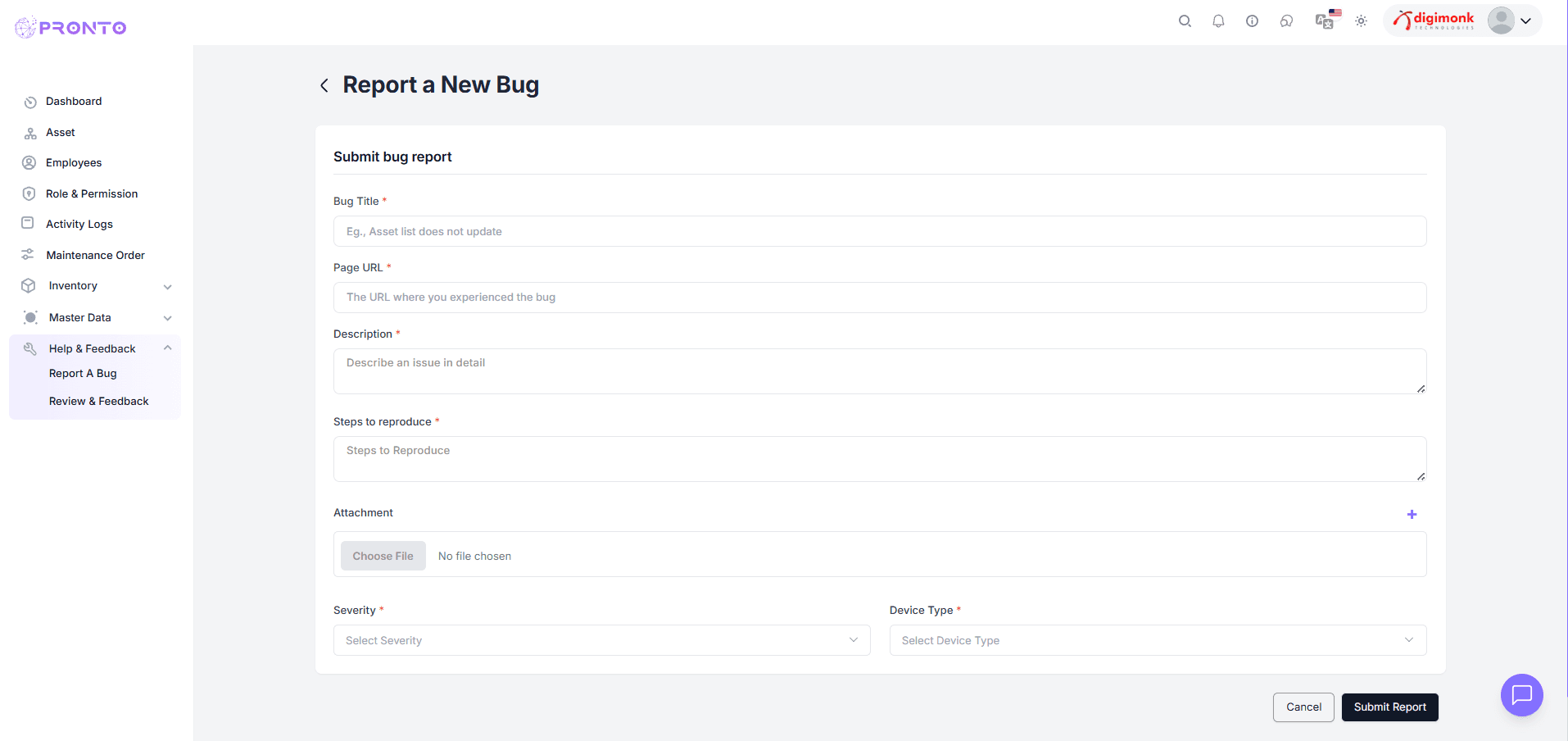
When you click Add Report, a form will appear with the following fields:
- Bug Title* – Enter a short, descriptive title.
- Page URL* – Enter the exact page link where the issue occurred.
- Description* – Describe the issue clearly.
- Steps to Reproduce* – Steps to re-create the bug.
- Attachment – Add screenshots or files.
- Severity* – Low, Medium, High, Critical.
- Device Type – Desktop, Mobile, Tablet.
After completing all required fields, click Submit Report.
To stop the process, click Cancel.
Viewing & Managing Reports
After submission:
- All reports will appear in a structured list.
- Use the Search Bar to filter reports.
- Use Pagination to navigate multiple pages.
More Actions Menu
The More Actions menu provides:
- Export to Excel (.xlsx)
- Export to PDF
Review & Feedback Module
Navigation Path
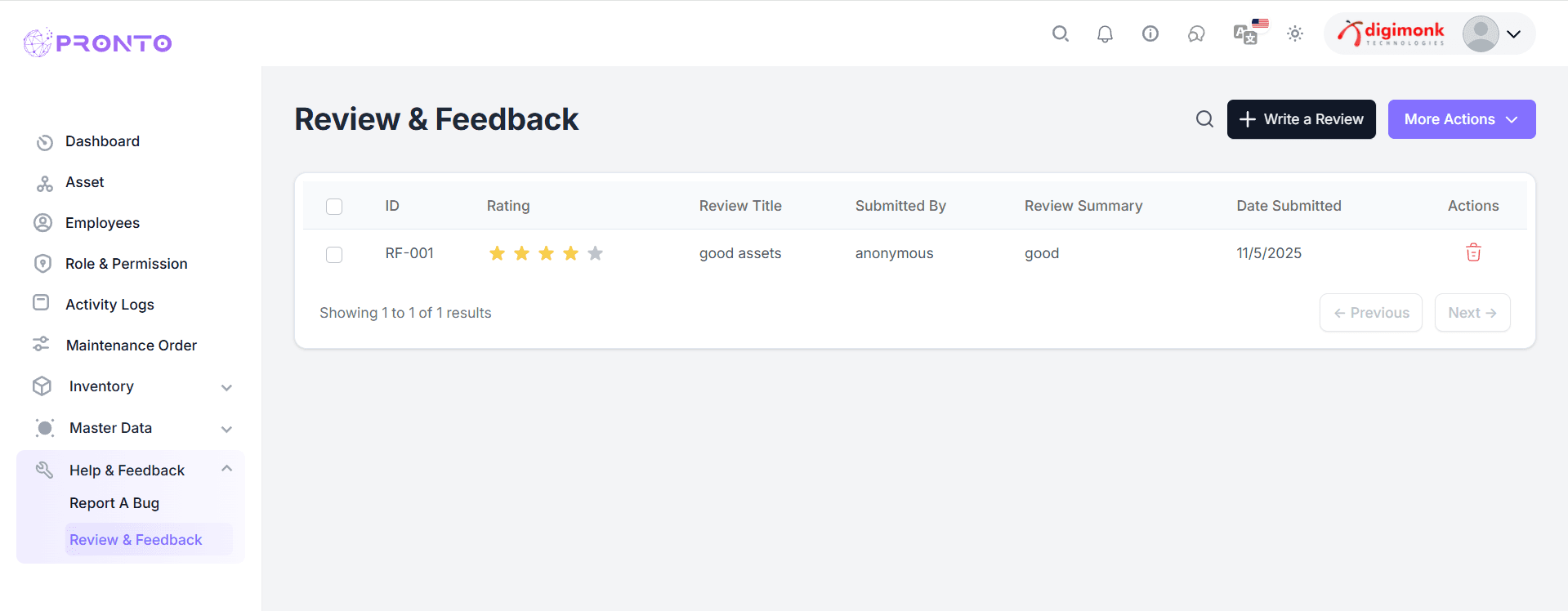
Review & Feedback Listing Page
- ID (e.g., RF-001)
- Rating (1–5)
- Review Title
- Submitted By
- Review Summary
- Date Submitted
- Actions (delete)
- Search bar for filtering
- Pagination for multiple pages
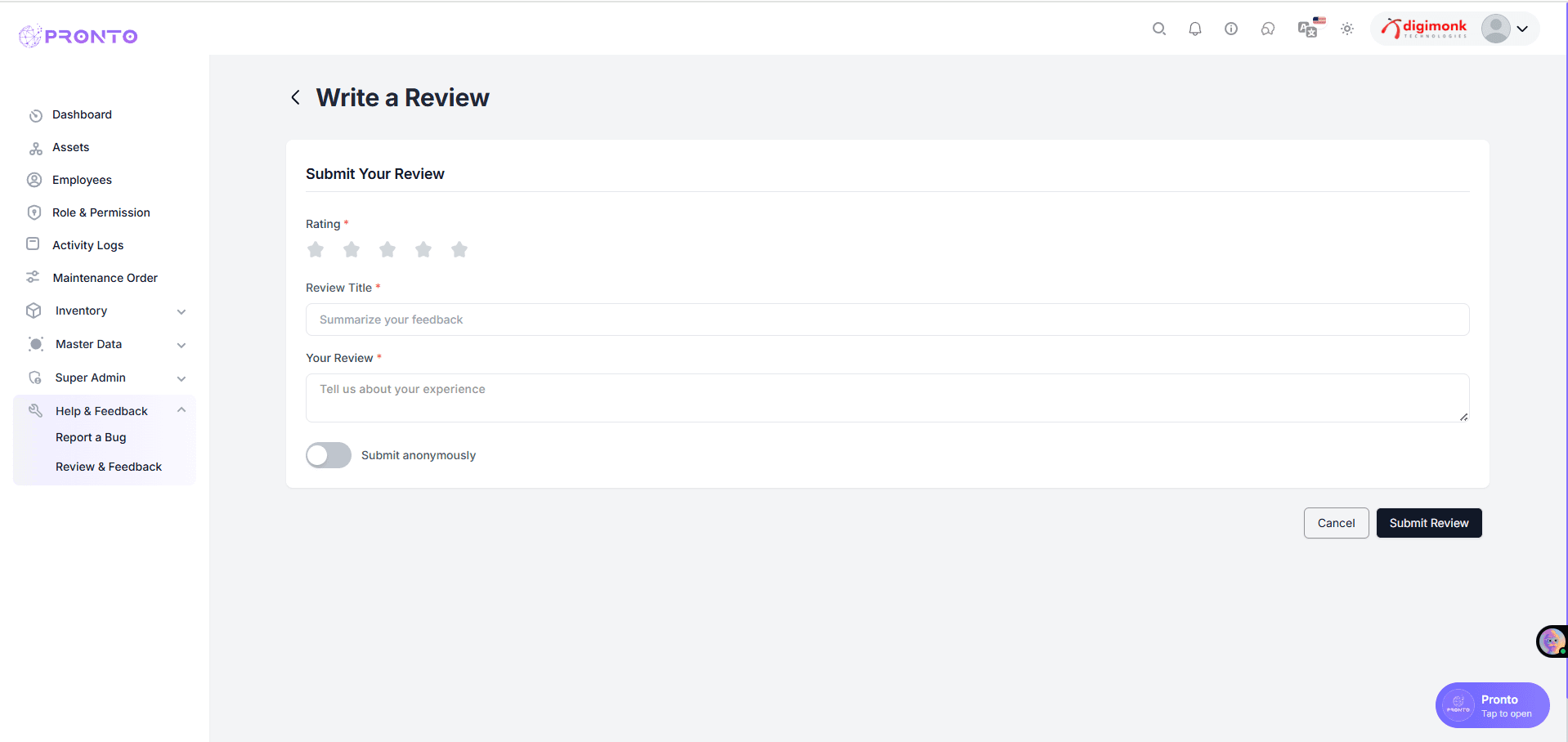
Writing a New Review
Steps:
- Click Write a Review
- Enter Rating, Title, Review Text
- Enable Submit Anonymously if needed
- Click Submit Review
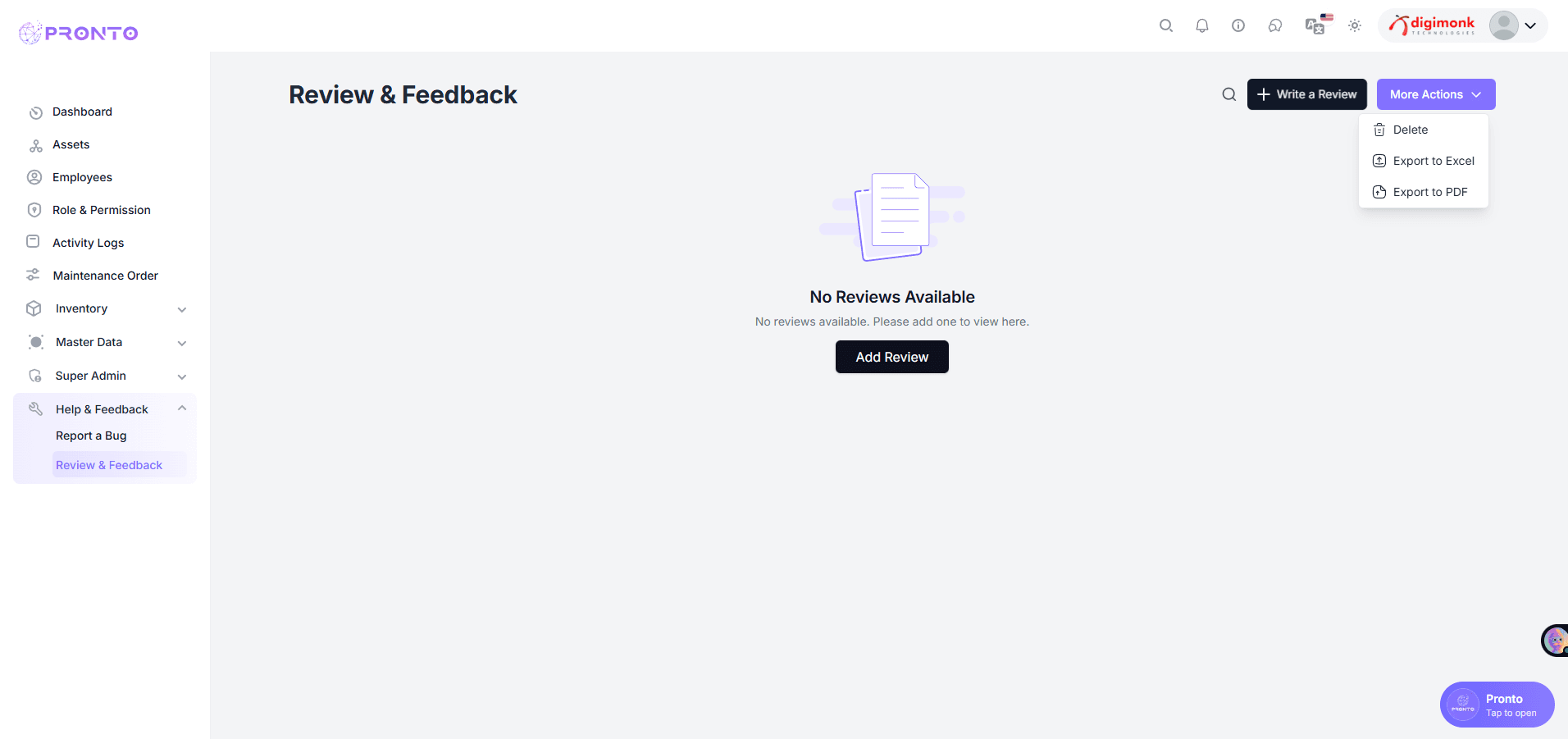
More Actions Menu
- The More Actions menu provides access to additional options, including editing, deleting, and managing various administrative functions.
Language
Watch Video
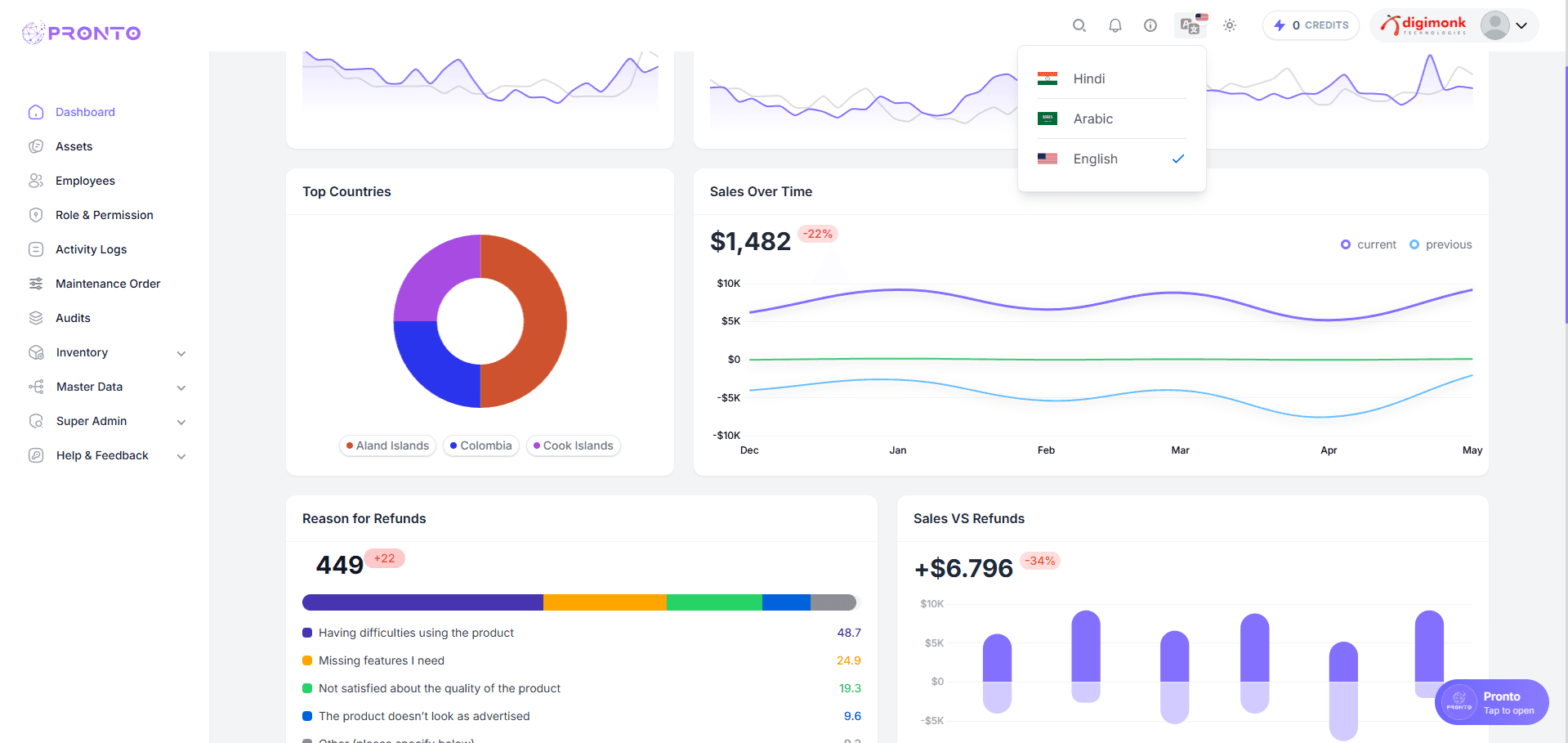
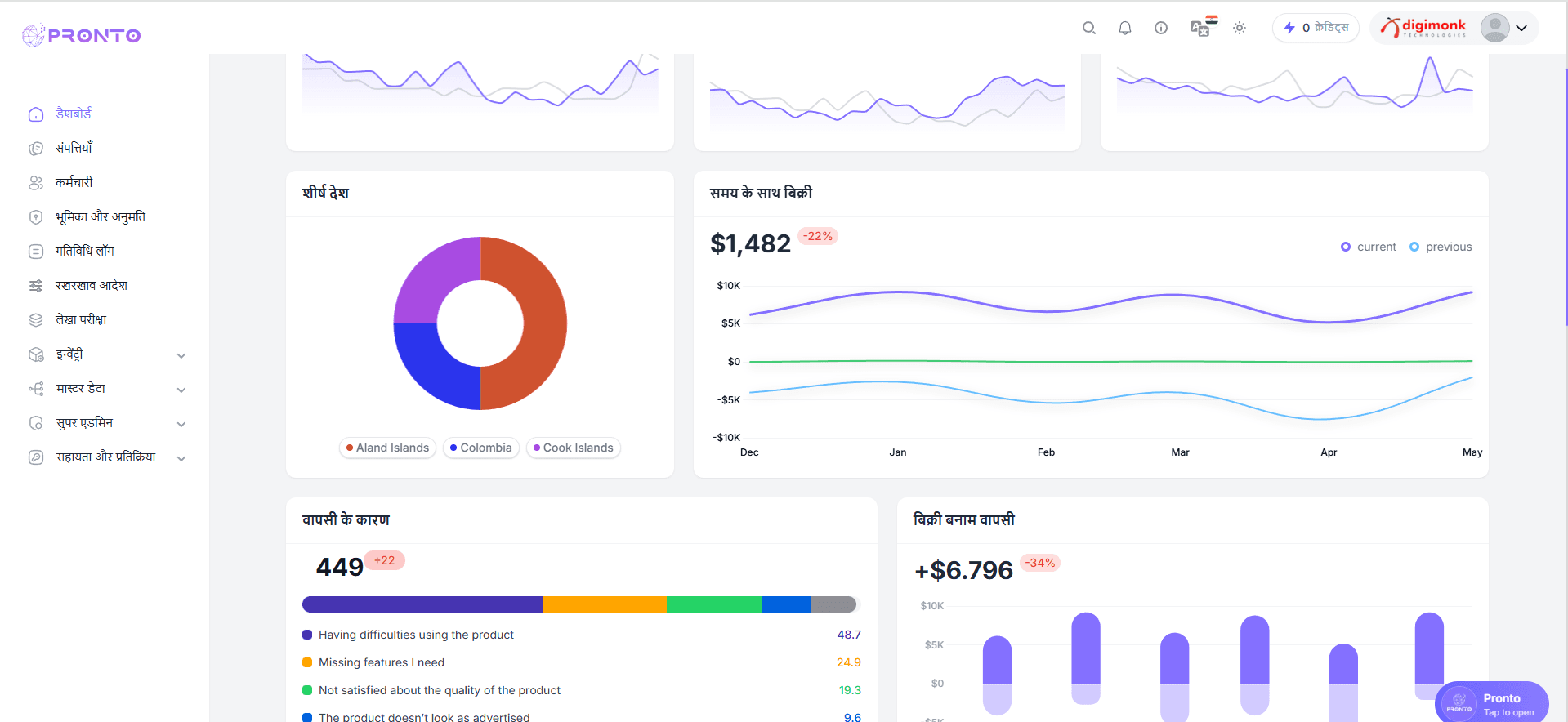
The Language Switcher allows users to change the entire system’s language instantly.
Currently, the supported languages are:
- 🇮🇳 Hindi
- 🇸🇦 Arabic
- 🇺🇸 English
This feature helps multilingual teams access the dashboard in their preferred language.
How to Change Language
- Go to the top navigation bar.
- Click on the Language Icon (flag icon).
- A dropdown menu will appear with available languages:
- Hindi
- Arabic
- English
- Click on the language you want to switch to.
- The dashboard UI will refresh and load in the selected language.
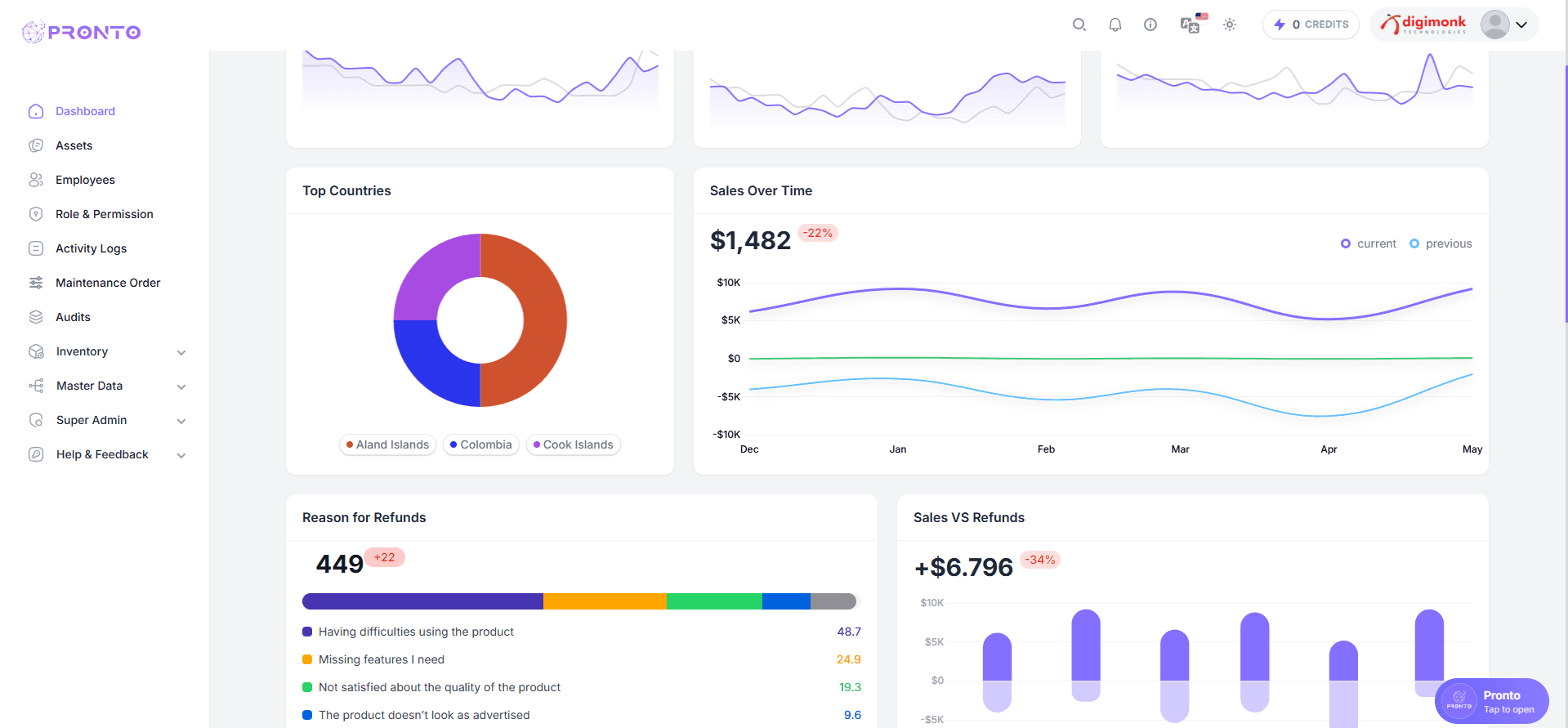
Where to Find It
The Language Switcher is located on the top-right corner of the dashboard navbar, next to:
- Notifications
- Theme switcher
- User profile menu
Support
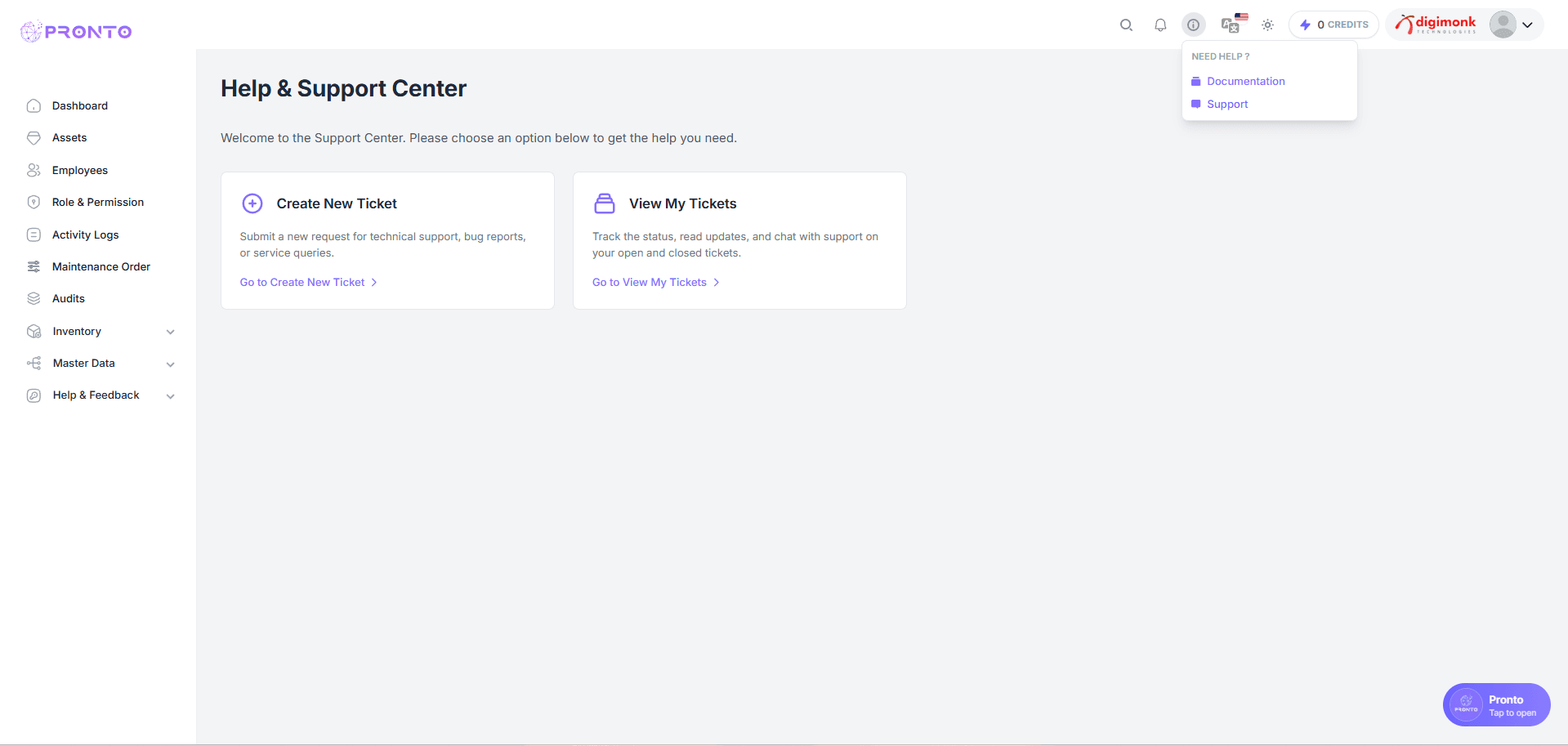
The Help & Support Center is designed to provide users with quick access to technical assistance and detailed documentation to ensure a smooth experience with the PRONTO system.
Managing Support Tickets
- Create New Ticket: Click "Go to Create New Ticket" to submit a formal request for technical help, report a bug, or send a service inquiry.
- View My Tickets: Click "Go to View My Tickets" to monitor the progress of active requests, read updates from the support team, and review resolution history.
- Self-Service: Use the "Documentation" link within the info dropdown for instant access to feature guides and FAQs.
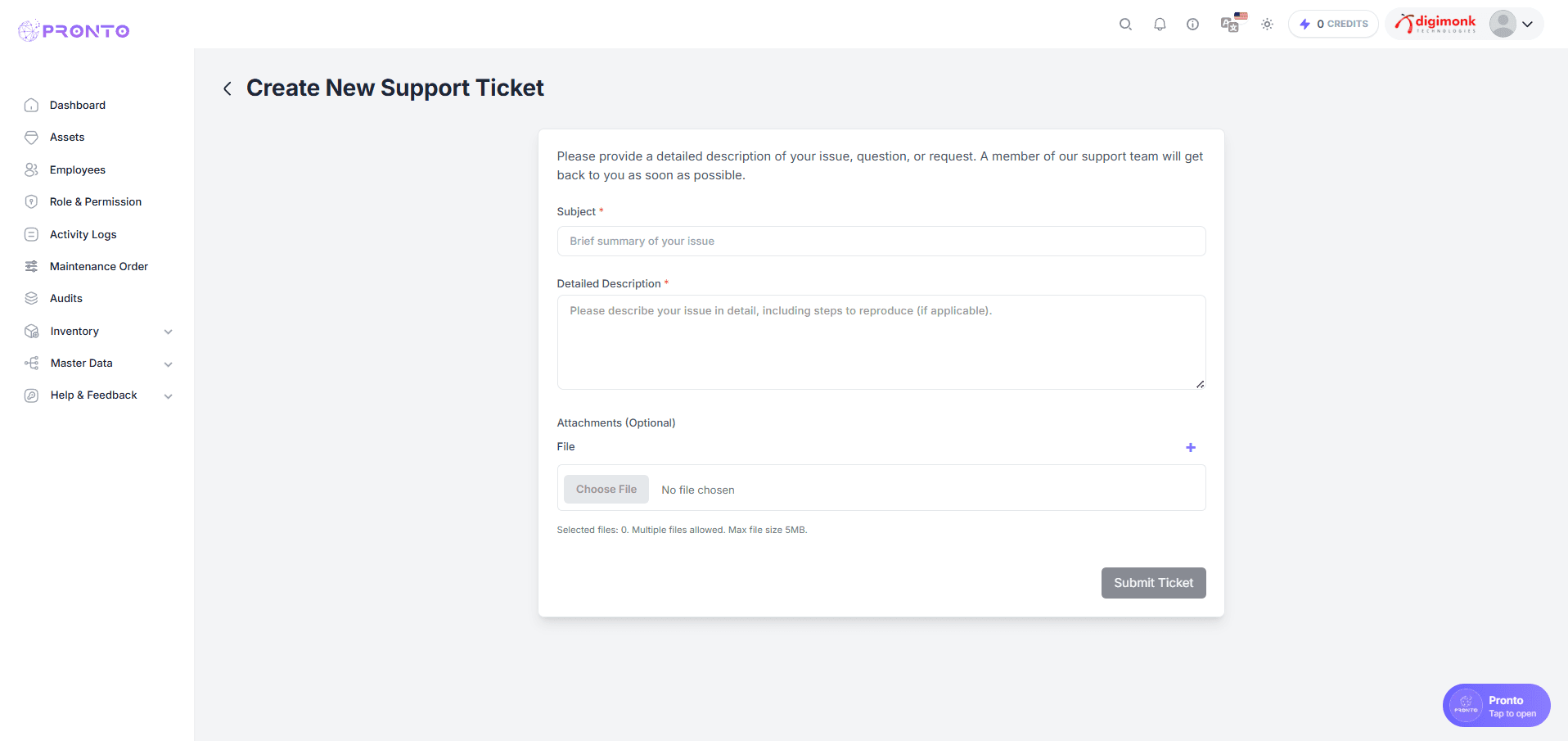
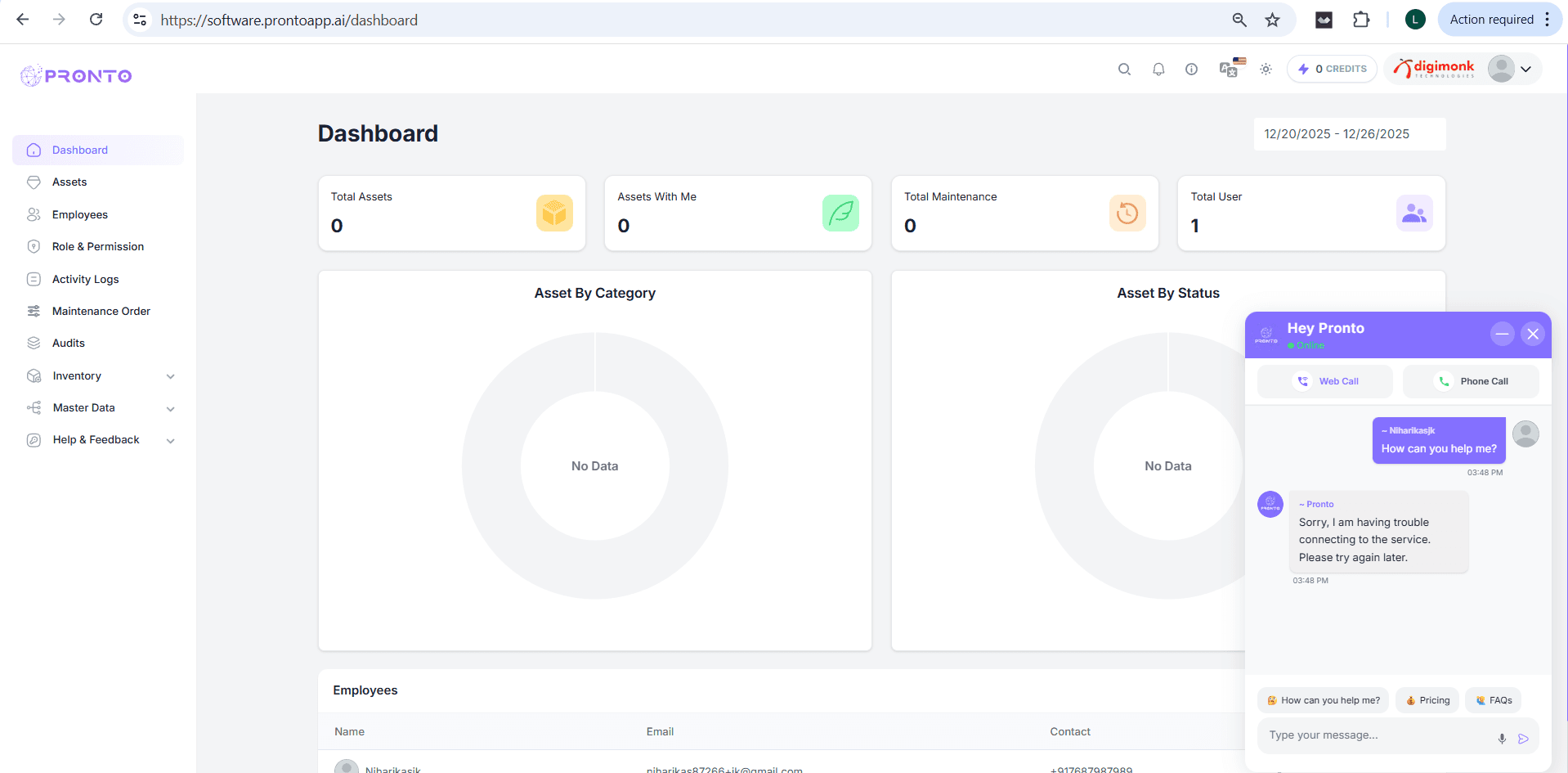
Quick Chat Assistance
A floating "Pronto - Tap to open" button is always available in the bottom-right corner of the dashboard. This provides a direct line to our AI assistant or live support agents for real-time troubleshooting.
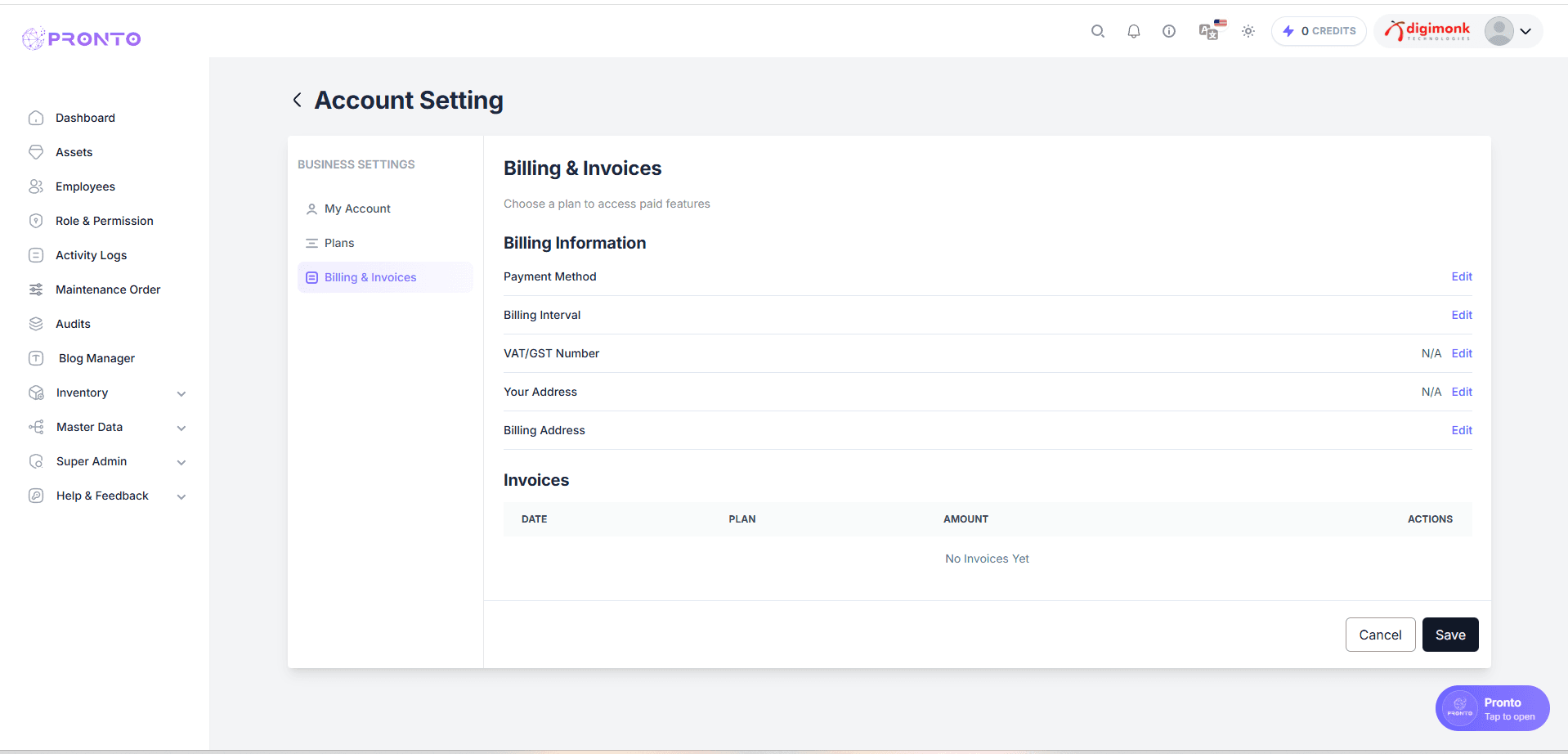
Billing
Manage your organization's subscription details, payment methods, and financial records within the Account Settings section.
Billing & Invoices
- Billing Information: Update your preferred Payment Method, select your Billing Interval, and enter your VAT/GST Number for tax compliance.
- Company Address: Edit your Your Address and Billing Address to ensure all financial documents are legally accurate.
- Invoice History: The Invoices table lists all past transactions, including the Date, Plan name, and Amount paid. You can track your payment history directly here.
- Saving Changes: Always click the "Save" button at the bottom right after updating any billing or address details.
Tip: Keeping your VAT/GST information updated ensures that your invoices are generated with the correct tax deductions for your region.
Subscription Plans
- Plan Comparison:
- Free Plan: Suitable for getting started, supporting up to 20 users and 500 assets.
- Pro Plan: Designed for professionals, offering unlimited users, unlimited assets, and 24/7 dedicated support.
- Billing Cycles: Use the Monthly/Yearly Toggle at the top of the screen to choose your payment frequency. Opting for a Yearly plan can save your organization up to 50%.
- Selection: Click "Start Free" or "Start 30-Day Free Trial" to activate or upgrade your workspace.